manuals.online logo
Brands
  1. Home
  2. •
  3. Brands
  4. •
  5. TP-Link
  6. •
  7. Network Hardware
  8. •
  9. TP-Link TL-PA4020P User manual

TP-Link TL-PA4020P User manual

Other manuals for TL-PA4020P

6

This manual suits for next models

2

Other TP-Link Network Hardware manuals

TP-Link Archer C59 User manual

TP-Link

TP-Link Archer C59 User manual

TP-Link KL50B User manual

TP-Link

TP-Link KL50B User manual

TP-Link TL-SM301U User manual

TP-Link

TP-Link TL-SM301U User manual

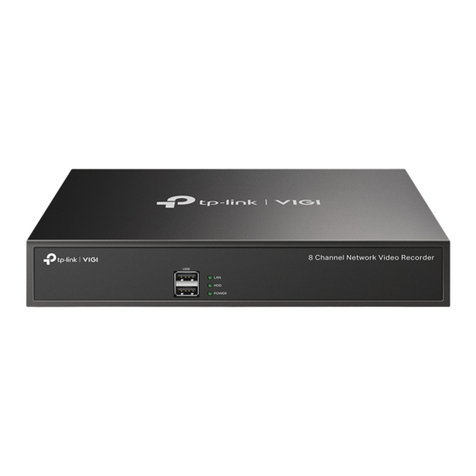
TP-Link VIGI NVR1004H-4P User manual

TP-Link

TP-Link VIGI NVR1004H-4P User manual

TP-Link VIGI User manual

TP-Link

TP-Link VIGI User manual

TP-Link TL-SM221A User manual

TP-Link

TP-Link TL-SM221A User manual

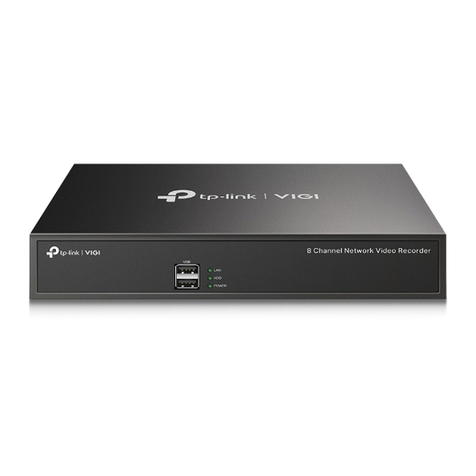
TP-Link VIGI NVR1008 V1 User manual

TP-Link

TP-Link VIGI NVR1008 V1 User manual

TP-Link TL-PA4010 User manual

TP-Link

TP-Link TL-PA4010 User manual

TP-Link VIGI NVR1104H-4P User manual

TP-Link

TP-Link VIGI NVR1104H-4P User manual

TP-Link VIGI NVR1008 User manual

TP-Link

TP-Link VIGI NVR1008 User manual

TP-Link Deco Wi-Fi 6 User manual

TP-Link

TP-Link Deco Wi-Fi 6 User manual

TP-Link TL-SF1005D User manual

TP-Link

TP-Link TL-SF1005D User manual

TP-Link AC3200 User manual

TP-Link

TP-Link AC3200 User manual

TP-Link VIGI NVR1016H User manual

TP-Link

TP-Link VIGI NVR1016H User manual

TP-Link VIGI NVR1008H User manual

TP-Link

TP-Link VIGI NVR1008H User manual

TP-Link TL-WA860RE User manual

TP-Link

TP-Link TL-WA860RE User manual

TP-Link TL-WPA8631P User manual

TP-Link

TP-Link TL-WPA8631P User manual

TP-Link VIGI User manual

TP-Link

TP-Link VIGI User manual

TP-Link TL-WA860RE User manual

TP-Link

TP-Link TL-WA860RE User manual

TP-Link Archer AX11000 User manual

TP-Link

TP-Link Archer AX11000 User manual

TP-Link M7350 User manual

TP-Link

TP-Link M7350 User manual

TP-Link VIGI NVR1008 User manual

TP-Link

TP-Link VIGI NVR1008 User manual

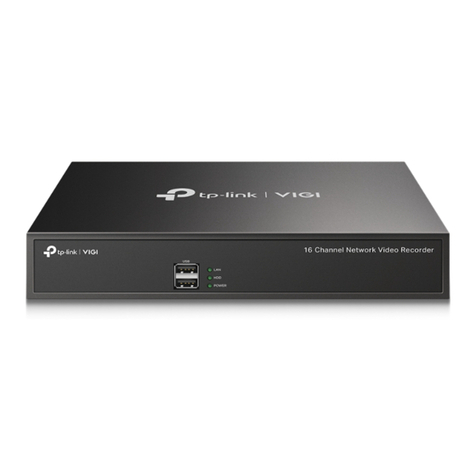
TP-Link VIGI NVR2016H-16MP User manual

TP-Link

TP-Link VIGI NVR2016H-16MP User manual

TP-Link VIGI NVR2016H User manual

TP-Link

TP-Link VIGI NVR2016H User manual

Popular Network Hardware manuals by other brands

socomec SNMP Card II quick start guide

socomec

socomec SNMP Card II quick start guide

NVR SYSTEMS 4-CH user manual

NVR SYSTEMS

NVR SYSTEMS 4-CH user manual

Draytek VigorSwitch G1240 quick start guide

Draytek

Draytek VigorSwitch G1240 quick start guide

Westermo TD-34 LV installation manual

Westermo

Westermo TD-34 LV installation manual

LaCie Network Space MAX Quick install guide

LaCie

LaCie Network Space MAX Quick install guide

ZoneVu ZSI-450-IP Installation guide & user manual

ZoneVu

ZoneVu ZSI-450-IP Installation guide & user manual

QNAP Turbo NAS Application notes

QNAP

QNAP Turbo NAS Application notes

OpenEye MV Series quick start guide

OpenEye

OpenEye MV Series quick start guide

Huawei SmartAX MT880a quick start guide

Huawei

Huawei SmartAX MT880a quick start guide

Proxim Tsunami QuickBridge 2454-R installation guide

Proxim

Proxim Tsunami QuickBridge 2454-R installation guide

Bay Networks CLAM quick start guide

Bay Networks

Bay Networks CLAM quick start guide

Innodisk SATADOM-SH 3SE Series manual

Innodisk

Innodisk SATADOM-SH 3SE Series manual

Cisco CGR 1000 Series Getting connected guide

Cisco

Cisco CGR 1000 Series Getting connected guide

Matrix Switch Corporation MSC-HD161DEL product manual

Matrix Switch Corporation

Matrix Switch Corporation MSC-HD161DEL product manual

National Instruments NI 653x user manual

National Instruments

National Instruments NI 653x user manual

B&B Electronics ZXT9-IO-222R2 product manual

B&B Electronics

B&B Electronics ZXT9-IO-222R2 product manual

Yudor YDS-16 user manual

Yudor

Yudor YDS-16 user manual

D-Link ShareCenter DNS-320L datasheet

D-Link

D-Link ShareCenter DNS-320L datasheet

manuals.online logo
manuals.online logoBrands
  • About & Mission
  • Contact us
  • Privacy Policy
  • Terms and Conditions

Copyright 2025 Manuals.Online. All Rights Reserved.
Ethernet Cable
Extender
TL-WPA4220
Adapter
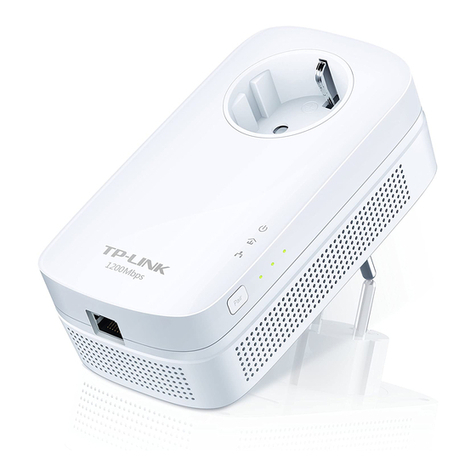
TL-PA4020P
Powerline
Router
1
LAN
2
Note: If only one wall outlet is available, plug both
devices into a power strip for setup, then relocate
to wall outlets before enjoying the internet.
Plug in the adapter and extender in the
same room. Wait until the extender’s
Wi-Fi LED turns on.
* TL-WPA4226 KIT (European version) is used for demonstration in this guide.
Pair the powerline devices.
4
3
Note: If the Powerline LED is blinking, it means the signal strength is poor. Try another wall outlet.
Relocate the extender to the Wi-Fi “dead” zone on the same electrical circuit. Connect
your devices to the internet using the default SSID (network name) and password on the
Wi-Fi Info Card provided.
Tip:
Want to unify Wi-Fi networks or
personalize your network?
See the back page for instructions.
Attention
Wall Outlet Power Strip
Plug powerline devices into wall outlets. Do not use power strips after setup.
Note: If the LED does not blink, press the
button again.
Press the adapter‘s Pair button for 1 second.
The Power LED starts blinking.
A
Within 2 minutes, press the extender’s Pair button for
1 second. The Power LED starts blinking.
B
When the Powerline LED turns on, the pairing
process is complete.
Extender TL-WPA4220Adapter TL-PA4020P
Blinking
On
Quick Installation Guide
On Within 2 minutes
Pair
Pair
Blinking
©2018 TP-Link 7106508003 REV4.0.0
Button Legend
Extender TL-WPA4220
Frequently Asked Questions
Q1. How do I reset my extender to factory default settings?
A. With the extender plugged into an electrical outlet, press and hold the Reset button until
all LEDs turn o. When the LEDs turn back on, the reset process is complete.
Q2. What should I do if there is no internet connection in my powerline
network?
A1. Make sure all powerline adapters and extenders are on the same electrical circuit.
A2. Make sure the Powerline LEDs are lit on all of your powerline devices. If they are not,
pair all devices again.
A3. Make sure all devices are correctly and securely connected.
A4. Check if you have an internet connection by connecting the computer directly to the
modem or router.
Q3. What should I do if a successfully-paired extender does not
reconnect after it is relocated?
A1. Make sure all powerline adapters and extenders are on the same electrical circuit.
A2. Try to pair the extender again, and make sure the Powerline LED is on.
A3. Check for possible interference due to a washing machine, air conditioner or
other household appliance that may be too close to one of the powerline devices.
Plug the appliance into the integrated electrical socket to remove the electrical
noise if your powerline device has an integrated electrical socket.
Personalize Your Network
tpPLC Utility
For easy management via your computer, download the utility on the
product’s Support page at http://www.tp-link.com.
Note: For detailed instructions, refer to the utility manual on the product’s Support page.
Web Interface
To access all settings, connect to an extender wirelessly and visit
http://tplinkplc.net. Use admin for both username and password
upon initial login.
Note: For detailed instructions, refer to the product manual on the product’s Support page.
tpPLC App
For easy management via your smartphone or tablet, download the
app from the App Store or Google Play, or simply scan the QR code.
tpPLC AppScan to download
Manage your powerline devices using any of the methods below.
You can change the SSID and password, set Wi-Fi schedules, create
a guest network and more.
Unify Wi-Fi Networks via Wi-Fi Auto-Sync
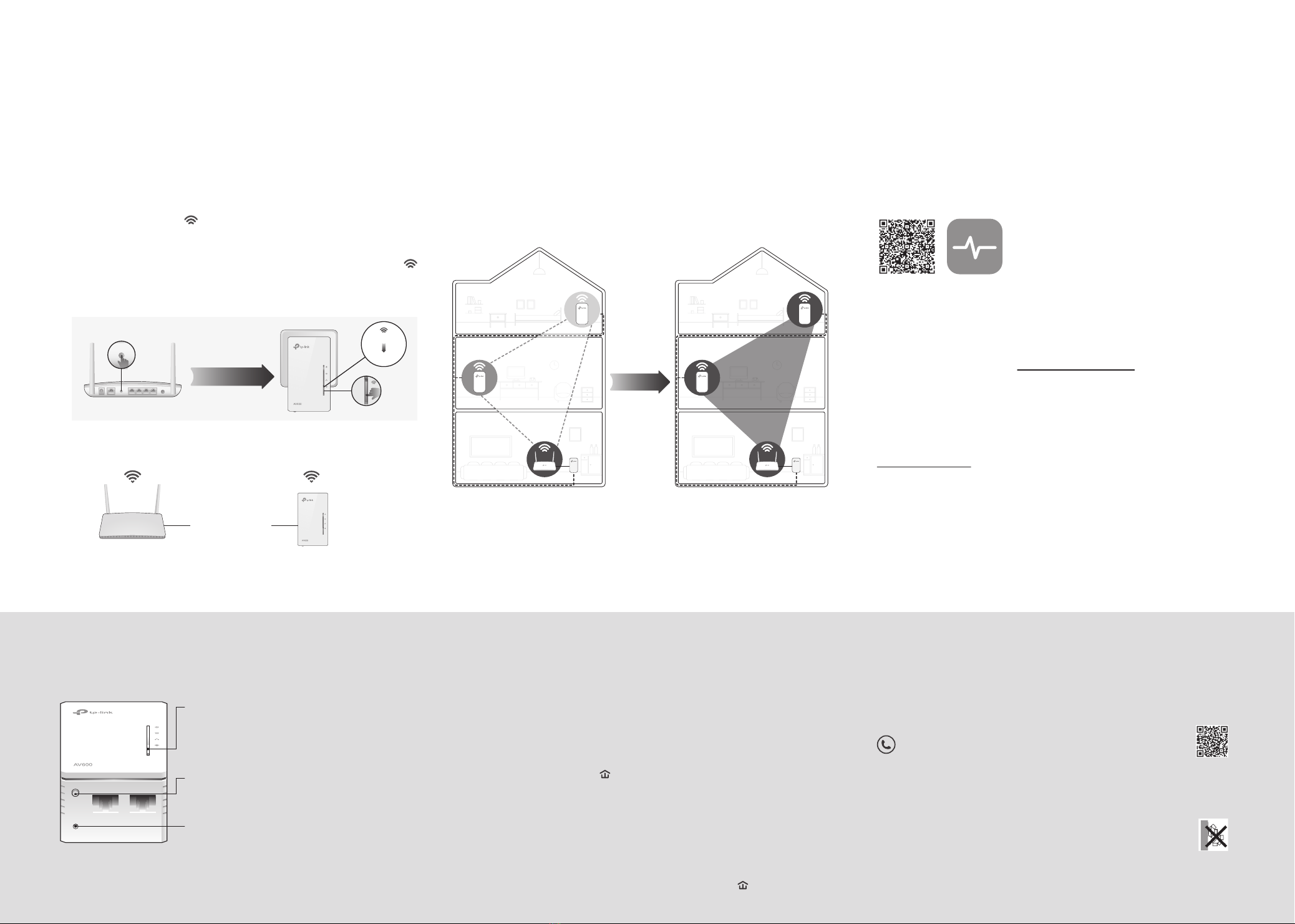
Wi-Fi Auto-Sync enables you to easily create one unied Wi-Fi network throughout your home.
If you have more extenders, simply plug in and pair each one with the
existing adapter to join the network. Then the Wi-Fi settings will
automatically sync from the existing extender to the new ones.
Auto-Sync Settings to More Extenders
Note: For more extender models that support Wi-Fi Auto-Sync, visit http://www.tp-link.com.
DIFFERENT
SSIDs & Passwords Auto-Sync
Network B
Network C
Network A
Network A
Network A
Network A
SAME
SSID & Password
Note: If Wi-Fi settings are not copied within 2 minutes, manually change the extender’s
Wi-Fi settings.
Note: If your router doesn’t have a WPS button, manually change the extender’s Wi-Fi
settings via the tpPLC app, tpPLC Utility, or web interface.
1. Plug in the extender in the same room as your router. Wait until the
extender’s Wi-Fi LED turns on.
2. Press your router’s WPS button. Within 2 minutes, press the
extender’s Wi-Fi button for 1 second. The extender’s Wi-Fi LED
starts blinking. When it stays on, Wi-Fi settings are copied.
3. Relocate the extender and enjoy the internet using your router’s
SSID and password.
WPSWAN LAN
Wireless Router Extender
WPS
Blinking
On
Within 2 minutes
Copy SSID and Password from Your Router via WPS
SAME
SSID & Password
For technical support, the user guide and more information, please
visit http://www.tp-link.com/support, or simply scan the QR code.
TP-Link hereby declares that the device is in compliance with the essential requirements and other relevant
provisions of directives 2014/53/EU, 2009/125/EC and 2011/65/EU. The original EU declaration of
conformity may be found athttp://www.tp-link.com/en/ce.
If you personalize any extender with LED schedules or other Wi-Fi settings
(such as Wi-Fi schedules and guest network), the settings will also
automatically sync to other extenders in the same powerline network.
Reset
Press and hold for at least 2 seconds until all LEDs turn
o to reset the extender to factory default settings.
Wi-Fi
Press for 1 second to begin or stop copying Wi-Fi
settings from the router.
Press and hold for about 5 seconds to turn Wi-Fi on or
o.
Pair
Press for 1 second on two powerline devices within
two minutes to pair them.
Pair
Reset
Wi-Fi Button
Safety Information
• Keep the device away from water, re, humidity or hot environments.
• Do not attempt to disassemble, repair, or modify the device.
• Do not use the device where wireless devices are not allowed.
• The socket-outlet shall be installed near the equipment and shall be easily accessible.
• Plug the powerline devices directly into the wall outlets but not the power strips.
Please read and follow the above safety information when operating the device. We cannot guarantee that
no accidents or damage will occur due to improper use of the device. Please use this product with care and
operate at your own risk.
• For passthrough devices, plug the power strips into the integrated electrical sockets of the
devices, but devices of the same or another type not be stacked in normal use.