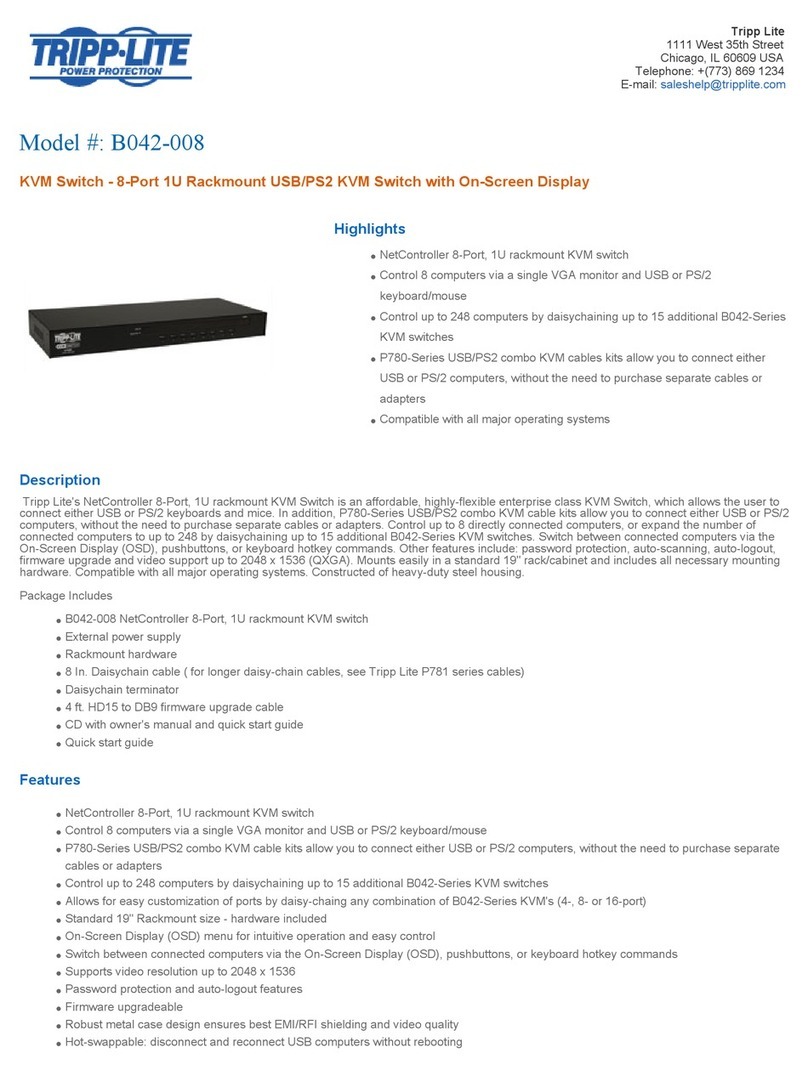
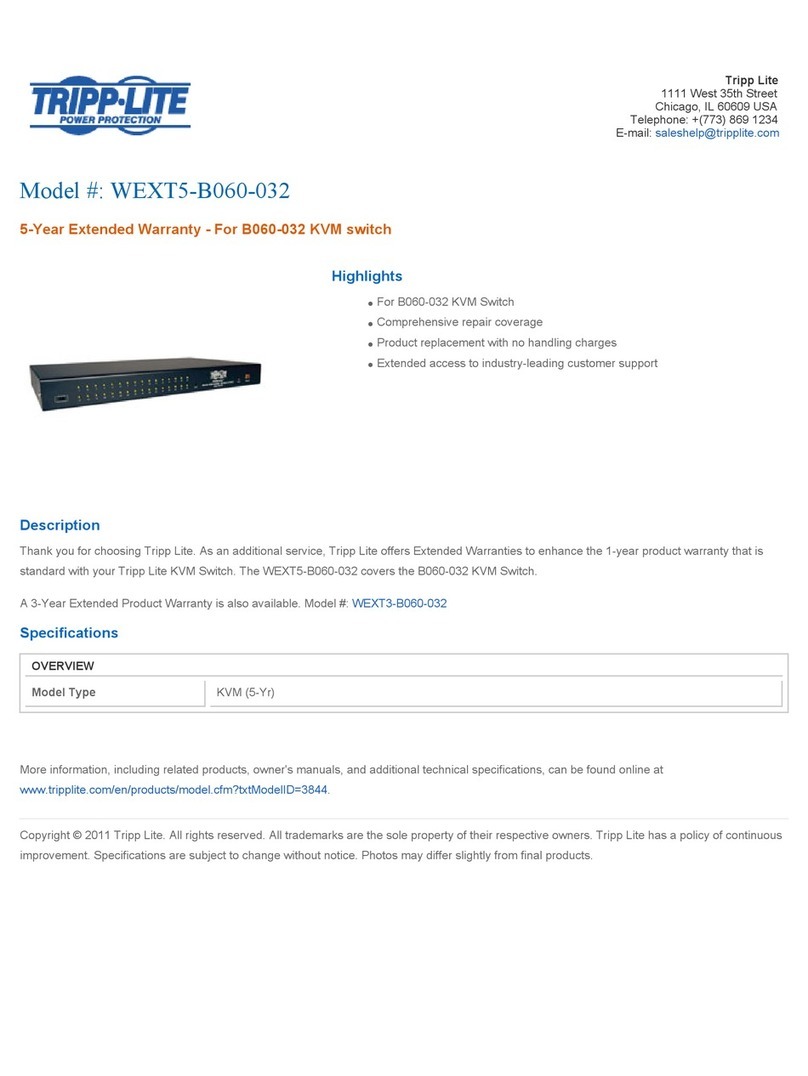
9
4. Installation (Continued)
4.3 Rackmounting for B022-016
4.4 Single-Station Installation
4.5 Multiple Station (Daisy-Chained) Installation
Fasten the rackmount brackets to
the rack using user-supplied
screws to install in a rack.
1. Ensure that power to all the devices to be connected has been turned
off.
2. On a B022-016 KVM, connect the Keyboard, Mouse and Monitor
cables to the console ports on the KVM.*
3. Use the correct Tripp Lite KVM cable kits (as described in the Cables
section on page 4), to connect a computer’s Keyboard, Video and
Mouse ports to any available port on the KVM switch.
4. Plug the power cord or power adapter cable into the KVM’s power jack, then plug into a UPS, surge or other AC
power source.
5. Turn on the power to the computers.
*NetDirector Console KVM Switches only need to perform this step if they are connecting to an external console.
To control even more computers, up to 31 B022-016 or
B022-U16 KVM Switches can be daisy-chained down from the
First Station.
Note: As many as 512 computers can be controlled from the unit’s integrated console in
a complete installation.
To set up a daisy-chained installation:
1. Ensure that power to all the devices to be connected has been
turned off.
2. Use a daisy-chain cable (described in the Cables section,
page 4) to connect the Chain Out port of the parent unit to the
Chain In port of the child unit.
3. Use a KVM cable kit (described in the Cables section, page 4)
to connect the Keyboard, Video and Mouse ports of a
computer to any available port on the KVM switch.
4. Repeat the above steps for any additional KVM Switches you
wish to add to the chain.
5. Power up the installation according to the following procedure:
a. Plug in the power adapter for the First Station. Wait a few
seconds to allow the unit to determine its Station ID.
b. Plug in the power adapters for each subsequent Station in
the installation in turn (ie. Second Station, then Third
Station, etc.). Each B022-016 and B022-U16 KVM Switch
has an LED display on its front panel to indicate its Station
ID (the Station ID for the First Station is 01, the ID for the
Second Station is 02, the ID for the Third Station is 03,
etc.).
Insert screws to connect to rack
In each case, wait for the Station ID to be displayed on the Station ID LED before plugging in the next
Station.
B020-016-17 (rear)
B022-016 (rear)
B022-016 (rear)
201011157 933077.indb 9 12/22/2010 11:07:25 AM