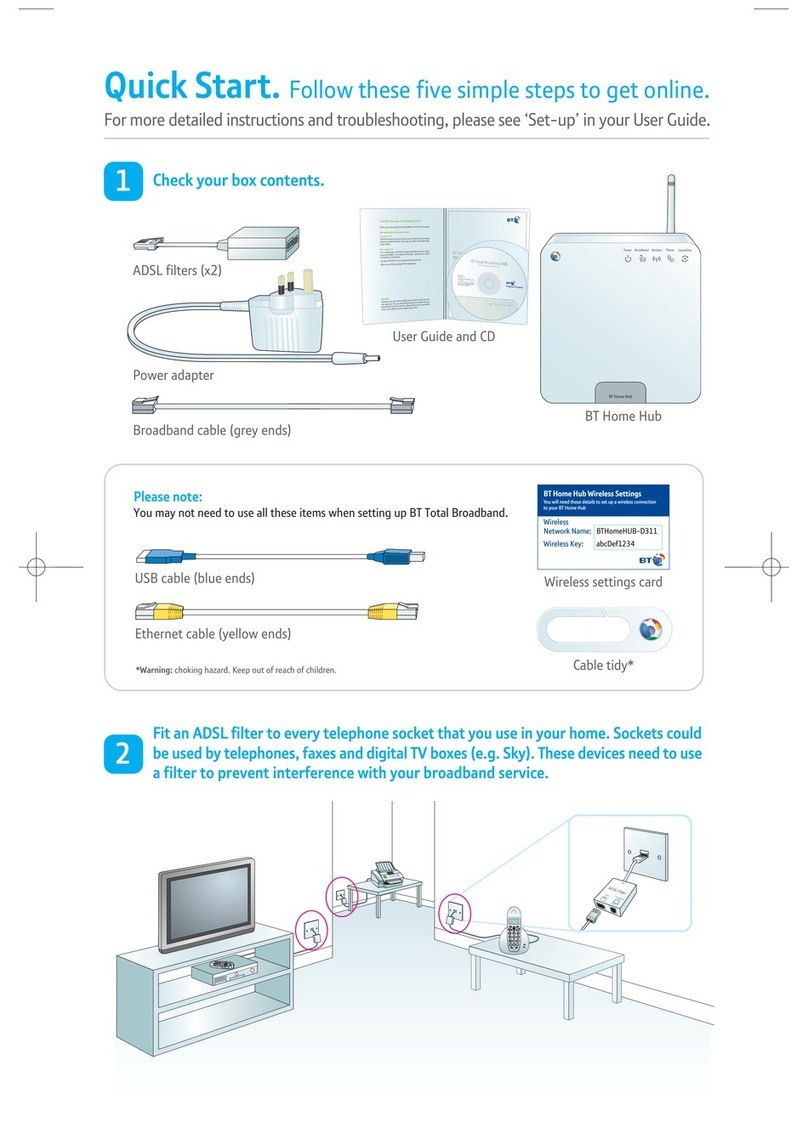
It is best to pause your show and check your modem/wireless signal. Just like your computer’s
internet connection, it is an issue with your internet provider and not the computer, so please don’t
blame the box. Once your internet goes back up, the box will function properly.
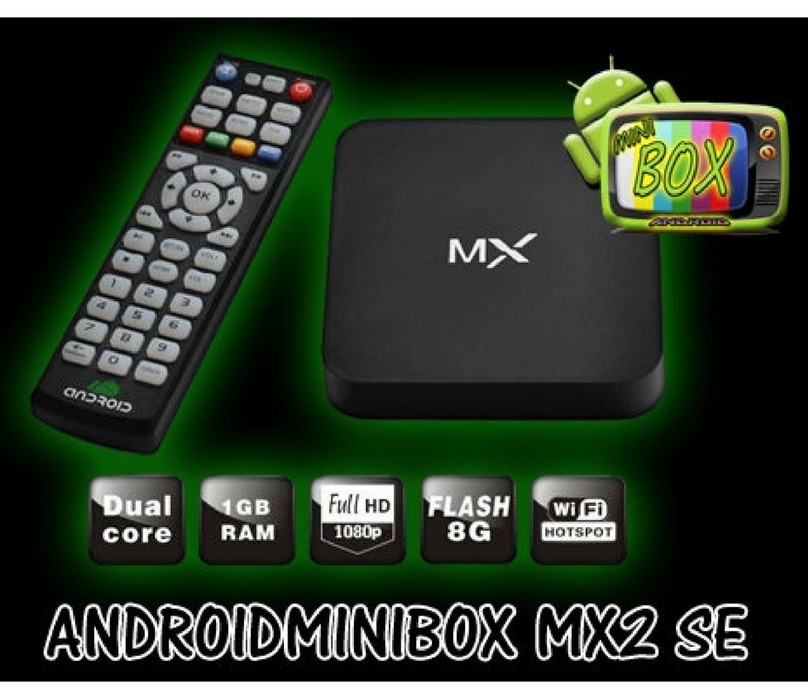
Do not press the buttons on the remote control multiple times. Just like a computer, the system takes
a little time to process the information given and loads the software up. Be patient when setting the
system up. Also, when selecting movies or tv shows to view, 1 press of the button is all that is
needed. You will hear a sound when pressed. If you press multiple times, then you have selected
multiple files for the system to upload. This will confuse it and cause it to delay or stall.
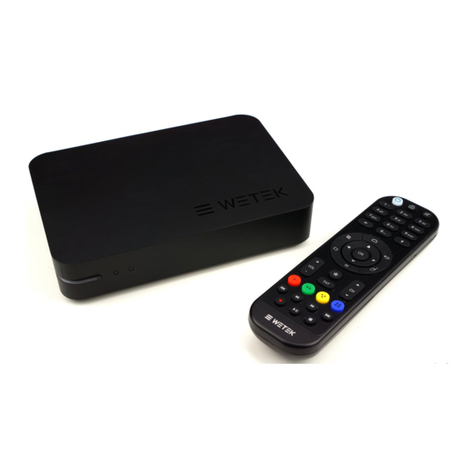
Remote Control is not working -
Check batteries in the remote control to make sure they are ok
If the batteries are good, power the system off with the remote control (button on remote)
When the light on the box turns red, press and hold the Back (return)button and the OK button
together for 10 seconds
You will see a green light blinking on the remote control
Place the remote control next to the box in order for it to sync with the box
Unplug the power supply out and then back in, when the box boots back up your remote
control should not be sync’ed with the box
TVheadend Error Message - when watching Live TV and you receive a “Tvheadend not connected
no input detected” error message it’s because your connection has dropped. To fix this go to
SETTINGS and reset the internet. Check to make sure that your local internet connection isn’t done
or that your modem has not become unplugged. If you have an internet outage or slow connection
this will affect the quality of the system.
My Screen Looks Different –Go to Settings, go to Reset the System. When the system reboots go
back to settings and go to Restore Backup.
SYSTEM LOCKS UP or is BUFFERING - General rule of thumb: If a link you are trying to watch
buffers for longer than 30 seconds after you press the back button on your system remote and
Continue Autoplay or in Genesis links you can select menu and play from the links listed. Go up and
down on the menu to change links. We have no control over the content offered by the streams.
They are uploaded to the system by several people from across the globe. Be patient and you will
eventually find a link that is good to watch.
Check your internet connection to make sure that you are online first. Then, do a speedtest by
logging onto www.speedtest.net from your computer to check your internet speed. The system
requires at least 2 mb minimum to run.
Picture is Frozen or the Box Locks Up: If the system freezes or locks up, allow time for it to
recover if it freezes for longer than 5 minutes. Unplug the power and plug the box back in again to
refresh. This should be a last resort.