manuals.online logo
Brands
  1. Home
  2. •
  3. Brands
  4. •
  5. Xcube
  6. •
  7. MP3 Player
  8. •
  9. Xcube X-405 BK User manual

Xcube X-405 BK User manual

This manual suits for next models

1

Other Xcube MP3 Player manuals

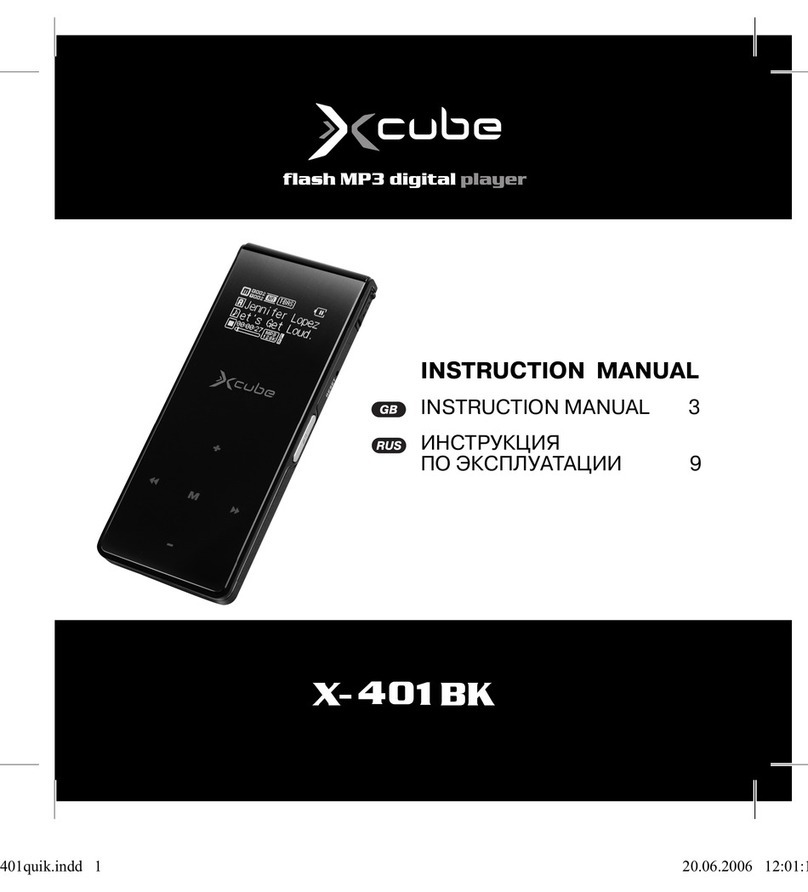
Xcube x-401 bk User manual

Xcube

Xcube x-401 bk User manual

Xcube X-302 BK User manual

Xcube

Xcube X-302 BK User manual

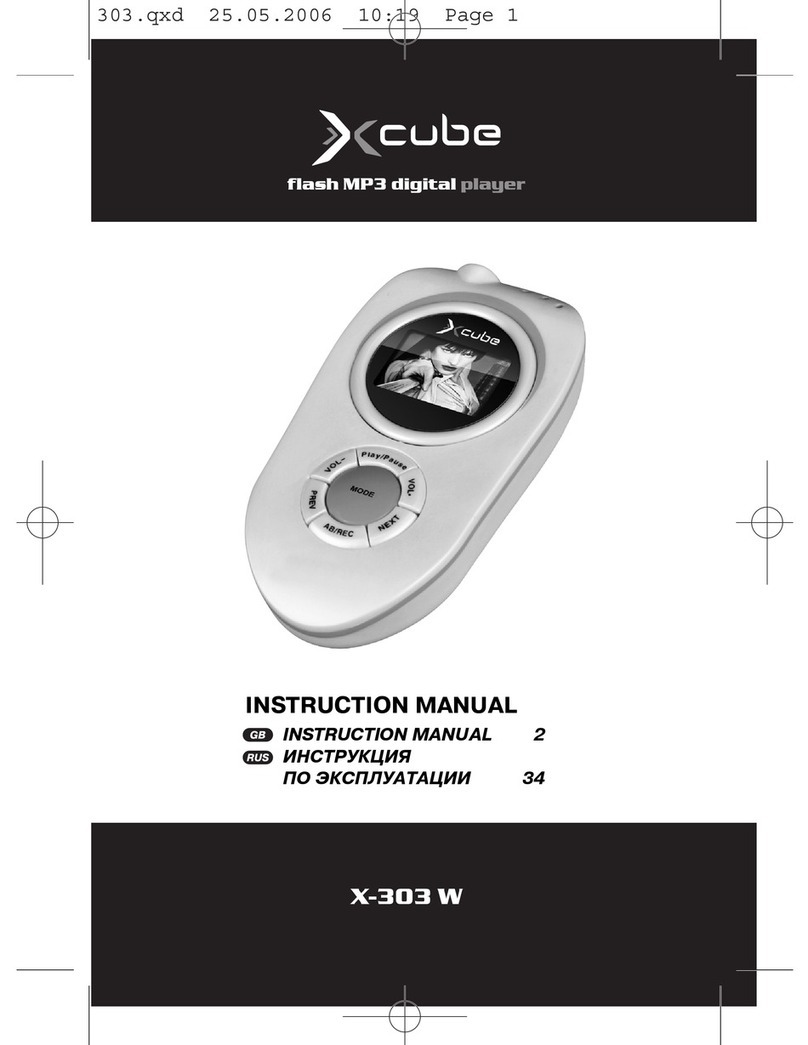
Xcube X-303W User manual

Xcube

Xcube X-303W User manual

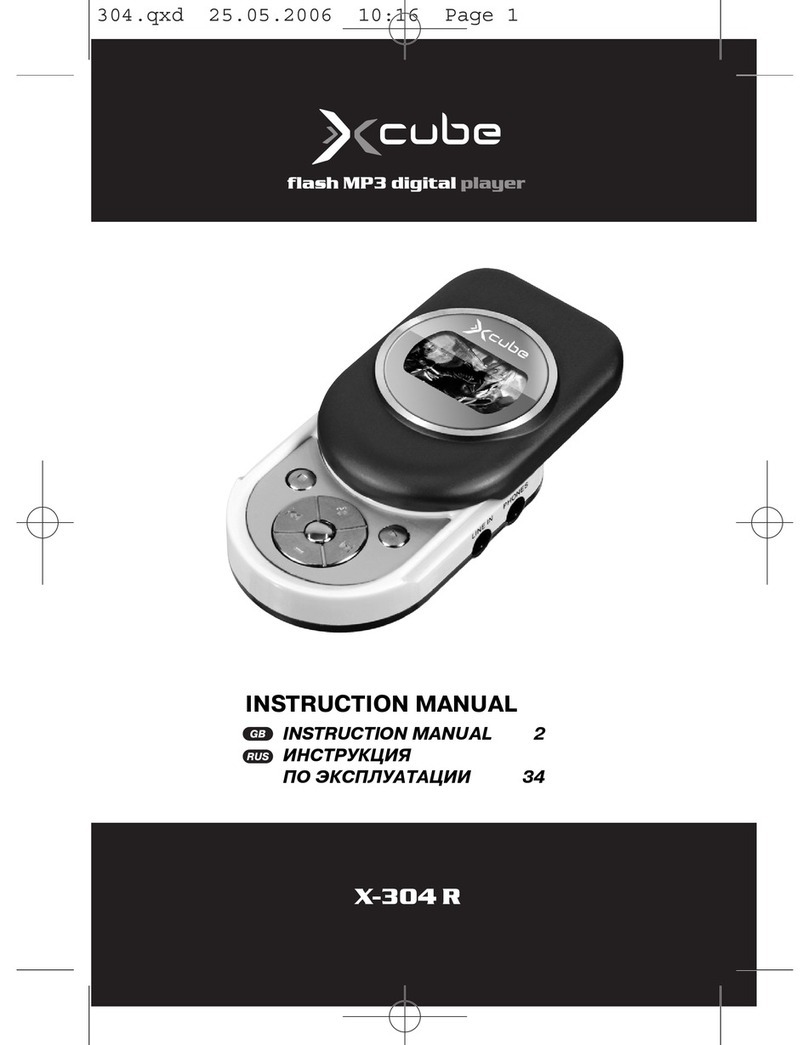
Xcube X-304 R User manual

Xcube

Xcube X-304 R User manual

Xcube X-301 BK User manual

Xcube

Xcube X-301 BK User manual

Popular MP3 Player manuals by other brands

FINIS Neptune instruction manual

FINIS

FINIS Neptune instruction manual

Majestic BT 3280R MP4 instructions

Majestic

Majestic BT 3280R MP4 instructions

Slick MP418C-4 user guide

Slick

Slick MP418C-4 user guide

GPX MW6815DT instruction manual

GPX

GPX MW6815DT instruction manual

Sony NWZ-B135F - Walkman - 2 GB Digital Player Specifications

Sony

Sony NWZ-B135F - Walkman - 2 GB Digital Player Specifications

ID-AL NanoPlayer box user manual

ID-AL

ID-AL NanoPlayer box user manual

Blaupunkt Compact Drive MP3 operating instructions

Blaupunkt

Blaupunkt Compact Drive MP3 operating instructions

Memorex MMP9008 - 8GB USB 2.0 user guide

Memorex

Memorex MMP9008 - 8GB USB 2.0 user guide

Meizu Electronic Technology E5 user manual

Meizu Electronic Technology

Meizu Electronic Technology E5 user manual

Naxa NMV-173NX user manual

Naxa

Naxa NMV-173NX user manual

Philips PSA250 Specifications

Philips

Philips PSA250 Specifications

Impecca MP1202 user guide

Impecca

Impecca MP1202 user guide

Sony NW-MS7 - Memory Stick Walkman Service manual

Sony

Sony NW-MS7 - Memory Stick Walkman Service manual

Irradio RF-42UC user manual

Irradio

Irradio RF-42UC user manual

NABAIJI SWIM MUSIC 100 user guide

NABAIJI

NABAIJI SWIM MUSIC 100 user guide

Laser MP3-A9-4GB user manual

Laser

Laser MP3-A9-4GB user manual

Samsung YP-T7F Service manual

Samsung

Samsung YP-T7F Service manual

MobiBlu DAH-1500i user manual

MobiBlu

MobiBlu DAH-1500i user manual

manuals.online logo
manuals.online logoBrands
  • About & Mission
  • Contact us
  • Privacy Policy
  • Terms and Conditions

Copyright 2025 Manuals.Online. All Rights Reserved.

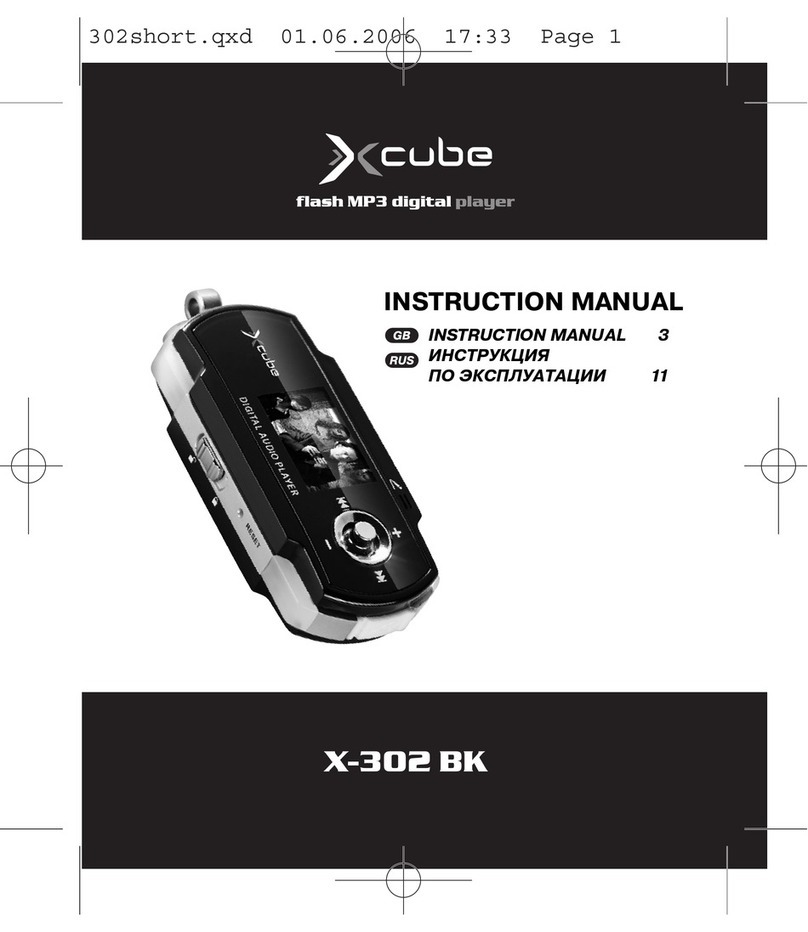
X-405 BK/SR
INSTRUCTION MANUAL
INSTRUCTION MANUAL 3
ИНСТРУКЦИЯ ПО ЭКСПЛУАТАЦИИ 29
405IM.indd 1405IM.indd 1 23.10.2006 12:30:3123.10.2006 12:30:31
405IM.indd 2405IM.indd 2 23.10.2006 12:30:3923.10.2006 12:30:39
ENGLISH
3
1. Getting started
Copyright / Trademark
Thanks for your purchasing XCube X-405.
We’re very sure that X-405 would sufficiently
satisfy you and make your life more exciting.
This manual will help you safely to use the
product.
Please be sure to check this manual carefully
before the usage.
1. Copyright
XCube is the registered trademark of New Media
Entertainment (NME),Inc in USA.
This is for home use only and cannot be used
for business purpose.
New Media Entertainment(NME),Inc. has
all the rights of trademarks and intellectual
property of this manual.
It is prohibited to distribute this manual in part
or whole parts illegally.
All software, audio, video and game which
have an intellectual property is protected by
the copyright.
We recommend Users to register our
homepage, www.xcubedigital.com, which
provides all information of company, products
and other related technical information.
All contents included in this User Manual are
subject to change without any prior notice for
improving features or according to changing
specification.
Precaution
Be fully aware of this manual for your safety.
Do not use this player for other purpose.
Do not attempt to disassemble or modify the
player by yourself.
If happens, we don’t have any responsibility
for the warranty.
Pay attention to USB cable direction for con-
necting to PC.
The PC or the player would be damaged
if you connect the USB cable with wrong
direction. Never use damaged USB cable.
Do not place any heavy device on the player.
Do not drop the player in the water.
It can be classified as flooded and the war-
ranty will be unacceptable.
Do not leave the player in hot or humid
area and do not touch the player with wet
hands. Do not use water and the chemical to
clean the player but just clean up the player
with soft clean clothes.
Keep out of sunlight directly and extreme
heat and cold, because it may occur player 's
malfunctions.
Do not be exposed in high volume(over 25
level) continuously, it may injure your hearing.
Be careful of backing up your data.
The data in the player may be deleted during
usage.
We are not responsible of any damage or the
lost which you didn’t back up on your PC.
Make sure Service Center doesn't have any
responsibility of backing data up while servic-
ing.
Features
1.1' 65,000 Color full Graphic LCD
1.1’ of 65,000 Color full graphic LCD(8 lines)
Built-in rechargeable Li-Polymer battery
Quick charge to 2~3hrs and playback approx.
26hrs
405IM.indd 3405IM.indd 3 23.10.2006 12:30:3923.10.2006 12:30:39

ENGLISH
4
 Built-in Powerful speaker(500mW)
Enjoy to play music without earphone with
embedded 500mW of speaker
USB 2.0 High Speed
Download from PC with 20Mbps(2.5Mbyte/
sec) and upload to the PC with
30Mbps(3.75Mbyte/sec) speed.
Multi-CODEC player
Supports MP3/SMV/WMA//WMV/OGG
with bit rate display
Voice Recording
Record your voice to use built-in high quality
of microphone as well as to connect external
microphone.
Direct Encoding
Create a digital file directly from external
audio device, Cassette tape, CD player or TV
to simply connect Line-in cable to the output
jack of the external audio device.
FM / Recording / Rec. Reservation
You can easily listen to FM radio and set your
favorite station by using AUTO Preset and
Frequency
Memory function. Also you can record and
save FM station and then listen it repeatedly.
At the time indicated FM Radio Rec. Reserva-
tion, the player will be turned on automatically
and begin recording from the selected Radio
station.
Powerful Sound effect
Audio Output Power : 20mW(L) 20mW®
7 Preset EQ : Normal, Rock, Classic, Pop, Jazz,
User 1, User 2
3D Surround Sound : SRS, Trubass, WOW
Plug-and-Play storage Device
Simply connect to any PC directly and share
your documents, photos and any other data
files between PC anywhere with no additional
USB driver.
Clock function (Supports Sleep and Alarm
function)
While listening to music, you can check the
date / date & time in the screen.
Game
While listening to music, you can enjoy the
game in the screen.
IR-Remote controller function
It supports remote controller function which
you can power on/off or volume up/down
the TV.
Easy firmware Upgrade
Provide the latest updated features by
firmware upgrading.
Image Viewer
While listening to music, you can see stored
image in the screen.
Text Viewer
While listening to music, you can read stored
test file in the screen.
Movie Cinema
You can enjoy stored movie file by 1.1’ TFT
65,000 Full graphic color LCD.(You should use
transcoder program)
Enlarged memory capacity
You can enlarge the memory capacity by
external Micro SD card.
405IM.indd 4405IM.indd 4 23.10.2006 12:30:3923.10.2006 12:30:39
ENGLISH
5
Specification
Dimension 33(W) x 70.5(H) x 18(D)mm, 40g(Included Built-in Battery)
Display 128*128(8 lines) 1.1’ 65,000 Color Full Graphic TFT LCD
Battery Built-in rechargeable Li-polymer
Playback Approx. 26hrs(Audio)
Formats MP3 /SMV/ WMA / OGG(Q1~Q10) /
WAV / DRM(WMA)
Radio
FM tuner
(Standard band : 87.5MHz ~ 108.0MHz, Japan : 75MHz~90MHhz,
Japan wide : 75MHz~108MHz support)
Record Voice, FM Radio & Line-in(ADPCM format)
Speaker 500mW
Micro SD Card Support
Output 40mW(20mW+20mW), SRS , WOW, 3D Surround
PC Interface USB 2.0 High Speed (Upload : 30Mbps, Download : 20Mbps)
Accessaries
405IM.indd 5405IM.indd 5 23.10.2006 12:30:3923.10.2006 12:30:39

ENGLISH
6
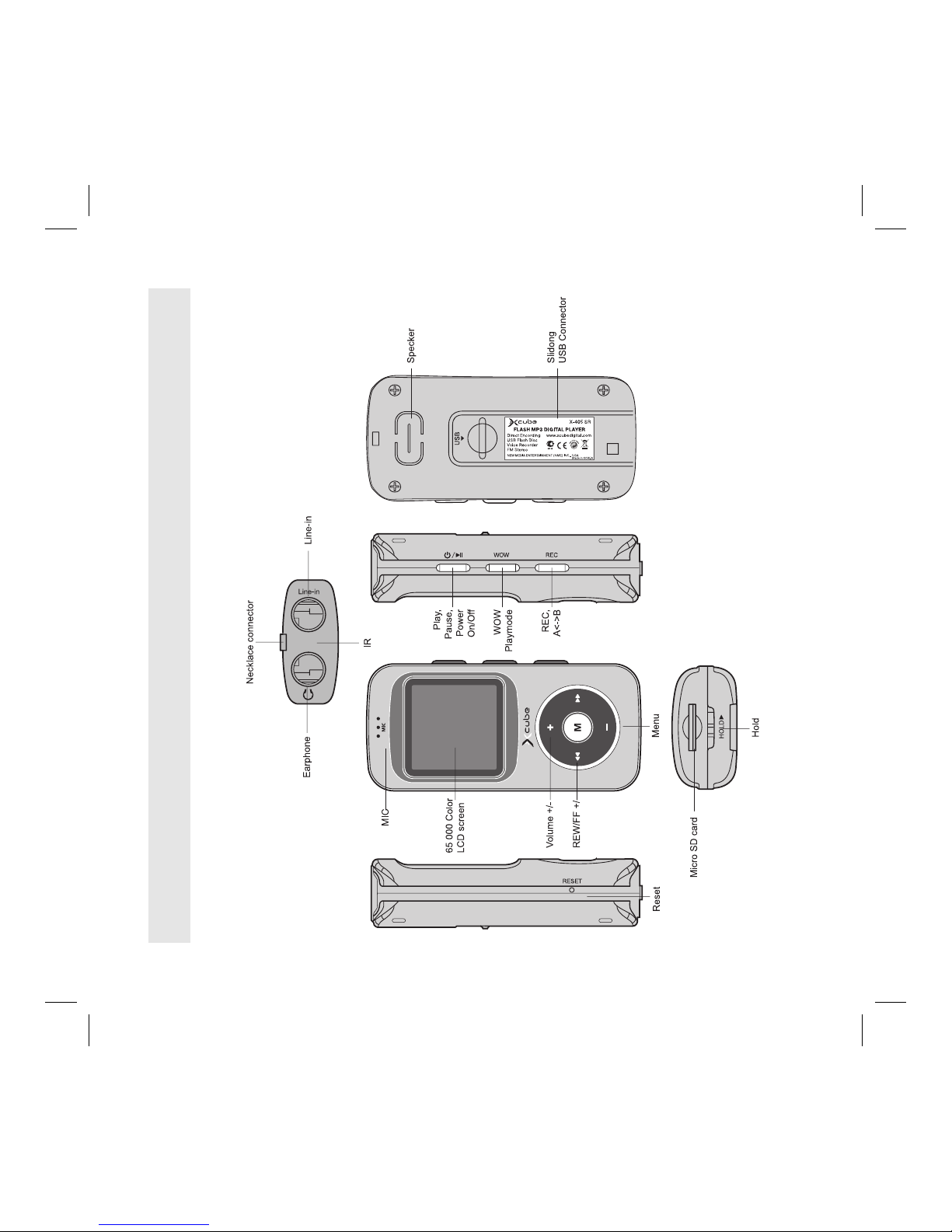
Names of Parts
405IM.indd 6405IM.indd 6 23.10.2006 12:30:3923.10.2006 12:30:39

ENGLISH
7
LCD Display FM RADIO DISPLAY
REC DISPLAY
2. PC Software
LDB manager
The LDB Manager is the synchronization program
that enables to play mp3 files such as music and
language
and to enter synchronization in the lyric while
playing music files.
You can check the contents of the file being play-
back thru LCD windows by playing the
file made this way in the device supporting XCube
LDB Manager.
405IM.indd 7405IM.indd 7 23.10.2006 12:30:3923.10.2006 12:30:39
ENGLISH
8
Installing LDB Lyrics Manager
Insert the Installation CD into the CD-ROM driver
Select and execute the "LDB Manger"
To continue, select language which you desire.
Click "Next" to install XCube LDB Manager
Read the License Agreement and click "Yes".
Select the folder to install and then click "Next".
Click "Next" after confirming the installation
folder.
Installation is in processing. Click "Finish" after the
installation is finished.
Marking the LDB
Select the music folder on the left.
Check the file information, Name/Marking
status/Size and time on the right
Search a music file to mark a lyric and click
“Marking”
Click "OK" to finish marking the LDB.
Check the marking status on the LDB manager
screen after marking the LDB.
If the marking is completed, Marking says the
MX-300. If not, you can see "NO" on the LDB
manager screen.
Searching Lyrics
Click the Search or double click a music file to
search Lyrics
Input the Singer and Title personally or click the
Singer and Title from ID3 Tag Info. on the left and
then click "Search".
To check the Lyrics of the music file, click a result
after searching.
Click "OK" after Lyric Marking is completed.
Note : Before marking the Lyrics, check its infor-
mation of Time on the ID3 Tag Info.
Delete Lyrics
To delete Lyrics, choose the music file and click
“Delete” on the Menu Bar or delete the lyrics using
right button of mouse.
To confirm, click “Yes”.
LDB Lyrics Manager Setup
To confirm the XCube LDB Setup Status, check
the Option
- ID3v1 tag modifies : ID3v1 tag automatically
modifies when marking
ID3v1 tag doesn’t modify : ID3v1 tag won’t be
modified automatically when marking.
If ID3v1 tag doesn’t exist, it writes.
Movie Transcoder
For enjoying the movie in the X-405, Transcoder
should be installed in advance.
Also transcorded movie file should be saved in the
“mvideo” folder.
1. What is Transcoder?
Transcoder makes the movie format from
WMV, ASF, MPG, AVI , Divx to SMV format
· Hardware requirements
· Above Intel Pentium 1GHz
· Above 20Mbyte of free memory
· Software requirements
· Above Microsoft Windows 98/ 98 SE/
2000/ XP
· Above Microsoft DirectX 9.0, Microsoft
Media Player 9.0
· DivX codec & other codec(K-Lite Mega
Codec Pack is recommended)
· During the transcoding, we recommend not
to do other computer work for preventing
from an error.
405IM.indd 8405IM.indd 8 23.10.2006 12:30:4023.10.2006 12:30:40
ENGLISH
9
2. How to install
1) Insert the Installation CD into the CD-ROM
driver..
2) Select and execute the “Transcoder”
3) Press [Next] button in the setting screen
4) Press [Install] button in the installation screen.
5) Press [Finish] button to complete the installa-
tion.
6) The icon of M_Video is made in the PC
3. Transcoding
1) Select your desired movie in the [Input video]
by […]
After selecting the movie, Active movie window
will be come. Do leave it in the PC
2) Select the saving folder in the [Output file] by
[…].
3) Select desired frame number from 4 to 25 in
the [Frame rate]
Basic frame is 15, as number is bigger, the playing
is smooth but file capacity is bigger.
4) Select the movie size in the [Dimension]
Basic size is 128*96
5) Click [Convert] to start transcoding(If you press
[Cancel] button, the transcoding will be stopped)
6) Transcoding is over, [Job completed] will be
displayed in the [Input video].
Then press [Quit] to get out of mode.
If you want to convert the part of movie, select
< Start / End > in the [Selection]
and then select the section by adjusting the bar.
Press [Convert], only selected blue section will be
converted.
ILC (Image & Logo Converter)
1. How to install
1) Insert the Installation CD to your CD-ROM
Drive.
2) Click the Image & Logo Converter.
3) If the program doesn’t be installed automati-
cally, execute “ILConverter_install.exe”.
4) Click “Next” to continue the installation.
5) Carefully read the instruction and click “Yes”
to continue.
6) After installation, you can enjoy ILC converter
2. How to use logo converter
ILC converter makes Logo from bmp, gif, jpg,
pcx, ico, tif, wmf , wbmp, mng to bmp format.
Starting logo is composed of 10 bmp files, Ending
logo is composed of 5 bmp files.
1) Making a new logo
 Select “Startup” or “Ending” Logo at the menu.
 Click “ Open” or Drag the image which you
want.
 Convert the images.
 Double click or drag the logo files.
 Locate all files on the slot and check the
“Preview”.
Click "Save Logo" to save the files on your PC and
click "Send logo to player".
2) Editing a image file
You can edit the image files with Brightness, Con-
trast, Invert, Rotate, Sharpness and Softness.
Brightness : Adjust the brightness.
Rotate : Rotate image file in CCW 90°, CW 90°
and 180°.
405IM.indd 9405IM.indd 9 23.10.2006 12:30:4023.10.2006 12:30:40
ENGLISH
10
Invert : Reverse image pixel and color
Softness : Soften image files.
Sharpness : Sharpen image files
Contrast : Adjust the Contrast.
3) Editing a existed logo file
 Click “Open” or Drag the Previous file, saved as
“.slg” or “.elg”.
 Drag the image which you want to change into
the Preview Screen.
 Or click “ Open” or drag the files to the Preview
Screen.
 Check the image on the Preview Screen and
adjust the images as you want.
 Locate the image to the proper position by
double click or drag the image.
 Locate all files on the slot and check the
“Preview”.
 Click “Save Logo” to save the files on your PC
and click “Send logo to player”.
3. How to use screen saver
ILC converter makes Screen saver from bmp,
gif, jpg, pcx, ico, tif, wmf , wbmp, mng to bmp
format.
Screen saver is composed of 10 bmp files.
1) Making a screen saver
 Select [Screen save] in the setting menu.
 Click “ Open” or Drag the image which you
want.
 Convert the images.
 Double click or drag the logo files.
 Locate all files on the slot and check the
“Preview”.
Click "Save screen save " to save the files on your
PC and click "Send logo to player" .
3. Basic Operation
(1) Turning On/Off
Turning On
Long press <ll> to turn on.
Turning Off
Long press <ll> to turn off.
(2) Holding
Press “HOLD” button, all buttons are not working
at all. And LOCK image is shown on the display.
To release the holding, long press “HOLD” button
again.
(3) Recharging
It can be charged by optional AC charger or by
connecting to your PC directly.
Don’t leave the player for a long time once
completed. Even you turn off , the player spend a
battery for sustaining clock function. If all battery
is out, the clock will be reset. Recommend to
recharge the battery once in a week.
Recharging with USB port
Slide out USB connector in your player and directly
connect to your PC USB port.
Or connect the USB connector with provided USB
cable first, and then reconnect USB cable to you
PC USB port.
The recharging time is 5 or 6hrs and it will be
charged automatically.
While recharging, charging LED turns Red and
turning Green is once completed.
Don’t leave the player for a long time once
completed.
405IM.indd 10405IM.indd 10 23.10.2006 12:30:4023.10.2006 12:30:40