Acroprint ESP1 80 User manual

ESP180
ESP180
User Manual

2
Thank you for purchasingAcroprint's ESP180 Electronic Time
Recorder.Acroprint offers a complete line of time recording
equipment, accessories, and supplies. Please contact your local
dealer or Acroprint for more information about time cards, card
racks, and replacement ribbons.
FCC Radio Frequency Interference Statement (USA):
Pursuant to part 15 of the FCC Rules, this piece of equipment has
been tested and found to comply with the limits for a Class A
digital device. These limits are designed to provide reasonable
protection against harmful interference with radio communica-
tions whenever the equipment generates, uses, or is able to
radiate radio frequency energy. However, such harmful interfer-
ence can still result if the equipment is not properly installed or
used in accordance with the instruction manual. Even when
properly installed and used, the equipment may still cause harm-
ful interference if it is operated in a residential area; in such case,
the user is required to correct the interference at his or her own
expense.
Declaration of ConformityAccording to EMC Directive
89/336/EEC
We declare under our sole responsibility that the time recording
equipment ESP180 to which this declaration relates is in confor-
mity with the following standards: EN55022:1998, EN50082-
1:1998. I, the undersigned, hereby declare that the equipment
specified above conforms to the above directive and standards.
Raleigh, North Carolina USA ________________________
July 31, 2000 W. Glenn Robbins

3
Table of Contents
1. Introduction ..........................................................................4
1.1 Product overview ..........................................................4
1.2 General specifications...................................................5
2. Setup ......................................................................................6
2.1 Site requirements/safety instructions ............................6
2.2 Unpacking and inspection.............................................7
2.3 Connecting power .........................................................8
2.4 Installation and removal of ribbon cartridge...............10
2.5 ESP180 installation..................................................... 11
2.6 Printing/adjusting depth of print ................................. 11
2.7 Programming overview...............................................12
2.8 Factory settings ...........................................................13
2.9 Activating the program mode .....................................13
2.10 Setting the time ...........................................................13
2.11 Setting the month, date, and year................................14
2.12 Setting the time display option ...................................15
2.13 Preset printing combinations ......................................15
3. Customize printing formats...............................................17
3.1 Setting the sequence in which order Date,Time,
Number and Comment print........................................17
3.2 Setting the date format ................................................18
3.3 Setting the time format ...............................................19
3.4 Setting the comment format........................................19
3.5 Setting the number format ..........................................20
3.6 Setting Daylight Savings Time (DST) ........................22
3.7 Setting print direction .................................................24
4. Error messages....................................................................25
5. Manufacturer's warranty ..................................................27
Table of Contents
This Table of Contents is provided for your convenience. How-
ever, please remember that is important to review the entire User
Manual, start to finish. Although page numbers are provided for
specific programming functions, each is a part of a mechanical
sequence which must be followed in order.

4
1. Introduction
1.1 Product overview
The Acroprint Electronic Side Printer model 180 (ESP180) has
been designed to be a versatile, reliable, inexpensive time re-
corder that can handle the needs of most businesses. Its design
allows for fast, easy alignment of forms. The “push button”
electric printing produces clear, clean, accurate printing on either
thin paper stock or thicker card stock.
The ESP180 will always be on time. It never needs resetting: it is
furnished with a perpetual calendar; it automatically adjusts for
daylight savings time; and it has a built-in battery backup to deal
with power outages. It even changes the year, month, and date as
you require.
This compact Time Recorder offers more than 200 printing
options; therefore, the year, month, date, hour, and minute will
appear just as you want them to look. You can even include on
the printout one of nine preset messages. You can choose your
numbering system, control whether the numbers repeat or auto-
matically advance, and decide for yourself whether the print
appears on the left or right side of your form. As a result, the
final product will look just as you want it to look, thereby cater-
ing to your business’s unique needs.
With the ESP180, you can use any standard size time card or
form to track the hours your employees have worked or to record
the time expended in the costing of a job. It will time-stamp
activities, number documents, and do a host of other organiza-
tional tasks that will keep your business in order. It is an accu-
rate, cost-effective device, produced byAcroprint, a proven
leader in the industry, with more than thirty years of experience in
designing and manufacturing time equipment.
Acroprint … Time for Business™
Introduction

5Introduction
1.2 General specifications
Power supply: voltage input 120VAC, 50/60 Hz
output 16VAC @ 1.5A
Dimensions: 5 in. wide x 7.15 in. tall x 6.5 in. deep
Shipping Weight: 6 lbs.

6
2.1 Site requirements/safety instructions
The ESP180 can be installed in any normal office environment.
No special wiring or cooling is required. However, do not use the
ESP180 under the following extreme conditions:
• extremely high or low temperature
[temperature range: 0-50°C (32-122°F) required]
• extremely high or low humidity
(humidity range: 0-90% RH required)
Do not place the ESP in any of the following problematic
locations:
• areas of high dust concentration
• areas with chemical fume concentration
• areas with extreme vibration or when placed on an
unstable or unlevel surface
The following cautions should be attended to seriously:
• Please take the time to read and understand all of the
instructions included in this User’s Manual.
• Always follow basic safety precautions to reduce the
risk of fire, injury or electric shock.
• Do not use this product near water or when your hands
or feet are wet.
• Securely install the product on the wall or on a flat
surface where it will not be knocked off.
• The ESP180 has a 6' power cord. Place it in a protected
location where the cord will not be stepped on or tripped
over.
2. Setup
Setup

7Setup
2.2 Unpacking and inspection
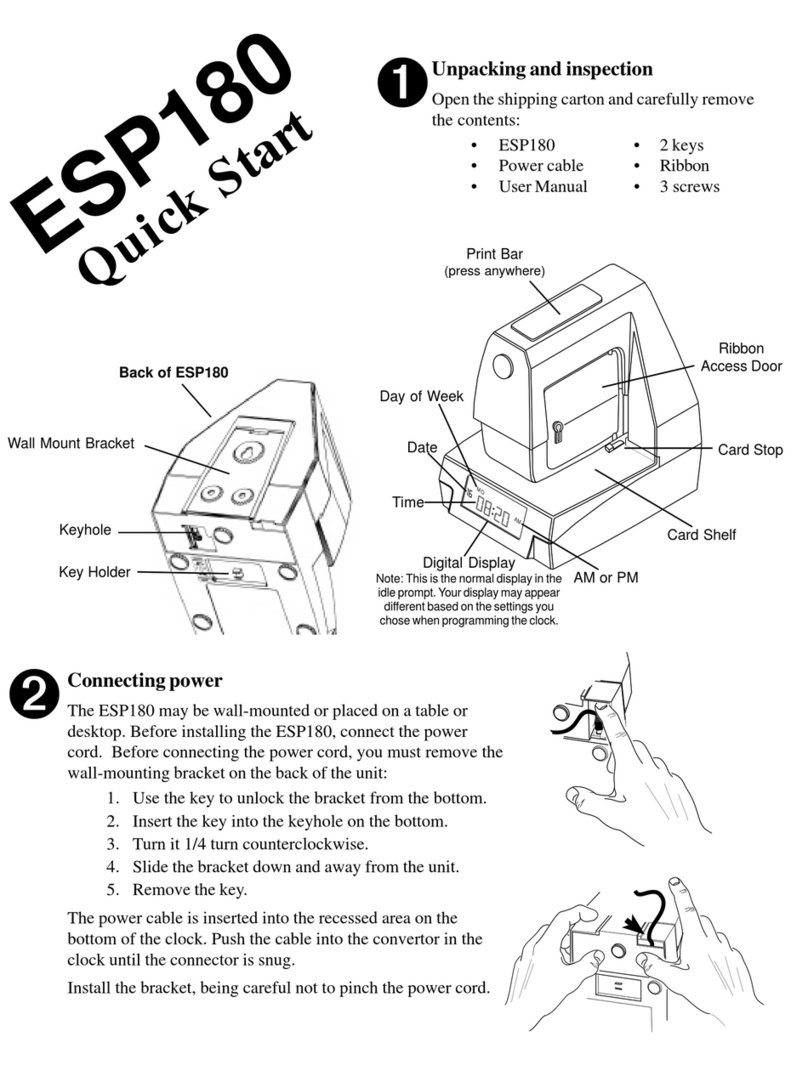
Open the shipping carton and carefully remove the contents:
• ESP180 • 1 key
• Power cable • Ribbon
• User Manual • 3 screws
Inspect the ESP180 and its accessories for damage. Report any
damage or shortages to the company from which the unit was
purchased. Complete the registration card and return it to
Acroprint to ensure the ESP180 warranty.
MO
16
AM
Edit Button
Front portion of print bar
(programming mode)
Accept/AdvanceButton
Rear portion of print bar
(programming mode)
Print Bar
(press anywhere)
(normal mode)
Ribbon
Access
Door
Card Stop
Day of Week
Date
Time
DigitalDisplay
Note: This is the normal display
in the idle prompt. Your display
may appear different based on
the settings you chose when
programming the clock.
AM or PM
Card Shelf

8Setup
2.3 Connecting power
Before you place the ESP180 on a wall or a flat
surface, you must make sure the power is connected.
Before connecting the power cord, you must remove
the wall-mounting bracket on the back of the unit as
follows:
1. Use the key to unlock the bracket from the
bottom.
2. Insert the key into the keyhole on the bottom.
3. Turn it 1/4 turn counterclockwise.
4. Slide the bracket down and away from the unit.
5. Remove the key.
UNLOCK
BRACKET
PROGRAM
MODE
Wall Mount Bracket
Keyhole
Back of ESP180
NOTE: Please keep all the packing materials so they may be
used should you wish to transport the ESP180 in the future. They
are specifically designed to protect the ESP180 during shipment.
Key Holder

9Setup
The power cable is then inserted into
the recessed area on the bottom of
the clock. Push the cable into the
opening, being careful to hold the
cable straight until the connector is
snug.
As a precaution against the power cord
accidentally being pulled out, you may
loop the power cord back around the tab
and then through the notch.
When the bracket is reinstalled, be careful
not to pinch the power cord between it
and the unit.
If you want to mount the unit on a wall (see Section 2.5), be sure
to install the ribbon first (see Section 2.4). You can fasten the
mounting bracket to the wall and attach the clock before you
begin programming.

10 Setup
2.4 Installation and removal of ribbon cartridge
The ESP180 is
shipped without
the ribbon
cartridge
installed. Please
use the
following
instructions to
install the ribbon
cartridge.
To install the ribbon cartridge:
1. Remove the new ribbon cartridge from its box.
2. Insert key in access door, turning clockwise ¼ turn. Open
door. Remove key from door.
3. Turn the knob on the ribbon cartridge clockwise to remove
any ribbon slack.
4. Slide the cartridge’s exposed ribbon under the printhead.
5. Snap the ribbon cartridge into place taking care that the pins
on the side of the cartridge are pushed into their clips. If
necessary, turn the knob on the ribbon cartridge clockwise
while snapping the ribbon cartridge into place. Be sure to
press on the ribbon cartridge to snap it behind the bottom
two clips located approximately halfway down the ribbon
cartridge. Remove any slack in the ribbon.
6. The door should be closed by pressing on it until it snaps.
Do not use the key.
7. After the power is connected, take a sample print to confirm
that the ribbon is correctly installed.
To remove an old ribbon:
1. Insert the key into the ribbon access door.
2. Open the door by turning the key clockwise.
3. Remove the key from the door.
4. Grasp the ribbon by the tab and pull it straight out.
5. See ribbon installation instructions.
Tab
Printhead Knob
Ribbon
Access
Door
Clips
Ribbon
This manual suits for next models
1
Table of contents
Other Acroprint Timer manuals