Advantech ICR-3831 Guide
Other Advantech Network Router manuals
Advantech
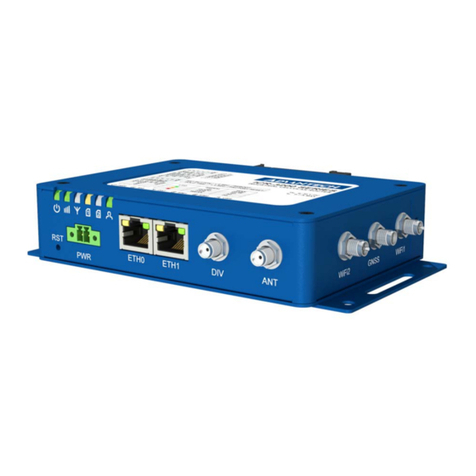
Advantech ICR-3241 User manual
Advantech
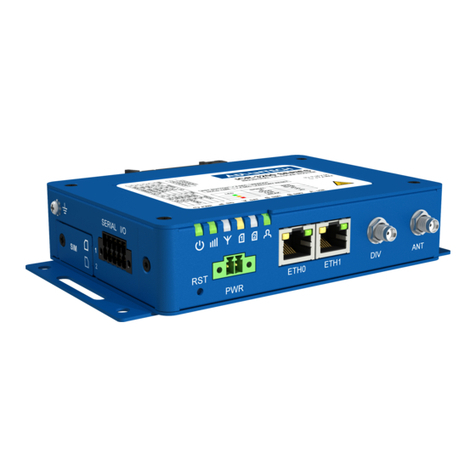
Advantech ICR-3232 User manual
Advantech
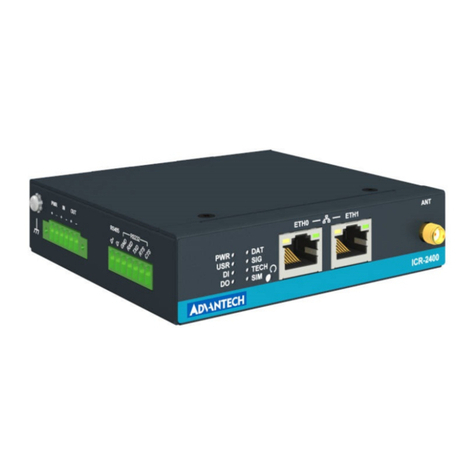
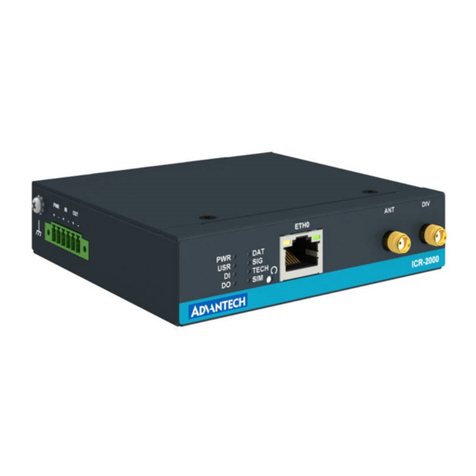
Advantech ICR-2041 User manual
Advantech
Advantech EKI-6538 User manual
Advantech
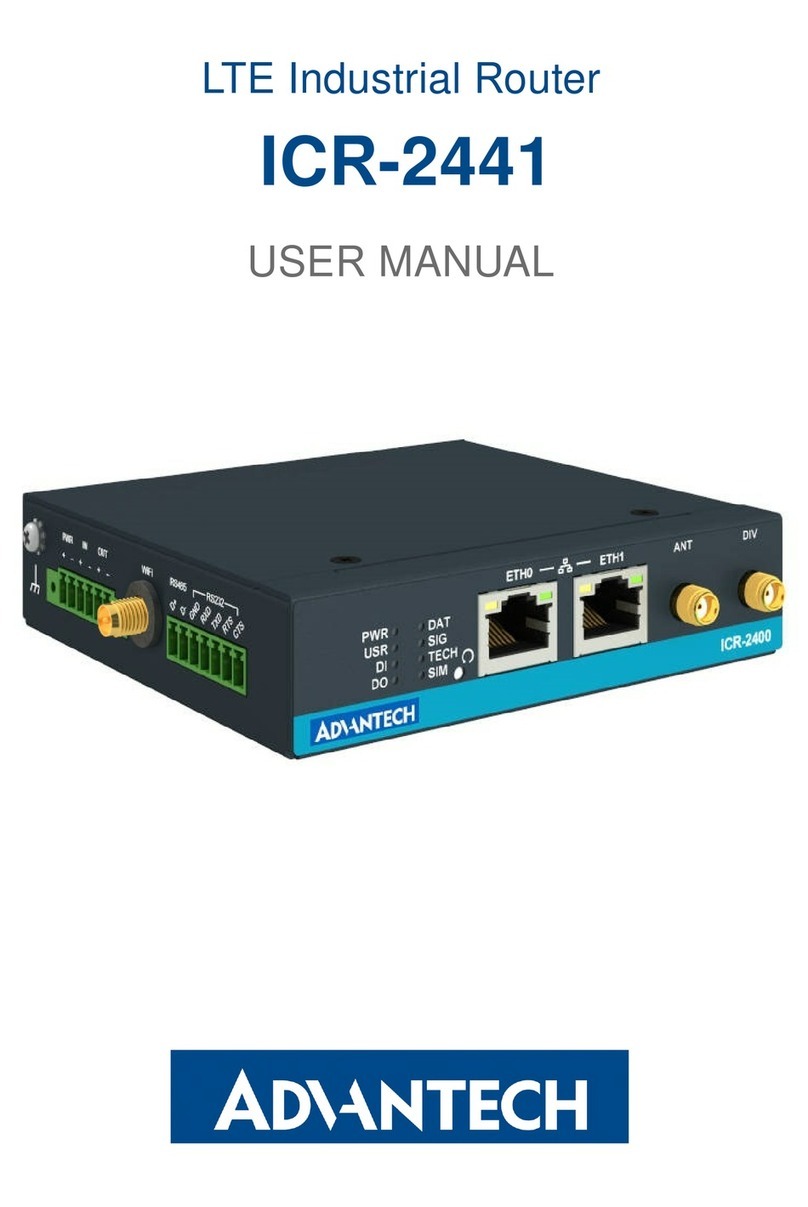
Advantech ICR-2441 User manual
Advantech
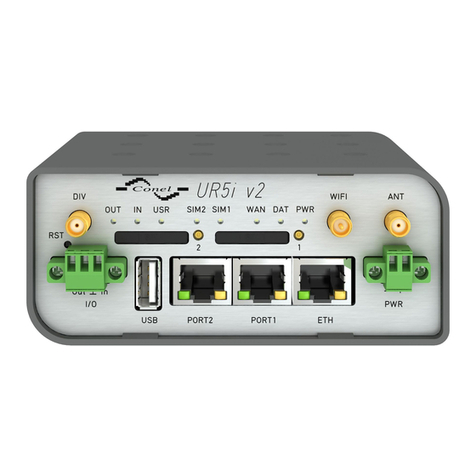
Advantech UR5i v2 Libratum Guide
Advantech
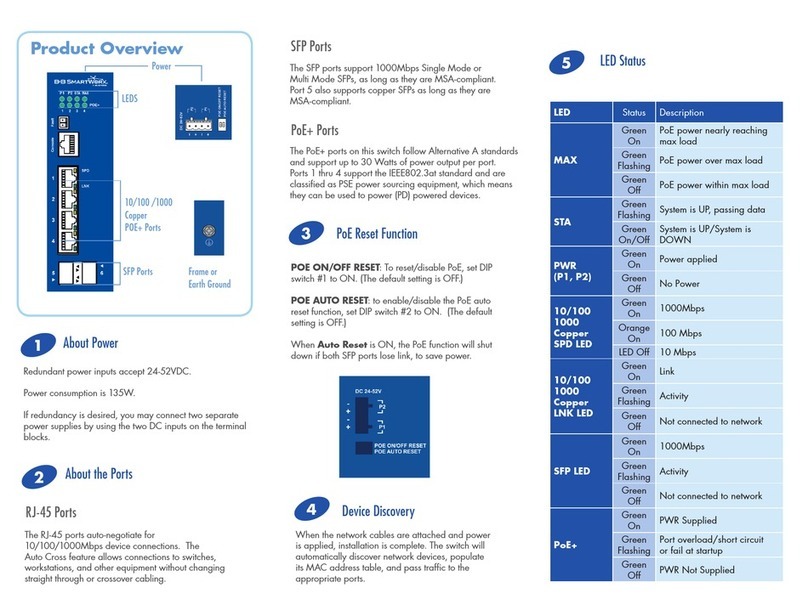
Advantech B&B SmartWorx ESWGP506-2SFP-T User manual
Advantech
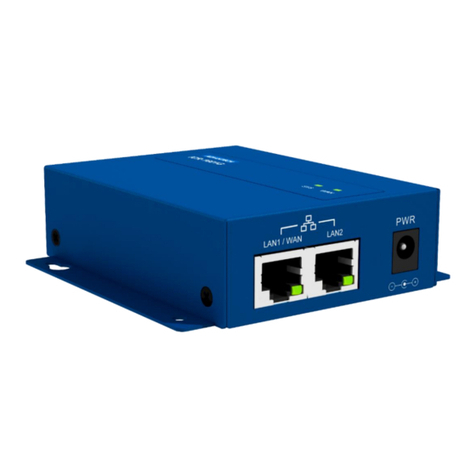
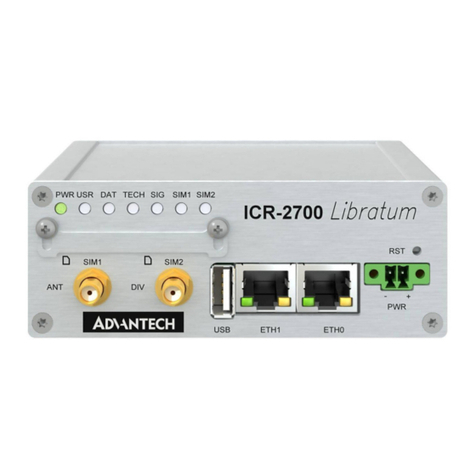
Advantech ICR-1601 Guide
Advantech
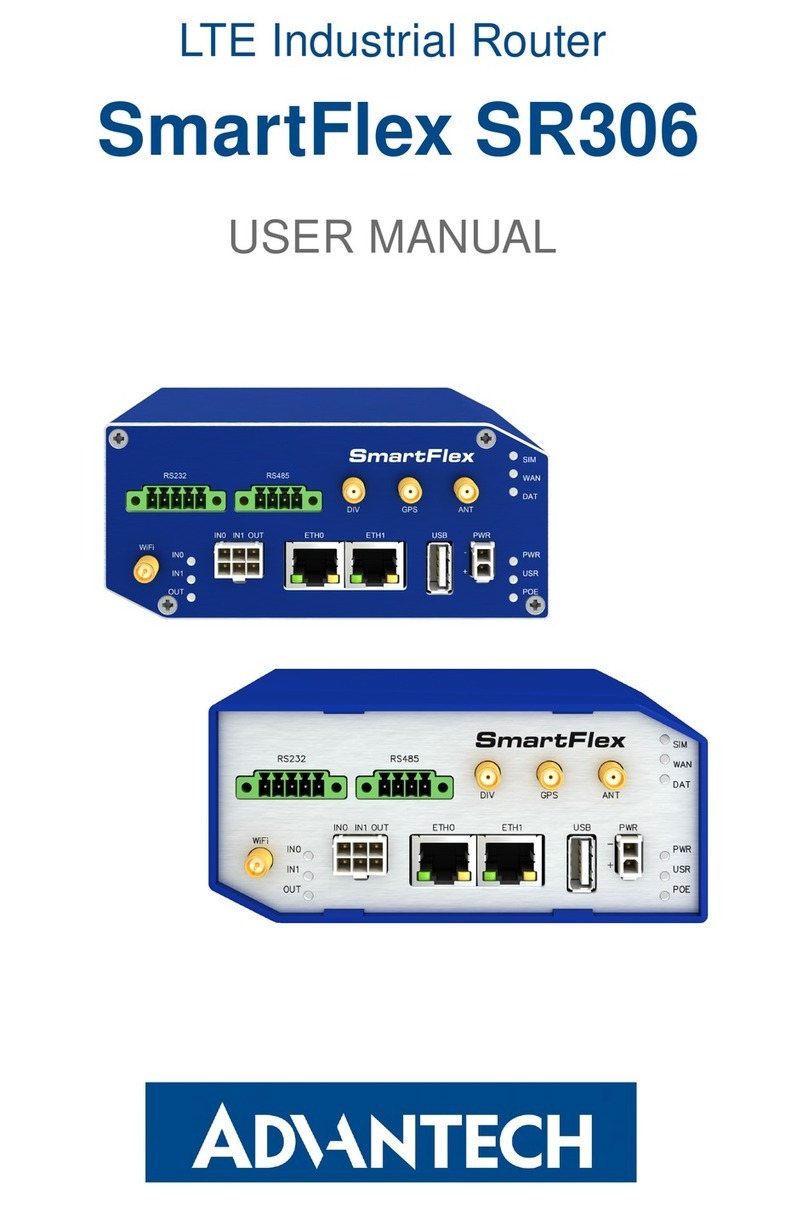
Advantech Libratum ICR-2834 Guide
Advantech
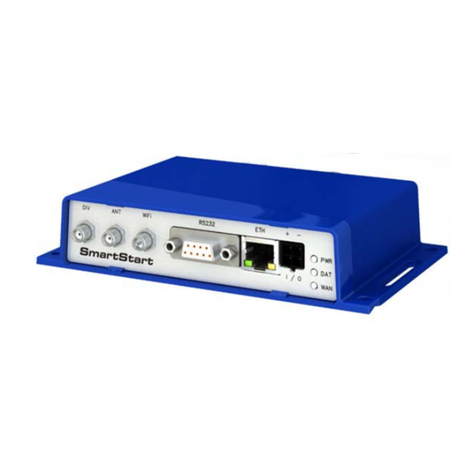
Advantech SmartFlex SR306 User manual
Advantech
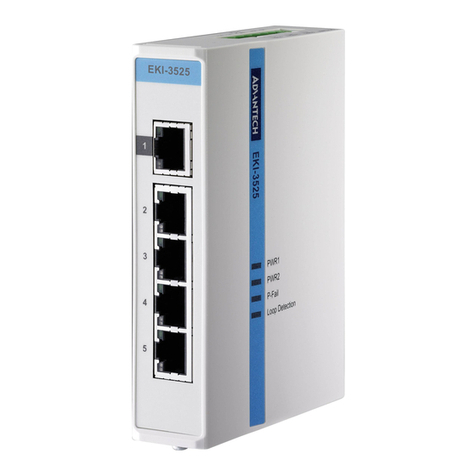
Advantech SmartStart SL304 User manual
Advantech
Advantech EKI-3525 Installation and operation manual
Advantech
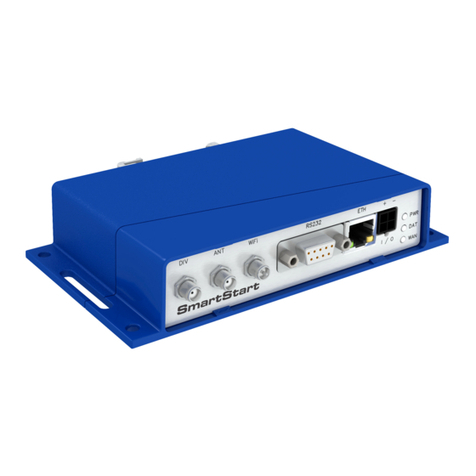
Advantech SmartStart SL302 User manual
Advantech
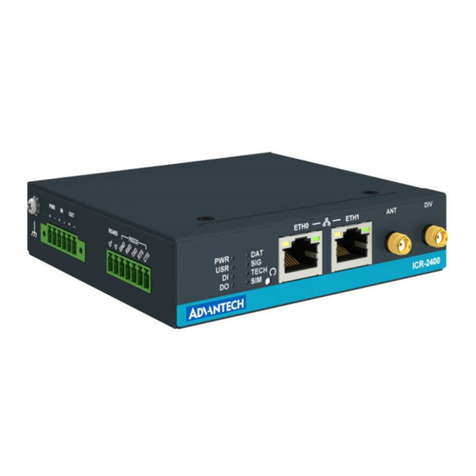
Advantech ICR-2436 User manual
Advantech
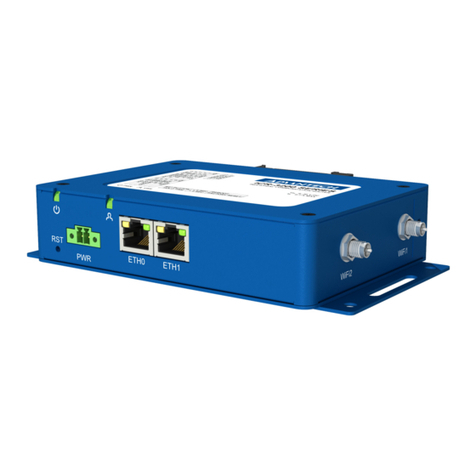
Advantech ICR-3201 Series User manual
Advantech
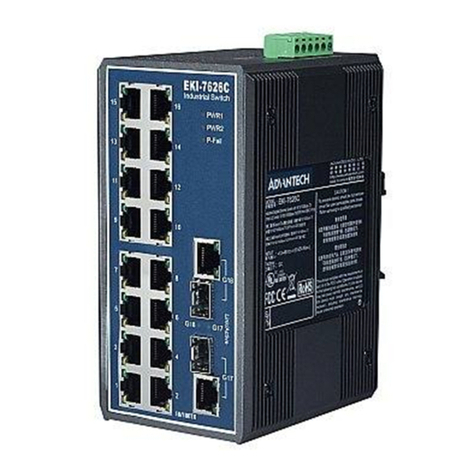
Advantech EKI-7626C User manual
Advantech
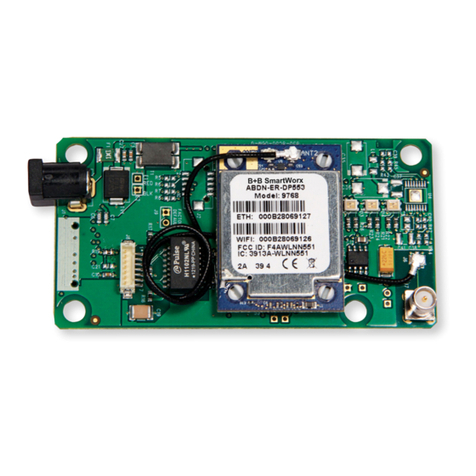
Advantech AirborneM2M BB-ABDN-ER-DP553 User manual
Advantech
Advantech EKI-7556MI User manual
Advantech
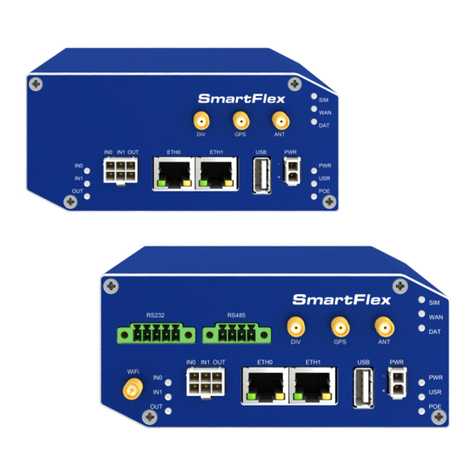
Advantech SmartFlex SR309 User manual
Advantech
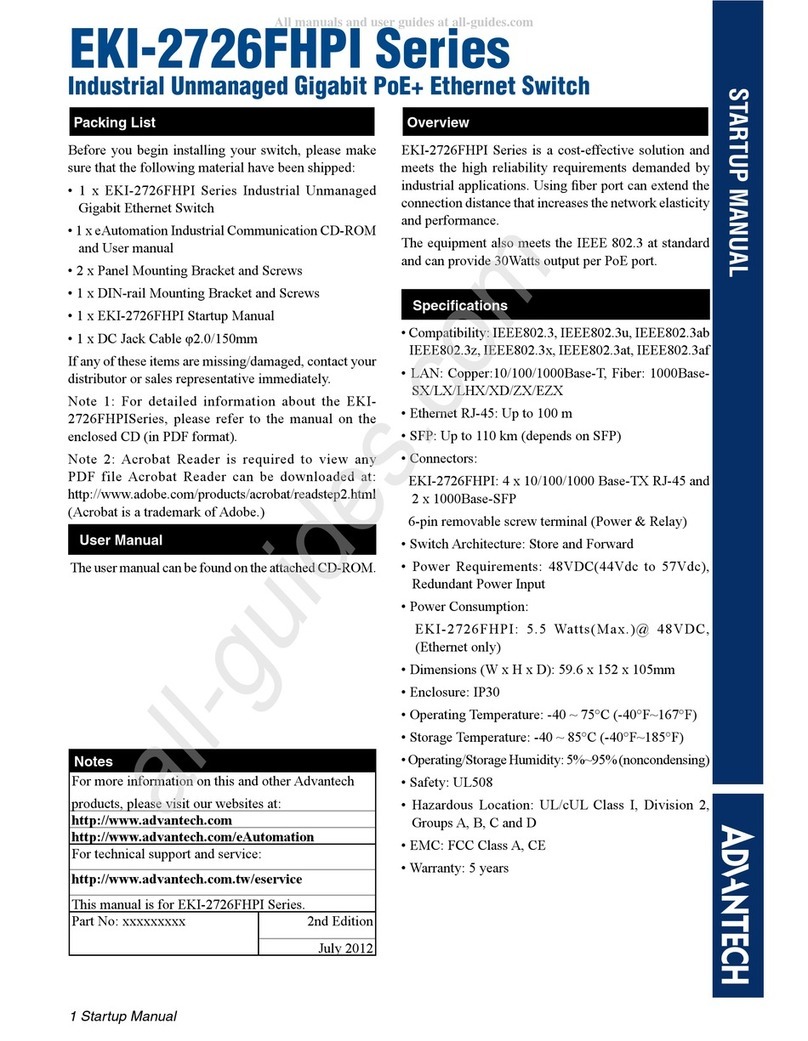
Advantech EKI2726FHPI Series Installation and operation manual