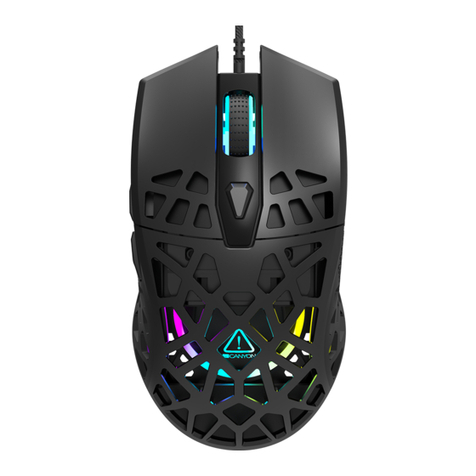
ADX FIREPOWER M05 User manual

FIREPOWER M05
RGB GAMING MOUSE
INSTRUCTION MANUAL
ADXM0519

GB Contents
Safety Warnings...................................................................................................3
Unpacking............................................................................................................4
Product Overview................................................................................................5
System Requirements .........................................................................................6
Software Installation...........................................................................................6
User Interface.......................................................................................................6
Buttons Setting....................................................................................................7
Customising the Buttons ....................................................................................8
Master Controls Setting ................................................................................... 12
Macro Setting.................................................................................................... 13
General Setting................................................................................................. 14
Hints and Tips.................................................................................................... 15
Specications.................................................................................................... 15
GR Περιεχόμενα
Προειδοποιήσεις ασφαλείας ..............................................................................3
Αφαίρεση συσκευασίας ................................................................................... 16
Επισκόπηση προϊόντος.................................................................................... 17
Απαιτήσεις συστήματος................................................................................... 18
Εγκατάσταση λογισμικού ................................................................................ 18
Περιβάλλον χρήστη.......................................................................................... 18
Ρύθμιση κουμπιών............................................................................................ 19
Προσαρμογή των κουμπιών ............................................................................ 20
Ρύθμιση κύριων στοιχείων ελέγχου................................................................ 25
Ρύθμιση μακροεντολών................................................................................... 26
Γενικές ρυθμίσεις.............................................................................................. 28
Υποδείξεις και Συμβουλές ............................................................................... 29
Προδιαγραφές .................................................................................................. 29

GB Safety Warnings
Never point the optical sensor towards the face, particularly
the eyes, to avoid possible injury.
• While the mouse is functioning, the optical light is visible to the
naked eye. Avoid looking directly into the emitter hole while the
mouse is active.
• Your product complies with CE rules.
• This product has no serviceable parts. Use of controls or
adjustments of procedures other than the Instruction Manual may
result in danger.
GR Προειδοποιήσεις ασφαλείας
Μην στρέφετε ποτέ τον οπτικό αισθητήρα προς το πρόσωπο,
ιδιαίτερα τα μάτια, για να αποφύγετε πιθανό τραυματισμό.
• Ενώ το ποντίκι λειτουργεί, το οπτικό φως είναι ορατό με γυμνό μάτι.
Αποφεύγετε να κοιτάτε απευθείας στην οπή του πομπού, ενώ το
ποντίκι είναι ενεργό.
• Το προϊόν σας συμμορφώνεται με τους κανόνες CE.
• Αυτό το προϊόν δεν διαθέτει εξαρτήματα που μπορούν να
επισκευαστούν. Η χρήση χειριστηρίων ή διαδικασιών διαφορετικών
από εκείνες που καθορίζονται στις Οδηγίες χρήσης μπορεί να
προκαλέσουν έκθεση σε κίνδυνο.

GB
4
Unpacking
Remove all items from the packaging. Retain the packaging. If you
dispose of it please do so according to local regulations.
The following items are included:
Thank you for purchasing your new product.
We recommend that you spend some time reading this
instruction manual in order that you fully understand all
the operational features it oers. You will also nd some
hints and tips to help you resolve any issues.
Read all the safety instructions carefully before use and
keep this instruction manual for future reference.
Gaming Mouse

GB
5
1. Right Button
2. Scroll Wheel
3. Left Button
4. Forward/Backward
Buttons
1
2 7
3
5. Prole Button
Select prole 1-5.
6. DPI Button
Select dierent dpi.
7. DPI Indicator
Product Overview
5 6
4
4

GB
6
System Requirements
Operating Systems: Microsoft® Windows® 7 / 8 / 10
Hardware: 1 available USB port
Software Installation
1. Plug the unit into the USB port of your computer.
2. Download the latest gaming software from
https://downloads.adxgaming.com
3. Run the software installer.
4. Follow the installation instruction to complete the installation.
5. Choose ADX Gaming.exe from the desktop to start the
software.
User Interface
Choose ADX Gaming.exe from the desktop to start the software.
1. Setting options.
2. Colour
Select desired LED colour.
3. Minimise the software.
4. Exit the software.
SETTINGSMACRO EDITORDPIBUTTONS
Profile 1 Profile 2 Profile 3 Profile 4 Profile 5
Right click
Scroll down
Forward
Back
DPI loop
Scroll up
Left click
Forward
Wheel click
Back
1 32 4
The software is not available for MAC OS.

GB
7
Buttons Setting
Select BUTTONS from the user interface.
1. Prole
You can save 5 dierent proles with customising the buttons.
Dierent colour indicates dierent prole.
Prole rename
Prole can be renamed followed by a double click.
Enter profile name
Magic Casting
OK
Cancel
2. Customising the Buttons
• Change the mouse button into desired functions from the
function list.
• Left click cannot be customised unless another left click is
set.
3. Quick Apply
Click to quick apply with desired keyboard keypress or
mouse button to replace with.
4. Trash
• Drag the button with customised setting to will reset to
default.
• Drag the button with default setting to will disable the
function.
SETTINGSMACRO EDITORDPIBUTTONS
Profile 1 Profile 2 Profile 3 Profile 4 Profile 5
Right click
Scroll down
Forward
Back
DPI loop
Scroll up
Left click
Forward
Wheel click
Back
1
2
3
4

GB
8
Customising the Buttons
Click on the mouse button you wish to customise, the options will
be show as below. A chosen function icon will be highlighted then
click SELECT to conrm.
1. Mouse Functions
1. Left click
2. Right click
3. Wheel click
4. Forward
5. Backward
6. Scroll up
7. Scroll down
8. Tilt left
9. Tilt right
10. Universal scroll
11. Double left click
12. Triple left click
13. Fire button
Click and hold to continue
re.
14. On-to-go re
Click and hold to enable on-
to-go re. At the same time,
click on any other button to
re continuously.
Customise function
Default function
MOUSE FUNCTIONS KEYBOARD FUNCTIONS ADVANCED FUNCTIONS MACRO KEY CYCLE
DEFAULT CANCEL SELECT
Left click Right click Wheel click Forward Back Scroll up Scroll down
Tilt left Tilt right Universal scrolling Double left click Triple left click Fire button On-to-go fire
[Right click] : Right click
1
8
2
9
3
10
4
11
5
12
76
13 14

GB
9
MOUSE FUNCTIONS KEYBOARD FUNCTIONS ADVANCED FUNCTIONS MACRO KEY CYCLE
DEFAULT CANCEL SELECT
Ctrl
Shift
PrtSc SrcLk Pause
Caps Lock
Tab
Shift
CtrlAppWinAltWin Alt
Insert Home PgUp Num
Delete End PgDn
[Right click] : Right click
1 82 93 104 11 12 135 76
1. Web browser
2. Calculator
3. Media player
4. Mute
5. Volume down
6. Volume up
7. Play/pause
8. Play
9. Pause
10. Fast forward
11. Next track
12. Previous track
13. Stop
Customise function
Default function
2. Keyboard Functions
Customising mouse button can choose keypress from keyboard or
other media functions as below.

GB
10
MOUSE FUNCTIONS KEYBOARD FUNCTIONS ADVANCED FUNCTIONS MACRO KEY CYCLE
No function Launch driver
menu Angle snapping
on/off
DEFAULT CANCEL SELECT[Right click] : Right click
Adjust DPI Lock Y-axis Lock X-axis Sniper function
DPI Decrease DPI loopDPI Increase
Customise function
Default function
1. No Function
Disable the current mouse
function.
2. Launch Driver Menu
3. Adjust DPI
Click to turn on DPI menu,
and then use scroll up/
down to adjust DPI.
4. Lock Y-axis
Click and hold to allow
cursor to move horizontally
only.
5. Lock X-axis
Click and hold to allow
cursor to move vertically
only.
6. Sniper Function
• Click and hold to use
sniper function with
presetting DPI.
• Release to resume normal.
7. Angle Snapping on/o
Help to draw a horizontal or
vertical straight line.
8. DPI Increase
9. DPI Decrease
10. DPI Loop
1
8
2
9 10
3 4 5 76
3. Advanced Functions
Some functions are not available for specic mouse
button.
This manual suits for next models
1
Table of contents
Languages:
Other ADX Mouse manuals

ADX
ADX FIREPOWER V03 User manual

ADX
ADX FIREPOWER V02 User manual

ADX
ADX FIREPOWER V01 User manual

ADX
ADX FIREPOWER V02 User manual

ADX
ADX FIREPOWER WIRELESS 23 User manual

ADX
ADX Firepower WMK07 User manual
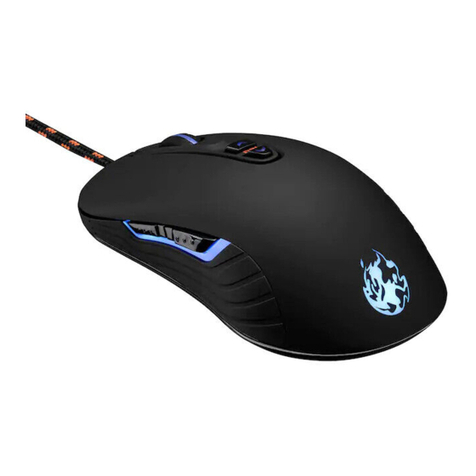
ADX
ADX Firepower H03 User manual

ADX
ADX FIREPOWER PRO 23 User manual

ADX
ADX FIREPOWER H01 User manual
ADX
ADX FIREPOWER H02 User manual

ADX
ADX FIREPOWER ADV.23 User manual

ADX
ADX FIREPOWER M04 User manual

ADX
ADX FIREPOWER H05 User manual
ADX
ADX FIREPOWER A04 User manual

ADX
ADX FIREPOWER ADV. 24 User manual

ADX
ADX FIREPOWER A01 User manual

ADX
ADX FIREPOWER H01 User manual

ADX
ADX FIREPOWER MK06 User manual
ADX
ADX FIREPOWER H02 User manual

ADX
ADX FIREPOWER V01 User manual