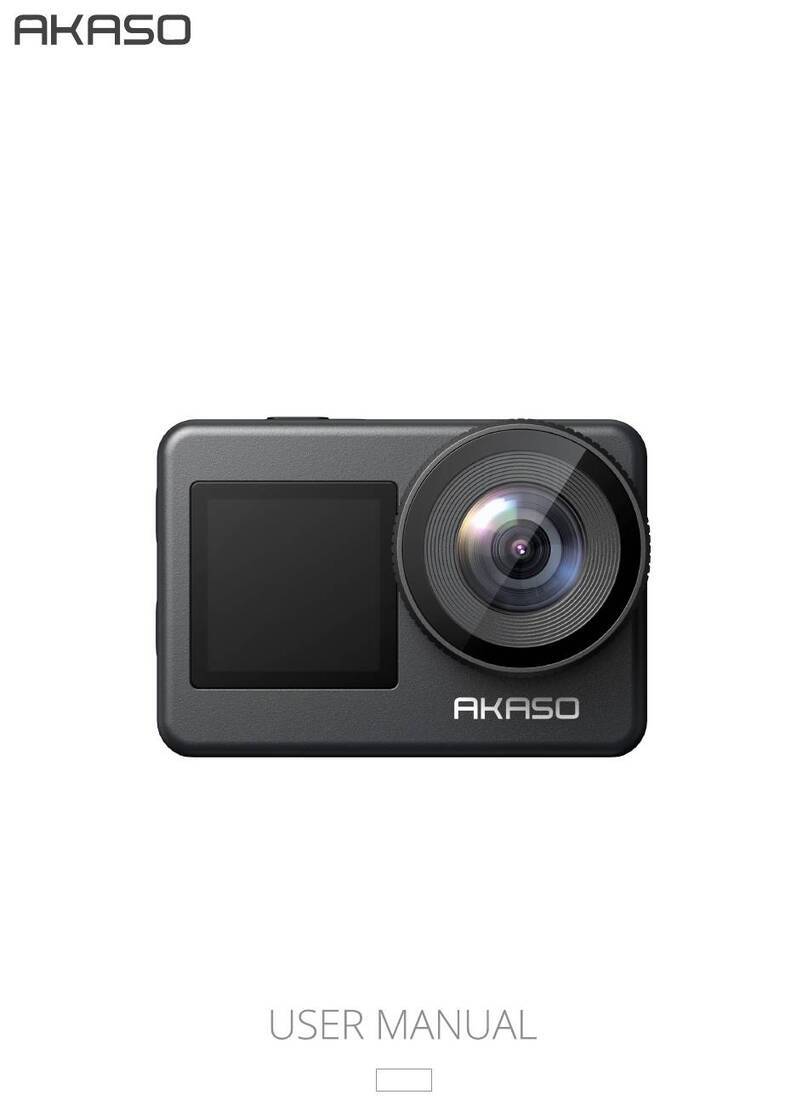
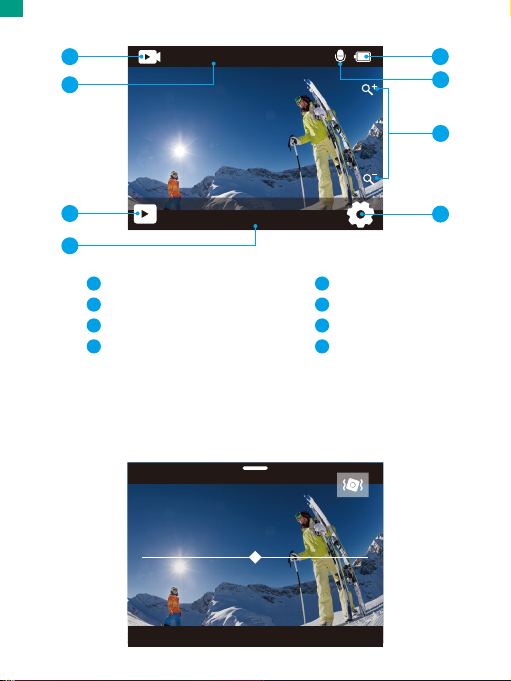
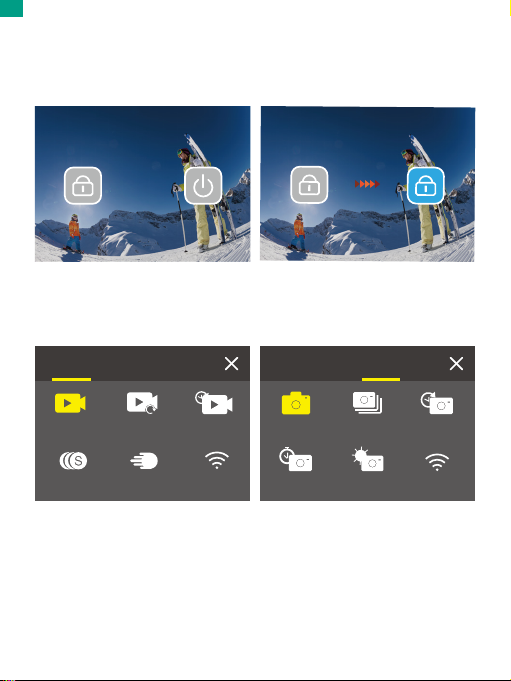
There are 6 modes of this camera: Video, Photo, Playback, System Setup, Video Setup,
and Photo Setup.
Video Mode
Video Mode is the default mode when you turn on the camera.When the camera is in
Video mode, press the shutter button to record video.To stop recording video, simply
press the shutter button again. You can tao the Zoom icon on the screen to adjust the
zoom level.
Photo Mode
When the camera is turned on, press the mode button or swipe your finger across the
screen to switch to Photo Mode, In Photo Mode, press the shutter button to take a
photo. You can tap the Zoom icon on the screen to adjust the zoom level.
Playback Mode
When the camera is turned on, tap the Playback icon in the bottom left corner of the
screen to enter the playback mode. You can also press the Mode button twice, then
press the shutter button to enter this mode. On the playback screen, you can select
the file you would like to watch for playback.
System Setup Mode
To enter the System Setup mode, first enter the camera's settings screen by pressing
the Mode button or tapping the Settings icon in the bottom right corner of the screen.
Second, tap the Setup icon on the settings screen. On the system setup screen, you're
free to configure the system settings.
Video Setup Mode
To enter the Video Setup mode, you can press the Mode button 3 times or tap the
Video Setup icon on the settings screen. On the video setup screen, you're free to
configure the video settings.
Photo Setup Mode
To enter the Photo Setup mode, you can press the Mode button 4 times or tap the
Photo Setup icon on the settings screen. On the photo setup screen, you're free to
configure the photo settings.
Overview of Modes
08
EN