manuals.online logo
Brands
  1. Home
  2. •
  3. Brands
  4. •
  5. Antec
  6. •
  7. Computer Accessories
  8. •
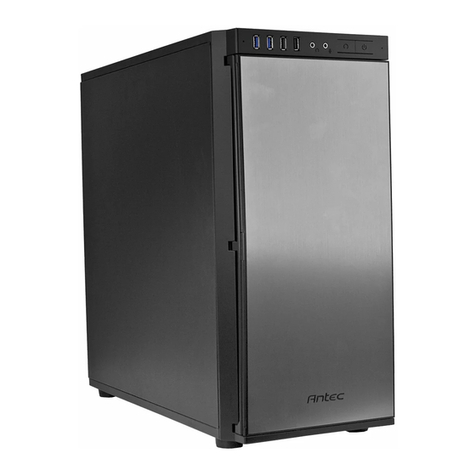
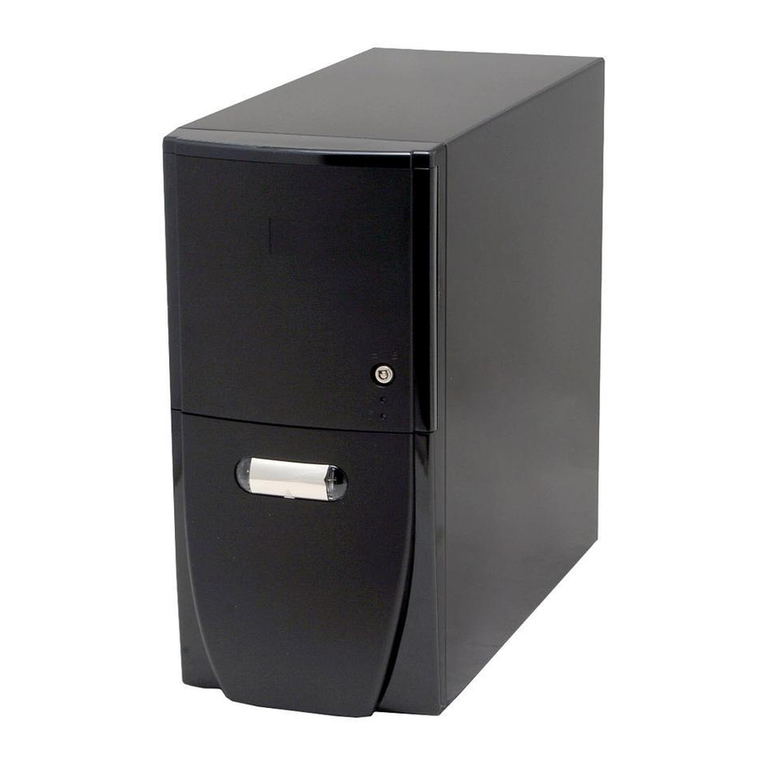
  9. Antec SOLO II User manual

Antec SOLO II User manual

Other Antec Computer Accessories manuals

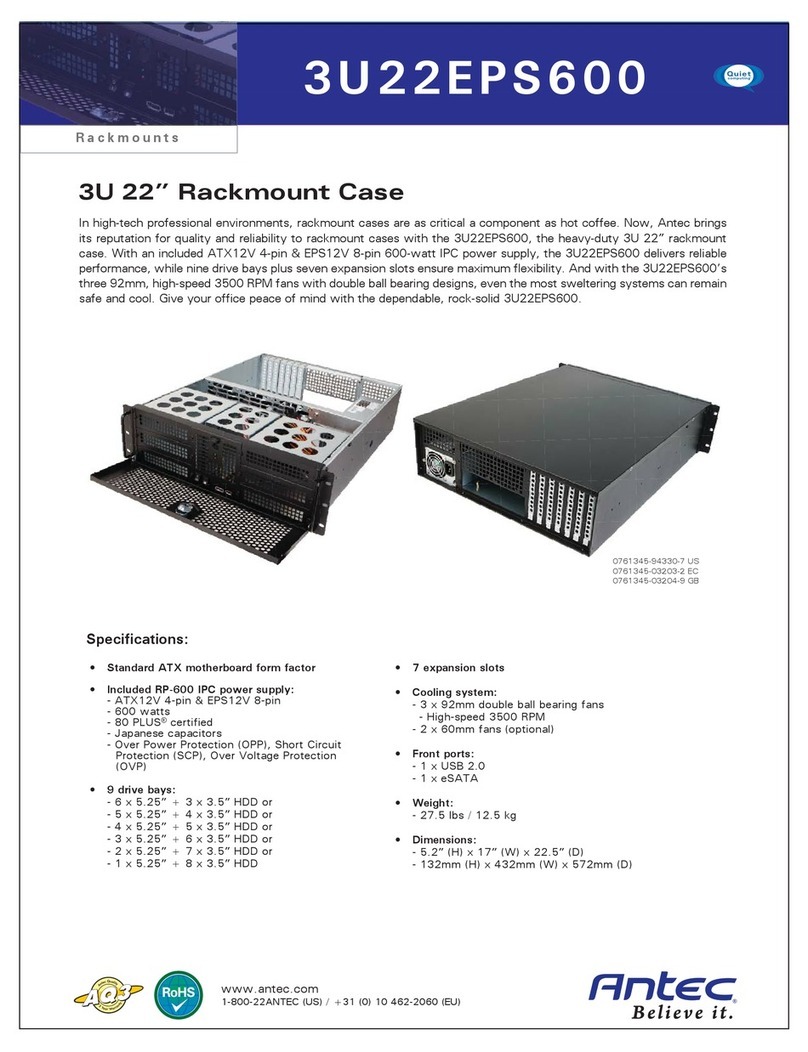
Antec Dark Fleet DF-30 User manual

Antec

Antec Dark Fleet DF-30 User manual

Antec ISK 300-150 User manual

Antec

Antec ISK 300-150 User manual

Antec TITAN550 User manual

Antec

Antec TITAN550 User manual

Antec NSK 4400 User manual

Antec

Antec NSK 4400 User manual

Antec Quiet Computing Two Hundred User manual

Antec

Antec Quiet Computing Two Hundred User manual

Antec SX1030 User manual

Antec

Antec SX1030 User manual

Antec SX830 User manual

Antec

Antec SX830 User manual

Antec Six Hundred User manual

Antec

Antec Six Hundred User manual

Antec TWO HUNDRED User manual

Antec

Antec TWO HUNDRED User manual

Antec KS-388 User manual

Antec

Antec KS-388 User manual

Antec Three Hundred Illusion User manual

Antec

Antec Three Hundred Illusion User manual

Antec DF-500 Technical manual

Antec

Antec DF-500 Technical manual

Antec Dark Fleet DF-35 User manual

Antec

Antec Dark Fleet DF-35 User manual

Antec KS 382 User manual

Antec

Antec KS 382 User manual

Antec Twelve Hundred User manual

Antec

Antec Twelve Hundred User manual

Antec Quiet Computing 0761345-03270-4 User manual

Antec

Antec Quiet Computing 0761345-03270-4 User manual

Antec New Solution NSK 3400 User manual

Antec

Antec New Solution NSK 3400 User manual

Antec New Solution NSK4000 User manual

Antec

Antec New Solution NSK4000 User manual

Antec ONE S User manual

Antec

Antec ONE S User manual

Antec Twelve Hundred User manual

Antec

Antec Twelve Hundred User manual

Antec SKELETON User manual

Antec

Antec SKELETON User manual

Antec NSK 4000 II User manual

Antec

Antec NSK 4000 II User manual

Antec P190 + 1200 User manual

Antec

Antec P190 + 1200 User manual

Antec Sonata III User manual

Antec

Antec Sonata III User manual

Popular Computer Accessories manuals by other brands

Netstor NA255A user manual

Netstor

Netstor NA255A user manual

perixx PERIDUO-610 user manual

perixx

perixx PERIDUO-610 user manual

Cherry PURE JD-0100 operating manual

Cherry

Cherry PURE JD-0100 operating manual

Cool-Icam DICK II user manual

Cool-Icam

Cool-Icam DICK II user manual

Motorola ATRIX user guide

Motorola

Motorola ATRIX user guide

HP USB Media Docking Station specification

HP

HP USB Media Docking Station specification

Cherry B.UNLIMITED 3.0 user manual

Cherry

Cherry B.UNLIMITED 3.0 user manual

Bartec TC 7 Series user guide

Bartec

Bartec TC 7 Series user guide

Philips SPC3540 Specifications

Philips

Philips SPC3540 Specifications

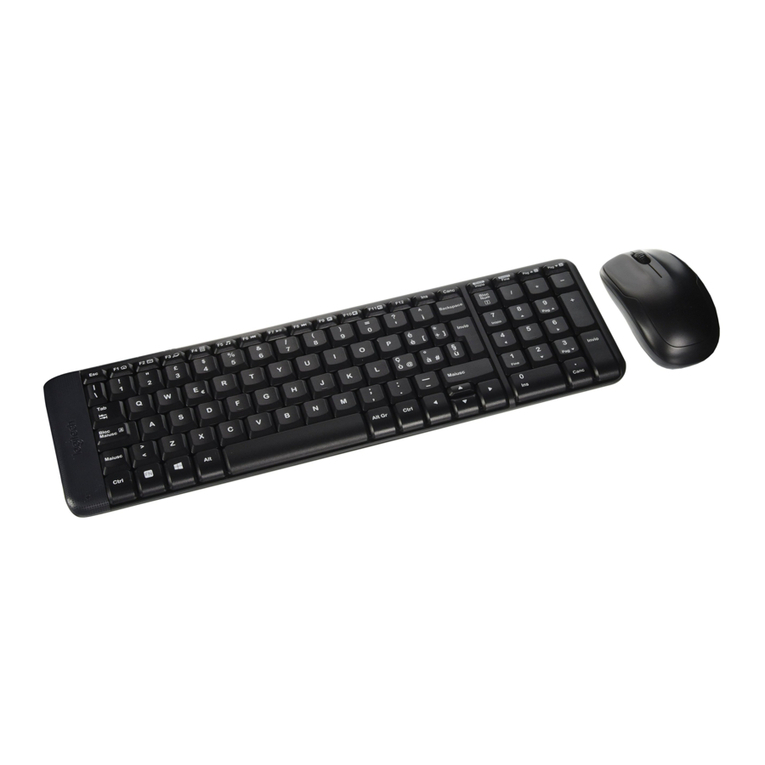
Logitech mk220 user manual

Logitech

Logitech mk220 user manual

Vivo MOUNT-KB05-4DW instruction manual

Vivo

Vivo MOUNT-KB05-4DW instruction manual

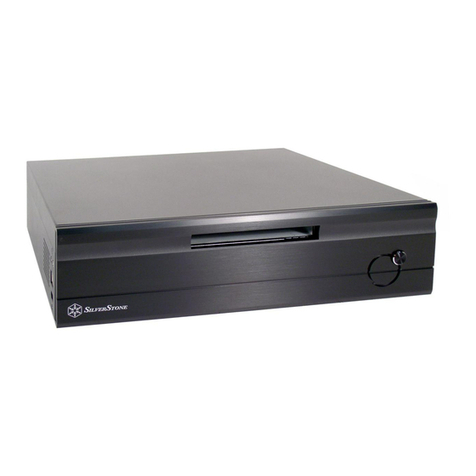
SilverStone LC02 manual

SilverStone

SilverStone LC02 manual

Flexispot ML2B installation guide

Flexispot

Flexispot ML2B installation guide

Hamlet UNIVERSAL COVER 101 KBT2 user manual

Hamlet

Hamlet UNIVERSAL COVER 101 KBT2 user manual

Adam Equipment RS-485 manual 

Adam Equipment

Adam Equipment RS-485 manual 

Sven Base 305 сombo instructions

Sven

Sven Base 305 сombo instructions

Hama 108310 Operating	 instruction

Hama

Hama 108310 Operating instruction

SpeechWare FlexyMike FMK03 user manual

SpeechWare

SpeechWare FlexyMike FMK03 user manual

manuals.online logo
manuals.online logoBrands
  • About & Mission
  • Contact us
  • Privacy Policy
  • Terms and Conditions

Copyright 2025 Manuals.Online. All Rights Reserved.

S O L O
I I
U
SER
M
ANUAL
S
ILENCE
R
ENEWED
2
SOLO
II
U
SER
’
S
M
ANUAL
Congratulations on your purchase of the Antec SOLO II.
he SOLO II emphasizes Quiet Computing™ and reinvents Antec’s renowned Sonata line with a new
set of attractive, practical features. Externally, the SOLO II’s dual-layer 1.0 mm SECC / polycarbonate
top & side panels absorb noise for exceptional sound dampening. o reduce vibration-related noise,
the dual hard drive mounting system gives you the option of mounting your hard drives using tray
mounts with silicone grommets or the tool-less suspension mount system. SOLO II features an
anodized aluminum front bezel and piano black exterior for an elegant, professional appearance.
With washable fan filters and two front panel USB 3.0 ports, the SOLO II is the rebirth of Quiet
Computing™.
he SOLO II does not include a power supply. Make sure you choose a power supply that is
compatible with your computer components and has a long enough power harness to reach your
motherboard and peripheral devices. We recommend our High Current Gamer, High Current Pro or
Earthwatts power supplies for the latest A X specification compliance, broad compatibility, and
power savings capability.
At Antec, we continually refine and improve our products to ensure the highest quality. As such,
your new chassis may differ slightly from the description in this manual due to improvements
applied for the optimal building experience. As of the date of publication, all features, descriptions,
and illustrations in this manual are correct.
Disclaimer
his manual is intended only as a guide for Antec’s computer enclosures. For more
comprehensive instructions on installing the motherboard and peripherals, please refer to the
manuals that come with those components.
3
T
ABLE OF
C
ONTENTS
S
ECTION
1:
I
NTRODUCTION
1.1 Getting to Know your Chassis ..................................................................5
1.2 Chassis Specifications...............................................................................6
1.3 Included Screws .......................................................................................6
1.4 Before you Begin ......................................................................................7
S
ECTION
2:
H
ARDWARE INSTALLATION
2.1 Setting up .................................................................................................9
2.2 Motherboard Installation ........................................................................10
2.3 Installing the KUHLER H
2
O .......................................................................11
2.4 Power Supply Installation ........................................................................12
2.5 Cable Management ..................................................................................14
2.6 External 5.25” Device Installation ............................................................14
2.7 Internal 3.5”/2.5” Device Installation using tray mounts ........................16
Suspension mounting ..............................................................................17
2.8 Internal 2.5” Device Installation ..............................................................18
S
ECTION
3:
F
RONT
I O
P
ORTS
3.1 USB 2.0 .....................................................................................................20
3.2 USB 3.0 .....................................................................................................20
3.3 AC’97 / HD audio ports ............................................................................21
3.4 Power Switch / Reset Switch / Hard Disk Drive LED Connectors.............21
3.5 Rewiring Motherboard Header Connections ...........................................22
S
ECTION
4:
C
OOLING SYSTEM
4.1 Included 120 mm rueQuiet™ rear fan ...................................................24
4.3 Washable Air Filters .................................................................................24
4.2 Optional Fans ...........................................................................................25
4
I
N RODUC ION
S
EC ION
1
5
1.1 G
E ING O KNOW YOUR CHASSIS
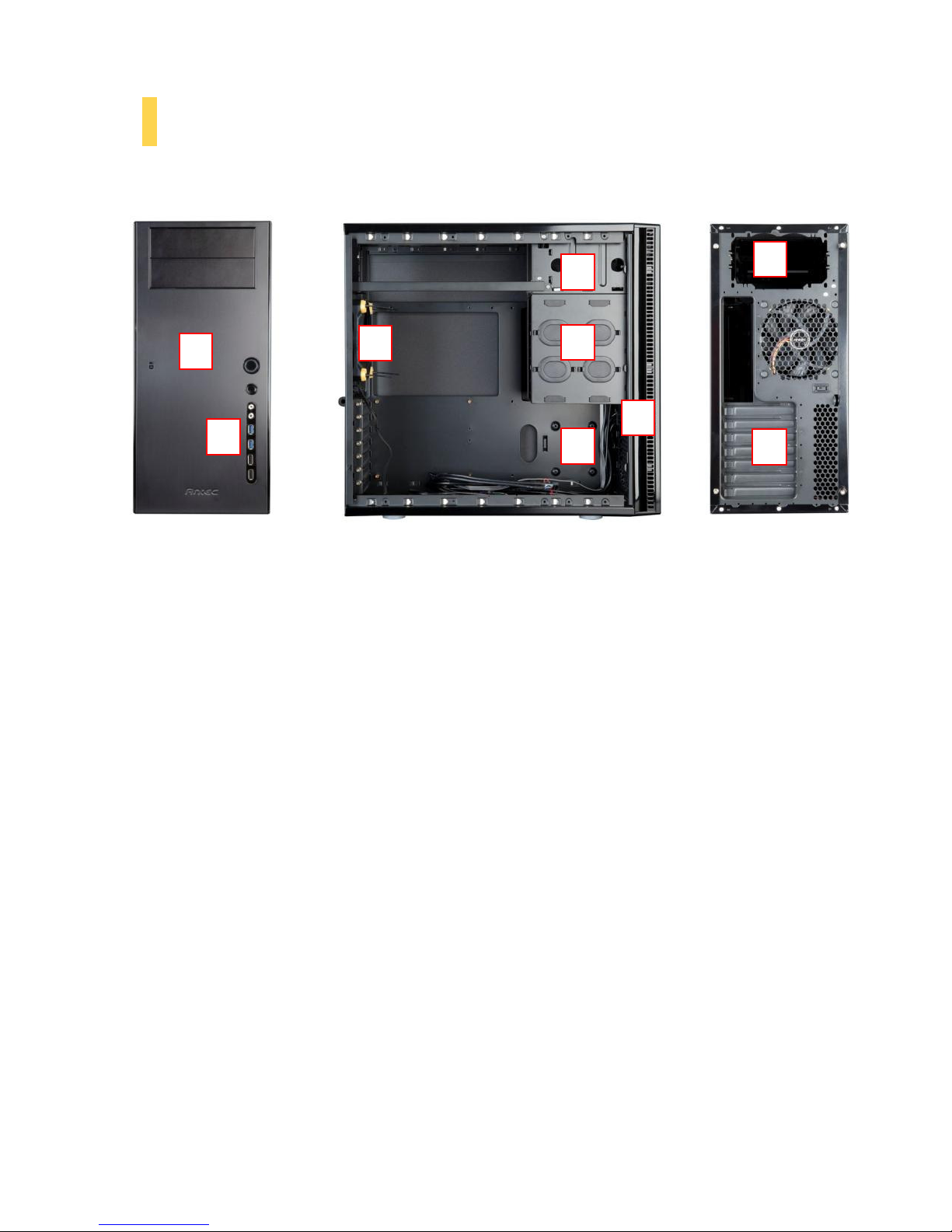
1. Internal: 3 x 3.5” / 2.5”using tray mount OR 2 x 3.5” with suspension mount cables
2. Internal: 1 x 2.5” SSD (dedicated)
3. External: 2 x 5.25”
4. 1 x rear 120 mm rueQuiet™ fan with 2-speed switch
5. 2 x front 120 mm fans (optional) and removable, washable air filters
6. Anodized aluminum front bezel
7. Front ports
8. Power supply mount
9. 7 expansion slots
1
2
3
4
5
8
8
9
6
7
6
1.2 C
HASSIS
S
PECIFICA IONS
Chassis
ype
Mid ower
Chassis
Color
Piano Black
Dimensions
17.3” (H) x 8.1” (W) x 18.5” (D)
440 mm (H) x 205 mm (W) x 470 mm (D)
Weight
20.2 lbs / 9.1 kg
Cooling
-Rear 120 mm rueQuiet™ fan with preinstalled silicone grommets
and 2-speed switch
-2 front 120 mm fan mounts (optional)
Drive Bays
-3 x 3.5”/2.5” using tray mounts with preinstalled silicone grommets
OR 2 x 3.5” with suspension mounting system
-2 x external 5.25”
-1 x 2.5” (dedicated)
Expansion Slots
7
Motherboard Size
Standard A X, microA X, Mini-I X
Front I/O Panel
-2 x USB 3.0
-2 x USB 2.0
-AC’97 / HD Audio In and Out
-On/Off Button
-Reset
1.3
I
NCLUDED
S
CREWS
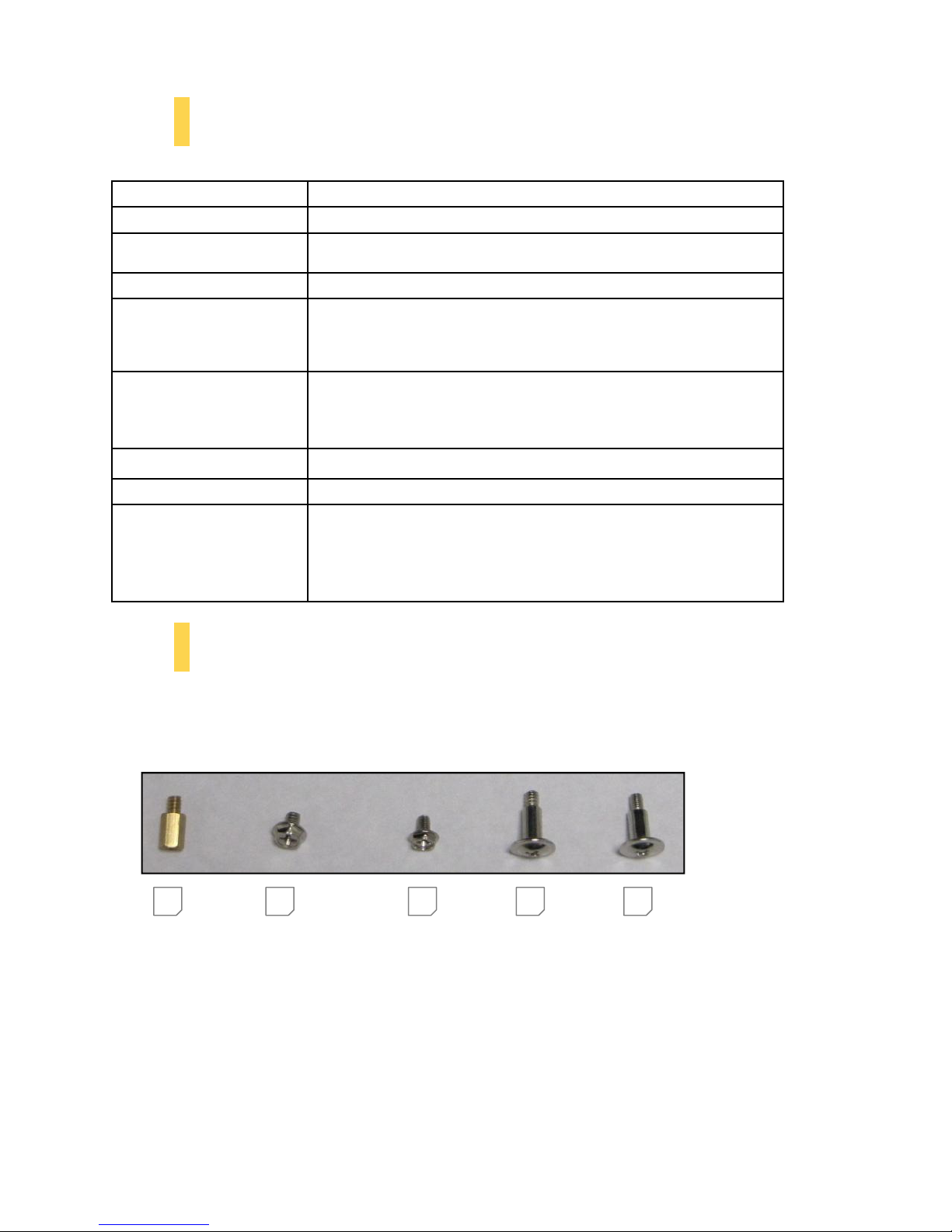
An inventory of all screws and intended usage and quantity is provided here:
A. Motherboard standoffs (9; 4 preinstalled)
B. Motherboard / PSU / mounting screws (15)
C. 5.25” external drive mounting screws / dedicated 2.5” drive bay (12)
D. 3.5” tray mount screws – coarse threading (14)
E. 2.5” drive mounting screws (tray mount) – fine threading (8)
A
E
D
C
B
7
1.4 B
EFORE
Y
OU
B
EGIN
In order to ensure that your building experience with the SOLO II will be a positive one, please take
note of the following:
•While working inside your SOLO II, keep your chassis on a flat, stable surface. Make sure your
build environment is clean, well-lit, and free of dust.
•Antec chassis feature rounded edges that minimize the occurrence of hand injuries. Nonetheless,
exercise caution and control when handling chassis interiors. We strongly recommend taking the
appropriate time and care when working inside the chassis. Avoid hurried or careless motions.
•Handle components and cards with care. Do not touch the unshielded components or contacts
on a card. Hold a card by its edges. Hold a component such as a processor by its edges, never by
its pins.
•o avoid electrostatic discharge, ground yourself periodically by touching an unpainted metal
surface (such as a connector or screw on the back of this computer) or by using a wrist
grounding strap.
•Before you connect a cable, ensure that both connectors are correctly aligned and oriented.
Bent pins can be difficult to fix and may require replacement of the entire connector.
•his manual is not designed to cover CPU, RAM, or expansion card installation. Please consult
your motherboard manual for specific mounting instructions and troubleshooting. Before
proceeding, check the manual for your CPU cooler to find out if there are steps you must take
before installing the motherboard.
•Do not sit on your chassis. Although it is constructed of heavy-duty steel and internally
reinforced, it is not designed to support the weight of an adult, and may buckle.
•Remember to use the right tools for each task. Do not use improvised screwdrivers like coins,
nails or knife blades as they may result in damage to screw threads or even injury. Do not use
your fingernails to separate edges or lift the sides of the chassis, as paint chipping or injury may
occur.

8
H
ARDWARE
INS ALLA ION
S
EC ION
2
9
2.1 S
E ING
U
P
Begin by removing the left side panel by loosening the thumbscrews and swinging the panel outward,
pulling it back towards you; this will completely remove it. Cut the ties on the 5.25” drive cage with a
wire cutter and remove the plastic bag of screws.
he SOLO II should now look like this.
10
2.2 M
O HERBOARD
I
NS ALLA ION
Before proceeding:
Check the manual for your CPU cooler to find out if there are steps you must do before installing the
motherboard.
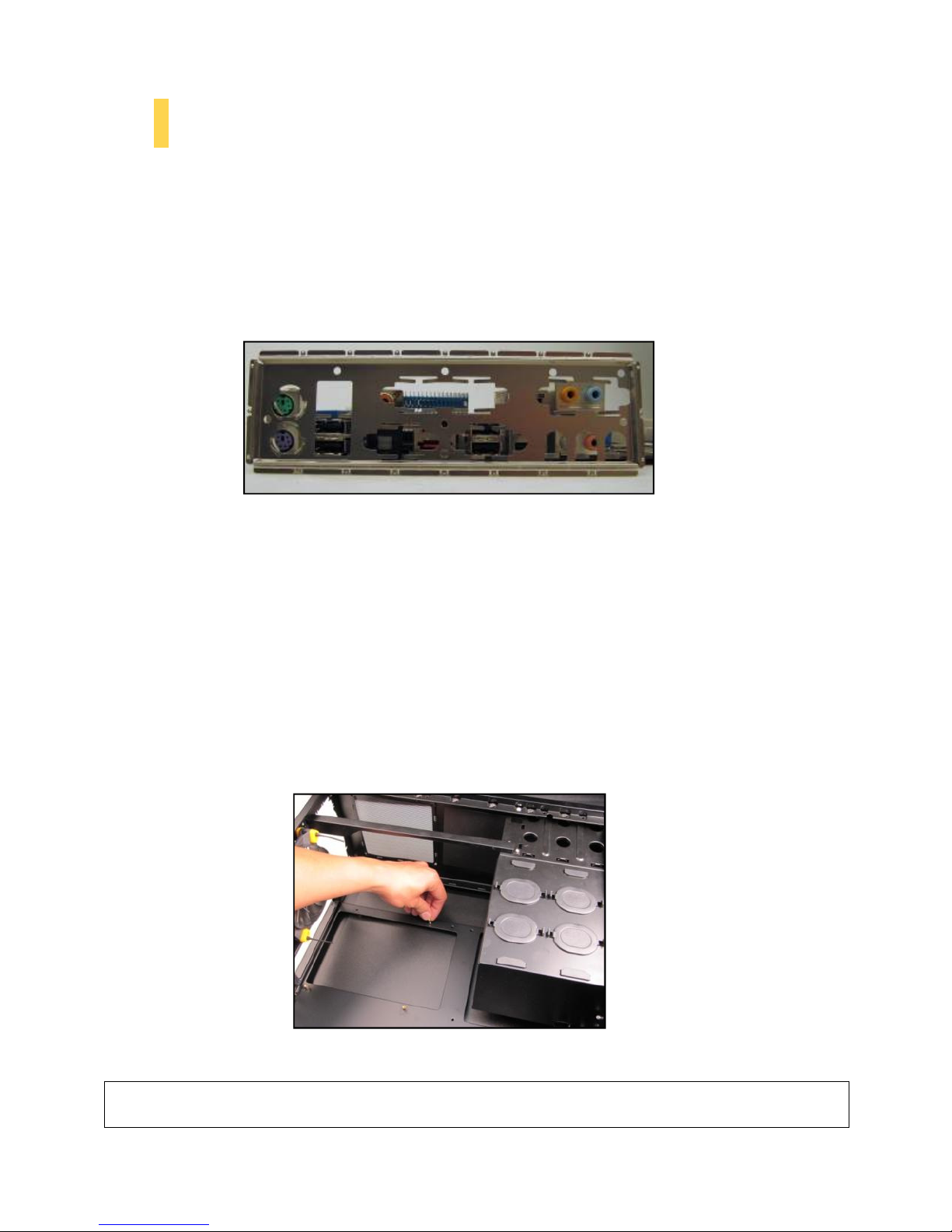
Make sure you have the correct I/O panel for your motherboard. If the panel provided with the
chassis isn’t suitable, please contact your motherboard manufacturer for the correct I/O panel.
he SOLO II comes with four preinstalled motherboard standoffs. hese are positioned for Standard
A X motherboards but can be relocated to accommodate other form factors.
1. Align the motherboard with the standoff holes on the motherboard tray and remember or mark
which holes are lined up
2. Install standoffs as needed and put the motherboard in. he motherboard tray has indicators
pertaining to specific form factors. Use the holes marked “A” for Standard A X and the holes
marked “M” for microA X.
Caution: Make sure to remove any unused motherboard standoffs. hey may come into contact with
the back of the motherboard and may electrify your chassis exterior if left connected.
Make sure you have the correct I/O panel.