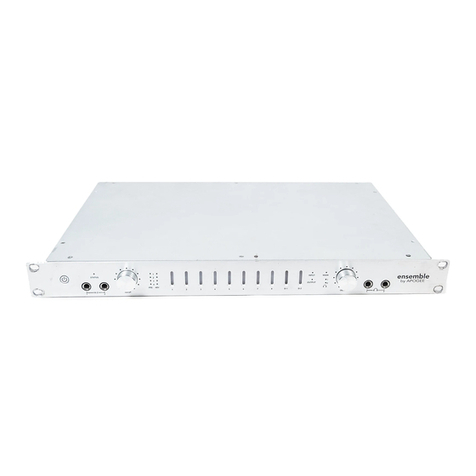
Apogee ensemble User manual

Multi–Channel,
24bit/192kHz Audio Interface
for the Macintosh
User’s Guide
V1.6 - April 2008


User’s Guide
Contents
Owner’s Record 2
Introduction 3
Getting Started Quickly 4
1. Installing software 4
2. Hardware connections 4
Getting Started Quickly 5
3. OS X conguration 5
4. iTunes playback 5
Getting Started Quickly 6
5. DAW conguration 6
Getting Started Quickly 7
6. Recording 7
General Operation 8
Making Settings with Software Control Panels 8
Making Settings with Ensemble’s Front Panel Encoder Knobs 8
Setting Sample Rate 9
Using 176.4–192 kHz Sampling Rates 9
Setting Clock Source 9
Digital I/O 9
Stand-Alone Mode 9
Ensemble Routing 9
General Operation 9
General Operation 10
Input Routing Diagram 10
General Operation 11
Output Routing Diagram 11
Maestro Control: Settings - Settings 12
Maestro Control: Settings - Settings (diagram) 13
Maestro Control: Levels - Output 14
Maestro Control: Levels - Input 14
Maestro Control: Levels - Input (diagram) 15
Maestro Control: Levels - Output (diagram) 15
Maestro Preferences 16
Navigating the Front Panel 18
Connections on the Rear Panel 19
Connecting Your Studio 20
Basic studio conguration: 20
Connecting Your Studio 21
5.1 surround conguration: 21
Conguring Audio Software Apps 22
Conguring Ensemble for use with audio software apps 22
Apple Soundtrack Pro 22
Apple FInal Cut Pro 22
Conguring Audio Software Apps 23
MOTU Digital Performer 23
Steinberg Nuendo 23
Troubleshooting 24
Troubleshooting 25
Warnings & Copyrights 26
Declarations of Conformity 27

APOGEE ELECTRONICS
2
Ensemble – User’s Guide
The serial number is located on the rear panel of the unit. We suggest you record the serial number
in the space provided below. Refer to it whenever you call an authorized Apogee Electronics repair
facility or the manufacturer. Please be sure to return your completed warranty card immediately!
Ensemble Serial No._________________________________________________
Purchase Date__________________________________________________________
Dealer_________________________________________________________________
Phone_________________________________________________________________
Address________________________________________________________________
CAUTION:
Any changes or modications not expressly approved by APOGEE ELECTRONICS
CORPORATION could void your authority to operate this equipment under the FCC rules.
Please register this unit by lling in the included registration card, or registering online at
http://www.apogeedigital.com/support/register.php Please read this manual – if you call for
technical support, we’ll assume that you have. There will be a quiz.
Owner’s Record

APOGEE ELECTRONICS
Ensemble – User’s Guide
3
Introduction
Ensemble is a digitally–controlled Firewire audio interface specically designed for Apple Macintosh
computers. From mic preamps to Mac Core Audio connectivity to headphone outputs, Ensemble includes
all that’s necessary for a high–quality Mac–based recording system.
Ensemble includes several of Apogee’s Core technologies, including:
SoftLimit
Soft Limit is an analog peak limiting circuit that instantaneously and gracefully controls transient peaks,
thereby allowing an additional 4 dB of headroom. Soft Limit may be engaged on all 8 Ensemble analog
inputs.
UV22HR
UV22HR is Apogee’s industry standard dither algorithm for reducing the word–length of a digital audio
signal from 24 to 16 bits. UV22HR is also being employed to produce dramatically improved internet and
computer audio content without increased le sizes or data rates.
Apogee Sample Rate Conversion (SRC)
Ensemble’s hardware sample rate conversion provides a high quality, exible solution for working with
digital audio hardware and software running at different sample rates. Ensemble’s sample rate conversion
may be applied to a digital input (to convert an input stream to Ensemble’s sample rate) or to a digital
output (to provide an output stream at a user selected sample rate different than Ensemble’s rate).
Ensemble Requirements
1. Apple PowerMac 1.5GHz or higher, 512MB of RAM required, 1GB recommended
2. OS X 10.4.11 or greater must be installed, 10.5.3 or greater highly recommended
3. Apple Logic Pro 7.2.3 or 8.0 and above
4. One Firewire 400 cable
Please note:
The functionality described in this User’s Guide is based on Ensemble rmware and software
release version 1.3, released in February, 2007.

APOGEE ELECTRONICS
4
Ensemble – User’s Guide
Getting Started Quickly
1. Installing software
Insert the included CD in your Mac’s optical drive
slot, double click on the Ensemble Software
Installer icon, and follow the onscreen directions
provided by the installer program. After the installa-
tion is complete, it will be necessary to restart your
Mac.
2. Hardware connections
Using the enclosed FireWire cable, connect one
of Ensemble’s FireWire ports to a FireWire 400
port on your Mac (gure 2).
Connect Ensemble’s AC input to an AC outlet
of 90 to 250 volts; Ensemble’s power switch will
illuminate to indicate the presence of AC. Press
the power switch to turn the unit on (gure 3).
Connect a pair of headphones to Ensemble’s
1 output (gure 4).
gure 1
gure 2
gure 3
gure 4

APOGEE ELECTRONICS
Ensemble – User’s Guide
5
3. OS X conguration
From your Mac’s Apple menu bar, open the
System Preferences window, then click on the
sound icon (gure 5).
In the Sound Preferences window click on the
Output tab and select Ensemble (gure 6).
gure 5
gure 6
4. iTunes playback
Open iTunes, select an audio le and initiate
playback (gure 7).
Press the OUTPUT encoder knob until the 1
LED is lit and adjust the level in your head-
phones (gure 8).
gure 7
gure 8
Getting Started Quickly

APOGEE ELECTRONICS
6
Ensemble – User’s Guide
Getting Started Quickly
5. DAW conguration
Congure your Core Audio compatible software
to communicate with Ensemble hardware I/O.
For example, in Logic 8 Pro :
Choose Preferences > Audio and click on the
Devices tab. In the Devices window, click on the
Core Audio tab (gure 9).
Check the Enabled box, select Ensemble in the
Device eld, and verify that the 24 Bit Record-
ing box is checked. Click on Apply Changes
when compete (gure 10).
To “customize” the I/O routing labels in Logic to
match Ensemble hardware I/O, choose Options
> Audio > I/O Labels. Click on the circle adja-
cent to each label under the Provided by Driver
column (gure 11).
To control Ensemble directly from your Logic
session, choose Options > Audio > Open Apo-
gee Control Panel (gure 12).
If you’re using another Core Audio compat-
ible audio software app, use Apogee’s Maestro
software (installed in your Applications folder in
Step 1) to control Ensemble.
gure 9
gure 10
gure 11
gure 12

APOGEE ELECTRONICS
Ensemble – User’s Guide
7
6. Recording
Connect a mic to the MIC 1 rear panel connnec-
tion (gure 13).
or an instrument to the HI–Z 1 front panel con-
nection (gure 14).
In Logic, set a track’s input to Analog 1 and
its output to Analog 1/2 and record-enable the
track (gure 15).
Press the front panel INPUT encoder knob until
the Pre 1 LED is lit, and turn encoder to obtain
a proper recording level on the record–enabled
track (gure 16).
You’re now ready to record!
gure 13
gure 15
Getting Started Quickly
gure 16
gure 14

APOGEE ELECTRONICS
8
Ensemble – User’s Guide
Making Settings with Software Control Panels
All Ensemble settings are made from Apogee’s Maestro Settings panel or Logic Pro’s Apogee Control Panel.
Certain settings can be also be made from OS X audio control panels. It’s possible to open multiple control panels
simultaneously, as settings made on one control panel are mirrored on all others. Additionally, Mic Pre gain and
Ouput level may be controlled from Ensemble’s front panel encoders, as described on the lower half of this page.
Apogee Maestro provides the most complete control of Ensemble, including control of all Ensemble
parameters, store/recall of congurations, expanded routing and 2 low–latency mixers. Maestro may be used
with any Core Audio compatible audio application. Please see the complete explanation of Maestro’s
Settings panel beginning on p. 14
The Logic Pro Apogee Control Panel, found in Logic Pro under the Audio menu, provides control of all Ensemble
parameters and store/recall of congurations.
Audio Midi Setup (AMS) – This OS X utility (found in the rootdrive/Applications/Utilities folder) provides control of
Ensemble’s clock source, sample rate and output level.
To set Ensemble’s output level using the Mac’s menu bar audio fader, set Default Output (in AMS) to Ensemble;
OSX audio faders (including the menu bar fader) will then control the output selected on Ensemble’s front panel.
For example, if the front panel 1 LED is lit, OSX audio faders control the 1output level.
Making Settings with Ensemble’s Front Panel Encoder Knobs
Ensemble’s front panel encoders provide simple and immediate access to Mic Pre gain settings and Output levels.
To use the left encoder to control mic pre gain:
Select the mic pre gain to set by clicking the left encoder knob until the desired PRE LED is lit.
Turn the encoder clockwise to increase gain or counter–clockwise to decrease gain.
The LEDs encircling the encoder indicate its “position”, providing a quick visual indication of level in the
same fashion as a traditional knob.
To use the right encoder to control output levels:
Select the output to set by clicking the left encoder knob until the desired LED is lit, and turn the knob as
described above; by selecting MAIN, rear panel analog output levels may be set; by selecting either 1 or
2, the corresponding front panel headphone output level may be set.
By pressing and holding the right encoder button for a few seconds, all analog outputs are muted. The
selected output LED ashes to indicate muting.
Please see p. 16 to congure the MAIN and headphone outputs
General Operation
Other manuals for ensemble
9
Table of contents
Other Apogee Accessories manuals
Apogee
Apogee Apogee Duet User manual

Apogee
Apogee ONE User manual
Apogee
Apogee SP-522 User manual

Apogee
Apogee SQ-420 User manual
Apogee
Apogee SQ-422 User manual
Apogee
Apogee SQX Series User manual
Apogee
Apogee Apogee Duet User manual
Apogee
Apogee S2-131-SS User manual
Apogee
Apogee SQ-617 User manual

Apogee
Apogee ONE User manual
Apogee
Apogee SQ Series User manual
Apogee
Apogee SQ-500 Series User manual
Apogee
Apogee Apogee Duet User manual
Apogee
Apogee ONE User manual
Apogee
Apogee Apogee Duet User manual
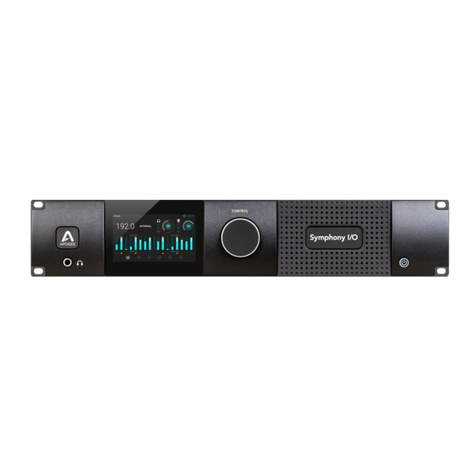
Apogee
Apogee symphony i/o mk II User manual
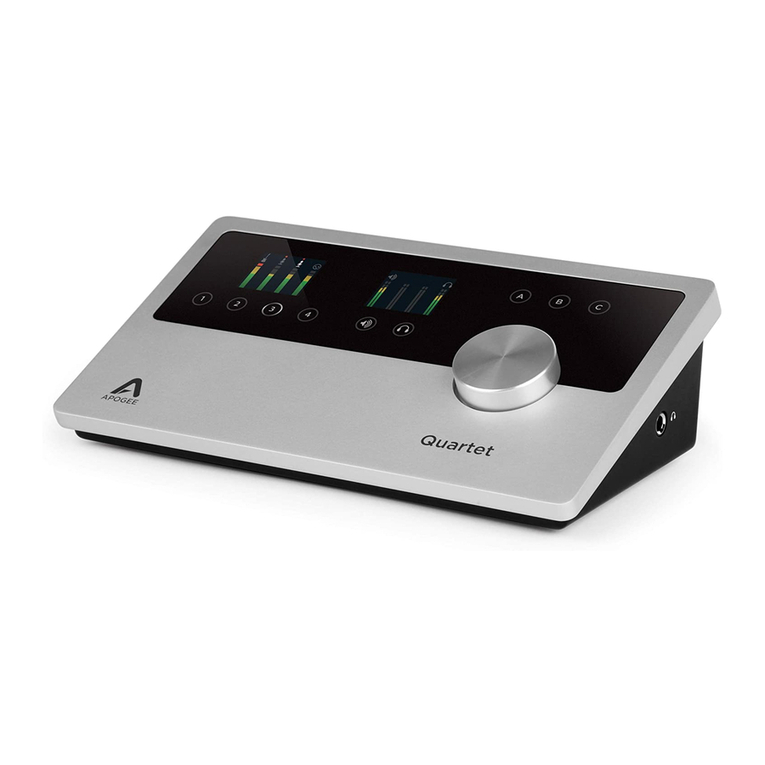
Apogee
Apogee Quartet User manual
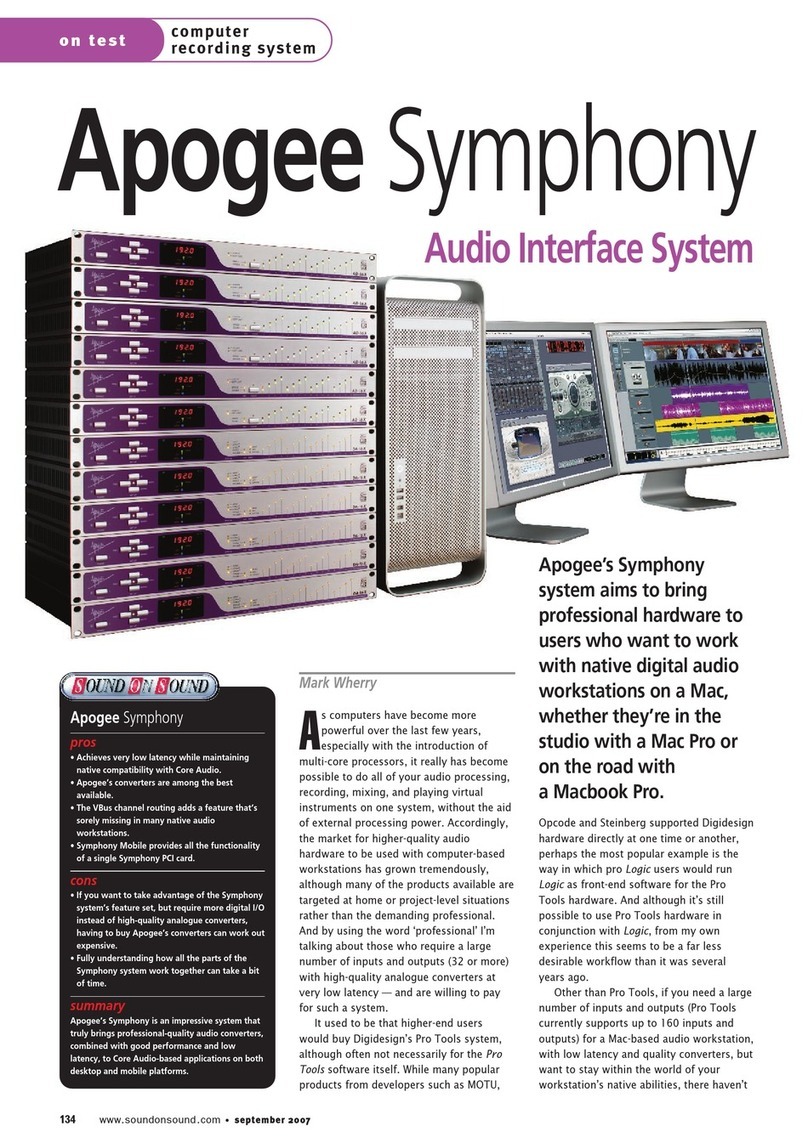
Apogee
Apogee AD-16X User manual
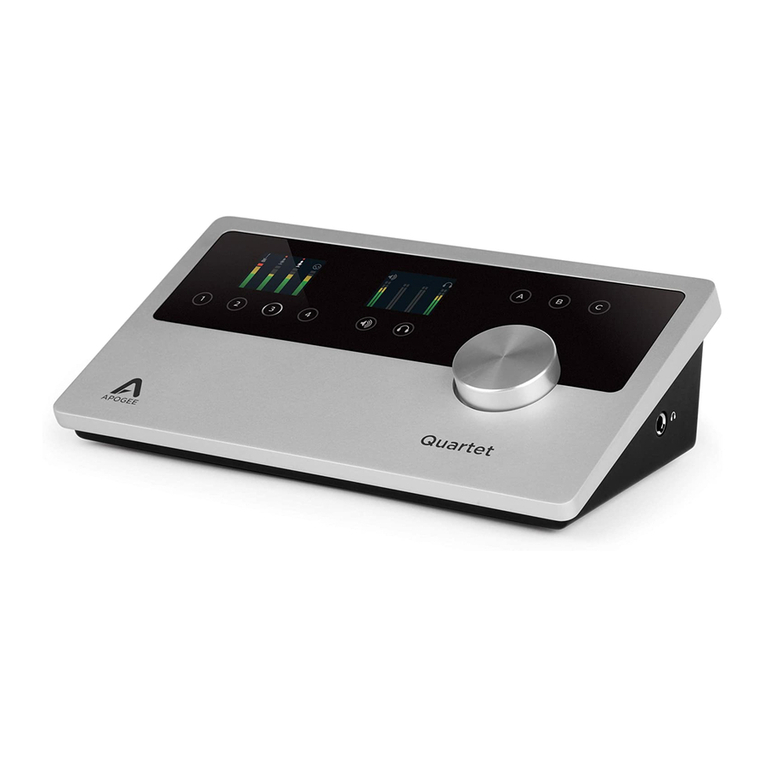
Apogee
Apogee Quartet User manual
Apogee
Apogee SQX Series User manual