manuals.online logo
Brands
  1. Home
  2. •
  3. Brands
  4. •
  5. Audiovox
  6. •
  7. Car Video System
  8. •
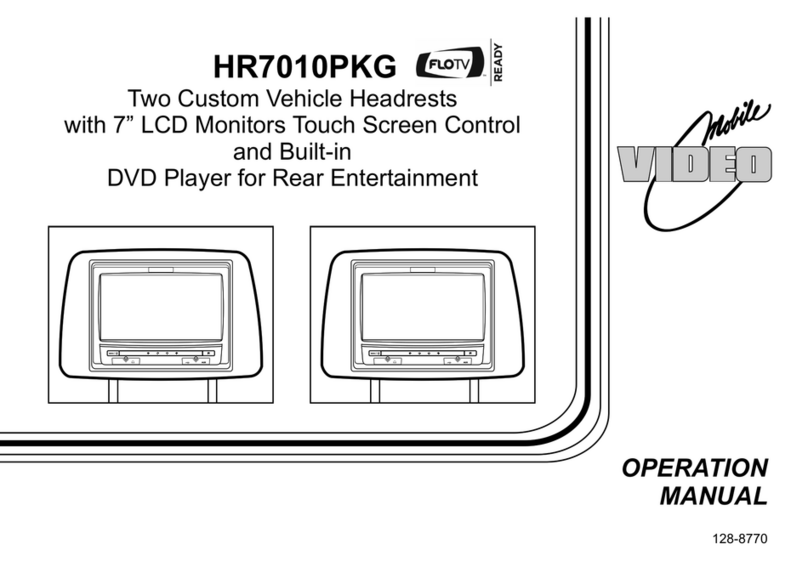
  9. Audiovox HR9000D User manual

Audiovox HR9000D User manual

This manual suits for next models

2

Other Audiovox Car Video System manuals

Audiovox Movies2Go 128-8290 User manual

Audiovox

Audiovox Movies2Go 128-8290 User manual

Audiovox VOH802 - VOH 802 - LCD Monitor User manual

Audiovox

Audiovox VOH802 - VOH 802 - LCD Monitor User manual

Audiovox VME 9314 TS User manual

Audiovox

Audiovox VME 9314 TS User manual

Audiovox VOD 808 User manual

Audiovox

Audiovox VOD 808 User manual

Audiovox VOH-642 User manual

Audiovox

Audiovox VOH-642 User manual

Audiovox AVXMTG10U User manual

Audiovox

Audiovox AVXMTG10U User manual

Audiovox VOH702 User manual

Audiovox

Audiovox VOH702 User manual

Audiovox DVD1627 Planning guide

Audiovox

Audiovox DVD1627 Planning guide

Audiovox Mobile Video HR7010PKG User manual

Audiovox

Audiovox Mobile Video HR7010PKG User manual

Audiovox VBP4000 - VBP 4000 DVD Player User manual

Audiovox

Audiovox VBP4000 - VBP 4000 DVD Player User manual

Audiovox MM92HR User manual

Audiovox

Audiovox MM92HR User manual

Audiovox VOD86 - LCD Overhead Monitor User manual

Audiovox

Audiovox VOD86 - LCD Overhead Monitor User manual

Audiovox VOH681A User manual

Audiovox

Audiovox VOH681A User manual

Audiovox VOH802 - VOH 802 - LCD Monitor User manual

Audiovox

Audiovox VOH802 - VOH 802 - LCD Monitor User manual

Audiovox VM9224 User manual

Audiovox

Audiovox VM9224 User manual

Audiovox HR7DD PKG User manual

Audiovox

Audiovox HR7DD PKG User manual

Audiovox VDS102T User manual

Audiovox

Audiovox VDS102T User manual

Audiovox FlexVision LCM641TV User manual

Audiovox

Audiovox FlexVision LCM641TV User manual

Audiovox MMD92 User manual

Audiovox

Audiovox MMD92 User manual

Audiovox HR7012 User manual

Audiovox

Audiovox HR7012 User manual

Audiovox VOD850 - Car - Overhead LCD Monitor User manual

Audiovox

Audiovox VOD850 - Car - Overhead LCD Monitor User manual

Audiovox VOH683 User manual

Audiovox

Audiovox VOH683 User manual

Audiovox VOH1502 User manual

Audiovox

Audiovox VOH1502 User manual

Audiovox Movies 2 Go MMD85A User manual

Audiovox

Audiovox Movies 2 Go MMD85A User manual

Popular Car Video System manuals by other brands

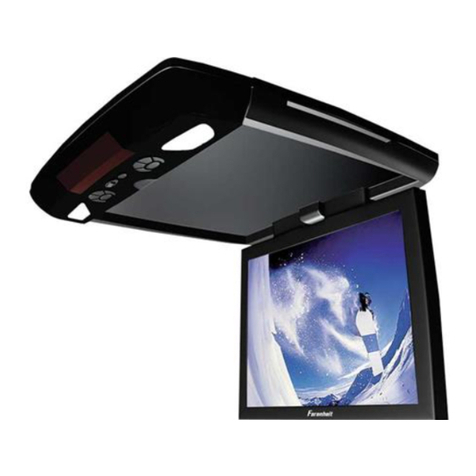
Farenheit MD-1510CM instruction manual

Farenheit

Farenheit MD-1510CM instruction manual

Mazda Connect manual

Mazda

Mazda Connect manual

RCA DRC97983 Manual de usuario

RCA

RCA DRC97983 Manual de usuario

Panasonic CY-VHD9401U Service manual

Panasonic

Panasonic CY-VHD9401U Service manual

Stinger HEIGH10 RB10RAM13B installation manual

Stinger

Stinger HEIGH10 RB10RAM13B installation manual

Alpine IVA-W203 - 6.5" Touch Screen 2-DIN DVD In-Dash... owner's manual

Alpine

Alpine IVA-W203 - 6.5" Touch Screen 2-DIN DVD In-Dash... owner's manual

Eonon E1057 instructions

Eonon

Eonon E1057 instructions

Milion D2223 user manual

Milion

Milion D2223 user manual

Metra Electronics 99-8153 installation instructions

Metra Electronics

Metra Electronics 99-8153 installation instructions

Voxx Electronics HR8MA1 owner's manual

Voxx Electronics

Voxx Electronics HR8MA1 owner's manual

Axxera AV604Bi quick start guide

Axxera

Axxera AV604Bi quick start guide

Clarion NX706E owner's manual

Clarion

Clarion NX706E owner's manual

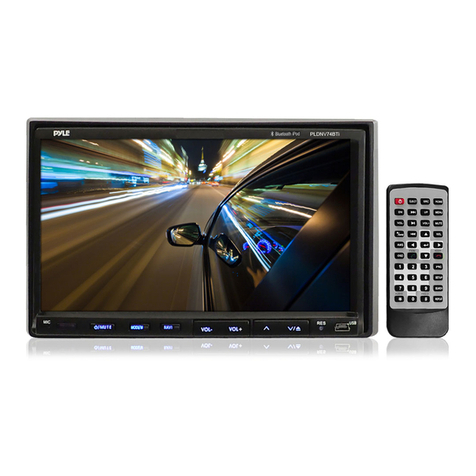
Pyle view PLDN74BTi owner's manual

Pyle view

Pyle view PLDN74BTi owner's manual

Clarion NX602 quick start guide

Clarion

Clarion NX602 quick start guide

RCA DRC6296 - Twin 9" Mobile DVD System Manual Del Usuario

RCA

RCA DRC6296 - Twin 9" Mobile DVD System Manual Del Usuario

Fiat Uconnect 5.0 manual

Fiat

Fiat Uconnect 5.0 manual

Lanzar SVDVD5 owner's manual

Lanzar

Lanzar SVDVD5 owner's manual

Eonon E1060 instructions

Eonon

Eonon E1060 instructions

manuals.online logo
manuals.online logoBrands
  • About & Mission
  • Contact us
  • Privacy Policy
  • Terms and Conditions

Copyright 2025 Manuals.Online. All Rights Reserved.

HR9000PKG
Two Vehicle Specific Headrests
With 7” LCD Monitors and Built-In
DVD Player for Rear Seat Entertainment
128-7632B
Operation
Manual
®
IMPORTANT
An LCD panel and/or video monitor may be installed in a motor vehicle and visible
to the driver if the LCD panel or video monitor is used for vehicle information,
system control, rear or side observation or navigation. If the LCD panel or video
monitor is used for television reception, video or DVD play, the LCD panel or video
monitor must be installed so that these features will only function when the vehicle
is in ‘park’ or when the vehicle’s parking brake is applied.
An LCD panel or video monitor used for television reception, video or DVD play
that operates when the vehicle is in gear or when the parking brake is not applied,
must be installed to the rear of the driver’s seat where it will not be visible, directly
or indirectly, to the operator of the motor vehicle.
3
HR9000PKG System
The HR9000PKG system contains two vehicle specific headrests. Each has a 7" Monitor and built-in DVD Player. This system allows
the users to either watch individual DVD’s or watch the same DVD on both monitors. Both users can also share an A/V source connected
to either the AV2 or AUX inputs. The full function remote control can operate either unit by selecting MI or M2 on the remote.
Quick Start Guide
1. Turn on the M1 monitor, tilt the screen forward using the center tab at the top of the screen.
2. Insert a DVD, CD or MP3 disc into the slot, disc label toward driver.
3. The disc will start playing.
4. Tilt the monitor to a comfortable viewing position (the headrest itself can be tilted forward to help achieve a comfortable viewing
position).
5. Each wireless headphone has a CH A/CH B switch. When sitting in front of the M1 screen, use the CH A switch setting. When sitting
sitting in front of the M2 screen, use the CH B switch setting. Set the headphone to the proper channel and press the Power
On/Off switch. The power indicator will light up red. Turn the volume down to its lowest setting before putting them on your head.
6. When the DVD menu appears, select the menu item using the cursor keys and press the Enter or Play button.
7. If audio playback through the vehicle radio is preferred, use the FM transmitter On/Off button on the remote control. Set the vehicle
radio to the channel selected on the M1 monitor. If interference with a local radio station occurs, set the FM modulator to one of the
other four radio frequencies using the FM channel select button on the remote control.
8. Turn on the M2 Monitor using the power button on the front of the screen or remote control.
9. Tilt the screen to a comfortable viewing position (the headrest itself can be tilted forward to help achieve a comfortable viewing position).
10. Select AV1 using the source button on the front panel or remote control to view program material on M1 or select from the other
available sources DVD, AV2 or AUX/GAME for M2 Monitor.
NOTE: To operate the M1 screen, press M1 on the remote control.
To operate the M2 screen, press M2 on the remote control.

S
AUX
GAME PORT
4
Control Function Descriptions for M1 and M2 Monitor
M1 / M2 Panel Control
1. DVD disc insertion slot
2. EJECT Button
3. Power Indicator LED
4. POWER Button
5. SOURCE Button
6. SCREEN MODE Button
7. PLAY Button
8. STOP Button
9. IR Transmitter LEDS
10. Game Port
11. AUX Input Jack (use with supplied AV adaptor)
1
2
CONTROLS AND INDICATORS DIAGRAM
EJECT
3 4 5 678
9
10 11
HR9000PKG SYSTEM OVERVIEW
1) The HR9000PKG is a versatile audio / video system which includes two monitors with built-in DVD players. They can accept an
Audio / Video input to either the AV2 or AUX inputs.
2) The M1 Monitor is comprised of a 7" TFT LCD monitor with built-in DVD player that allows the user to select from DVD, A/V1, AV2,
or AUX/GAME sources. The M1 monitor has a built-in infrared audio transmitter (CH A) for use with the supplied two-channel
wireless headphones (CH A). The M1 monitor also has the ability to provide the audio source for output to the wireless FM
Modulator to allow audio playback through the vehicle radio.
3) The M2 monitor is comprised of a 7" TFT LCD monitor with built-in DVD player that allows the user to select from DVD, A/V1, AV2,
or AUX/GAME sources. The M2 monitor has a built-in infrared audio transmitter (CH B) for use with the supplied two channel
wireless headphones (CH B).
4) The monitors will show all of the functions including the FM selection (M1 only) with the comprehensive OSD. FM functions may
also be turned off by pressing the FM ON / OFF button on the Remote Control.
5) The HR9000PKG System supplies two IR Headphone sets (P/N IR2CHS). The headsets have an A-B switch that allow the users to
select the audio from either the M1 (CH A) or the M2 (CH B).
6) Using different IR codes, the M1 Monitor will only respond to the Remote Control unit when press Monitor Select (M1) button on
remote control. And also the M2 Monitor will only respond to the Remote Control unit when press Monitor Select (M2) button on
remote control.
5
7) The M1 and M2 Monitor will accept an audio / video input through either the AV2 input (located on the FMM inter-connect or the
AUX (use with supplied AV adaptor) input located on the front of the unit. The audio / video device could be a video game system,
video camera, or other input device.
Note: If the Game Controller is plugged in and an AUX source is plugged in to the AUX input, the AUX input will override the Game
Controller. To use the Game Controller, unplug the AUX input.
8) Pivot the screen until a comfortable viewing angle reached. The internal lock limits the screen to a maximum adjustment of 30
degrees from closed position, the headrest itself can be tilted forward to help achieve a comfortable viewing position.
6
Game Port
Internal Lock
30 degrees
9) Insert disc 10) Eject disc
(M1/M2 Monitor) (M1/M2 Monitor)
Insert disc Eject disc
AUX IN
label
REMOTE CONTROL OPERATION
Battery Installation
Before attempting to operate your remote control, install the
batteries as described below.
1) Turn the remote control face down. Using a fingernail, lift the
battery cover off.
2) Install two “AAA” batteries. Make sure that proper polarity
(+/-) is observed.
3) Align the cover tabs with the remote control and press down
until the cover clicks.
Battery Cover
Lift for battery
installation
1
2
3
4
5
7
10
11
9
8
6
13
12
15
14
16
17 18
19
20
21
22
24
23
25
27
26
28
29
30
31
32
33
34
A-B
SOUR CE
1
4
7
PIXMUTE
9
2
5
8
6
3
POWER
M1 M2
MONITO R SELEC T
+
0
––
SET UP
REP EAT
RE TUR N
MENU
ENTER
IRT
ON/OFF
DISPLA Y
FMM
ON/OF F
AU DIO ZOO M AN GLE SUB TITLE
CHAN NE L
SELE CT
PLAY
II PAU SE
STOP
M1 ONLY
7
* Function control is available on the unit and remote control.
NOTE: To control the individual units (M1 Monitor / M2 Monitor) press either M1 or M2 before pressing any other button.
For example, to turn M1 Monitor ON, press M1 and then the power button.
1. POWER Button* – Press this button to turn M1 or M2 Monitor on. Press the button again to turn M1 or M2 Monitor OFF.
2. SOURCE Button* – Press this button to select the available sources. On the M1 monitor, the sources are DVD, AV1, AV2 &
AUX/GAME.
On the M2 Monitor, the sources are DVD, AV1, AV2 & AUX/GAME.
NOTE: If AV1 is selected on both units at the same time, there will be no display.
3. Up (p) Button – Use this button to scroll upward in menu options.
4. MUTE Button – Press this button to mute the audio. Pressing the button again restores the audio to the previously set level.
5. ENTER Button – Used to implement a selected setting.
6. LEFT (t) Button – Use this button to shift left in the menu options.
7. MENU Button – Allows the user to access the DVD (DVD MODE) root menu.
8. RETURN Button – Not used on this model.
9. A-B Button – Allow user to repeat the playback from point A to point B.
Press A-B button On-Screen Display DVD player
Once Repeat A- Mark the beginning of the section to repeat (Set point A)
Twice Repeat AB Mark the end of the section to repeat (Set point B)
3 times AB Off Cancel the A-B repeat function
REMOTE CONTROL FUNCTION DESCRIPTIONS
8
10. DISPLAY Button – Press to display the current disc information while the disc is playing. Press the cursor (pqtu) buttons to
highlight the desired option. For title and chapter selection use the number buttons to enter the desired title or chapter number for
angle, audio, and subtitle. Press the ENTER button repeatedly to change the item.
Title
Chapter
Angle
Audio
Subtitle
11. FM ON/OFF Button – Turns FM Modulator power ON/OFF (M1 Monitor Only).
12. AUDIO Button – Press to display and select the AUDIO language in DVD mode. Each time you press the button, the language
changes. (NOTE: The languages for audio vary from disc to disc.)
13. ZOOM Button – Press this button to enlarge the picture when playing a DVD disc.
Press ZOOM button DVD player perform
Once Enlarge the picture 2 times of the original size
Twice Enlarge the picture 3 times of the original size
3 times Enlarge the picture 4 times of the original size
4 times Picture is returned to original size
14. PAUSE (II) Button – Allows the user to pause the playback. Press the Play button to resume normal playback.
15. STOP () Button* – Press to stop playback.
16. PREVIOUS (9) Button – Press to return to the previous chapter or track.
17. NEXT (:) Button – Press to skip to the next chapter or track.
9
DVD
Title
Audio
Subtitle
-/- Chapter Angle 1/1
00:00:14
Ch ENG
Stop
5.1
Off
1/1
1/1
18. SCAN BACKWARD (7) Button – Press to search in a backward direction. Press repeatedly to change the search speed from 2, 4,
8, 20 times the normal speed.
19. SCAN FORWARD (8) Button – Press to search in a forward direction. Press repeatedly to change the search speed from 2, 4, 8,
20 times the normal speed.
20. PLAY (u) Button* – Press to activate the play mode while a disc is loaded in the disc compartment.
21. ANGLE Button – Press to display and select different camera angles in DVD mode. Each time you press the button, the angle changes.
NOTE: The numbers of angles vary from disc to disc. Not all discs contain this option.
22. SUBTITLE Button – Press to display and select the subtitle language in DVD mode. Each time you press the button, the subtitle
language changes.
NOTE: The type & number of language for subtitles vary from disc to disc.
23. CHANNEL SELECT Button – Selects the FM modulator Frequency (M1 only)
(Frequency 1: 88.3MHz, Frequency 2: 88.7MHz, Frequency 3: 89.1MHz, Frequency 4: 89.5MHz, Frequency 5: 89.9MHz).
24. IRT ON/OFF Button – Press this button to turn the selected unit (M1/M2) IR Transmitter ON/OFF.
25. REPEAT Button – Allows the user to repeat a selected Title, Chapter or Track of a DVD, CD or MP3.
26. Down (q) Button – Use this button to scroll downward in the menu options.
27. SETUP Button – Press to display the Setup Menu which allows the user to change the DVD player options such as TV DISPLAY,
OSD LANGUAGE, PARENTAL CONTROL etc.
Refer to the settings and Adjustments section for more information.
10