manuals.online logo
Brands
  1. Home
  2. •
  3. Brands
  4. •
  5. Axess
  6. •
  7. Portable Speakers
  8. •
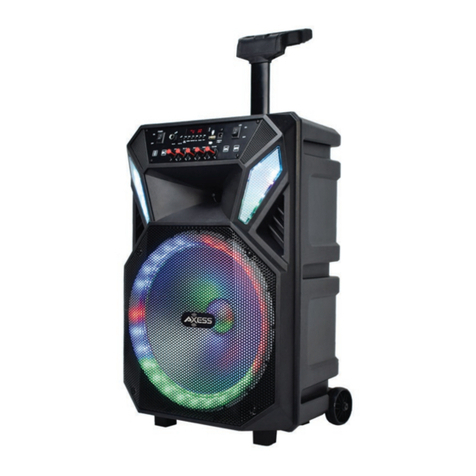
  9. Axess 15” MEGA BLAST User manual

Axess 15” MEGA BLAST User manual

This manual suits for next models

1

Other Axess Portable Speakers manuals

Axess PABT6040 User manual

Axess

Axess PABT6040 User manual

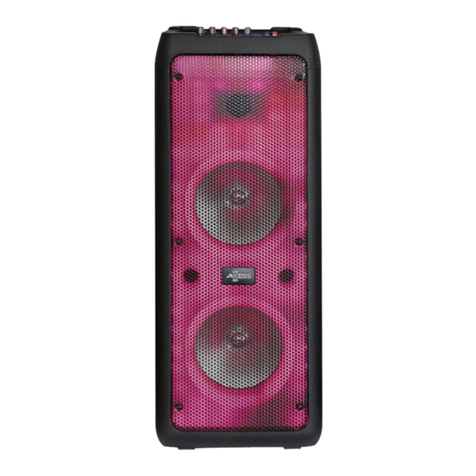
Axess PARTY FLAME Series User manual

Axess

Axess PARTY FLAME Series User manual

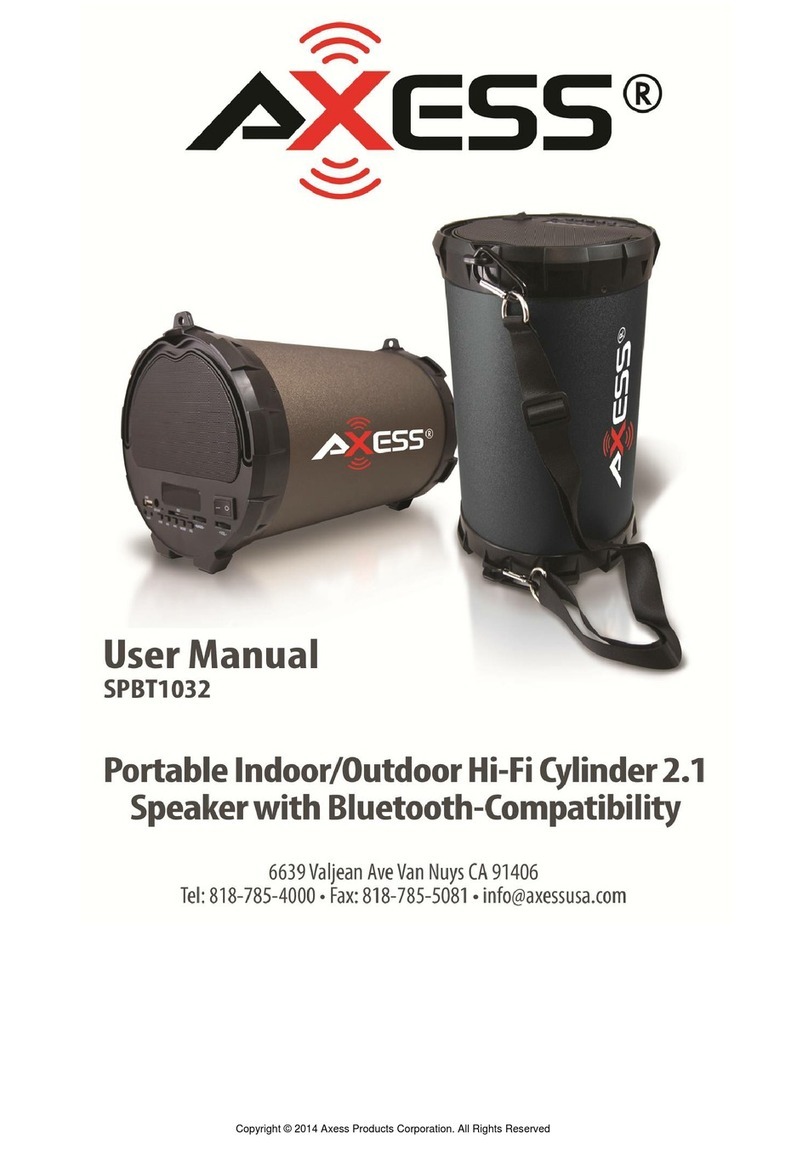
Axess SPBT1032 User manual

Axess

Axess SPBT1032 User manual

Axess PABT6037 User manual

Axess

Axess PABT6037 User manual

Axess SPBT1034 User manual

Axess

Axess SPBT1034 User manual

Axess MPBW6507 User manual

Axess

Axess MPBW6507 User manual

Axess SPBT1038 User manual

Axess

Axess SPBT1038 User manual

Axess SPBT1053 User manual

Axess

Axess SPBT1053 User manual

Axess SPBT1041 User manual

Axess

Axess SPBT1041 User manual

Axess SPBW1035 User manual

Axess

Axess SPBW1035 User manual

Popular Portable Speakers manuals by other brands

Innovative Technology ITSB-300 user manual

Innovative Technology

Innovative Technology ITSB-300 user manual

Blueant BLUESONIC user manual

Blueant

Blueant BLUESONIC user manual

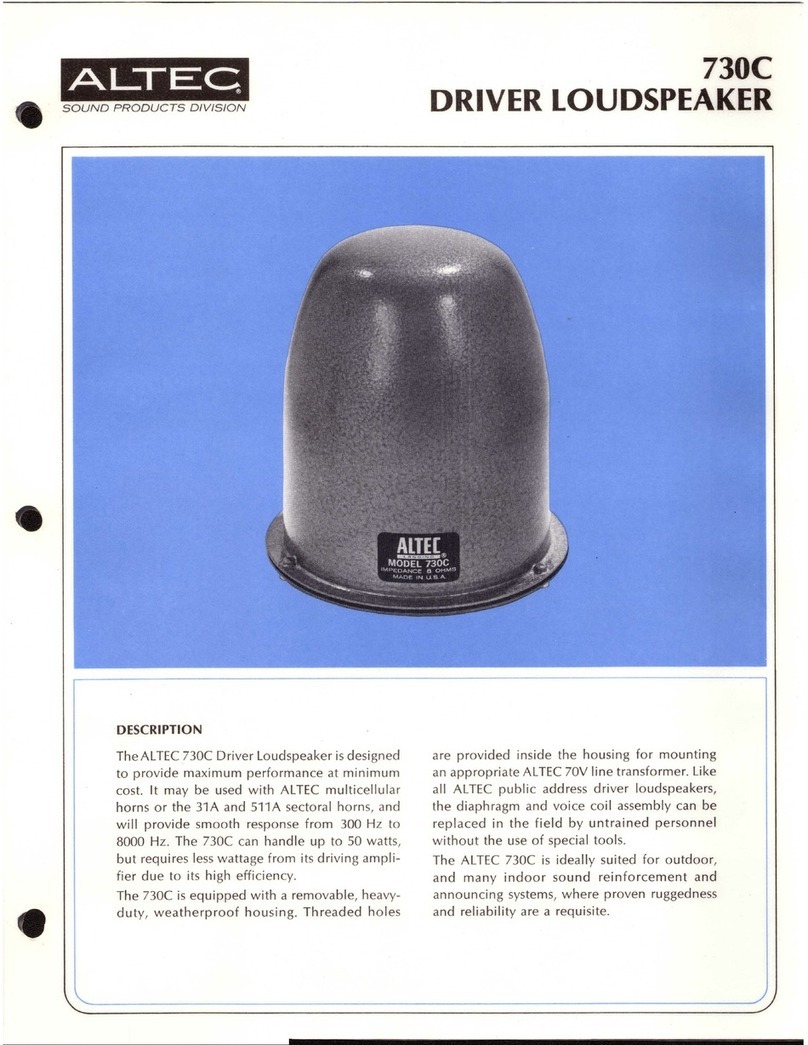
Altec 730C Specifications

Altec

Altec 730C Specifications

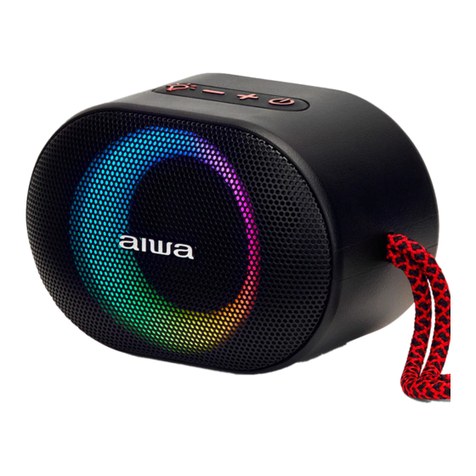
Aiwa BST-330 user manual

Aiwa

Aiwa BST-330 user manual

Prestigio PIS1 instruction manual

Prestigio

Prestigio PIS1 instruction manual

Akai AWS08BK manual

Akai

Akai AWS08BK manual

Philips BT6700 user manual

Philips

Philips BT6700 user manual

Wren V5BT Setup guide

Wren

Wren V5BT Setup guide

Sven PS-320 user manual

Sven

Sven PS-320 user manual

Urban revolt Streetbox Quick installation guide

Urban revolt

Urban revolt Streetbox Quick installation guide

Philips BT4000 Short user manual

Philips

Philips BT4000 Short user manual

Monster Rockin Roller 2 user manual

Monster

Monster Rockin Roller 2 user manual

Panacom monsoon user manual

Panacom

Panacom monsoon user manual

Lenovo speaker M0520 user guide

Lenovo

Lenovo speaker M0520 user guide

Mackie THUMP GO quick start guide

Mackie

Mackie THUMP GO quick start guide

Trevi XR 400 APP user guide

Trevi

Trevi XR 400 APP user guide

Philips sbm130 user manual

Philips

Philips sbm130 user manual

Trevi XF 4200 DJ user guide

Trevi

Trevi XF 4200 DJ user guide

manuals.online logo
manuals.online logoBrands
  • About & Mission
  • Contact us
  • Privacy Policy
  • Terms and Conditions

Copyright 2025 Manuals.Online. All Rights Reserved.

3
This symbol indicates to user that the machine
with risk of electric shock
This symbol indicates to user that the machine with
important operation and maintenance instruction
Portable Audio
15” MEGA BLAST
Trolley Party Speaker + 1.5” Tweeter
MANUAL
Axess Products Corporation - 6639 Valjean Ave. Van Nuys, 91406
Tel. 818-785-4000 Fax. 818-785-5081 [email protected]
Questions? Comments? Contact us at [email protected]
10. USB Flash Drive Input: insert your USB drive into this slot. The unit will only read
MP3, WAV, WMA files from teh USB flash drive. The maximum storage size of USB
flash drive cannot exceed 32GB. Do not attempt to connect a computer to the USB
input as the speaker will not be able to connect to a computer.

11. USB/TF display screen: the elapsed time and format will appear on screen
for the USB/TF card inputs
12. TF Input: Insert your TF card into this slot. The unit will only read MP3, WAV, WMA
files from the TF card flash drive cannot exceed 32 GB.
13. Power Switch: Press this switch turn on and off the speaker. Before powering on the
speaker make sure the volume levels are turned down to prevent damage to the
amplifiers or speakers.
14. DC Charging Port: Insert the charging adapter into the DC9V input port on the rear
of the unit. When the battery is charging this indicator will illuminate. When the
battery is fully charged the indicator will turn off.
15. Main Volume Knob: use this knob to adjust the volume of USB//TF/BT/FM music
16. Treble Knob: Use this knob to adjust the treble levels.
17. Bass Knob: Use this knob to adjust the bass levels.
18. Microphone Volume Knob: Use this knob to adjust the microphone volume levels.
19. Microphone Echo Knob: Use this knob to adjust the microphone echo levels.
When people sleep, they need a quiet environment.
Please turn off music or turn off the power while sleeping.
For first time use, fully charge the device until
the light indicator turns off as instructed in the manual.
This can take up to approximately 8 hours to fully charge.
If you don’t, device will not function at fully capacity.
PROMPT
PABT6016
2
1
12
3
4
56
7
89
10
11
19 18 17 16 15
14131211109
8
7
6
543
2
1
Portable AudioPortable Audio
SPEAKER CONTROL PANEL
REMOTE CONTROL FUNCTIONS
SPECIFICATIONS
Thank you for your support and trust on purchasing the products of our company.
To fully exert the function of the product, we suggest you to read the operating
instruction carefully before using it, for the convenience of grasping the connection
method and using points. Please take care of the operating instruction after reading
it for the purpose of further reference.
15” Bluetooth Speaker + 1.5” tweeter
Party LED lights
USB/TF/AUX inputs
FM Radio
Microphone input
Front Control Panel
Output Power: 1000 PMPO
Frequency Response 50Hz-20kHz
Power Supply: DC13.5V
Reachargeable Battery: 11.1V/3600mAh
Remote control
Wired Microphone
1. Power Switch: Press this switch turn ON and OFF the speaker
2. Mode Selector: Press this button to switch between USB, TF,
FM and Bluetooth inputs
3. Repeat Track: Tap this button to repeat single track
4. EQ mode switching
5. Previous FM station (CH-): When usign the speaker in FM mode,
press this button to go to the previous stored FM station
6. Next FM Station (CH+): When using the speaker in FM mode press
this button to go to next stored FM station
7. Previous Track: When using the speaker in USB,
TF card and Bluetooth mode, press this button
to go to the preivous track
8. Next Track: When using the speaker in USB,
TF card and Bluetooth mode, press this button
to go to the next track
9. Pause and FM scan: Press this button to pause
the signal from the USB flash drive, TF Card,
or Bluetooth inputs. When using the speaker
in FM mode, press this button to auto scan for
available stations
10. Volume -
11. Volume +
12. (0-9) number buttons
1. LED Lights Power button: Press this button to turn ON and OFF the Front LEDs.
2. Insert Microphone to front panel MIC jack, adjust MIC VOL and ECHO to best level.
3. AUX input: connect your smartphone, MP3 player, laptop or other audio device to
this input.
4. Microphone Priority: When the microphone priority is activated, speaking into the
microphone will automatically lower the audio signal 20dB. When the two speakers
are switched to bluetooth mode, press the TWS function button on any machine for
3-5 seconds to enter the TWS matching state, then the two speakers will be auto-
matically paired and connected. When the “dong” tone is heard that means the pairing
was successful, and the LED screen has a display prompt.
5. Mode selector/recording: press this button to switch between USB, TF, and Bluetooth
inputs. Press and hold 3-5 seconds to begin recording onto the USB drive or TF card.
6. Repeat Track: tap this button to single tune repeat
7. Previosu track/ Previous FM station (CH-): When using the speaker in USB. TF card and
Bluetooth mode, press this button to go to previous track. When using the speaker in
FM mode, press this button to go to the previous stored FM station.
8. Play/Pause and FM scan: Press this button to pause the signal from the USB drive,
TF card or bluetooth inputs. When using the speaker in FM mode, press this button
auto scan for available stations. Each station will be stored. Press the CH+ and CH-
to choose a station.
9. Next track/ Next FM station (CH+): When using the speaker USB, TF card and
Bluetooth mode, press this button to go to the next track. When using the speaker in
FM mode, press this button to go to the next stored FM station.
10. USB Flash Drive Input: insert your USB drive into this slot. The unit will only read
MP3, WAV, WMA files from teh USB flash drive. The maximum storage size of USB
flash drive cannot exceed 32GB. Do not attempt to connect a computer to the USB
input as the speaker will not be able to connect to a computer.