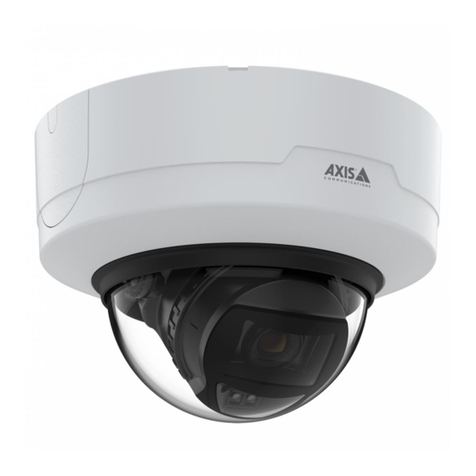
Axis MFD-R User manual

ENGLISH FRANCAIS DEUTSCH ESPAÑOL
ITALIANO
AXIS 209FD/FD-R/FD-R M12
AXIS 209MFD/MFD-R/MFD-R M12
Installation Guide


AXIS 209FD/FD-R/FD-R M12/MFD/MFD-R/MFD-R M12 Installation Guide Page 3
ENGLISH
ENGLISH
AXIS 209FD/FD-R/FD-R M12
AXIS 209MFD/MFD-R/MFD-R M12
Installation Guide
This installation guide provides instructions for installing the AXIS 209FD, AXIS 209FD-R,
AXIS 209FD-R M12, AXIS 209MFD, AXIS 209MFD-R and the AXIS 209MFD-R M12 on
your network. For all other aspects of using the product, please see the User’s Manual,
available on the CD included in this package, or from www.axis.com/techsup
Installation steps
1. Check the package contents against the list below.
2. Hardware overview. See page 4.
3. Install the hardware. See page 5.
4. Set an IP address. See page 7.
5. Set the password. See page 10.
6. Adjust the lens. See page 11.
7. Complete the installation. See page 12.
Package contents
Item Models/variants/notes
Fixed Dome Network camera AXIS 209FD
AXIS 209FD-R
AXIS 209FD-R M12
AXIS 209MFD
AXIS 209MFD 16MM
AXIS 209MFD-R
AXIS 209MFD-R M12
AXIS 209MFD-R M12/SPLIT
PoE Midspan Power over Ethernet midspan (1 port), including mains cable
(AXIS 209FD/AXIS 209FD-R/AXIS 209MFD/AXIS 209MFD-R)
(midspan not included in bulk pack)
Mounting kit Allen key (hex key) for tamper-proof cover screws
Silica gel sachet (AXIS 209FD-R/AXIS 209FD-R M12/AXIS 209MFD-R/AXIS
209MFD-R M12 only)
CD AXIS Network Video Product CD, including product documentation,
installation tools and other software
Printed Materials AXIS 209FD/FD-R/FD-R M12/MFD/MFD-R/MFD-R M12 Installation Guide (this
document)
Axis Warranty Document
Important!
This product must be used in
compliance with local laws
and regulations.

Page 4 AXIS 209FD/FD-R/FD-R M12/MFD/MFD-R/MFD-R M12 Installation Guide
Hardware overview
Dimensions
Diameter 1 = 102mm (4.02”), Diameter 2 = 100mm (3.94”)
Height = 39mm (1.54”)
Weight = 0.18 kg (0.40lb)
Front view
Rear view
Side view
Position of rear cable
exit (optional)
Base plate
Network cable with
model-specific
connector
Screw holes
∅102mm
∅100mm
39mm

AXIS 209FD/FD-R/FD-R M12/MFD/MFD-R/MFD-R M12 Installation Guide Page 5
ENGLISH
ENGLISH
Install the hardware
Mount the camera
The AXIS 209FD/FD-R/FD-R M12/MFD/MFD-R/MFD-R M12 can be mounted with the cable
routed through the ceiling or from the side.
The AXIS 209FD/AXIS 209MFD is
supplied with a standard RJ-45 female
network connector, on a 2 meter cable.
The AXIS 209FD-R/AXIS 209MFD-R is
supplied with a 29mm female RJ-45
network connector on a 0.5 meter cable.
To protect the cabling against moisture
this connecter must be connected to a
suitable 29mm male connector.
The AXIS 209FD-R M12/AXIS 209MFD-
R M12 is supplied with a 21mm male
M12 D-code network connector on a 0.5
meter cable. To protect the cabling
against moisture this connecter must be
connected to a suitable 21mm female
connector.
1. Using the supplied allen/hex key,
loosen the 4 screws holding the
cover and remove it.
2. Use the base plate to mark out the positions for the mounting screws.
3. To route the cable through a ceiling, cut or drill the hole for the cable and connector.
For the AXIS 209FD/AXIS 209MFD - cut a 17mm hole.
For the AXIS 209FD-R/AXIS 209MFD-R - cut a 30mm hole.
For the AXIS 209FD-R M12/AXIS 209MFD-R M12 - cut a 22mm hole.
-or-
For a surface mounted cable, cut out the cable exit hole at the rear of the cover
!IMPORTANT! - The casing of the AXIS 209FD/AXIS 209MFD is not approved
for outdoor use and may only be installed in indoor environments.
The AXIS 209FD-R/AXIS 209FD-R M12/AXIS 209MFD-R/AXIS 209MFD-R
M12 is rugged and can be used in humid environments such as mass transit
vehicles.

Page 6 AXIS 209FD/FD-R/FD-R M12/MFD/MFD-R/MFD-R M12 Installation Guide
4. Connect the network cable. If
PoE is not supported by the
network switch, use the
supplied PoE midspan/power
injector to connect power to
the AXIS 209FD, AXIS 209FD-
R, AXIS 209MFD, AXIS
209MFD-R.
5. Check that the indicator LED:s
indicate the correct conditions.
See the table on page 14 for
further details.
6. Fasten the base plate to a flat
ceiling, using appropriate
screws/plugs.
Check that the base plate
completely covers the cable
hole, so that it is not visible
when the camera is in place.
Before replacing the cover, you should now make the final adjustment to the position of the
lens. This requires access to live images from the camera in your browser, so you should now
proceed as follows:
a) Assign an IP address - see step 4 on page 7.
b) Set the password - see step 5 on page 10.
c) Adjust the lens - see step 6 on page 11.
d) Complete the installation - see step 7 on page 12.
Network
cable with
connector
Indicator LEDs
Screw hole
Screw hole
Screw hole
Product ID & Serial
number (S/N) label
Screw hole
Control button

AXIS 209FD/FD-R/FD-R M12/MFD/MFD-R/MFD-R M12 Installation Guide Page 7
ENGLISH
ENGLISH
Assign an IP address
To make it accessible on the network, the AXIS 209FD/FD-R/FD-R M12/MFD/MFD-R/MFD-
R M12 must be assigned an IP address.
Depending on the number of cameras you wish to install, the recommended method for
assigning IP addresses in Windows is either AXIS IP Utility or AXIS Camera Management.
Use the method that best suits your purpose.
Both of these free applications are available on the Axis Network Video Product CD supplied
with this product, or they can be downloaded from www.axis.com/techsup
Notes:
• If there is a DHCP server on your network the AXIS 209FD/FD-R/FD-R M12/MFD/MFD-R/MFD-R M12
will automatically receive a dynamic IP address, but this will not prevent manual setting of an
alternative address.
• The AXIS 209FD/FD-R/FD-R M12/MFD/MFD-R/MFD-R M12 has the default IP address 192.168.0.90
• If assigning the IP address fails, check that there is no firewall blocking the operation.
• For other methods of assigning or discovering the IP address, e.g. in other operating systems, see
page 13.
Method Recommended for Operating system
AXIS IP Utility
See page 8
Single camera
Small installations
Windows
AXIS Camera Management
See page 9
Multiple cameras
Large installations
Installation on a different subnet
Windows 2000
Windows XP Pro
Windows 2003 Server
Windows Vista

Page 8 AXIS 209FD/FD-R/FD-R M12/MFD/MFD-R/MFD-R M12 Installation Guide
AXIS IP Utility - single camera/small installation
AXIS IP Utility automatically discovers and displays Axis devices on your network. The
application can also be used to manually assign a static IP address.
Note that the computer running AXIS IP Utility must be on the same network segment
(physical subnet) as the AXIS 209FD/FD-R/FD-R M12/MFD/MFD-R/MFD-R M12.
Automatic discovery
1. Check that the AXIS 209FD/FD-R/FD-R M12/MFD/MFD-R/MFD-R M12 is connected to
the network and that power has been applied.
2. Start AXIS IP Utility.
3. When the camera appears in the window, double-click it to open its home page.
4. See page 10 for instructions on how to assign the password.
Assign the IP address manually (optional)
1. Acquire an unused IP address on the same network segment as your computer.
2. Select the AXIS 209FD/FD-R/FD-R M12/MFD/MFD-R/MFD-R M12 in the list.
3. Click the button Assign new IP address to selected device and enter the IP address.
4. Click the Assign button and follow the instructions.
5. Click the Home Page button to access the camera’s web pages.

6. See page 10 for instructions on how to set the password.

AXIS 209FD/FD-R/FD-R M12/MFD/MFD-R/MFD-R M12 Installation Guide Page 9
ENGLISH
ENGLISH
AXIS Camera Management - multiple cameras/large installations
AXIS Camera Management can automatically find and set IP addresses, show connection
status, and manage firmware upgrades for multiple Axis video products.

Set the IP address for a single device
1. Check that the camera is connected to the network and that power has been applied.

2. Start AXIS Camera Management. When the AXIS 209FD/FD-R/FD-R M12/MFD/MFD-R/
MFD-R M12 appears in the window, double-click it to open the camera’s home page.
3. See page 10 for instructions on how to set the password.
Set the IP address in multiple devices
AXIS Camera Management speeds up the process of assigning IP addresses to multiple
devices, by suggesting IP addresses from a specified range.
1. Select the devices you wish to configure (different models can be selected) and click the
Assign IP button.
2. Select Obtain IP addresses automatically (DHCP), click the Update button and the
program will search in the specified range and suggest an IP address for each device.
-or-
Enter the range of IP addresses, the subnet mask and default router that devices can use
and click the Update button.

Page 10 AXIS 209FD/FD-R/FD-R M12/MFD/MFD-R/MFD-R M12 Installation Guide
Set the password
When accessing the AXIS 209FD/FD-R/FD-R
M12/MFD/MFD-R/MFD-R M12 for the first
time, the ‘Configure Root Password’ dialog
will be displayed.
1. Enter a password and then re-enter it, to
confirm the spelling. Click OK.
2. Enter the user name root in the dialog as
requested.
Note: The default administrator user name root cannot be deleted.
3. Enter the password as set above, and click OK. If the password is lost, the
AXIS 209FD/FD-R/FD-R M12/MFD/MFD-R/MFD-R M12 must be reset to the factory
default settings. See page 14.
4. If required, click Yes to install AMC (AXIS Media Control), which allows viewing of the
video stream in Internet Explorer. You will need administrator rights on the computer to
do this.
The Live View page of the AXIS 209FD/FD-R/FD-R M12/MFD/MFD-R/MFD-R M12 is
displayed, with links to the Setup tools, which allow you to customize the camera.
Setup - Provides all the tools for configuring
the camera to requirements.
Help - Displays
online help on all
aspects of using
the camera.
This manual suits for next models
8
Table of contents
Languages:
Other Axis Security Camera manuals

Axis
Axis Q6054-E User manual

Axis
Axis M3067-P User manual

Axis
Axis Q6032-E PTZ User manual

Axis
Axis 215 PTZ User manual

Axis
Axis Q86 Series User manual

Axis
Axis Fixed Dome Network Camera AXIS P3301 User manual

Axis
Axis AXIS M-1004W User manual

Axis
Axis Q6042 User manual

Axis
Axis Q35 Series User manual

Axis
Axis AXIS P3375-V User manual