Blackbe;rry 8100 - Pearl - T-Mobile Assembly instructions
Other Blackbe;rry Cell Phone manuals

Blackbe;rry
Blackbe;rry p990i User manual
Blackbe;rry
Blackbe;rry BBB100-2 User manual

Blackbe;rry
Blackbe;rry 9520 - Charging Pod For User manual
Blackbe;rry
Blackbe;rry 8703e - CDMA User manual
Blackbe;rry
Blackbe;rry Bold 9700 Operator's manual

Blackbe;rry
Blackbe;rry Curve 9360 User manual
Blackbe;rry
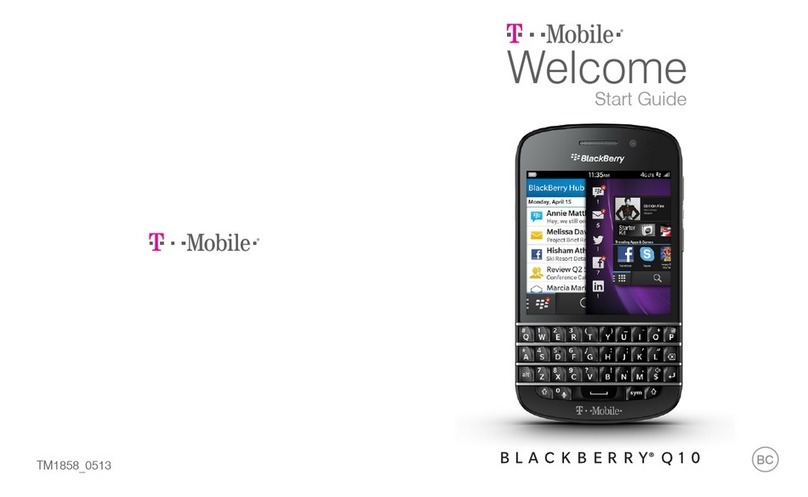
Blackbe;rry Q10 Guide
Blackbe;rry
Blackbe;rry 8330 - Curve - Sprint Nextel User manual
Blackbe;rry
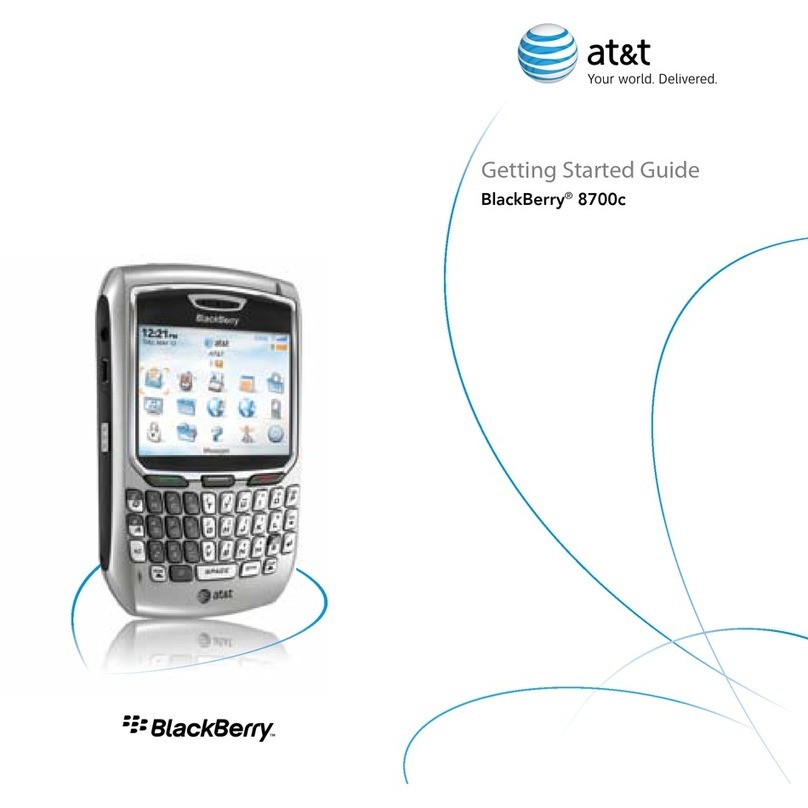
Blackbe;rry 8700C - GSM User manual
Blackbe;rry
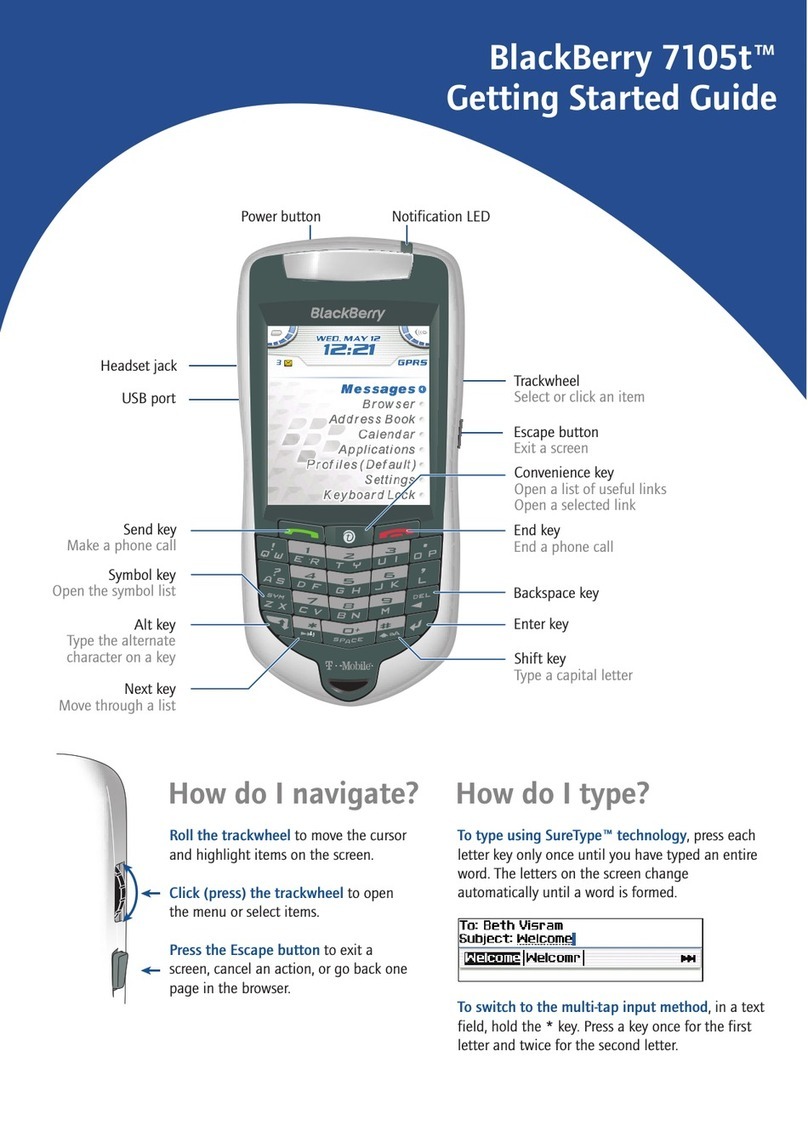
Blackbe;rry 7105t - GSM User manual
Blackbe;rry
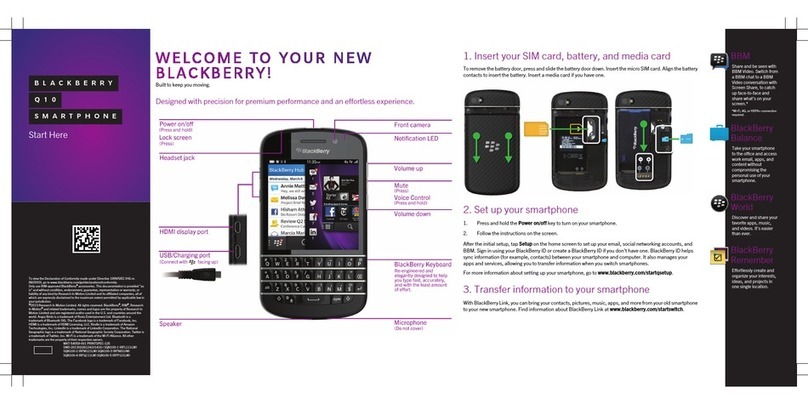
Blackbe;rry Q10 Instruction Manual

Blackbe;rry
Blackbe;rry 8800 - SMARTPHONE - SAFETY AND User manual

Blackbe;rry
Blackbe;rry PORSCHE DESIGN P'9981 User manual
Blackbe;rry
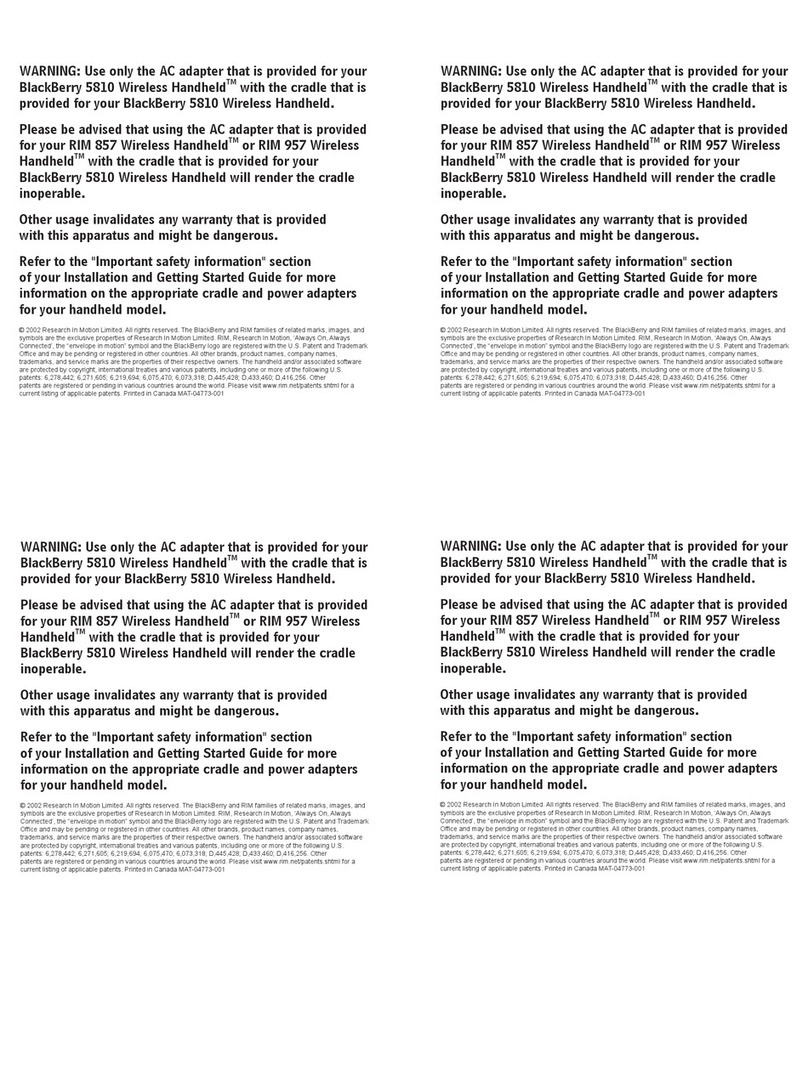
Blackbe;rry 5810 Installation instructions
Blackbe;rry
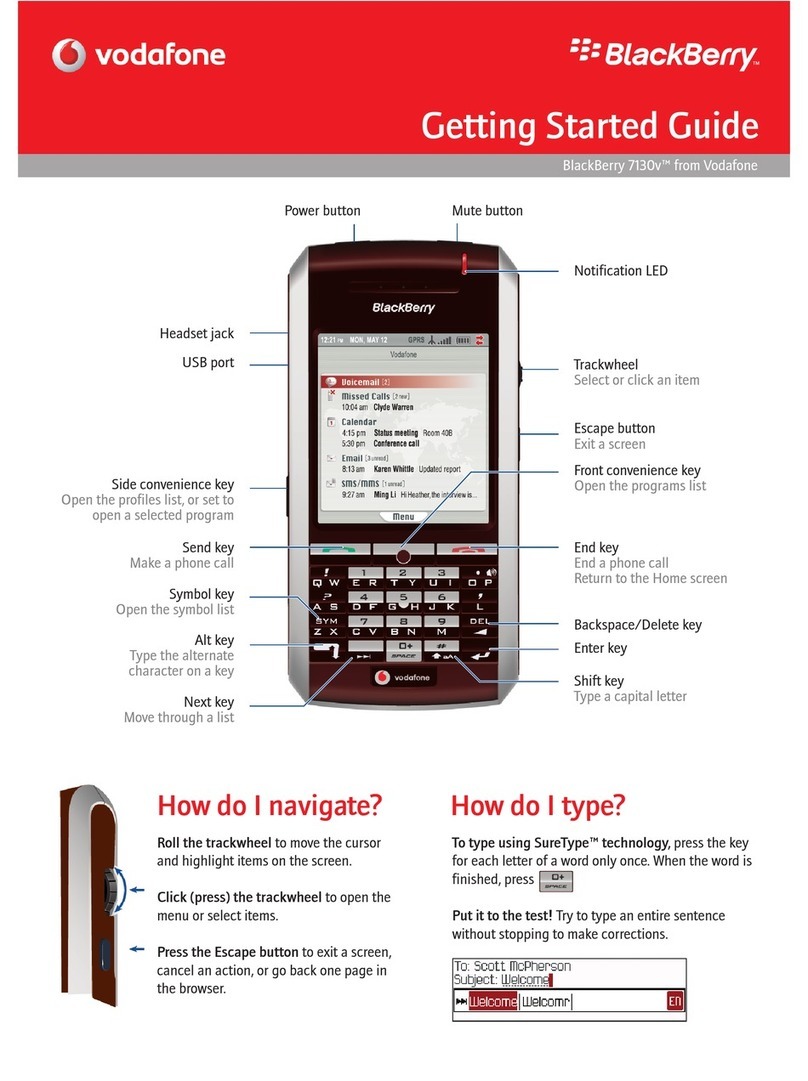
Blackbe;rry 7130V - GETTING STARTED GUIDE FROM VODAFONE User manual
Blackbe;rry
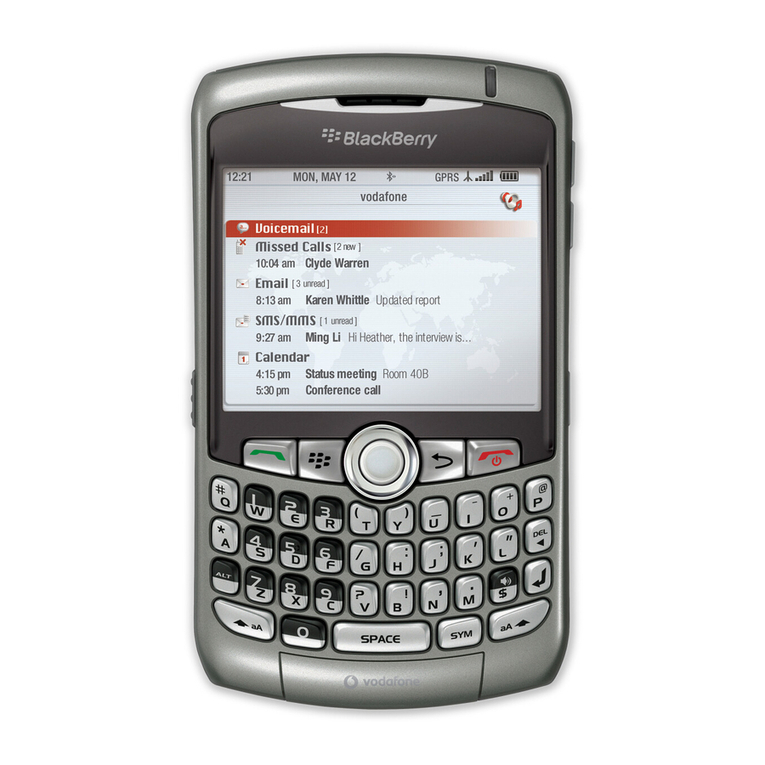
Blackbe;rry BlackBerry Curve User manual
Blackbe;rry
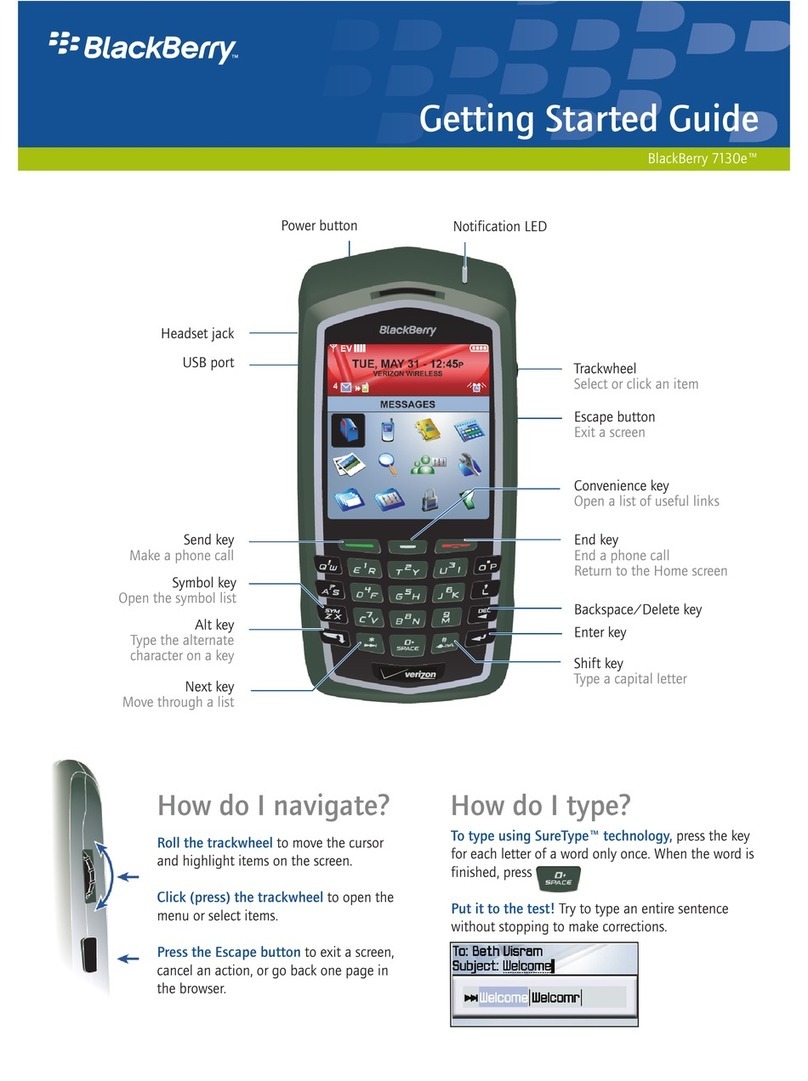
Blackbe;rry 7130E - VERSION 4.1 User manual

Blackbe;rry
Blackbe;rry 8820 SMARTPHONE Assembly instructions
Blackbe;rry
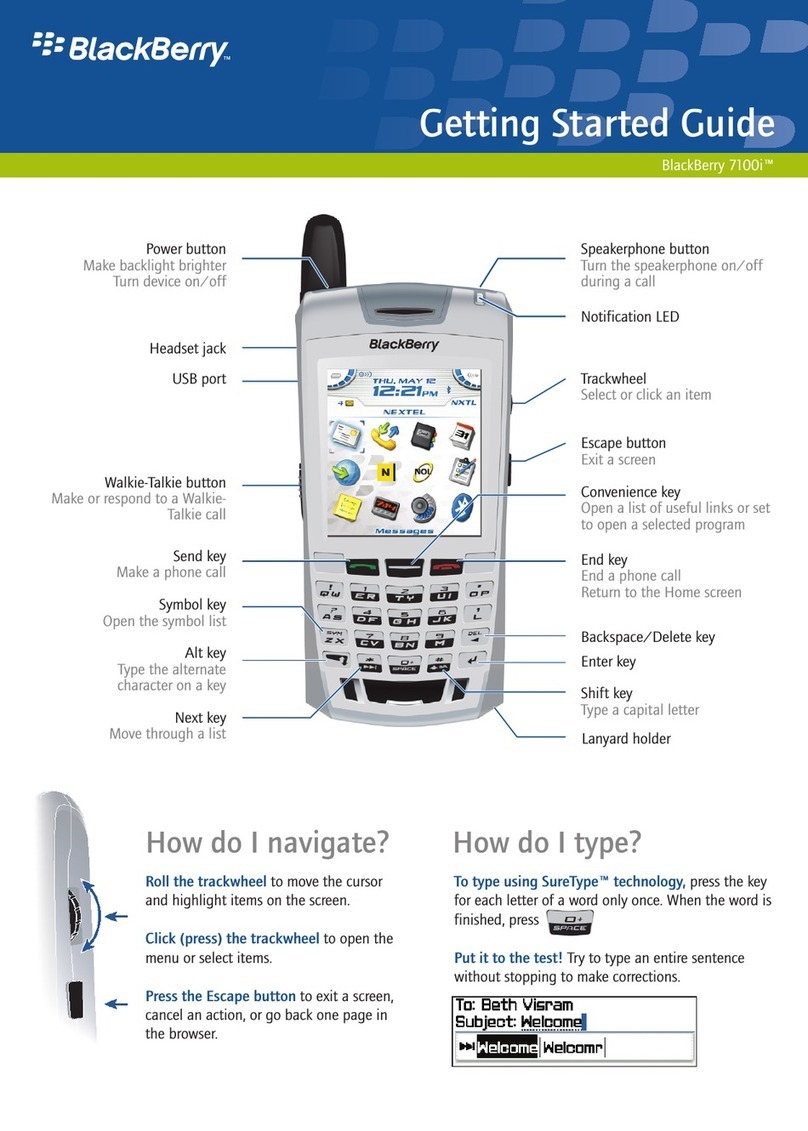
Blackbe;rry 7100I User manual

Blackbe;rry
Blackbe;rry 7100r User manual