8
Windows®
USB
For USB Interface Cable Users for Windows
®
7
Before you install
aMake sure that your computer is ON and you
are logged on with Administrator rights.
bTurn off the machine and make sure the USB
interface cable is NOT connected to the
machine, and then begin installing the printer
driver. If you have already connected the cable,
disconnect it.
8
Install the printer driver
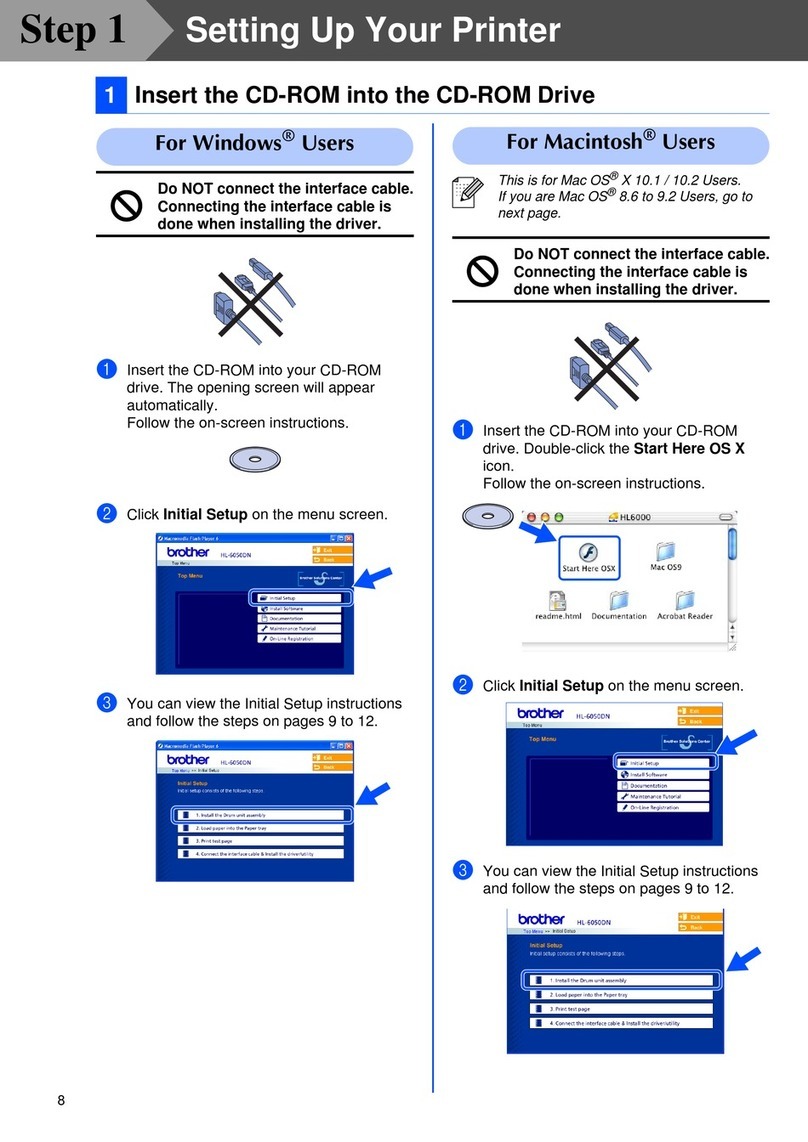
aPut the installation CD-ROM into your
CD-ROM drive. If prompted, select your model
and language.
bClick Install Printer Driver, and click Yes if
you accept the license agreement.
cFollow the on-screen instructions until this
screen appears.
dConnect the USB cable to the USB connector
on the machine marked with the symbol,
and then connect the cable to your computer.
eTurn the machine on, and follow the on-screen
instructions to complete setup.
• If there are any programs running, close
them.
• The screens may differ depending on your
operating system.
If the Brother screen does not appear
automatically, go to My Computer (Computer),
double-click the CD-ROM icon, and then
double-click start.exe.
• For Windows Vista®and Windows®7 users,
when the User Account Control screen
appears, click Allow or Yes.
• If you want to install the PS driver (BR-Script3
printer driver), choose Custom Install and then
follow the on-screen instructions.
The installation is now
complete.
• Depending on your security settings, a
Windows Security or antivirus software window
may appear when using the machine or its
software. Please allow or permit the window to
continue.
•XML Paper Specification Printer Driver
The XML Paper Specification Printer Driver is
the most suitable driver when printing from the
applications that use the XML Paper
Specification documents. Please download the
latest driver by accessing the Brother Solutions
Center at http://solutions.brother.com/.