C-Pen ReaderPen User manual

1
Quick Start Guide
Brief Introduction
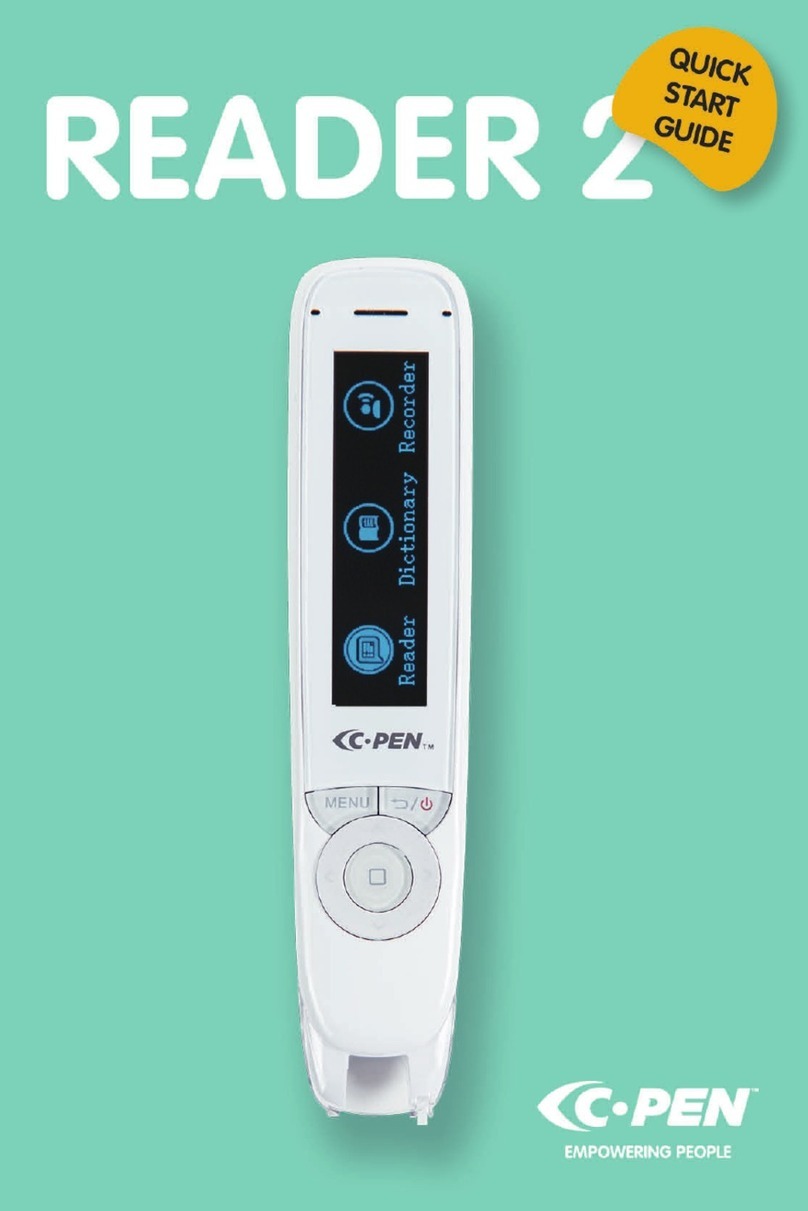
The C-Pen™ ReaderPen™ is a portable scanning pen which
reads printed text out loud using an embedded camera, a real
time optical character recognition (OCR) and text to speech
(TTS).
C-Pen ReaderPen is designed with the objective to promote
active and independent reading with the dedicated purpose
to improve understanding and learning.
C-Pen ReaderPen also features Scan to File, mono- and
bilingual dictionaries, and a voice recorder.
C-Pen ReaderPen will thus help you to work more efficiently
and learn faster. Simply scan and the experience is instant!

2
C-Pen ReaderPen
1. Power On/Off & Back button: A long press powers the
device on or off. In the sub-interface, press this button to exit
from the current level back to previous interface. When
prompted for selection or input, this button cancels the
operation.
2. OK button: When a dialog box or option list pops up, press
this button to confirm the operation.
3. Up/Down/Left/Right: Press these buttons to move focus or
cursor. In the Dictionary sub-interface, press the left/right
direction button continuously for 1 second to roll back to the

3
previous/next scan. Rollback is limited to the recent 100 scans
in the current session of using the dictionary.
4. Scan Trigger: When scanning, the Scan Trigger is
automatically pressed to activate scanning.
5. Screen: The device’s display screen.
6. Microphone: Used for sound recording of voice memos.
7. Speaker: Used to play audio or listen to text speech. Muted
when headphones are connected.
8. Menu button: Press this button to display context menu
settings when available.
9. Scanning window: Frames the text to be scanned.
10. Headphone jack: Standard headphone jack. Used when
listening to the TTS or voice memos. Speakers are muted when
headphones are connected.
11. Micro USB connector: Used to connect the device to a
computer or an AC adapter for data transmission or battery
charging. When connected to a computer the device allows
options to connect i) for charging only, ii) as USB memory to
upload/download files, an iii) in keyboard mode.

4
12. Reset button: Pressing this button resets the device. It is
recommended to use this button only when the device cannot
be turned off properly.

5
Text Reader
In Text Reader mode all scanned text will automatically be read
out loud. This mode is especially valuable to anyone with
reading disabilities or if you’re reading your second language
and need to listen to text being pronounced.
Move the cursor to the option of “Text Reader” in the main
menu, and press the OK button to enter the interface of
listening function. The scanned text will be read out as default.
Listen Settings: In the interface of listening function, press the
Menu button to get access to the context settings;
Adding Mode; The device provides two modes of how to
treat scanned text; appending and replacing. With
Append, the new scanned text will appear after the
cursor while with Replace, the new scanned text will
replace the previously scanned text line.
Scan Languages: if more than one language is supported,
this is where to select which to use. Scan Language
always sync automatically with the correct TTS language.
In English there’s an option to select British English or

6
American English voice. This setting is located in Main
Menu\Settings\TTS Settings.
Reading Settings: Reading settings include Speed and
Volume. Use navigation and OK buttons to adjust.
Listening options: The scanned text will be read out for every
scanning operation. Users don’t need to set this function and
can’t cancel it either. The whole text could be re-read by
pressing OK button when part text is highlighted or the cursor
is at the end of the text. If no text is highlighted and the cursor
is not at the end of the text, the text between the cursor and
the last word of the text could be re-read by pressing OK button.
Reading can be stopped by pressing Menu button at any time.
Dictionary
Move the cursor to the option of Dictionary in the main menu,
and press the OK button to enter the dictionary.
Selection of a language pair (e.g. English-English, [other-
language]-English, etc.): Press the left/right direction buttons
to select language pair (if multiple is supported) per your

7
preference.
Selection of a dictionary: If the pen has more than one
dictionary in same language pair, press the up/down direction
buttons to select the preferred one.
Dictionary settings: Press the Menu button to get access to the
Dictionary settings.
The settings include options to have the scanned word and/or
the definition read out loud.
Scan to File
Move the cursor to Scan to File in the main menu, and press
the OK button to enter the function. In the submenu you can
access Reading Settings to change the volume and reading
speed, and to have the TTS read the text.
Create a new file: Move the cursor to Create a new file, and
press the OK button to create a new .txt file named by the
system’s current date.
Continue scanning to latest file: Press direction buttons + OK
to select latest (Continue…) file and use direction buttons to

8
position the text cursor within the file. Scan to enter text.
Special hint: If there are errors in the recognition results of the
words scanned, press the OK button to delete the highlighted
parts and scan again. Press the Back button to save and quit.
Open a file: Move the cursor to “Open a file”, and press the OK
button to open the list of saved files. Select your desired file,
and press the OK button to open it.
Delete a file: Move the cursor to “Delete a file”, and press the
OK button to display the list of saved files. Select the file to be
deleted and press the OK button. A dialog box will pop up to
ask you whether to delete the file. Select “Yes” to confirm the
deletion, and select “No” to return to the list of files without
deleting any file. This action is irreversible.
Use settings to set OCR/scan language.
Audio
Select Recorder in the main menu.
Record: Select Record in the Recorder submenu, then left/right
to set recording quality and up down to select audio format.

9
Press OK button to start/stop recording.
Play recording: Select this item to play any recorded files. In
the submenu, use up/down to select the file and press OK to
play. While playing, press up/down to adjust volume.
Erase recording: Select this item to erase recorded audio files.
In the submenu, use up/down to select the file and press ok to
erase. Select Yes or No to confirm.
Play Music: Music files, or other audio files may be copied from
the PC (see USB connection – File Storage Location below) to
the ReaderPen internal memory. Select Play Music to listen to
these audio files.
Record Settings: In Record Settings, default File format and
Sound Quality can be set.

10
USB connection to PC
After connecting the pen to a computer via USB cable, the pen
will prompt you to select Keyboard, U-disk or Charging.
Keyboard mode enables text input to computer
(keyboard emulation – no drivers required). The
device charges during use. NOTE: to get accurate
characters, the computer keyboard language setting
has to match the OCR/scan language of the reader
Pen.
In U-disk mode the ReaderPen connects as a USB disk
and allows to upload/download/manage files. The
device charges during use.
In Charging mode the device only charges. There is
no data connection to the PC.
File storage location (when connected to PC in U-disk mode):
The files of extracted text are saved in the e_ScanFile
folder.
The historical records of dictionary lookup are saved
Other manuals for ReaderPen
1
Table of contents
Other C-Pen Scanner manuals
C-Pen
C-Pen C900W User manual
C-Pen
C-Pen ReaderPen User manual
C-Pen
C-Pen TS1 User manual

C-Pen
C-Pen 800C User manual

C-Pen
C-Pen FBA_7350085370028 User manual

C-Pen
C-Pen EXAMREADER User manual
C-Pen
C-Pen TS1 User manual
C-Pen
C-Pen 3.5 User manual

C-Pen
C-Pen EXAMREADER User manual
C-Pen
C-Pen Connect BT10 User manual