manuals.online logo
Brands
  1. Home
  2. •
  3. Brands
  4. •
  5. DFI
  6. •
  7. Motherboard
  8. •
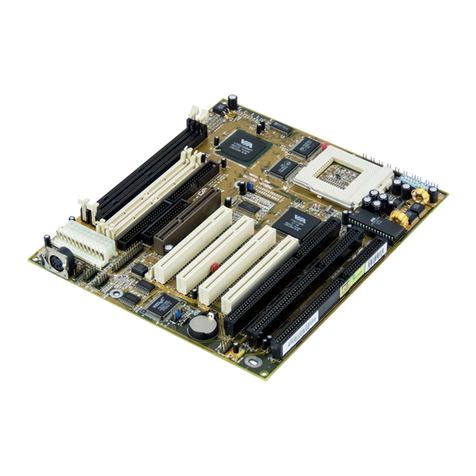
  9. DFI G586VPS Pro User manual

DFI G586VPS Pro User manual

Other manuals for G586VPS Pro

1

Other DFI Motherboard manuals

DFI CS620-H310 User manual

DFI

DFI CS620-H310 User manual

DFI FS053 User manual

DFI

DFI FS053 User manual

DFI KD632-Q170 User manual

DFI

DFI KD632-Q170 User manual

DFI QB701-B Series User manual

DFI

DFI QB701-B Series User manual

DFI P2XBL DE+ User manual

DFI

DFI P2XBL DE+ User manual

DFI LanParty NFII Ultra B User manual

DFI

DFI LanParty NFII Ultra B User manual

DFI BL630-DR User manual

DFI

DFI BL630-DR User manual

DFI EHL556 User manual

DFI

DFI EHL556 User manual

DFI CS636-C246 User manual

DFI

DFI CS636-C246 User manual

DFI TGU171 User manual

DFI

DFI TGU171 User manual

DFI CD102 Series User manual

DFI

DFI CD102 Series User manual

DFI AM36-EC User manual

DFI

DFI AM36-EC User manual

DFI ak75-ec A+ User manual

DFI

DFI ak75-ec A+ User manual

DFI BT101 User manual

DFI

DFI BT101 User manual

DFI 915P-TAG User manual

DFI

DFI 915P-TAG User manual

DFI HD330 User manual

DFI

DFI HD330 User manual

DFI G486-EVB User manual

DFI

DFI G486-EVB User manual

DFI P4X400-A User manual

DFI

DFI P4X400-A User manual

DFI CS65-EC User manual

DFI

DFI CS65-EC User manual

DFI CS330-H310 User manual

DFI

DFI CS330-H310 User manual

DFI Blood-Iron LanParty Bi 785G-M35 User manual

DFI

DFI Blood-Iron LanParty Bi 785G-M35 User manual

DFI OT951-D Series User manual

DFI

DFI OT951-D Series User manual

DFI KD632-C236 User manual

DFI

DFI KD632-C236 User manual

DFI BW171 User manual

DFI

DFI BW171 User manual

Popular Motherboard manuals by other brands

Gigabyte MNJ190I-FH user manual

Gigabyte

Gigabyte MNJ190I-FH user manual

Biostar HI-FI-Z87X-3D Setup manual

Biostar

Biostar HI-FI-Z87X-3D Setup manual

Atmel SAM9753PIA-DK user guide

Atmel

Atmel SAM9753PIA-DK user guide

Coapt GEN2 Handbook

Coapt

Coapt GEN2 Handbook

Supero SUPER P4DL6 user manual

Supero

Supero SUPER P4DL6 user manual

Cypress CY3210-PSoCEVAL1 quick start guide

Cypress

Cypress CY3210-PSoCEVAL1 quick start guide

ASROCK B660M-HDV manual

ASROCK

ASROCK B660M-HDV manual

Fujitsu D2831 Short description

Fujitsu

Fujitsu D2831 Short description

Industrial Computers ADE-6050 user manual

Industrial Computers

Industrial Computers ADE-6050 user manual

Asus TUF Z270 MARK 2 manual

Asus

Asus TUF Z270 MARK 2 manual

ASROCK H61 Pro BTC user manual

ASROCK

ASROCK H61 Pro BTC user manual

Norco POS-7893 user manual

Norco

Norco POS-7893 user manual

Intel DG965MS specification

Intel

Intel DG965MS specification

Asus B85M-VIEW PAKER user manual

Asus

Asus B85M-VIEW PAKER user manual

Asus P5G41T-M LX V2 user manual

Asus

Asus P5G41T-M LX V2 user manual

Gigabyte GA-K8VT800-RH user manual

Gigabyte

Gigabyte GA-K8VT800-RH user manual

Gigabyte Z790M AORUS ELITE user manual

Gigabyte

Gigabyte Z790M AORUS ELITE user manual

Semtech SC120 user guide

Semtech

Semtech SC120 user guide

manuals.online logo
manuals.online logoBrands
  • About & Mission
  • Contact us
  • Privacy Policy
  • Terms and Conditions

Copyright 2025 Manuals.Online. All Rights Reserved.

G586VPS Pro
Rev. B1+
System Board
User’s Manual
- 31560927 -
All manuals and user guides at all-guides.com
all-guides.com
FCC Statement on Class B
This equipment has been tested and found to comply with the limits for
a Class B digital device, pursuant to Part 15 of the FCC rules. These
limits are designed to provide reasonable protection against harmful in-
terference when the equipment is operated in a residential installation.
This equipment generates, uses and can radiate radio frequency energy
and, if not installed and used in accordance with the instruction manual,
may cause harmful interference to radio communications. However,
there is no guarantee that interference will not occur in a particular in-
stallation. If this equipment does cause harmful interference to radio or
television reception, which can be determined by turning the equipment
off and on, the user is encouraged to try to correct the interference by
one or more of the following measures:
 Reorient or relocate the receiving antenna.
 Increase the separation between the equipment and the receiver.
 Connect the equipment into an outlet on a circuit different from that
to which the receiver is connected.
 Consult the dealer or an experienced radio TV technician for help.
Notice:
1. The changes or modifications not expressly approved by the party
responsible for compliance could void the user's authority to oper-
ate the equipment.
2. Shielded interface cables must be used in order to comply with the
emission limits.
The manufacturer makes no warranties with respect to this documenta-
tion and disclaims any implied warranties of merchantability, quality, or
fitness for any particular purpose. The information in this document is
subject to change without notice. The manufacturer reserves the right to
make revisions to this publication and to make changes to any and/or
all parts of its content, at any time, without obligation to notify any per-
son or entity of such changes. Further, the manufacturer assumes no
responsibility for any errors that may appear in this document.
All manuals and user guides at all-guides.com
Table of Contents
Chapter 1: Introduction ...........................................................................5
Features and Specifications ...............................................................6
Package Checklist...............................................................................9
Chapter 2: Hardware Installation..........................................................10
Preparing the Area............................................................................10
Handling the System Board..............................................................10
Installing the System Board..............................................................11
Board Layout .....................................................................................13
System Memory ................................................................................14
Installing a SIM Module .............................................................16
Cache Memory..................................................................................17
CPU Installation ................................................................................17
Cyrix/IBM 6x86 CPUs ................................................................18
Intel CPUs ..................................................................................19
Installing Upgrade CPUs............................................................20
Jumper Settings for Master IDE .......................................................24
Jumper Settings for Password Clear ................................................24
Jumper Settings for Display ..............................................................25
Jumper Settings for Internal/External Battery ..................................25
Factory Testing Jumpers ...................................................................26
Built-in Ports ......................................................................................27
Serial Ports .................................................................................27
PS/2 Mouse Port ........................................................................28
Parallel Port ................................................................................28
Floppy Disk Drive Controller ......................................................28
IDE Hard Disk Interface .............................................................29
Installing Expansion Cards ...............................................................31
Chapter 3: Software Installation...........................................................32
Award BIOS CMOS Setup Utility ......................................................32
Standard CMOS Setup ..............................................................33
BIOS Features Setup .................................................................38
Chipset Features Setup .............................................................45
Power Management Setup .........................................................46
PNP/PCI Configuration...............................................................48
Load BIOS Defaults ...................................................................49
Load Setup Defaults...................................................................49

All manuals and user guides at all-guides.com
Integrated Peripherals ................................................................50
Supervisor Password .................................................................52
User Password ...........................................................................53
IDE HDD Auto Detection............................................................53
HDD Low Level Format ..............................................................56
Save & Exit Setup ......................................................................57
Exit Without Saving ....................................................................57
System Error Report .........................................................................58
IDE Device Drivers............................................................................59
Chapter 4: Troubleshooting Checklist ........................................................60
Appendix A: Memory and I/O Maps............................................................64
Appendix B: Connector Pin Assignments.................................................66
All manuals and user guides at all-guides.com
The G586VPS Pro design is based on the VLSI Lynx system controller
chipset. It is equipped with a 321-pin Zero Insertion Force (ZIF) CPU
socket to support various Intel®Pentium and Cyrix®6x86 CPUs.
The G586VPS Pro supports 8MB to 256MB of system memory using
EDO or fast page mode DRAM. It is equipped with 4 SIMM sockets
allowing you to install x32 or x36 SIMM. The x36 SIMM supports parity
checking which informs the user of memory failure and prevents error
accumulation. The system board also supports 256KB or 512KB fast
pipeline burst cache.
The G586VPS Pro system board has two PCI IDE connectors with bus
mastering capabilities that highly reduce CPU use during disk transfer.
This system board is also equipped with two NS16C550A-compatible
serial ports, an SPP/ECP/EPP parallel port, a floppy disk drive control-
ler, one PS/2 mouse port, one PS/2 or AT keyboard connector and one
IrDA connector for wireless connectivity between your computer and pe-
ripheral devices.
Chapter 1
Introduction
All manuals and user guides at all-guides.com
6
Features and Specifications
PROCESSOR
 Intel Pentium 75/90/100/120/133/150/166/200MHz CPUs
 Future Intel Pentium OverDrive processor
•Cyrix 6x86 P120+/P133+/P150+/P166+/P200+ CPUs
SYSTEM CLOCK
•CPU external clock: supports 75MHz, 66.6MHz, 60MHz, 55MHz
and 50MHz
 PCI clock: 33MHz - 25MHz depending on the CPU external clock
 Relation between CPU clock and PCI clock:
CPU Clock
75MHz
66.6MHz
60MHz
55MHz
50MHz
PCI Clock
32MHz
33.3MHz
30MHz
27.5MHz
25MHz
PCI bus clock/4 = ISA bus clock
ISA bus clock = Keyboard clock
ISA Bus Clock
8MHz
8.4MHz
7.5MHz
7MHz
6MHz
SYSTEM CONTROLLER
 VLSI Lynx system controller
-VL82C541: CPU interface, cache and DRAM control, data bus
control, and PCI control
-VL82C543: ISA control, PCI to ISA bridge, DMA, and interrupt
control
CACHE MEMORY
•256KB (32Kx32x2-6ns) or 512KB (64Kx32x2-6ns) pipeline burst,
direct map write-back cache installed on the system board
SYSTEM MEMORY
 Four 72-pin SIMM sockets
 8MB to 256MB onboard memory
 Uses EDO (60ns) or fast page mode (60ns) x32 or x36 DRAM,
50ns or 60ns 5V
 Parity check supported (using x36 DRAM)
All manuals and user guides at all-guides.com
all-guides.com
7
BIOS
 Award BIOS, Windows 95 Plug and Play compatible
 Flash EPROM for easy BIOS upgrade
ENERGY EFFICIENT DESIGN
 System power management supported
 CPU stop clock control
 Hardware supports SMI green mode
 Microsoft/Intel APM 1.1 compliant
 External power management switch supported
PCI IDE INTERFACE
 CMD 646 Bus Master PCI IDE chip
 PIO Mode 3/Mode 4 enhanced IDE
 DMA Mode 2 Bus Master IDE
 Supports ATAPI IDE CD-ROM
 2 IDE connectors
INTEGRATED I/O
 NS 306 ultra I/O controller
 Supports 360KB, 720KB, 1.2MB, 1.44MB and 2.88MB floppy drives
 Supports COM 1 and COM 2, NS16C550A compatible high speed
UARTS
 One printer port supporting EPP/ECP and compatible mode
 IrDA infrared interface using UART 2 with dedicated pins
 Keyboard controller with PS/2 mouse interface
 A separate battery with battery holder: 3.3V, 150mA/hr
CPU SOCKET
•321-pin ZIF socket (Socket 7)
CPU POWER SUPPLY
 Supports dual voltage sources for CPU core logic, CPU I/O inter-
face, SRAM and chipset
- CPU, I/O, SRAM, and chipset: 3.3V, 5A, linear regulator with
heat sink
- CPU core voltage: 2.5V/2.7V/2.9V/3.3V/3.52V selectable,
7A/5A, linear regulator with heat sink or optional 10A switching
power supply
All manuals and user guides at all-guides.com
8
CONNECTORS
 1 IrDA connector
 2 serial ports
 1 parallel port
 2 IDE connectors
 1 floppy connector
 1 PS/2 mouse port
 1 PS/2 or AT keyboard connector
EXPANSION SLOTS
 3 dedicated PCI slots
 3 dedicated 16-bit ISA slots
 1 shared PCI/ISA slot
PCI MASTER
 PCI slot 1 and the onboard PCI IDE shares one Master. The default
Master is the onboard PCI IDE. If the onboard PCI IDE is Master,
then PCI slot 1 is Slave. Master is selected by setting a jumper.
 PCI slots 2, 3 and 4 are Master or Slave slots
 PCI 2.1 compliant
PCB
 4 layers, Baby AT
 28.5cm (11.22") x 22cm (8.58")
All manuals and user guides at all-guides.com
9
Package Checklist
The G586VPS Pro package contains the following items:
 The G586VPS Pro system board
 The G586VPS Pro users manual
 Serial, mouse and printer port cables
Option 1:
- One card-edge bracket with a 9-pin and 25-pin serial port cables
- One card-edge bracket with a 25-pin printer port cable and a PS/2
mouse port cable
Option 2:
- One card-edge bracket with two 9-pin serial port cables and a
PS/2 mouse port cable
- One 25-pin printer port cable for chassis mounting
 One 40-pin IDE hard disk cable
 One 34-pin floppy disk drive cable
 One IDE driver diskette
 Five jumpers
If any of these items are missing or damaged, please contact your
dealer or sales representative for assistance.
All manuals and user guides at all-guides.com
10
Chapter 2
Hardware Installation
This chapter summarizes the steps to install the G586VPS Pro system
board into your system unit. It also includes a description of the area in
which you must work and directions for memory installation. Before in-
stalling the system board, obtain the memory you plan to install. Refer
to the System Memory section for the type of SIM modules needed for
the amount of memory you require.
Preparing the Area
Before unpacking the system board, make sure the location you have
selected is relatively free of dust and static electricity. Excessive expo-
sure to dust, static electricity, direct sunlight, excessive humidity, ex-
treme cold, and water can damage the operational capabilities of your
system board. Avoid placing the unit on surfaces such as carpeted
floors. These areas also attract static electricity which can damage
some circuits on your system board.
Make sure the power source has a properly grounded, three-pronged
socket. It is essential that the power connection be properly grounded
for correct functioning of your system board. For further protection, we
recommend that you use a surge suppressor. This will protect the sys-
tem board from damage that may result from a power surge on the
electrical line.
Move items that generate magnetic fields away from your system board
since magnetic fields can also damage your system board. Once you
have selected the ideal location, unpack the G586VPS Pro system
board carefully.
Handling the System Board
It is quite easy to inadvertently damage your system board even before
installing it in your system unit. Static electrical discharge can damage
computer components without causing any signs of physical damage.
You must take extra care in handling the system board to ensure
against electrostatic build-up.
All manuals and user guides at all-guides.com