manuals.online logo
Brands
  1. Home
  2. •
  3. Brands
  4. •
  5. DW
  6. •
  7. Security Camera
  8. •
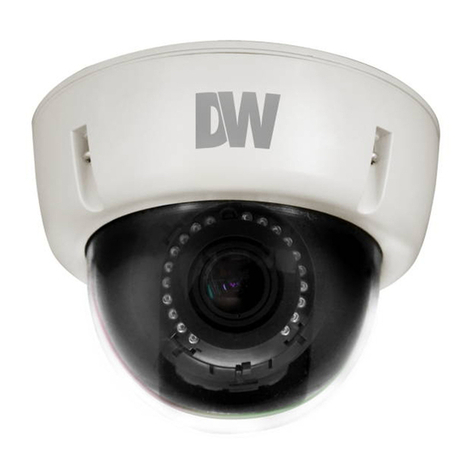
  9. DW Snapit DWC-V4363DB User manual

DW Snapit DWC-V4363DB User manual

This manual suits for next models

1

Other DW Security Camera manuals

DW x12 User manual

DW

DW x12 User manual

DW DWC-VSTB04Bi User manual

DW

DW DWC-VSTB04Bi User manual

DW MEGApix DWC-VSBD04Bi User manual

DW

DW MEGApix DWC-VSBD04Bi User manual

DW MEGApix CaaS DWC-MB44Wi650C6 User manual

DW

DW MEGApix CaaS DWC-MB44Wi650C6 User manual

DW DWC-B6763WTIR User manual

DW

DW DWC-B6763WTIR User manual

DW DWC-MV95WiATW User manual

DW

DW DWC-MV95WiATW User manual

DW STAR-LIGHT AHD DWC-V7753WTIR User manual

DW

DW STAR-LIGHT AHD DWC-V7753WTIR User manual

DW DWC-V6763TIR User manual

DW

DW DWC-V6763TIR User manual

DW DWC-BL2651TIR User manual

DW

DW DWC-BL2651TIR User manual

DW MEGAPIX DWC-MC421D User manual

DW

DW MEGAPIX DWC-MC421D User manual
DW DWC-HC421D User manual

DW

DW DWC-HC421D User manual

DW MEGApix DWC-MBH2I4WV User manual

DW

DW MEGApix DWC-MBH2I4WV User manual

DW MEGApix DWC-MB44WiAC6 User manual

DW

DW MEGApix DWC-MB44WiAC6 User manual

DW Snapit DWC-V4363D User manual

DW

DW Snapit DWC-V4363D User manual

DW DWC-C261T User manual

DW

DW DWC-C261T User manual
DW PIXIM DWC-MC355T User manual

DW

DW PIXIM DWC-MC355T User manual

DW DWC-B6263WTIR User manual

DW

DW DWC-B6263WTIR User manual

DW DWC-HF21M4TIR User manual

DW

DW DWC-HF21M4TIR User manual

DW DWC-MVC8WiATW User manual

DW

DW DWC-MVC8WiATW User manual
DW DWC-V7253TIR User manual

DW

DW DWC-V7253TIR User manual

DW DWC-MB74Wi4 User manual

DW

DW DWC-MB74Wi4 User manual

DW DWC-MPTZ30X User manual

DW

DW DWC-MPTZ30X User manual

DW MEGApix CaaS DWC-MB44WiAWC5 User manual
DW

DW MEGApix CaaS DWC-MB44WiAWC5 User manual

DW x39 User manual

DW

DW x39 User manual

Popular Security Camera manuals by other brands

ADEMCO RapidDome Owners Operating & Installation Guide

ADEMCO

ADEMCO RapidDome Owners Operating & Installation Guide

EverFocus EBA2880 user manual

EverFocus

EverFocus EBA2880 user manual

Honeywell OptiCAM-IR Installation and setup guide

Honeywell

Honeywell OptiCAM-IR Installation and setup guide

Uniq UC-600 user manual

Uniq

Uniq UC-600 user manual

OPTICOM NVD-120-S datasheet

OPTICOM

OPTICOM NVD-120-S datasheet

Steren CCTV-221 instruction manual

Steren

Steren CCTV-221 instruction manual

Arm Electronics C420BCDNVFIR Features

Arm Electronics

Arm Electronics C420BCDNVFIR Features

Eneo PLD-2036PTZ installation guide

Eneo

Eneo PLD-2036PTZ installation guide

Axis AXIS M20 Series installation guide

Axis

Axis AXIS M20 Series installation guide

Panasonic KX-HCM230 operating instructions

Panasonic

Panasonic KX-HCM230 operating instructions

COP-USA CC15NV-SL Specifications

COP-USA

COP-USA CC15NV-SL Specifications

Active Silicon HARRIER H.264 quick start guide

Active Silicon

Active Silicon HARRIER H.264 quick start guide

Motorola Avigilon 1.3C-H5SL-BO1-IR installation guide

Motorola

Motorola Avigilon 1.3C-H5SL-BO1-IR installation guide

INSTEON 2864-232 user manual

INSTEON

INSTEON 2864-232 user manual

Wisenet XNB-6002 quick start guide

Wisenet

Wisenet XNB-6002 quick start guide

Axis M5525-E user manual

Axis

Axis M5525-E user manual

Vitek VTC-IR62NZ922 user guide

Vitek

Vitek VTC-IR62NZ922 user guide

Panasonic WV-SF342 Specifications

Panasonic

Panasonic WV-SF342 Specifications

manuals.online logo
manuals.online logoBrands
  • About & Mission
  • Contact us
  • Privacy Policy
  • Terms and Conditions

Copyright 2025 Manuals.Online. All Rights Reserved.

ABOUT MANUAL
Before installing and using the camera, please read this manual carefully.
Be sure to keep it handy for future reference.
Vandal-Proof Dome Camera
DWC-V4363DB
DWC-V4363TIRB
01022013
2
PRECAUTIONS
FCC COMPLIANCE
Do not open or modify.
Do not open the case except during maintenence and installation, for it may be dangerous and can
cause damages.
Do not put objects into the unit.
Keep metal objects and flammable substances from entering the camera.
It can cause fire, short-circuits, or other damages.
Be careful when handling the unit.
To prevent damages, do not drop the camera or subject it to shock or vibration.
Do not install near electric or magnetic fields.
Protect from humidity and dust.
Protect from high temperature.
Be careful when installing near the ceiling of kitchen or a boiler room, as the temperature may rise
to high levels.
Cleaning:
To remove dirt from the case, moisten a soft cloth with a soft detergent solution and wipe.
Mounting Surface:
The material of the mounting surface must be strong enough to support the camera.
This equipment has been tested and found to comply with the limits for a Class B digital device,
pursuant to part 15 of the FCC rules. These limits are designed to provide reasonable protection against
harmful interference, when the equipment is operated in a residential environment. This equipment
generates, uses, and radiates radio frequency energy; and if it is not installed and used in accordance
with the instruction manual, it may cause harmful interference to radio communications.
WARNING: Changes or modifications are not expressly approved by the manufacturer.
TABLE OF CONTENTS
3
Introduction
Installation
Module OSD Menu
Troubleshooting
Warranty Information
Specifications
Features
Parts and Descriptions
Dimensions
Inside the Box
Mount Installation Instructions
Connecting to Monitors
Adjusting the Camera Lens
4
5
6
7
8-13
14-15
16
18-29
30
31-32
33-36
Adjusting the 3-Axis Gimbal 17
4
FEATURES*
1/3” CCD
620 TV Lines (B&W), 600 TV Lines (Color)
3.3~12mm Varifocal Auto Iris Lens
70ft Range IR with Intelligent Camera Sync [DWC-V4363TIRB Only]
Electronic Day and Night [DWC-V4363DB ]
TDN (True Day and Night / IR Cut Filter) [DWC-V4363TIRB Only]
Smart DNR (Digital Noise Reduction)
DRC (Dynamic Range Compressor)
Star-Light (Super Low Light Technology)
HME (Highlight Masking Exposure)
Programmable Privacy Zones & Motion Detection
Easy Icon Driven OSD Menu with Built-In Joystick
IP68 Certified
Junction Box Included
UTP & RS485 Built-In
Auto Sensing 12VDC or 24VAC with Line Lock
Secondary Video-BNC Output
5
PART & DESCRIPTIONS*
1Lens
Power Input Connector (Dual Voltage)
UTP
RS-485
Primary Video-BNC Output Connector
Camera Control Board
Bubble Dome Cover
Upper Case
Flush Mount Base
Surface Mount Base / Junction Box
Assembly Screws (#8 - 32 x 0.75)
Secondary Video-BNC Output Connector
Safety Wire
Mounting Screws
2
3
4
5
6
7
8
9
10
11
12
13
14
NO IR IR
7
8
1
2
12
3
4
5
6
9
10
11
13
14
6
DIMENSIONS IN MILLIMETERS (IN)*
101(3.98”)
137(5.39”)
17(0.67”)
28(1.1”)
54(2.13”)
98.8(3.89”)
121
(4.76”)
118.8
(4.68”)
139(5.47”)139(5.47”)
36(1.42”)
29(1.41”)
53.8(2.12”)
Flush Mount
Surface Mount
121
(4.76”)
7
INSIDE THE BOX*
Included with Snapit Vandal Dome Camera
User Manual
Mounting Template
4 Machine Screws and 4 Dry Wall Anchors
TORX-T20 Wrench
L-Wrench
TORX-T20 Bolt
DC Plug
Secondary Video-BNC Cable
1
2
3
4
5
6
7
8
7 8
8
SURFACE MOUNT INSTALLATION INSTRUCTIONS*
Use the camera’s mounting
template or your camera to
mark the holes as required.
Drill holes into the drywall and
insert the drywall mounts into
the holes.
Pull wires through and make
connections.
If you need to keep the wiring within the
camera housing, refer to the diagram
below.
Mount the surface mount
base (junction box) to the
wall.
DC 12V
AC 24V
UTP
RS485
To use the side conduit, remove the
security screw with the supplied
3.0mm Allen key, and unscrew the
conduit plug.
Route wiring behind
the inner posts
(dark gray area).
DC 12V
AC 24V
UTP
RS485
1 2 3
4
9
Secure the three (3) assembly
screws.
Adjust the camera’s position
by using the 3-Axis Gimbal.
Tighten the three locking
screws in with the L-Wrench
to secure the dome cover
over the camera.
Snap the camera module onto
the base by aligning the red
and black markings on the
base and the camera module.
5
6 7 8
10
FLUSH MOUNT INSTALLATION INSTRUCTIONS*
For a flush mount housing, detach the surface mount base,
which is also known as the junction box, from the flush
mount base.
Use the mounting template to mark the holes for the screws
and a larger hole for the top extruded component of the
flush mount base.
The three assembly screws (ST4X35) fixed to the flush
mount base should be used to mount the camera to the
surface of the wall or ceiling.
ST4X35
Secure the three (3) assembly
screws.
Adjust the camera’s position
by using the 3-Axis Gimbal.
Tighten the three locking
screws in with the L-Wrench
to secure the dome cover
over the camera.
1
2
3 4 5