manuals.online logo
Brands
  1. Home
  2. •
  3. Brands
  4. •
  5. Edimax
  6. •
  7. Wireless Access Point
  8. •
  9. Edimax BR-6208AC User manual

Edimax BR-6208AC User manual

Other manuals for BR-6208AC

1

Other Edimax Wireless Access Point manuals
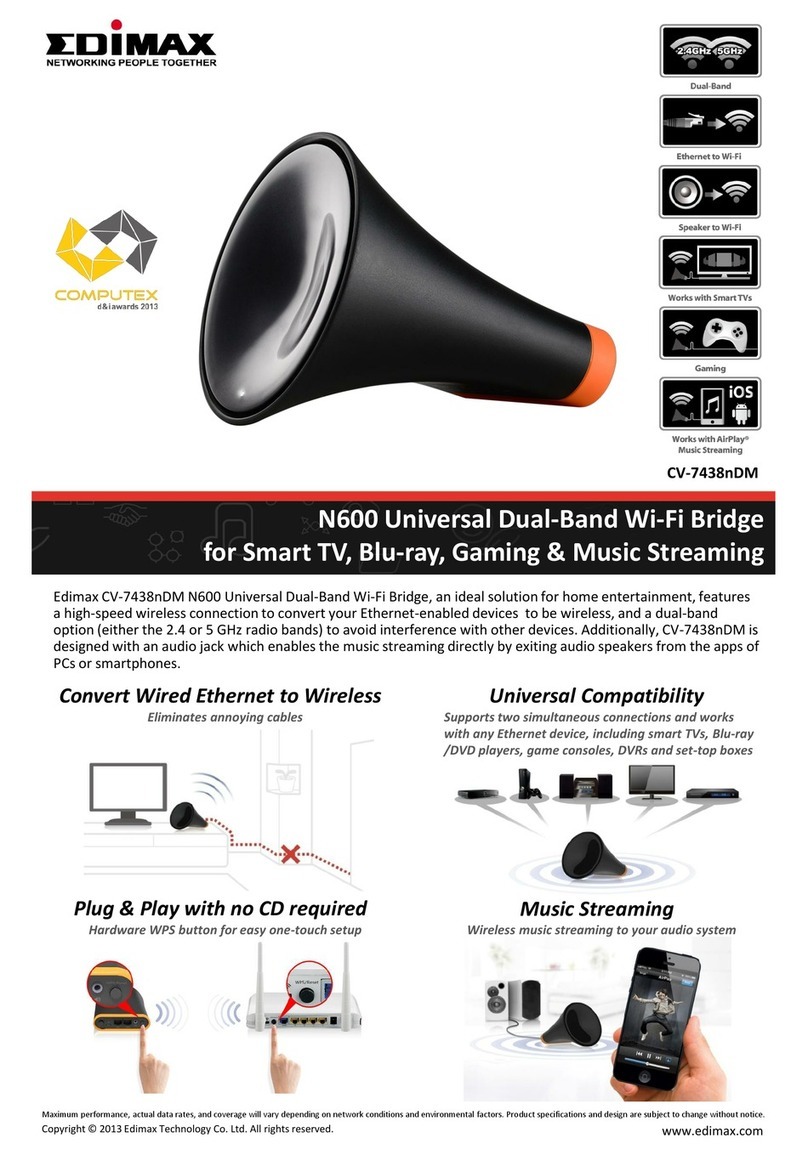
Edimax HP-8501APg User manual

Edimax

Edimax HP-8501APg User manual

Edimax EW-7228APn User manual

Edimax

Edimax EW-7228APn User manual

Edimax EW-7206APg User manual

Edimax

Edimax EW-7206APg User manual

Edimax EW-7476HPC User manual

Edimax

Edimax EW-7476HPC User manual

Edimax OAP1300 User manual

Edimax

Edimax OAP1300 User manual

Edimax EW-7416APn v2 User manual

Edimax

Edimax EW-7416APn v2 User manual

Edimax EW-7206APg User manual

Edimax

Edimax EW-7206APg User manual

Edimax Pro AP 1 Setup guide

Edimax

Edimax Pro AP 1 Setup guide

Edimax EW-7428HCn User manual

Edimax

Edimax EW-7428HCn User manual
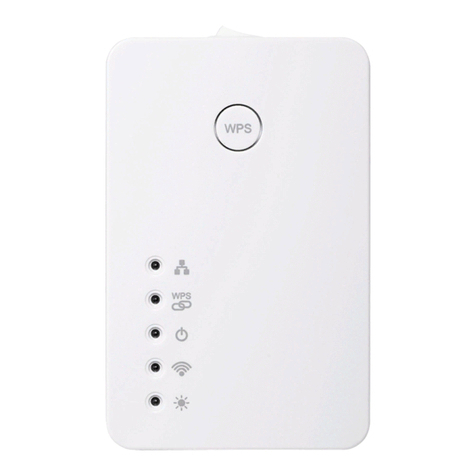
Edimax Office 1-2-3 User manual

Edimax

Edimax Office 1-2-3 User manual

Edimax CAP1750 User manual

Edimax

Edimax CAP1750 User manual

Edimax EW-7228APn User manual

Edimax

Edimax EW-7228APn User manual

Edimax EW-7415PDn User manual

Edimax

Edimax EW-7415PDn User manual

Edimax EW-7203APg User manual

Edimax

Edimax EW-7203APg User manual

Edimax EW-7438APn User manual

Edimax

Edimax EW-7438APn User manual
Edimax EW-7228APn User manual

Edimax

Edimax EW-7228APn User manual

Edimax EW-7205AP User manual

Edimax

Edimax EW-7205AP User manual

Edimax CAX1800 User manual

Edimax

Edimax CAX1800 User manual

Edimax EW-7303HPn V2 User manual

Edimax

Edimax EW-7303HPn V2 User manual

Edimax EW-7288APC User manual

Edimax

Edimax EW-7288APC User manual

Edimax CAP1200 User manual

Edimax

Edimax CAP1200 User manual

Edimax EW-7303APn v2 User manual

Edimax

Edimax EW-7303APn v2 User manual

Edimax CV-7428nS User manual

Edimax

Edimax CV-7428nS User manual

Edimax EW-7203APg User manual

Edimax

Edimax EW-7203APg User manual
Popular Wireless Access Point manuals by other brands

TRENDnet TPL-410AP user guide

TRENDnet

TRENDnet TPL-410AP user guide

EnGenius EWS377-FIT quick start guide

EnGenius

EnGenius EWS377-FIT quick start guide

D-Link DWL-6700AP Quick installation guide

D-Link

D-Link DWL-6700AP Quick installation guide

Aerohive Networks Aerohive AP121 Hardware reference guide

Aerohive Networks

Aerohive Networks Aerohive AP121 Hardware reference guide

Vonets VAP11G Step-by-step guide

Vonets

Vonets VAP11G Step-by-step guide

Ubiquiti UniFi AP AC Outdoor quick start guide

Ubiquiti

Ubiquiti UniFi AP AC Outdoor quick start guide

Monoprice MW301A user guide

Monoprice

Monoprice MW301A user guide

D-Link DWL-2700AP - AirPremier Outdoor Wireless Access... user manual

D-Link

D-Link DWL-2700AP - AirPremier Outdoor Wireless Access... user manual

D-Link DWL-2100AP - AirPlus Xtreme G Quick installation guide

D-Link

D-Link DWL-2100AP - AirPlus Xtreme G Quick installation guide

TP-Link Auranet EAP225 Quick installation guide

TP-Link

TP-Link Auranet EAP225 Quick installation guide

D-Link DWL-2100AP - AirPlus Xtreme G Quick installation guide

D-Link

D-Link DWL-2100AP - AirPlus Xtreme G Quick installation guide

Ubiquiti NanoStation NSM2 quick start guide

Ubiquiti

Ubiquiti NanoStation NSM2 quick start guide

Aruba IAP-335 user guide

Aruba

Aruba IAP-335 user guide

Advantek Networks AWN-AP-54MR user manual

Advantek Networks

Advantek Networks AWN-AP-54MR user manual

IP-COM AP355 user guide

IP-COM

IP-COM AP355 user guide

Buffalo AirStation WLA-L11G user manual

Buffalo

Buffalo AirStation WLA-L11G user manual

EnGenius EnStationACv2 user manual

EnGenius

EnGenius EnStationACv2 user manual

D-Link DAP-3662 Quick installation guide

D-Link

D-Link DAP-3662 Quick installation guide

manuals.online logo
manuals.online logoBrands
  • About & Mission
  • Contact us
  • Privacy Policy
  • Terms and Conditions

Copyright 2025 Manuals.Online. All Rights Reserved.

BR-6208AC
Quick Installation Guide
03-2014 / v1.0
1
Package Contents
Before you start using this product, please check if there is anything missing in
the package, and contact your dealer to claim the missing item(s):
Ethernet Cable
Quick Installation Guide
Power Adapter
CD-ROM
R-6208AC
2
Installation
1.
Plug the included power adapter into the device’s DC power port and the
other end into an electrical socket
2.
Ensure that the Wi-Fi On/Off switch is set to on and that three LEDs (power,
2 4GHz & 5GHz Wi-Fi) display on
3
3.
Use a Wi-Fi device (e g computer, tablet, smartphone) to search for a Wi-Fi
network with the SSID “edimax setup” and connect to it
iOS 4 or Android 4 and above are required for setup on a
smartphone or tablet.
4.
Open a web browser and if you do not automatically arrive at the “Get
Started” screen shown below, enter the URL http://edimax.setup and click
“Get Started” to begin the setup process
If you cannot access http://edimax.setup, please make sure your
Wi-Fi device is set to use a dynamic IP address. This is a simple
procedure and step-by-step instructions to do this on a computer
can be found in the user manual.
4
5.
Choose if you want to use your BR-6208AC in its default Wi-Fi router mode
or in a different mode
The BR-6208AC’s five available modes are outlined below:
Wi-Fi Router Mode The device connects to your modem and provides
2.4GHz and/or 5GHz Internet (wire ess and
Ethernet) a
ccess for
your network devices.
Access Point Mode The device connects to an existing router via
Ethernet cab e and provides 2.4GHz and/or 5GHz
Internet (wire ess and Ethernet) access for your
network devices.
Range E tender
Mode
The device connects wire ess y to your existing
2.4GHz and/or 5GHz network and repeats the
wire ess signa
(s)
.
Wireless Bridge Mode
The device connects to a network device for
examp e: TV, gaming conso e, or media p ayer via
Ethernet cab e and acts as a wire ess receiver,
a owing the network device to join your Wi-Fi
network.
WISP Mode The device connects wire ess y to your Wire ess
Internet Service Provider and provides 2.4GHz
and/or 5GHz Internet (wire ess and Ethernet)
access for your network devices.
5
6.
Follow the on-screen instructions to complete setup Refer to the user
manual if you need more help
Wi-Fi Router:
Other Modes:
6
rowser ased Configuration Interface
After setup you can access the browser based configuration interface to
configure or change the settings of the BR-6208AC To access the browser
based configuration interface, enter http://edimax.setup into the URL bar of
a web browser on a network device which is connected to the BR-6208AC
If you can not access edimax.setup, connect the R-6208AC to a
computer using an Ethernet cable and try again.
You will be prompted for a username and password The default username is
“admin” and the default password is “1234”
You will arrive at the “Status” screen as shown below Use the menu down the
left side to navigate For more information, refer to the user manual
7
Troubleshooting
1. In range e tender mode, is my BR-6208AC dual-band?
a Yes The BR-6208AC can extend 2 4GHz & 5GHz Wi-Fi signals concurrently, but
you must connect your BR-6208AC to each (2 4GHz & 5GHz) network separately
during iQ setup During iQ Setup, you will be asked to select both a 2 4GHz &
5GHz Wi-Fi network to extend, as well as specify a new SSID (name) and
password for each of the networks that your BR-6208AC’s will
broadcast/extend
You can disable either 2.4GHz or 5GHz Wi-Fi during iQ setup if
there is no appropriate source network available, or if you do not
wish to use it. If either the 2.4GHz or 5GHz frequency band is
disabled, wireless clients/devices on the same frequency band will
be unable to connect to your range extender.
2. In range e tender mode, if my BR-6208AC is set up as a dual-band
e tender, what happens when I connect a wired Ethernet client?
a When you connect a network device to your BR-6208AC in range extender mode
via Ethernet cable, by default the network device will connect to the 5GHz
network If there is no 5GHz network available, the network device will connect
to the 2 4GHz network instead
3. In range e tender mode, how do I connect to a network which
has a hidden SSID?
a During iQ Setup, you can manually enter a SSID in the “Wi-Fi network name”
field as shown below, for either/both 2 4GHz and 5GHz, along with the relevant
encryption information
8
Wi-Fi network name
Enter the SSID (network name) of your existing,
hidden network
Range e tender SSID Enter an SSID for the BR-6208AC or leave it blank
to use a default which consists of your existing
router’s SSID (above) +"_2EX"
Encryption Select and enter the encryption information for
your existing, hidden network
4. What do the LEDs mean?
The LEDs can be identified by icons on the underside of the BR-6208AC
9
LED Color LED Status
Description
Power
White
On BR-6208AC is on
Off BR-6208AC is off
Internet
Blue
On
Internet connection is
ready
Flashing
Factory default state, or Ethernet
cable not connected, or no
Internet connectio
n
2 4GHz Wi-Fi
Blue
On 2 4GHz Wi-Fi wireless activity
(transferring/receiving data)
Flashing 2 4GHz WPS is active
Off
2 4GHz
Wi
-
Fi not active
5GHz Wi-Fi
Blue
On 5GHz Wi-Fi wireless activity
(transferring/receiving data)
Flashing
5
GHz WP
S is active
Off
5
GHz Wi
-
Fi not active
5. I can’t access the Internet.
a Ensure that all cables are connected properly Try a different Ethernet cable
b Check if you can access the web based configuration interface If not, please
ensure your Wi-Fi device is set to use a dynamic IP address If you are unsure
how to do this, try using a computer and refer to the user manual for guidance
c Login to the web based configuration interface and go to Internet > WAN Setup
and check that the connection type is correct If you are unsure which internet
connection type you have, please contact your Internet Service Provider (ISP)
d Connect a computer directly to your modem and check if you can access the
internet If you can’t, please contact your Internet service provider for
assistance
6. I can’t open the web based configuration interface.
a Please ensure your Wi-Fi device is set to use a dynamic IP address If you are
unsure how to do this, try using a computer and refer to the user manual for
guidance