Computer Setup
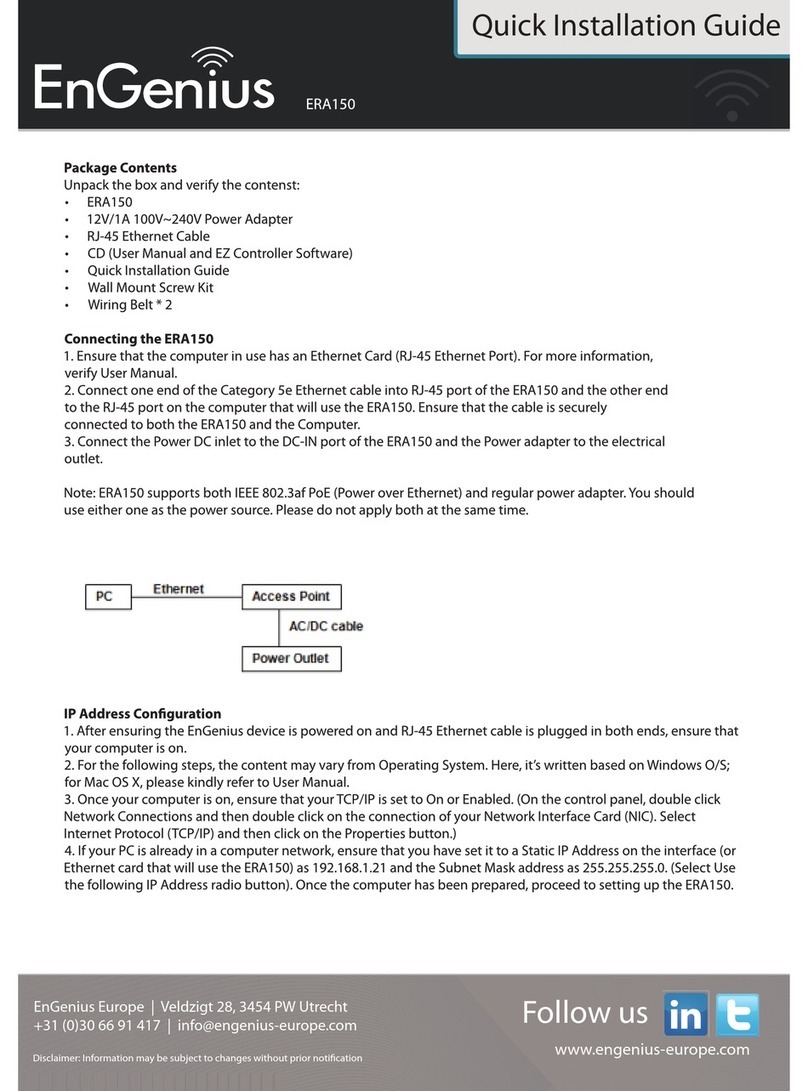
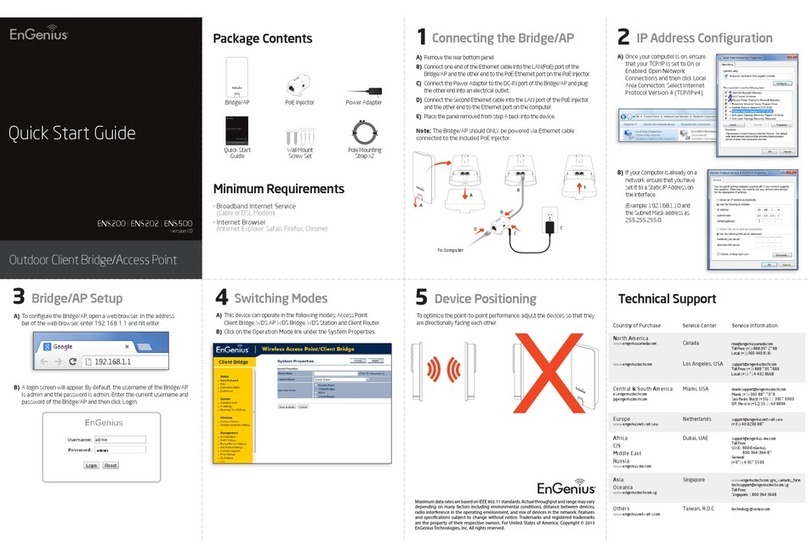
1) After ensuring the EnGenius device is powered on and plugged in, ensure that your computer is
on.
2) For the next steps, refer to your Operating System User Manual.
3) Once your computer is on, ensure that your TCP/IP is set to On or Enabled. (In the control panel,
double click Network Connections and then double click on the connection of your Network
Interface Card (NIC). Select Internet Protocol (TCP/IP) and then click on the Properties button.)
4) If your PC is already on a computer network, ensure that you have set it to a Static IP Address on
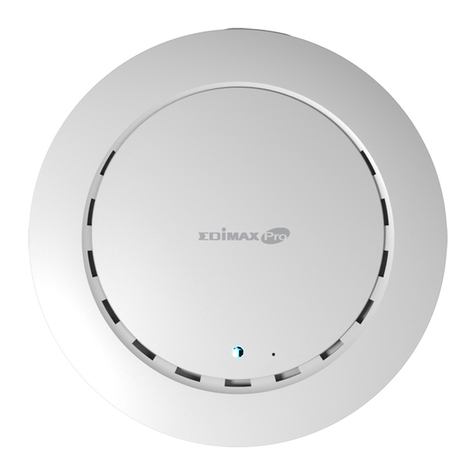
the interface (or Ethernet card that will use the EAP300) as 192.168.1.21 and the Subnet Mask
address as 255.255.255.0. (Select Use the following IP Address radio button). Once the
computer has been prepared, proceed to setting up the EAP300.
EAP300 Setup
1) To configure EAP300, open a web browser (example: Microsoft Internet Explorer, Mozilla Firefox,
Google Chrome, etc.).
2) In the address bar of the web browser, enter 192.168.1.1 (the default IP address of the EAP300)
and hit enter.
3) A login screen will appear. By default, the username of the EAP300 is admin and the password is
admin. Enter the current username and password of the EAP300 and then click Login. Refer to
the EAP300 user manual on how to change the
username and password.
4) After clicking Login with the correct username and
password, the EAP300 Main Menu will appear. If you are
successful, proceed to setting up the wireless
connection.
Wireless Setup
1) To setup the wireless connection, select Wireless on the
main menu. After selecting Wireless, select Basic.
2) Ensure that the Radio is set to Enable.
3) Select the wireless band you want (by default, it is set to 2.4 GHz B+G+N).
4) Enter the number of Wireless Points by changing the value in Enabled ESSID#.
5) Name the wireless connection by entering the name in the fields: ESSID1,ESSID2,ESSID3,
and/or ESSID4. (Note: This only applies if you have multiple SSID).