manuals.online logo
Brands
  1. Home
  2. •
  3. Brands
  4. •
  5. Epson
  6. •
  7. Printer
  8. •
  9. Epson ActionPrinter 5500 - ActionPrinter-5500 Impact... Dimensions

Epson ActionPrinter 5500 - ActionPrinter-5500 Impact... Dimensions

Other Epson Printer manuals

Epson Stylus Photo 950 User manual

Epson

Epson Stylus Photo 950 User manual

Epson PictureMate PM-401 User manual

Epson

Epson PictureMate PM-401 User manual

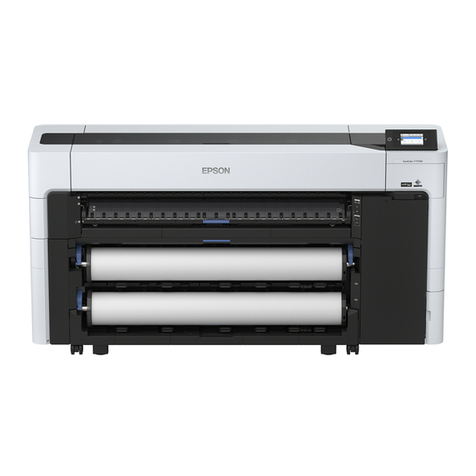
Epson WorkForce WF-7710 User manual

Epson

Epson WorkForce WF-7710 User manual

Epson 785EPX - Stylus Photo Color Inkjet Printer User manual

Epson

Epson 785EPX - Stylus Photo Color Inkjet Printer User manual

Epson Stylus Photo PX720WD Assembly instructions

Epson

Epson Stylus Photo PX720WD Assembly instructions

Epson WF-C4310 User manual

Epson

Epson WF-C4310 User manual

Epson Stylus Color 800N User manual

Epson

Epson Stylus Color 800N User manual

Epson SureColor P-Series User manual

Epson

Epson SureColor P-Series User manual

Epson Stylus CX7300 Series User manual

Epson

Epson Stylus CX7300 Series User manual

Epson TM-P60II User manual

Epson

Epson TM-P60II User manual

Epson Stylus Pro 4880 ColorBurst Edition - Stylus Pro 4880... Installation and operation manual

Epson

Epson Stylus Pro 4880 ColorBurst Edition - Stylus Pro 4880... Installation and operation manual

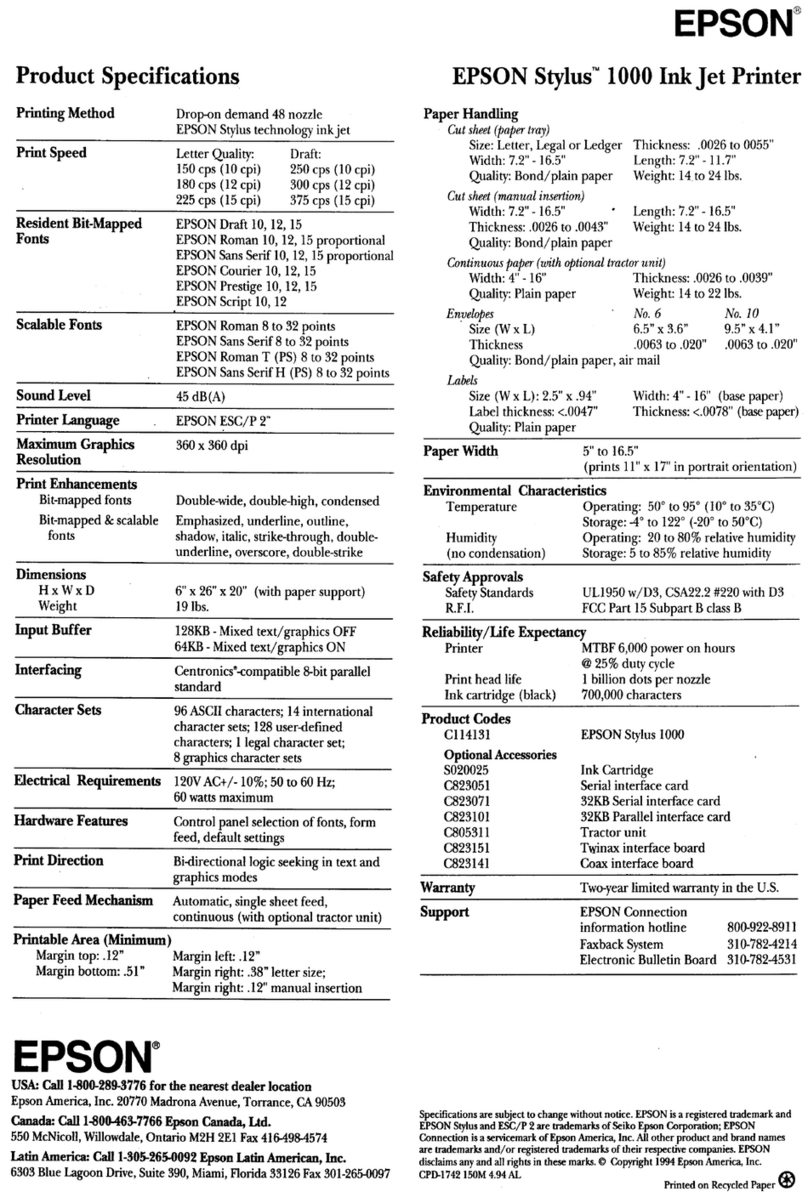
Epson Stylus 1000 User manual

Epson

Epson Stylus 1000 User manual

Epson WF-C5310 User manual

Epson

Epson WF-C5310 User manual

Epson LQ-690 User manual

Epson

Epson LQ-690 User manual

Epson L800 Instruction Manual

Epson

Epson L800 Instruction Manual

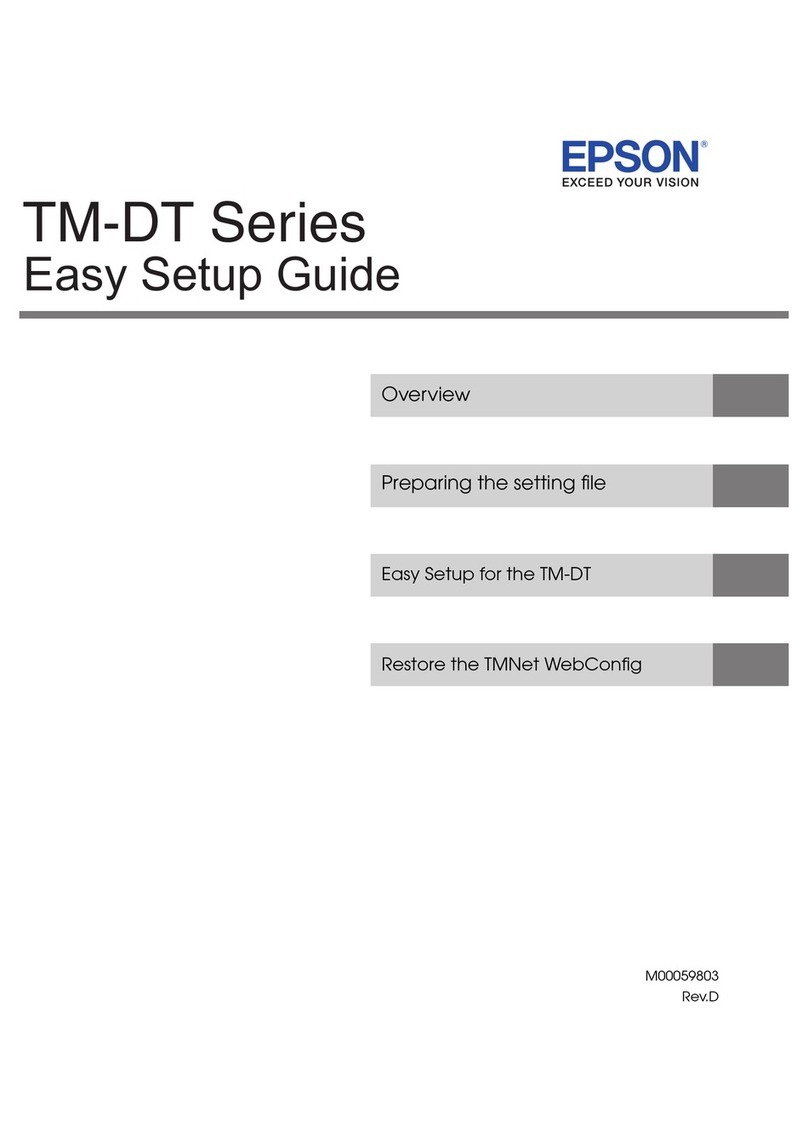
Epson XXX-00 User manual

Epson

Epson XXX-00 User manual

Epson Stylus Color 670 User manual

Epson

Epson Stylus Color 670 User manual

Epson SureColor F2100 Series Instruction Manual

Epson

Epson SureColor F2100 Series Instruction Manual

Epson L800 User manual

Epson

Epson L800 User manual

Epson EPL N2700 User manual

Epson

Epson EPL N2700 User manual
Epson 680Pro - LQ B/W Dot-matrix Printer User manual
Epson

Epson 680Pro - LQ B/W Dot-matrix Printer User manual

Epson 420i User manual

Epson

Epson 420i User manual

Epson 1520 - Stylus Color Inkjet Printer Owner's manual

Epson

Epson 1520 - Stylus Color Inkjet Printer Owner's manual

Epson Stylus 300 - Ink Jet Printer User manual
Epson

Epson Stylus 300 - Ink Jet Printer User manual

Popular Printer manuals by other brands

Evolis Elypso user guide

Evolis

Evolis Elypso user guide

Lexmark 522n - C Color Laser Printer Service manual

Lexmark

Lexmark 522n - C Color Laser Printer Service manual

Panduit COUGAR LS9Q Operator's manual

Panduit

Panduit COUGAR LS9Q Operator's manual

Olivetti PG L2140 Operation guide

Olivetti

Olivetti PG L2140 Operation guide

Samsung SL-M2820DW user manual

Samsung

Samsung SL-M2820DW user manual

Kyocera FS-9530DN specification

Kyocera

Kyocera FS-9530DN specification

Canon LASER SHOT LBP-1210 Specifications

Canon

Canon LASER SHOT LBP-1210 Specifications

Canon PIXMA PRO-1 Series Getting started

Canon

Canon PIXMA PRO-1 Series Getting started

Canon LBP113w Getting started

Canon

Canon LBP113w Getting started

Lexmark Infoprint 1332 user manual

Lexmark

Lexmark Infoprint 1332 user manual

TransAct POSJET 1500 Spare parts

TransAct

TransAct POSJET 1500 Spare parts

Telpar MTP-1500 user manual

Telpar

Telpar MTP-1500 user manual

Star DP8340 SERIES user manual

Star

Star DP8340 SERIES user manual

MGI JETVARNISH 3DS user manual

MGI

MGI JETVARNISH 3DS user manual

Kyocera TASKalfa PA4500ci Operation guide

Kyocera

Kyocera TASKalfa PA4500ci Operation guide

Emaar EP-360 user manual

Emaar

Emaar EP-360 user manual

Fujitsu DL7400 user manual

Fujitsu

Fujitsu DL7400 user manual

Centronics 101A Technical manual

Centronics

Centronics 101A Technical manual

manuals.online logo
manuals.online logoBrands
  • About & Mission
  • Contact us
  • Privacy Policy
  • Terms and Conditions

Copyright 2025 Manuals.Online. All Rights Reserved.

EPSON AMERICA INC.
EPSON
Product Support Bulletin
Subject:
Understanding and Using
ESCP/2
Commands and Syntax
Date: 12/4/91
Page(s): 1 of 14
PSB No: P-0082
Originator: JW
This bulletin provides detailed explanations and illustrations for some of the more
commonly used printer commands used in ESC/P2 Listed below are the
commands discussed in this bulletin.
Command Command Name PSB Page
ESC X m n1 n2
Select Pitch and Point Size
2
ESC ( C m1 m2 n1 n1
Set Page Length in Defined Units 5
ESC(vm1 m2 n1 n2
Set Relative Vertical Position 6
ESC(Vm1 m2 n1 n2
Set Absolute Vertical Position 8
ESCtn
Select Character Table
9
ESC ( t n1 n2 d1 d2 d3
Assign Character Table
10
ESC( ^ n1 n2 d1...d2
Print Data as Characters
14
PSB No: P-0082
Page: 2 of 14
ESC X m n1 n2
(Select Pitch and Point Size)
C X m n1 n2 is the command for selecting pitch and point size where m, n1 and
n2 are variables. The variable "m" is used to select the pitch which is the character
spacing. The variable "n1" selects the point size and the variable “n2”, at this time,
will always be 0 (zero). The variables "m" and "n1" are explained below.
The values used for ’m’ are 0,1,18,21,24,30,36,42,48,60, and 72. If "0" is
used as the value for ”m”, there will be no change in pitch. If "1" is used as the
value for "m", the character pitch will be proportional spacing. To determine the
character pitch for all other values of "m", divide 360 by "m".
For example, if m=60
then 360 divided by 60 equals 6 and the character pitch is 6 characters per inch. If
m=30, the character pitch is 12 characters per inch.
For the Roman and Sans Serif fonts, the values used for "n1" are 0,16,20,21,24,
28,32,36,40,42,44,48,52,56,60 and 84. For all other fonts, the values used for
"n1" are 0,21, and 42. The actual point size that will print is n1 divided by 2. For
example, if n1=20, the point size is 10. If n1=48, the point size is 24.
NOTE:
When selecting a point size larger than 24 (the value for n1 is greater than 48)
select proportional spacing (m=1) for the character pitch.
In the Basic programming language, the command would look like this.
LPRlNT CHR$(27);"X";CHR$(1);CHR$(48);CHR$(0);”This is 24 point proportional
spaced”
Chr$(27) is ESC, chr$(1) selects proportional spacing, chr$(48) selects 24 point
character size. At this time, n2 is always zero (0).
PSB No: P-0082
Page: 3 of 14
10 INPUT “Point Size”;A$
20
B=VAL(A$)*2
21
RESTORE 70
22 FOR X=1 TO 16
23 READY
24
IF B=Y THEN GOTO 30
25 NEXT X
26 CLS
27 PRINT A$ ” is not a valid point size choice.”
20 GOTO 10
30 C=VAL(A$)
40 LPRINT CHR$(27);“X”;CHR$(1);CHR$(B);CHR$(0);”These are “;A$;” point
characters”
50
LPRINT CHR$(27);“(v”;CHR$(2);CHR$(C);CHR$(C);CHR$(0)
60
GOTO 10
70 DATA 0,16,20,21,24,28,32,36,40,42,44,48,52,56,60,64
Line 10 -
allows you to specify the point size desired.
Line 20 -
computes the value for “n1” in the ESC X command.
tine 21 -
check to ensure that a valid point size was input
If the point size is
valid, the program jumps to line 30. If the point size is not valid, the
program prints a message on the screen and starts over again.
Line 30 - computes the value for “n1” for advancing paper using the ESC ( v
command.
Line 40 - sends the “Set Pitch and Point Size” command to the printer. (Note: The
pitch is set for proportional spacing for all point sizes to ensure proper
character spacing regardless of the point size.)
Line 50 -
sends the “Set Relative Vertical Position” command to the printer. This
command advances the paper in preparation for printing the next line.
Line 60
causes the program to start again at the beginning.
NOTE: To halt the program, hold down the “Ctrl” key and press the “C” key.
PSB No: P-0082
Page: 4 of 14
These are 8 point characters
These are 10 point characters
These are 10.5 point characters
These are 12 point characters
These are 14 point characters
These are 16 point characters
These are 18 point characters
These
are 20 point characters
These are 21 point characters
These are 22 point characters
These are 24 point characters
These are 26 point characters
These are 28 point characters
These are 30 point characters
These are 32 point characters
PSB No: P-0082
Page: 5 of 14
ESC ( C m1 m2 n1 n2 (Set Page Length in Defined Units
II
ESC ( C m1 m2 n1 n2 is the command for setting the page length in units where ml,
m2, n1 and n2 are variables. The “unit’ is usually 1/360 of an inch unless defined
otherwise by the “ESC ( U" command. Currently, the values for m1 and m2 MUST be
m1=2 and m2=0.
To determine the values for n1 and n2 perform the following steps.
1.
Determine the desired page length in inches.
2
Multiply the page length by 360.
3.
Divide the result by 256 using long division.
4.
The remainder in the quotient from step 3 is the value for n1.
5.
The whole number in the quotient from step 3 is the value for n2.
EXAMPLE
1.
The page length is 8.5
inches.
2
8.5 x 360 = 3060
3.
3060 divided by 256 =
11 with
a
remainder of 244.
4.
n1=244
5.
n2=11
In the Basic programming language, the command would look like this.
This command, as listed in the line above, will set the page length to 8.5 inches.
NOTE: The current line becomes the top of form. This command cancels any
previously set top and bottom margin settings. If you wish to set the top and bottom
margins via software command, the commands must be issued AFTER the “Set Page
Length in Defined Units” command. The proper page length setting can be confirmed
by issuing a “Form Feed” command, chr$(12), or by pressing the “FF button on the
control panel while the printer is “Off Line”.
PSB No: P-0082
Page: 6 of 14
1
ESC ( v m1 m2 n1 n2 (Set Relative Vertical Position
ESC (v m1 m2 n1 n2 is the command for advancing the print position vertically in
units where m1, m2, n1 and n2 are variables. The "unit" is usually 1/360 of an inch
unless defined otherwise by the “ESC ( U" command. Currently, the values for ml
and m2 MUST be m1=2 and m2=0.
To determine the values for n1 and n2 perform the following steps.
1.
Determine the desired vertical motion distance in inches.
2
Multiply the distance by 360.
3.
Divide the result by 256 using long division.
4.
The remainder in the quotient from step 3 is the value for n1.
5.
The whole number in the quotient from step 3 is the value for n2
EXAMPLE
1.
The desired distance is 1 inch.
21x360=360
3.
360 divided by 256=1 with a remainder of 104.
4.
n1=104
5.
n2=1
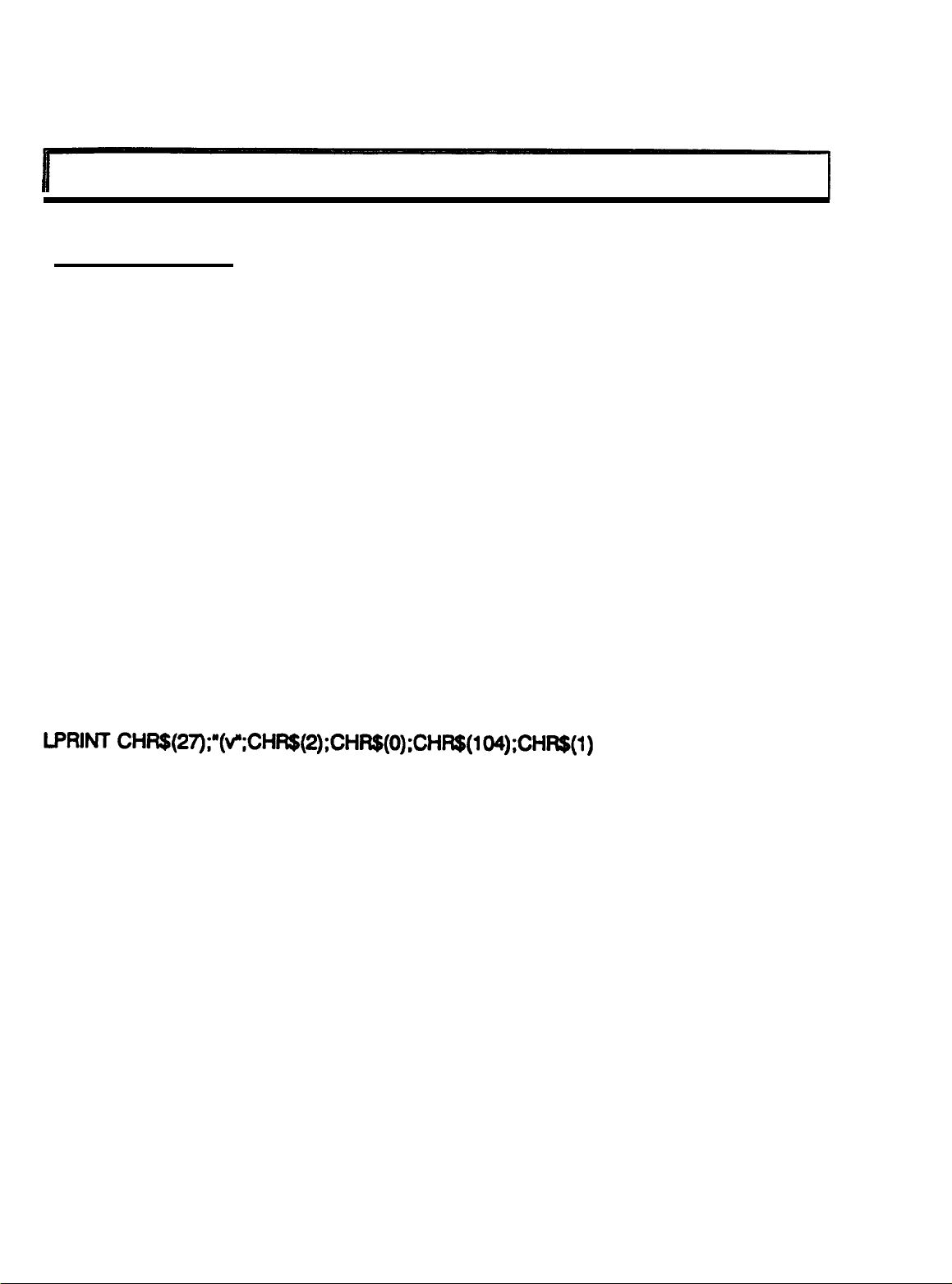
In the Basic programming language, the command would look like this.
This command, as listed in the line above, will feed the paper up 1 inch from the
current line. The current print column (horizontal position) IS NOT changed.
‘Reverse” paper feed less than 1/2 inch can be performed with this command. To
accomplish "reverse" paper feeding requires the following steps.
1.
Determine the desired vertical motion dice in inches.
2
Multiply the distance by 360.
3.
Divide the result by 256 using long division.
4.
Subtract the remainder in the quotient computed in step 3 from 256.
5.
The result from step 4 is the value for n1.
6.
The value for n2 will always be 255.
PSB No: P-0082
Page: 7 of 14
EXAMPLE
1.
The desired distance is 1/4 inch.
2.
1/4 x 360 = 90
3.
90 divided by 256
=
0
with
a
remainder
of
90.
4.
256-90=166
5.
n1=166
6.
n2=255
In the Basic programming language, the command would look like this.
LPRlNT CHR$(27);“(v”;CHR$(2);CHR$(0);CHR$(166);CHR$(255)
This command, as listed in the line above, will feed the reverse feed the paper 1/4 inch
from the current line. The current print column (horizontal position) IS NOT changed.
PSB No: P-0082
Page: 8 of 14
C
(V m1 m2 n1 n2 is the command for changing the print position vertically (with
respect to the Top of Form position) in units where m1, m2, n1 and n2 are variables.
The "unit” is usually 1/360 of an inch unless defined otherwise by the ”ESC(U"
command.
Currently, the values for m1 and m2 MUST be m1=2 and m2=0.
To determine the values for n1 and n2 perform the following steps.
1.
Determine the desired vertical distance from the Top of Form in inches.
2 Multiply the distance by 360.
3.
Divide the result by 256 using long division.
4.
The remainder in the quotient from step 3 is the value for n1.
5.
The whole number in the quotient from step 3 is the value for n2
EXAMPLE
1.
The desired dice from the Top of Form is 1 inch.
21x360=360
3.
360 divided by 256=
1
with a remainder of 104.
4.
n1=104
5.
n2=1
In the Basic programming language, the command would look like this.
This command, as listed in the line above, will position the paper 1 inch from the
current Top of Form setting. For example, if the Top of Form setting is the top edge
of the paper, the paper will be positioned so that the printer is ready to print 1 inch
down from the top edge of the paper.
PSB No: P-0082
Page: 9 of
14
ESC t n is the command for selecting a character table to be used for printing where
n is a variable. The following table lists the values for n and the character table
associated with the value.
II
n
I
Table
II
II
3I PC437 (US)
II
Table 1
NOTE: 1. Character tables other than those listed above can be assigned by using
the ESC ( t command (Assign Character Table).
2
The value used for n can be either the ASCII value OR the ASCII character
(i.e. chr$(1) or “1”).
In the Basic programming language, the command would look like this.
LPRlNT CHR$(27);"t";CHR$(0);
CHR$(27) is ESC and CHR$(0) selects table #0 (italic).
PSB No: P-0082
Page:
10
of
14
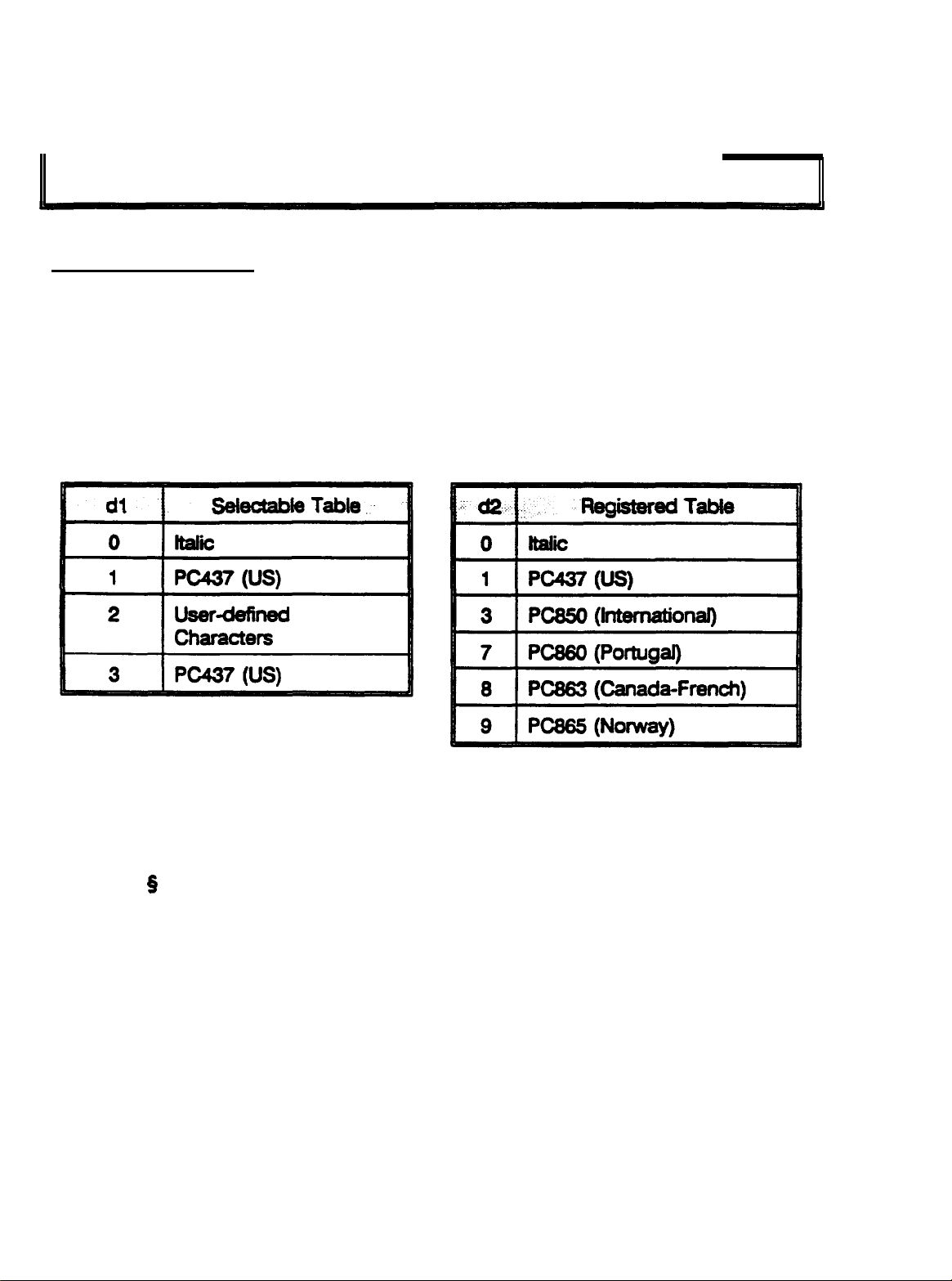
ESC ( t n1 n2 d1 d2 d3 (Assign Character Table)
ESC (t n1 n2 d1 d2 d3 is the command for assigning character tables where n1, n2,
d1,d2, and d3 are variables. Currently, variables, n1, n2 and d3 MUST be n1=3,
n2=0, and d3=0. Variable d1 is a number corresponding to one of the four tables
selectable with the ESC t n command. This is the table that will be replaced. Valid
values for d1 are 0,1,2, and 3 (see Table 1 below). Variable d2 is a number
corresponding to a registered table. This is the table that will replace the table
indicated by Variable d1. Valid Values for d2 are 0, 1,3,7,8, and 9 (see Table 2
below).
Table 1
Table 2
After using the ESC ( t command, the ESC t n command MUST be sent to select the
table before printing from the new table.
For example, the command ESC ( t 3 0 1 3
0 is sent (assign Registered Table 3 (PC850) to Selectable Table 1 (PC437). In order
to print the
Q
character (ASCII 245), the command ESC t 1 must be sent. In the Basic
programming language, the sequence would be as follows:
LPRINT CHR$(27);“(T);CHR$(3);CHR$(0);CHR$(1);CHR$(3);CHR$(0);
LPRINT CHR$(27);"t";CHR$(1);
LPRINT CHR$(245)
Some ESC/P2 documentation may illustrate as many as 22 different Registered
Tables. The Registered Tables are a part of the character set, therefore, they are
contained in the Character Generator ROM. The CG ROM differs based upon the
destination country. For this reason, only the above Registered Tables are available
on LQ-570, LQ-1070, LQ-870 and LQ-1170 printers sold for the U.S. market. Foreign
Character Generator ROMs ARE NOT available in the United States. The following