ETC Setup Guide
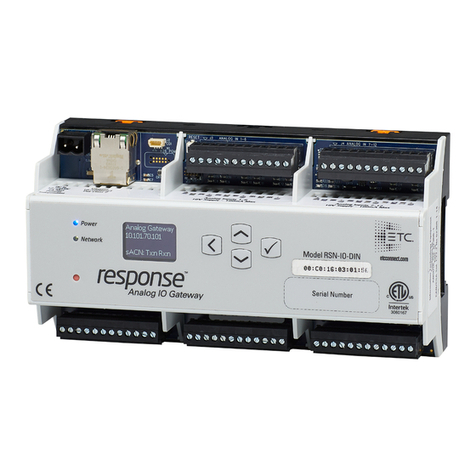
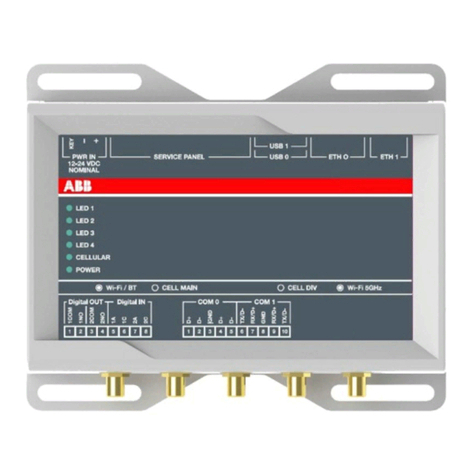
Analog IO Gateway (Rack-Mount)
Analog IO Gateway (Rack-Mount) Page 4 of 5 ETC
Configuration
The following sections provide information on basic configuration directly from the device. Detailed
configuration can be performed using the ETC Concert application, available from etcconnect.com.
View Device Information
To view information specific to your gateway, select the About menu from the home screen. From
the About menu, you can select one of the following three options:
Version: Provides the version of software running on the device
Analog: Provides information for each of your 12 analog inputs, including level, sACN
address, and whether the input is enabled for UDP
Relay: Provides information for each of your 12 relay outputs, including whether the relay is on
or off, the source type, and sACN address. For a relay with the On designation, the Normally
Open (NO) contact is closed and Normally Closed (NC) contact is open. For an Off
designation, NO is open and NC is closed.
Configure Network Settings
To configure the network settings for your device, perform the following steps:
1. From the Home screen, select Setup >Network.
2. From the Mode screen, you can use the up and down buttons to select Manual,Link Local or
Automatic.
Automatic will attempt to automatically configure the IP Address, IP Subnet, and IP Gateway
for your device via DHCP.
If you select Manual, you must configure the IP Address, IP Subnet, and IP Gateway screens
and then select OK from the Apply/Reboot? screen.
If you select Link Local, the gateway self-assigns an IP address that is valid for the local
network in the link-local address range. Select OK from the Apply/Reboot? screen. If your
network settings are not valid after configuration, a warning appears for 3 seconds and then
you are returned to the Mode screen and can try again.
Restore Default Settings
To restore the factory defaults for your device, select the Operations menu from the home screen
and choose the Restore Defaults option. This removes all network and master/backup information
that is configured for your gateway but retains the gateway name.
Update Software
The recommended method of updating the gateway is through UpdaterAtor. The UpdaterAtor
application is available for download at etcconnect.com.
There is also an option to update the software from the gateway using a TFTP server like Conductor.
To upgrade the software, select the Operations menu from the home screen and choose the Update
Software option. If you do choose to update directly from the gateway, the bootloader runs and the
latest software is downloaded from the server indicated by the <#.#.#.#> IP address on the Update
Software screen. If you need to modify this IP address, you can configure it in the Concert
application using the Update Server property.
Note:
Regardless of whether you update from UpdaterAtor or directly from the gateway,
the device must be on the network.