manuals.online logo
Brands
  1. Home
  2. •
  3. Brands
  4. •
  5. Extron electronics
  6. •
  7. Switch
  8. •
  9. Extron electronics SW4 3G HD-SDI User manual

Extron electronics SW4 3G HD-SDI User manual

AUTO
SWITCH
ACTIVE
SW4 3G HD-SDI
MULTI-RATE SDI SWITCHER
1
MODE
2
NORMAL
3
AUTO
4
RATE
NOT
RECOGNIZED
270 Mbps
1.485 Gbps
2.97 Gbps
The Extron® SW4 3G HD-SDI switcher is a four input, two parallel output, multi-rate switcher. It allows up to four SDI or
HD-SDI video input sources to be switched to two identical outputs, on female BNC connectors. The SW4 HD-SDI supports
multiple SDI rates, including 270 Mbps, 1.485 Gbps, and 2.97 Gbps. In auto-input switch mode, the SW4 3G automatically
switches to the highest numbered input with active sync pulses.
This guide provides basic instructions for an experienced installer to set up and operate this switcher.
Installation
1. Turn off all of the equipment and disconnect it from the power source.
2. (Optional) If desired, mount the switcher on a 6 inch or 9.5 inch deep rack shelf.
3. Connect up to four SDI, HD-SDI, or 3G-SDI video inputs to BNC input connectors 1 through 4.
NOTE: Each input is equalized regardless of the rate.
4. Connect one or two video SDI, HD-SDI, or 3G-SDI output devices to the
rear panel BNC output connectors.
NOTE: Outputs 1 and 2 output identical signals.
5. If the switcher will be connected to a computer or host controller for
remote control, wire the provided 3-pole captive screw connector to an
RS-232 cable. Connect the RS-232 cable to the RS-232 port on the rear
panel of the switcher and to the host RS-232 port (see the illustration at
right).
Protocol for the RS-232 port: 9600 baud, 8 data bits, 1 stop bit, no parity
6. Power on the input and output devices, then connect power to the
switcher by connecting the provided IEC power cord to the switcher
power connector and to an AC outlet.
Connecting an Input to the Outputs
To create a tie between an input and the outputs:
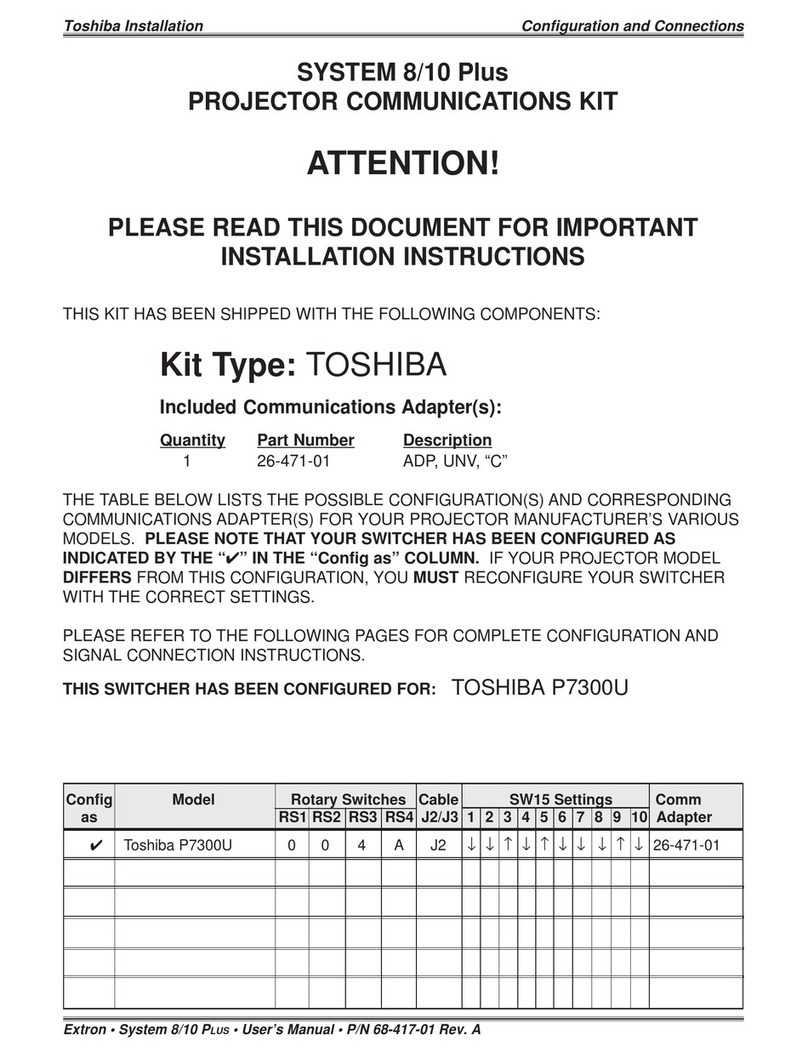
1. Determine the necessary switch mode for the SW4 3G (the default mode is normal). (See “Enabling and Disabling
Auto-input Switch Mode,” on the reverse side.)
оSelect auto-input switch mode to automatically switch to the highest numbered input with active sync pulses.
оChoose normal mode to manually change the input.
2. Select an input.
оIf you are using normal mode, select the desired input by pressing and releasing its input button. The LED beside
the selected input button lights.
оTo switch to another input, press a different input button.
оIf you are using auto-input switch mode, no action is necessary. The switcher automatically switches to the highest
numbered active input.
3. If needed, create a remote connection via RS-232. (See step 5 under “Installation,” above.)
Figure 1. RS-232 Connection
Switcher
Receive
Transmit
Ground
RS-232
Tx Rx
DB9 connector (female)
pinout to control equipment
Computer
5 1
9 6
Pin RS-232 Function
1 —
2 Rx Receive data (+)
3 Tx T
ransmit data (–)
4 —
5 Gnd Signal ground
6 —
7 — —
8 — —
9 — —
—
—
—
INPUTS
1 2 1 23 4
100-240V~.5A MAX.
50/60 Hz
OUTPUTS
RS-232
Tx Rx
SW4 3G HD-SDI • Setup Guide 1
SW4 3G HD-SDI Setup Guide
Extron USA - West
Headquarters
+800.633.9876
Inside USA / Canada Only
+1.714.491.1500
+1.714.491.1517
FAX
Extron USA - East
+800.633.9876
Inside USA / Canada Only
+1.919.863.1794
+1.919.863.1797 FAX
Extron Europe
+800.3987.6673
Inside Europe Only
+31.33.453.4040
+31.33.453.4050 FAX
Extron Asia
+800.7339.8766
Inside Asia Only
+65.6383.4400
+65.6383.4664 FAX
Extron Japan
+81.3.3511.7655
+81.3.3511.7656 FAX
Extron China
+400.883.1568
Inside China Only
+86.21.3760.1568
+86.21.3760.1566 FAX
Extron Middle East
+971.4.2991800
+971.4.2991880 FAX
Enabling and Disabling Auto-input Switch Mode
In auto-input switch mode, the SW4 3G automatically switches to the highest numbered input with active
sync pulses. When auto-input switch mode is enabled, the Auto Switch Active LED (shown at right) lights.
Selecting Auto-input Switch Mode
To turn on auto-input switching:
1. Press and hold the Mode (Input 1) button.
2. While holding down the Mode button, press and hold the Auto (Input 3) button.
3. Release the Mode and Auto buttons simultaneously. The Auto Switch Active LED lights.
Selecting Normal Mode
To turn off auto-input switching:
1. Press and hold the Mode (Input 1) button.
2. While holding down the Mode button, press and hold the Normal (Input 2) button.
3. Release the Mode and Auto buttons simultaneously. The Auto Switch Active LED turns
off.
Application Diagram
The illustration below shows an example of how the SW4 3G HD-SDI switcher can be connected.
1
MODE
3
AUTO
1
MODE
2
NORMAL
AUTO
SWITCH
ACTIVE
Figure 2. SW4 3G HD-SDI Application Example
©2010 Extron Electronics. All Rights Reserved - www.extron.com
68-1571-50
Rev A
04 10
100-240V 0.2A
50-60Hz
INPUTS
1212
34
OUTPUTS
RS-232
SW4 3G HD-SDI
ON
OFF
DISPLAY
MUTE
SCREEN
UP
SCREEN
DOWN
VCR
DVD
DOC
CAM
LAPTOP
PC
13
1
4
2
31
42
3
1
4
2
2
3
100
LINK
ACT
COM IR INPUT RELAY
TX RX
R
IPL 250
®
HD-SDI
Monitor
Extron
SW4 3G HD-SDI
Multi-Rate SDI Switcher
HD-SDI Projector
HD-SDI Cameras
HD-SDI VTR
RS-232
TCP/IP
TouchLink™
Control
System
2
SW4 3G HD-SDI 101 Setup Guide (Continued)

Other manuals for SW4 3G HD-SDI

1

Other Extron electronics Switch manuals
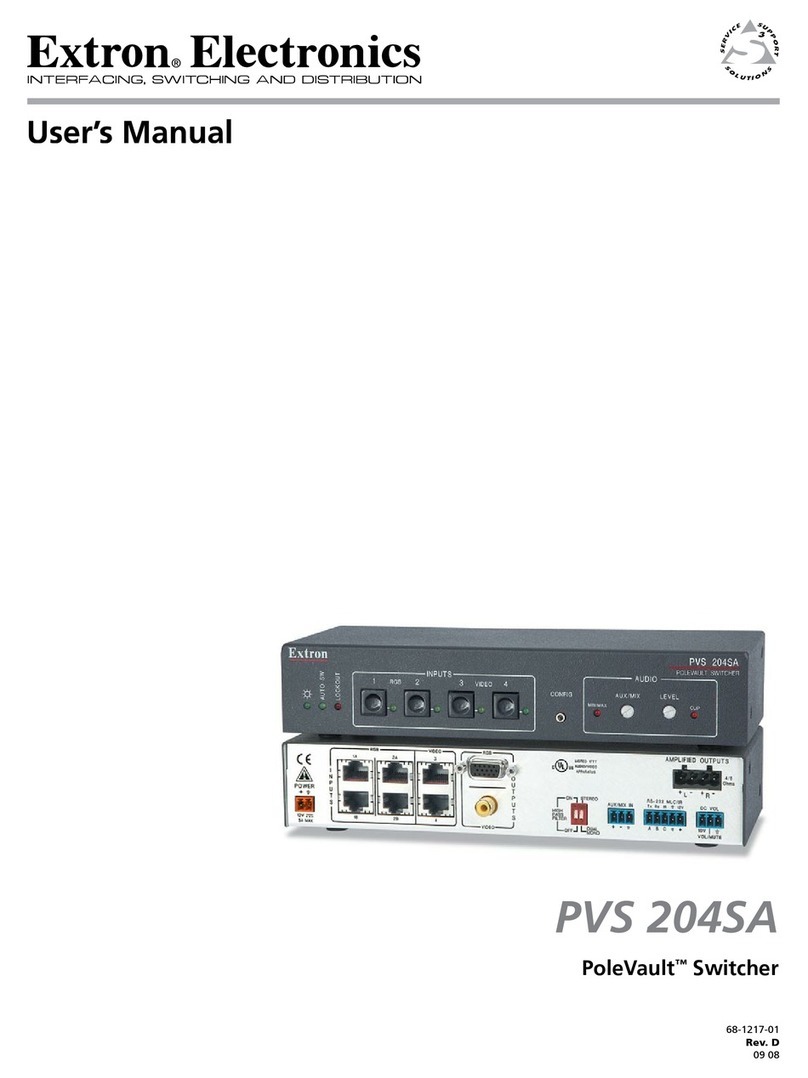
Extron electronics SW12 VGA Ars User manual

Extron electronics

Extron electronics SW12 VGA Ars User manual

Extron electronics ISS 108 User manual

Extron electronics

Extron electronics ISS 108 User manual

Extron electronics MTP SW6 User manual

Extron electronics

Extron electronics MTP SW6 User manual

Extron electronics ISS 608 User manual

Extron electronics

Extron electronics ISS 608 User manual

Extron electronics SW6 AV MX AS User manual

Extron electronics

Extron electronics SW6 AV MX AS User manual

Extron electronics SW6 AV MX AS User manual

Extron electronics

Extron electronics SW6 AV MX AS User manual

Extron electronics SW RGBHV Series User manual

Extron electronics

Extron electronics SW RGBHV Series User manual

Extron electronics SW 4 AR MX HV User manual

Extron electronics

Extron electronics SW 4 AR MX HV User manual

Extron electronics PoleVault PVS 305SA User manual

Extron electronics

Extron electronics PoleVault PVS 305SA User manual

Extron electronics ISS 608 User manual

Extron electronics

Extron electronics ISS 608 User manual

Extron electronics System 7SC User manual

Extron electronics

Extron electronics System 7SC User manual

Extron electronics System 8 Plus User manual

Extron electronics

Extron electronics System 8 Plus User manual

Extron electronics System 5cr Plus User manual

Extron electronics

Extron electronics System 5cr Plus User manual

Extron electronics SW4 12G HD-SDI User manual

Extron electronics

Extron electronics SW4 12G HD-SDI User manual

Extron electronics A-3 User manual

Extron electronics

Extron electronics A-3 User manual

Extron electronics SW2 VGA DA2 A User manual

Extron electronics

Extron electronics SW2 VGA DA2 A User manual

Extron electronics SW HDMI Series User manual

Extron electronics

Extron electronics SW HDMI Series User manual

Extron electronics MPX 866 A User manual

Extron electronics

Extron electronics MPX 866 A User manual

Extron electronics SW6 VGA A User manual

Extron electronics

Extron electronics SW6 VGA A User manual

Extron electronics SW4 ARxi User manual

Extron electronics

Extron electronics SW4 ARxi User manual

Extron electronics SW MTP T 15HD A User manual

Extron electronics

Extron electronics SW MTP T 15HD A User manual

Extron electronics FOX 4G Matrix 3200 User manual

Extron electronics

Extron electronics FOX 4G Matrix 3200 User manual

Extron electronics FOX T USW 203 User manual

Extron electronics

Extron electronics FOX T USW 203 User manual

Extron electronics System 10 Plus User manual
Extron electronics

Extron electronics System 10 Plus User manual
Popular Switch manuals by other brands
Lindy 43094 user manual

Lindy

Lindy 43094 user manual

Belkin OmniView 5216K user manual

Belkin

Belkin OmniView 5216K user manual

artisan APC AP7722 user guide

artisan

artisan APC AP7722 user guide

BayTech MSP Series quick start

BayTech

BayTech MSP Series quick start

ATEN CL5808 Specifications

ATEN

ATEN CL5808 Specifications

Key Digital KD-UFS42 quick start guide

Key Digital

Key Digital KD-UFS42 quick start guide

ANTAIRA LNX-1802G user manual

ANTAIRA

ANTAIRA LNX-1802G user manual

HP 12500 Series Configuration guide

HP

HP 12500 Series Configuration guide

Ross Synergy 1 SD manual

Ross

Ross Synergy 1 SD manual

Huawei Quidway S6506R release note

Huawei

Huawei Quidway S6506R release note

EUCHNER STP-TW AS1 Series operating instructions

EUCHNER

EUCHNER STP-TW AS1 Series operating instructions

NuTone SMART HOME NWD500Z quick start guide

NuTone

NuTone SMART HOME NWD500Z quick start guide

Honeywell OP-AR installation instructions

Honeywell

Honeywell OP-AR installation instructions

Kathrein EXR 221 manual

Kathrein

Kathrein EXR 221 manual

Cables to Go TRUlink 35566 user guide

Cables to Go

Cables to Go TRUlink 35566 user guide

IDT 89HPES12N3 user manual

IDT

IDT 89HPES12N3 user manual

FLIR LNB3373SB quick start guide

FLIR

FLIR LNB3373SB quick start guide

IP-COM G3224P user guide

IP-COM

IP-COM G3224P user guide

manuals.online logo
manuals.online logoBrands
  • About & Mission
  • Contact us
  • Privacy Policy
  • Terms and Conditions

Copyright 2025 Manuals.Online. All Rights Reserved.