Furuno RP-25 User manual

VIDEO PLOTTER
RP-25

Your Local Agent/DealerYour Local Agent/Dealer
9-52 Ashihara-cho,9-52 Ashihara-cho,
Nishinomi
y
a, Ja
p
anNishinomi
y
a, Ja
p
an
Tele
p
hone :Tele
p
hone : 0798-65-21110798-65-2111
Telefax :Telefax : 0798-65-42000798-65-4200
FIRST EDITION :FIRST EDITION : FEB.FEB. 19961996
Printed in JapanPrinted in Japan
A
ll ri
g
hts reserved.
A
ll ri
g
hts reserved. F :F : JAN.JAN. 08,200208,2002
PUB.No.PUB.No. OME-30400OME-30400
*00080745701**00080745701*
*00080745701**00080745701*
(( HIMAHIMA )) RP-25RP-25 * 0 0 0 8 0 7 4 5 7 0 1 ** 0 0 0 8 0 7 4 5 7 0 1 *
*OME30400F00**OME30400F00*
*OME30400F00**OME30400F00*
* O M E 3 0 4 0 0 F 0 0 ** O M E 3 0 4 0 0 F 0 0 *

i
SAFETY INSTRUCTIONS
CAUTION
No one navigational aid should be relied exclusively for the safety of
vessel and crew. The navigator has the responsibility to check all aids
available to confirm position. Electronic aids are not a substitute for
basic navigational principles and common sense.
Digital charts cannot replace official nautical charts.
Digital charts are intended as an aid to navigation. Position should always
be checked against nautical charts, as well as other aids to navigation.
Digital charts cannot replace the radar.
Digital charts can only show own ship's position relative to a chart feature
(coastline, lighthouse, etc.); they cannot show other vessels, as does the
radar. Digital charts can never replace the radar.
Handle chart/memory cards carefully.
The chart and memory cards are weak against heat and magnetic material.
Keep cards away from heat source.
Keep cards away from magnets and magnetic material.
Replace cards in their protective cases after use.

ii
FORWORD
A Word to RP-25 Owners
Congratulations on your choice of the FURUNO RP-25 Video Plotter. We are
confident you will see why the FURUNO name has become synonymous with
quality and reliability.
For over 50 years FURUNO Electric Company has enjoyed an enviable
reputation for innovative and dependable marine electronics equipment. This
dedication to excellence is furthered by our extensive global network of agents
and dealers.
Your RP-25 is designed and constructed to meet the rigorous demands of the
marine environment. However, no machine can perform its intended function
unless installed function unless installed, operated and maintained properly.
Please carefully read and follow the recommended procedures for operation and
maintenance.
We would appreciate hearing from you, the end-user, about whether we are
achieving our purposes.
Thank you for considering and purchasing FURUNO equipment.
Features
The Video Plotter RP-25 is an optional circuit board which is accommodated in
the display unit of the FR/FAR-2805 series radars, and provides video plotter
functions such as waypoint making and route creation.
The main features are
! Radar map function
• Displays/hides the user-made map by one-touch simple operation.
• 1,500 of marks/lines maximum are storable.
! Radar Plotter function
• Chart overlay on radar display
• Target track is displayed on head-up mode.
• Memory card can be used together with chart card.
• Radar position correction
• Arrival alarm function

iii
The RP-25 function may be changed depending on your FR/FAR-2805 series
radar specification. Refer to the following table to recognize your RP-25 working.
Your 2805 spec. Radar map Video plotter
R (Regular) type Yes Yes
IMO type
(German, Netherland) No -

iv
TABLE OF CONTENTS
1. RADAR MAP..................................................................................................1-1
1.1 Preparation..................................................................................................................1-2
1.2 Making a radar map.....................................................................................................1-3
1.2.1 Selecting the entering way .......................................................................1-3
1.3 Erasing Contents of the Radar Map.............................................................................1-6
1.3.1 Erasing the mark/line independently.........................................................1-6
1.3.2 Erasing all mark/line.................................................................................1-6
1.4 Position and bearing correction....................................................................................1-7
1.4.1 Radar map correction...............................................................................1-7
1.4.2 Cursor data correction..............................................................................1-7
1.4.3 Releasing the radar map correction..........................................................1-7
2. VIDEO PLOTTER...........................................................................................2-1
2.1 Overview......................................................................................................................2-1
2.1.1 Selecting Displays....................................................................................2-1
2.1.2 Display modes..........................................................................................2-2
2.2 Chart Cards .................................................................................................................2-3
2.2.1 Displaying chart cards..............................................................................2-3
2.2.2 Chart position correction...........................................................................2-4
2.2.3 Canceling chart correction........................................................................2-4
2.2.4Adding correcting value to cursor data......................................................2-4
2.3 Setting up the Video Plotter .........................................................................................2-5
2.3.1 Hiding/showing graphics...........................................................................2-5
2.3.2 Setting the navigation data.......................................................................2-5
2.4 Track............................................................................................................................2-8
2.4.1 Recording the own ship’s track.................................................................2-8
2.4.2 Recording other ship’s track.....................................................................2-9
2.4.3 Smoothing................................................................................................2-9
2.4.4 Erasing track..........................................................................................2-10
2.5 Marks, Lines .............................................................................................................. 2-11
2.5.1 Entering mark......................................................................................... 2-11
2.5.2 Entering line........................................................................................... 2-13
2.6 Erasing Marks, Lines .................................................................................................2-14
2.6.1 Erasing individual marks/lines ................................................................ 2-14
2.6.2 Erasing marks/lines on a area................................................................2-14
2.6.3 Erasing all marks.................................................................................... 2-15
2.7 Waypoints..................................................................................................................2-16
2.7.1 Entering waypoints.................................................................................2-16
2.7.2 Waypoint list........................................................................................... 2-17
2.7.3 Displaying a waypoint.............................................................................2-19
2.8 Navigation Lines........................................................................................................2-21
2.8.1 Entering navigation line..........................................................................2-21
2.8.2 Navigation line list................................................................................ 2-22

v
2.8.3 Deleting navigation lines.........................................................................2-23
2.8.4 Setting up the navigation lines................................................................2-24
2.8.5 Displaying navigation lines......................................................................2-26
2.9 Recording and Replaying Data...................................................................................2-26
2.9.1 Formatting memory (RAM) card..............................................................2-26
2.9.2 Recording data.......................................................................................2-27
2.9.3 Replaying data........................................................................................2-28
3. MAINTENANCE (FOR TECHNICIANS).........................................................3-1
3.1 Initial Settings...............................................................................................................3-1
3.2 Replacement of Battery on RP Board...........................................................................3-2
MENU TREE....................................................................................................AP-1
LATITUDE ERROR TABLE (ON 96 NM RANGE)..........................................AP-3
SPECIFICATIONS...........................................................................................SP-1

1-1
1. RADAR MAP
A radar map is a combination map lines and symbols whereby the user can
define and input the navigation data, route planning and monitoring data.
The radar map has the capacity of 1,500 points of mark and line. The map data
can be memorized to facilitate the repeated use on the routine navigation area.
The user can create a radar map on-real time while using the radar for
navigation or at leisure time at anchor or while the radar is not being used. Place
of a map can be made for any waterways apart from the actual own ship
location.
Note: Own ship position display requires an input from radionavigational
equipment such as a GPS receiver in accordance with the format as
defined by IEC 61162-1.
Keys for radar map
ENTER
ORIGIN
MARK
TARGET
DATA
TRAIL
MARK
VECTOR
TRUE/
REL
TARGET
BASED
SPEED
CHART
ALIGN
VECTOR
TIME
AUTO
PLOT
LOST
TARGET HISTORY
VIDEO
PLOT
RADAR
MENU
E,AUTO
PLOT
MENU
NAV
MENU
12 3
4 5 6
7 8
-
CANCEL 0
9
Key panel (right side)

1. RADAR MAP
1-2
1.1 Preparation
For R-type radar, confirm that the radar display appears. When the video plotter
or radar/video plotter display appears, press the [VIDEO PLOT] key several
times to select the radar display.
1. Press the [NAV MENU] key to show NAV INFORMATION 1 menu.
2. Press [1] key to show RADAR MAP menu.
Number of current used mark/line
(Max. 1500 points)
[RADAR MAP]
1 [NAV INFORMATION 1]
2 MAP
OFF/ON
3 NAV DATA POSN
4 ALIGN + CURSOR
OFF/ON
5 MARK ENTRY MODE
CURSOR/L/L/OWN SHIP
6 ERASE MARK
OFF/AREA/ALL
MEMORY IN USE
MARK = 1000
Radar map menu
3. Press [2] key several times to set MAP ON, and then press the ENTER key.
“MAP” appears at the right side of screen.
4. Press [NAV MENU] key to close the menu.

1. RADAR MAP
1-3
1.2 Making a Radar Map
Marks/lines can be entered in three different ways.
1.2.1 Selecting the entering way
1. Press the [NAV MENU], [1] in that order to show RADAR MAP menu.
2. Press the [5] key several times to select CURSOR, L/L or OWN SHIP POSN.
CURSOR: Enters mark/line at the position selected by cursor
L/L: Enter mark/line at the position selected by L/L values
OWN SHIP POSN: Enter mark/line at the current own ship’s position
3. Press the [ENTER] key.
4. Press the [NAV MENU] key to close the menu.
CURSOR
1. Press the [MARK] key to show ENTER MARK menu.
[ENTER MARK]
MARK 01
01.
02.
03.
04.
05.
06.
07.
08.
09.
10.
11.
12.
13.
14.
15.
16. NAV LINE
17. COAST LINE
18. CONTOUR LINE
19. PROHIBITED AREAS
20. CABLE
21. LINE CHANGE
22. MARK CANCEL
Enter mark menu
Table of contents
Other Furuno Plotter manuals
Furuno
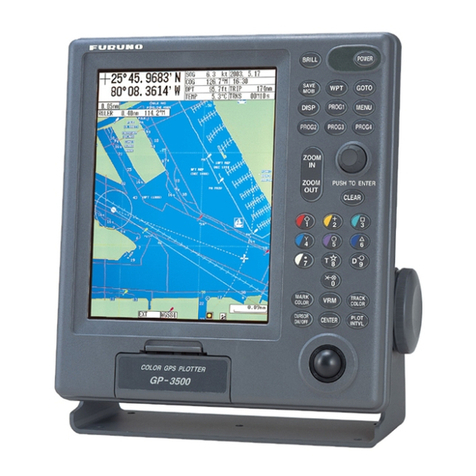
Furuno GP-3500 Manual
Furuno
Furuno GP-1670F User manual

Furuno
Furuno Auto Plotter ARP15 User manual
Furuno
Furuno GP-3500 Manual
Furuno
Furuno GP-1810F Manual
Furuno
Furuno GD-188 User manual
Furuno
Furuno FRS-1000A User manual
Furuno
Furuno NavNet TZtouch TZTL9BB Manual instruction
Furuno
Furuno LP-1000 User manual
Furuno
Furuno GP-3100 Mark-2 User manual
Furuno
Furuno GP-1670 User manual

Furuno
Furuno GP-3500 User manual
Furuno
Furuno GP-1850DF User manual

Furuno
Furuno GPS Plotter GP1600 User manual
Furuno
Furuno GP-280 User manual
Furuno
Furuno GP-1871F User manual
Furuno
Furuno RP-180 User manual

Furuno
Furuno Auto Plotter ARP15 User manual

Furuno
Furuno RP-17 User manual

Furuno
Furuno GP-1600F User manual