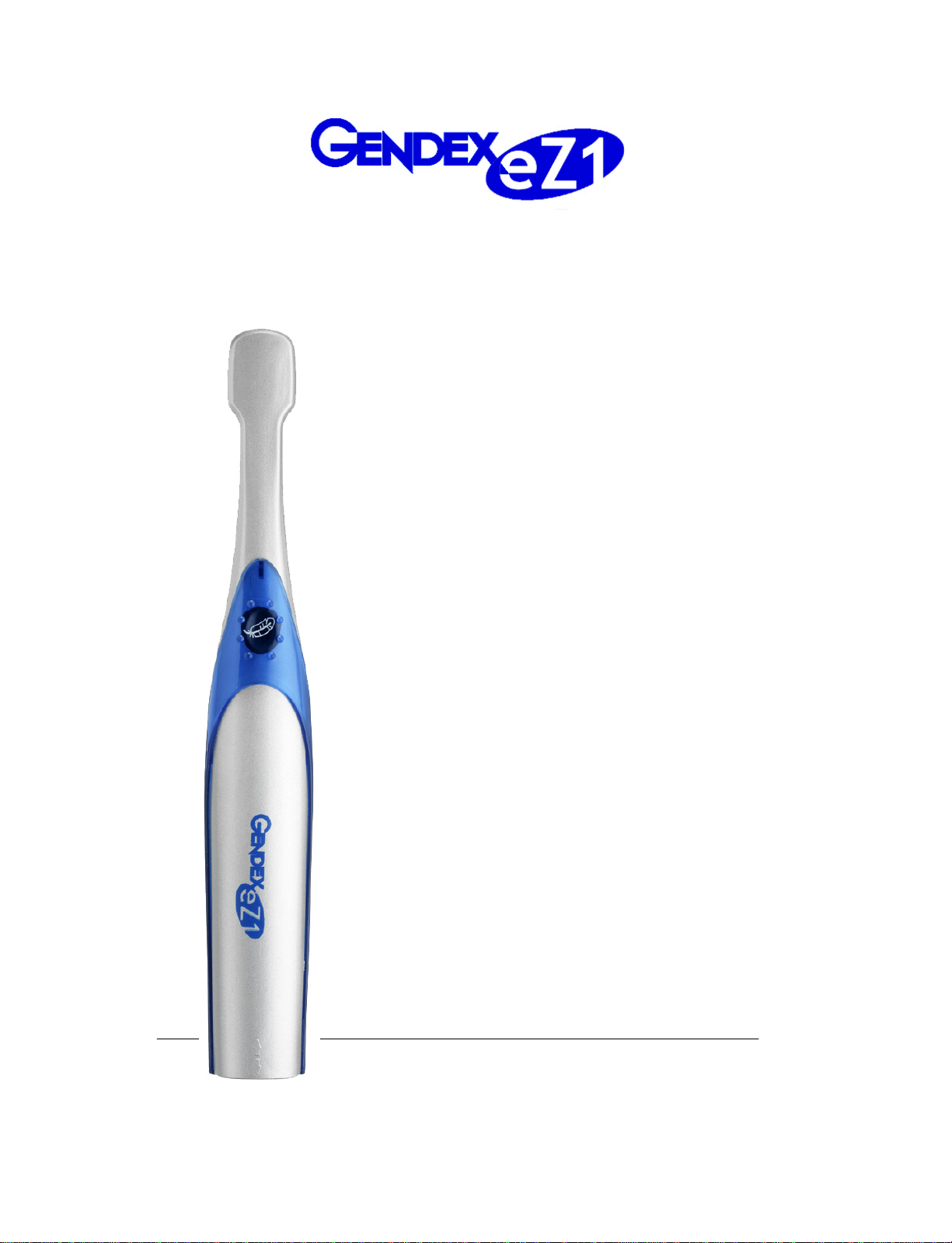
Gendex eZ1 Intraoral Camera System 5Operation Manual and Installation Guide
3.3. Connection of the eZ1 with USB2, and software installation
Note: Do not plug in the eZ1 Camera unit before installing the software driver.
To install the eZ1 Camera software driver either as a new installation or as an upgrade, do the
following:
1. Make sure you have the Administrator rights, on the local PC (it is necessary to install a new
driver).
2. Disable any Antivirus software that may be running.
3. Insert the eZ1 Camera Driver CD into the CD-ROM
Drive.
If the computer is configured to detect a newly
inserted CD-ROM, the AutoPlay menu will appear.
If the AutoPlay menu does not appear after a few
moments, click on the Start button then select
Run, and type D:\setup.exe (where D is the letter
of the CD-ROM drive). If the CD-ROM’s drive
letter is not known, double click on the ‘My
Computer’ icon on the desktop, and make a note
of the letter of the CD-ROM icon.
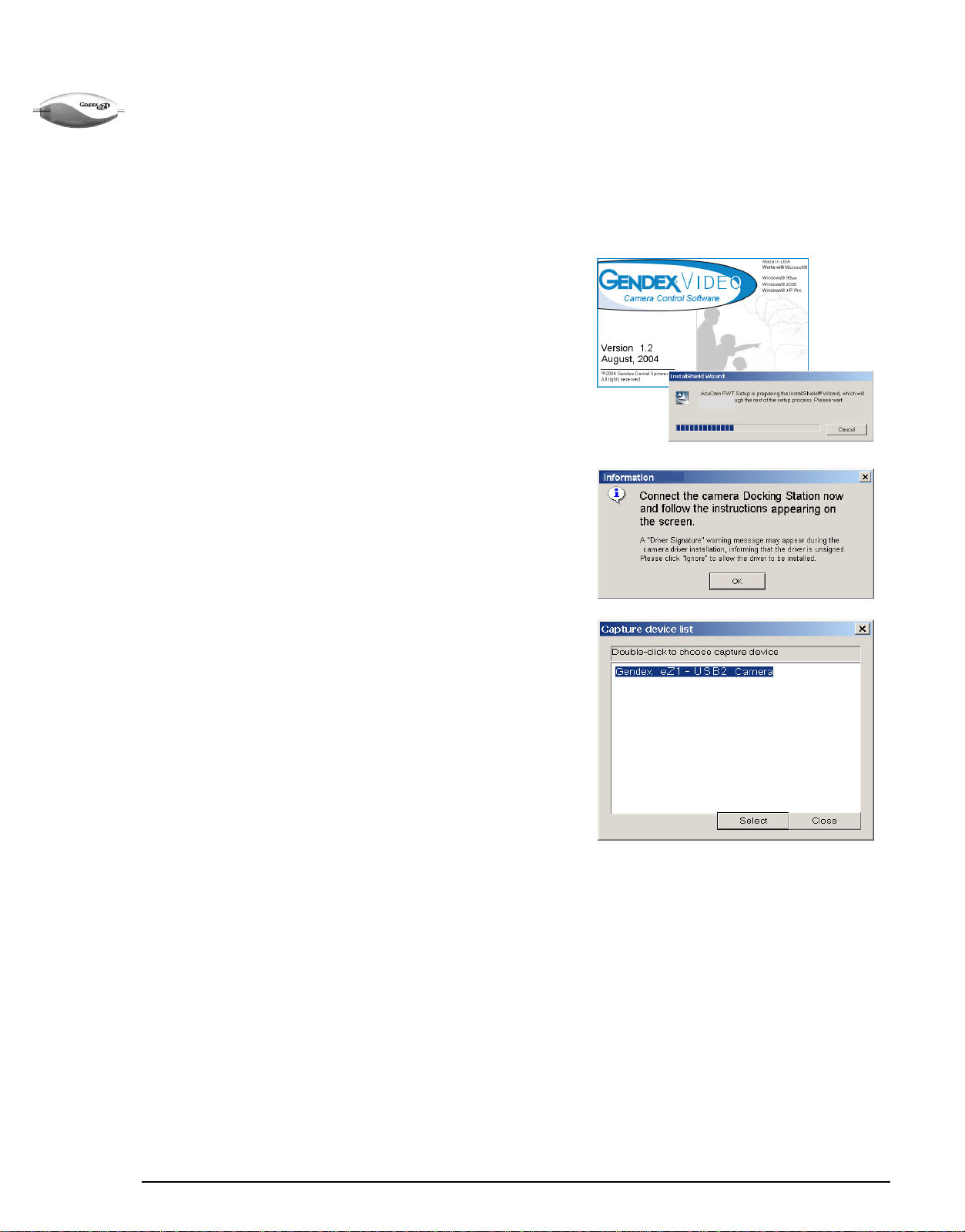
4. From the “Welcome” menu click Next.
5. Read the “Software License Agreement” and click
Yes to accept the Software License and continue.
6. The installation program will copy the needed files
onto your computer.
7. A message will appear prompting to connect the
USB2 adapter. PLUG THE USB2 ADAPTER CABLE into
your computer. Follow the instructions appearing on
the screen.
A "Driver Signature" warning message may
appear during the eZ1 Camera driver installation,
informing you that the driver is unsigned. Please
click "Ignore" to allow the driver to be installed.
8. The installation program will detect if the appropriate version of the Microsoft DirectX software
is installed, and it will prompt you to install an upgrade if necessary. Just follow the instructions on
the screen.
9. After all the files are installed click on Finish to complete the installation and reboot your
computer.
10. After the reboot, a message will appear on the screen notifying that the correct version of the
DirectX software has been detected. Click OK.
11. A Capture Device List may appear allowing you to choose between input sources. Select
Gendex eZ1 Camera from the list to activate the video input.
Now that you have completed the installation procedure, the icon representing the software
driver will appear in the Windows System Tray (see Section 6).