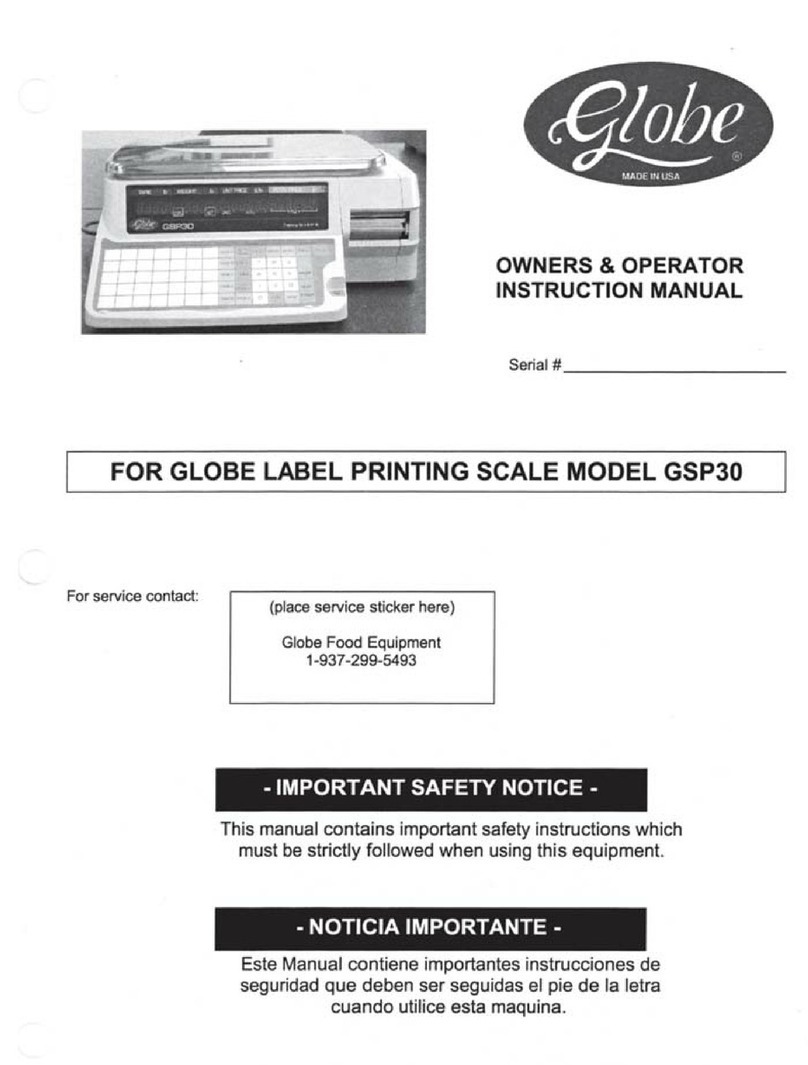
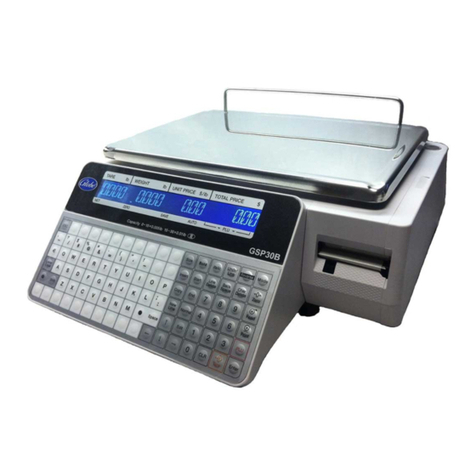
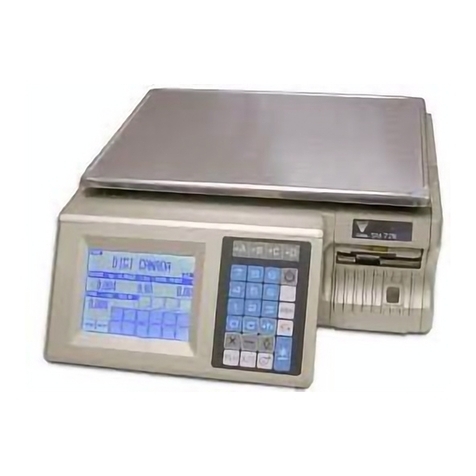
Globe GSP30A User manual

Instruction Manual for Globe
Label Printing Scale Model GSP30A
Model GSP30A
This manual contains important safety instructions which
must be strictly followed when using this equipment.
For Service on Your Scale
1. Visit our website at www.globeslicers.com
(select the Support / Parts drop down).
2. Or call the Globe service department at 937-297-7247 and ask for contact
information for your local service company.
Model #:
Serial #:
- IMPORTANT SAFETY NOTICE -
Visit our website for information on additional products available from Globe.
www.globeslicers.com
Slicers, Mixers, Countertop Cooking Equipment, Meat Choppers, & Scales


IMPORTANT NOTICE ................................................................................................................................................ 4
SAFETY TIPS ............................................................................................................................................................. 4
INSTALLATION .......................................................................................................................................................... 5
KEY SCALE COMPONENTS ..................................................................................................................................... 5
LOADING/UNLOADING LABELS ........................................................................................................................... 6-7
INITIAL SCALE SETUP
Changing Current Date And Time............................................................................................................................... 8
Entering Shop Name And Address ............................................................................................................................. 8
PLU SETUP
Setting Up PLU’s ........................................................................................................................................................ 9
Setting Up A Default PLU ......................................................................................................................................... 10
Deleting A PLU ..........................................................................................................................................................11
PRESET KEY SETUP
Setting Up Preset Keys .............................................................................................................................................11
Setting Up Preset Function Keys...............................................................................................................................11
Deleting Preset Keys ................................................................................................................................................ 12
OPERATING INSTRUCTIONS
Using Default PLU .................................................................................................................................................... 13
Manual Label Print.................................................................................................................................................... 14
Automatic Label Print (Weighed Items) .................................................................................................................... 14
Automatic Label Print (Fixed Priced Items) .............................................................................................................. 14
Using Function Keys............................................................................................................................................ 15-16
Locking/Unlocking Pricing ........................................................................................................................................ 16
CLEANING/MAINTENANCE .................................................................................................................................... 17
TROUBLESHOOTING ............................................................................................................................................. 18
WARRANTY ............................................................................................................................................................. 19
GLOBE FOOD EQUIPMENT CO.
2153 DRYDEN RD
DAYTON, OH 45439
TOLL FREE: 800-347-5423
PHONE: 937-299-5493
FAX: 937-299-4147
E-MAIL: [email protected]
WEBSITE: www.globeslicers.com
© Globe Food Equipment Company, 2010 7-2010 Printed in the U.S.A.
Index

Page 4
YOU MUST CALL YOUR LOCAL WEIGHTS AND MEASURES OFFICE BEFORE YOU USE YOUR NEW
SCALE. USUALLY WEIGHTS AND MEASURES IS A DEPARTMENT OF THE COUNTY AUDITOR’S OFFICE.
THIS SCALE MUST BE CERTIFIED BEFORE IT CAN BE USED.
YOU RUN THE RISK OF BEING FINED IF THIS SCALE IS NOT CERTIFIED BY YOUR LOCAL WEIGHTS AND
MEASURES.
This manual contains a number of precautions to follow in order to help promote safe use of this equipment.
Warnings affecting your personal safety are indicated by:
Warnings related to possible damage to the equipment are indicated by:
To ensure safe operation, the general safety tips below must be followed.
• DISCONNECT the scale from the power source (unplug) before servicing or opening.
• ONLY trained and qualied service personnel should attempt repairs.
• ONLY use correct type and rating of fuses and parts.
• NEVER immerse the scale in water.
• DO NOT put the scale in a dishwasher.
GROUNDING
This machine is provided with a three prong grounding plug. The outlet to which this plug is connected must be
properly grounded. If the receptacle is not the proper grounding type, contact an electrician. Do not under any
circumstances cut or remove the third (ground prong) from the power cord or use any adapter plug.
Important Notice
Safety Tips

Page 5
Make sure the scale is placed on a stable at surface.
Avoid the following areas when installing the machine.
• Areas subject to high temperatures or high humidity
• Areas exposed to direct sunlight
• Areas where water or other liquids are easily spilled on the machine
• Areas subject to excessive vibration or unstable surfaces
• Areas exposed to direct cold air
• Areas subject to low temperatures
• Areas subject to a lot of dirt
• Areas with large voltage uctuations
Also, make sure the scale is level. If the machine is not level, weighing may not be accurate.
To adjust the machine to a level position, rotate the four adjustment feet until the level bubble is completely
centered in the round level indicator.
Plug the power cord into the AC power outlet on the left side of the scale.
Installation
Key Scale Components
Operating Keysheet
AC Power Cord
Connection On/Off Power
Switch
Scale Set-Up Keysheet
Vendor Display
Adjustable Feet
Key Sheet
Weight Platter
Label Printer
Customer Display
Level

Page 6
IMPORTANT: Before installing a new roll of labels remove 5 to 6 blank labels
so only backing paper is fed through the printer.
Loading Roll of Labels
1. Open the side cover.
2. Release the printer head by pushing the release lever down.
3. Make sure the stopper lever of the roll holder is pulled down.
4. Load the label roll onto the roll holder.
5. Insert the label paper (with the label side up) under the metal guide
(see gure 6-1).
6. Continue to pull the label paper through and make sure it is fed over the
metal bar shown in gure 6-2 and under the bar* in gure 6-1.
7. Turn the winding bobbin counter clockwise so the hook is on the top
(see gure 6-3).
8. Push the winding bobbin lever in and insert the paper under the winding
bobbin hook (see gure 6-3).
9. Turn the winding bobbin counter clockwise several times so the paper
wraps around it.
10. Pull up on the stopper lever then slide it inwards to secure the label roll.
11. Make sure the label paper is against the edge** as shown in gure 6-1.
Loading/Unloading Labels
Winding Bobbin
Lock Lever
Release Lever
Winding Bobbin
Lever
Stopper Lever
Roll Holder
Figure 6-2
Figure 6-3
**Label paper
must be against
this edge. Figure 6-1
*Label paper
must go under
this bar.
Metal Guide

Page 7
Loading/Unloading Labels
12. Push down on the lock lever until the print head locks into position.
13. With the scale plugged in and turned on, press the FEED key on the keypad once or twice in order to securely
turn the paper around the winding bobbin. Continue to press the FEED button until the labels are ejected
from the printer.
NOTE: If you receive an error message (ERR 9), it indicates that the label is not in the proper position. Press the
CLR key then press the FEED key again to feed the labels through the printer. You may need to do this
step a couple of times.
14. Close the side cover.
Unloading Remaining Label Roll
1. Open the side cover.
2. Release the printer head by pushing down on the release lever.
3. Pull the winding bobbin lever outwards to loosen the paper wound around the winding bobbin then remove
the paper from the winding bobbin.
4. Pull the stopper lever of the roll holder to make it straight then remove the label roll from the path and the roll
holder.
Release Lever
Winding Bobbin
Lever
Stopper Lever
Figure 7-1
Lock Lever

Page 8
NOTE: All programming procedures will use the setup keysheet, which is the one permanently
attached to the scale.
Changing Current Date And Time
IMPORTANT: Before using the scale for the rst time, follow these steps to make sure that the current
date and time is correct.
1. Make sure the scale is plugged in, turned on, and there is nothing on the platter.
2. Key in 9000 and press the MODE key. The display will show: P00 REGISTRATION
NOTE: If this does not appear on the display, press the RESET key to clear any data and do the step again.
3. Key in 6 and press the ENTER key. The date will be displayed as month, day and year. If date is correct,
simply press the ENTER key. If not correct, key in the new date and press the ENTER key.
4. The time will be displayed as military time. If the time is correct, simply press the ENTER key. If not correct,
key in the new time (hour, minute, seconds) and press the ENTER key.
5. Press the MODE key to return to normal operation.
Entering Shop Name And Address (optional)
1. Make sure the scale is plugged in, turned on and there is nothing on the platter.
2. Key in 9000 and press the MODE key. The display will show: P00 REGISTRATION
NOTE: If this does not appear on the display, press the RESET key to clear any data and do the step again.
3. Key in 5 and press the ENTER key.
4. Press the ENTER key again. Key in the store name (46 max. characters). NOTE: To enter one of the
characters (not a letter), press the SYMBOL FUNCTION key then press the appropriate character key. When
the entire store name has been entered press the ENTER key to save it.
5. Press the down arrow once.
6. Press the ENTER key. Key in the store address (this includes the street address, city, state, and zip)
(46 max. characters). NOTE: To enter one of the characters (not a letter), press the SYMBOL FUNCTION key
then press the appropriate character key. When the entire address has been entered press the ENTER key to
save it.
7. Press the MODE key to return to normal mode operation.
Initial Scale Set Up

Page 9
NOTE: All programming procedures will use the setup keysheet, which is the one permanently attached
to the scale.
IMPORTANT: The scale is preprogrammed with a default PLU number 1, which has no product name,
price, or tare. This allows the scale to be used as a basic label printing scale without PLU’s.
Setting Up PLU’s
1. Make sure the scale is plugged in, turned on, and there is nothing on the platter.
2. Key in 9000 and press the MODE key. The display will show: P00 REGISTRATION
NOTE: If this does not appear on the display, press the RESET key to clear any data and do the step again.
3. Key in 1 and press the ENTER key.
4. Key in the PLU number (max 5 digits) and press the PLU key. NOTE: Do not enter 1 for a PLU number.
1 is the default PLU.
5. Press the EDIT PLU key to enter the PLU name (max 24 characters per line, max 2 lines). Enter the rst line
of data. If you only want one line of data then press the ENTER key. If you want a second line of data press
the NEW LINE key. Enter the second line of data and press the ENTER key to complete.
6. Press the ENTER key for the scale mode. Key in 0 if the PLU is a weighing price item. Key in 1 if the PLU is
a xed priced item. Press the ENTER key.
7. Key in the unit price (max 5 digits) and press the ENTER key.
8. NOTE: This step is only for xed price items. Key in the number of items (max 2 digits) and press the
ENTER key.
9. NOTE: This step is only for weighing price items. Key in the tare weight (max 4 digits) and press the
ENTER key.
10. Key in the date print ag and press the ENTER key.
1 - no print (no dates will print)
2 - only pack date will print
3 - only sell by date will print
4 - both pack date and sell by date will print
11. Key in the number of days to expire (max 3 digits) and press the ENTER key. NOTE: This will be used if the
sell by date is printed on the label.
12. The barcode can be the PLU number, which the scale defaults to, or the POS (point of sale) number. If the
PLU number is to be in the barcode simply press the ENTER key. If the POS number is to be in the barcode,
key in the POS number (max 5 digits) and press the ENTER key. NOTE: The scale can be reprogrammed to
accept a 6 digit PLU or POS number. Contact Globe’s technical service department for assistance.
13. Repeat steps 4 through 12 to enter additional PLU numbers. When complete press the MODE key to return to
normal operation.
PLU Set Up

Page 10
Setting Up A Default PLU
NOTE: The scale is preprogrammed with a default PLU number 1, which has no product name, price, or tare.
This allows the scale to be used as a basic label printing scale without PLU’s.
• When a default PLU is set up, the scale will return to the default PLU after each transaction instead of clearing
to no PLU.
• The default PLU can be used to bypass entry of a PLU for each transaction.
• A different PLU may be recalled at any time to override the default PLU during normal operation.
1. Make sure the scale is plugged in, turned on, and there is nothing on the platter.
2. Key in 9000 and press the MODE key. The display will show: P00 REGISTRATION
NOTE: If this does not appear on the display, press the RESET key to clear any data and do the step again.
3. Key in 8 and press the ENTER key.
4. Key in the PLU number (max 5 digits) and press the ENTER key. To disable the default PLU, key in 0 and
press the ENTER key. NOTE: This will force the entry of a preset PLU number to operate the scale.
5. Press the MODE key to return to normal operation.
Deleting A PLU
1. Make sure the scale is plugged in, turned on, and there is nothing on the platter.
2. Key in 9000 and press the MODE key. The display will show: P00 REGISTRATION
NOTE: If this does not appear on the display, press the RESET key to clear any data and do the step again.
3. Key in 1 and press the ENTER key.
4. Key in the PLU number and press the PLU key.
5. Press the DELETE key two times. There will be a long beep, which noties you that the PLU has been
deleted.
6. Press the MODE key to return to normal operation.
PLU Set Up
Table of contents
Other Globe Scale manuals