logo
Brands
  1. Home
  2. •
  3. Brands
  4. •
  5. Harman
  6. •
  7. Control Unit
  8. •
  9. Harman AMX HPX-AV102-HDMI-R User manual

Harman AMX HPX-AV102-HDMI-R User manual

This manual suits for next models

1

Other Harman Control Unit manuals

Harman AKG AMM 10 User manual

Harman

Harman AKG AMM 10 User manual

Harman AMX HPX-AV102-DP-R User manual

Harman

Harman AMX HPX-AV102-DP-R User manual

Harman AMX JPK-1300 User manual

Harman

Harman AMX JPK-1300 User manual

Harman AMX HPX-AV102-MDP-R User manual

Harman

Harman AMX HPX-AV102-MDP-R User manual

Harman AMX HPX-AV103-RGB+A-R User manual

Harman

Harman AMX HPX-AV103-RGB+A-R User manual

Harman AMX HPX-AV101-HDMI-R User manual

Harman

Harman AMX HPX-AV101-HDMI-R User manual

Harman AMX HPX-AV102-USB-R User manual

Harman

Harman AMX HPX-AV102-USB-R User manual

Harman JBL CST-2120 User manual

Harman

Harman JBL CST-2120 User manual

Harman DBX 500 Series User manual

Harman

Harman DBX 500 Series User manual

Harman AMX HPX-AV102-MDP-R User manual

Harman

Harman AMX HPX-AV102-MDP-R User manual

Harman AMX HPX-AV103-RGB+A-R User manual

Harman

Harman AMX HPX-AV103-RGB+A-R User manual

Harman AMX HPX-N102-ETH-R User manual

Harman

Harman AMX HPX-N102-ETH-R User manual

Harman EASY Touch Control User manual

Harman

Harman EASY Touch Control User manual

Harman AMX HPX-AV102A-MDP-R User manual

Harman

Harman AMX HPX-AV102A-MDP-R User manual

Harman AMX HPX-AV102A-DP-R User manual

Harman

Harman AMX HPX-AV102A-DP-R User manual

Popular Control Unit manuals by other brands

Festo Compact Performance CP-FB6-E Brief description

Festo

Festo Compact Performance CP-FB6-E Brief description

Elo TouchSystems DMS-SA19P-EXTME Quick installation guide

Elo TouchSystems

Elo TouchSystems DMS-SA19P-EXTME Quick installation guide

JS Automation MPC3034A user manual

JS Automation

JS Automation MPC3034A user manual

JAUDT SW GII 6406 Series Translation of the original operating instructions

JAUDT

JAUDT SW GII 6406 Series Translation of the original operating instructions

Spektrum Air Module System manual

Spektrum

Spektrum Air Module System manual

BOC Edwards Q Series instruction manual

BOC Edwards

BOC Edwards Q Series instruction manual

KHADAS BT Magic quick start

KHADAS

KHADAS BT Magic quick start

Etherma eNEXHO-IL Assembly and operating instructions

Etherma

Etherma eNEXHO-IL Assembly and operating instructions

PMFoundations Attenuverter Assembly guide

PMFoundations

PMFoundations Attenuverter Assembly guide

GEA VARIVENT Operating	 instruction

GEA

GEA VARIVENT Operating instruction

Walther Systemtechnik VMS-05 Assembly instructions

Walther Systemtechnik

Walther Systemtechnik VMS-05 Assembly instructions

Altronix LINQ8PD Installation and programming manual

Altronix

Altronix LINQ8PD Installation and programming manual

Eaton Powerware Series user guide

Eaton

Eaton Powerware Series user guide

WAGO 750-407/040-000 manual

WAGO

WAGO 750-407/040-000 manual

Sony CCU-590 Operation manual

Sony

Sony CCU-590 Operation manual

Graco 25D614 instructions

Graco

Graco 25D614 instructions

Task Force Tips YE-RF-900 Instructions for installation, safe operation and maintenance

Task Force Tips

Task Force Tips YE-RF-900 Instructions for installation, safe operation and maintenance

Shini SPV-U Series manual

Shini

Shini SPV-U Series manual

https://manuals.online logo
https://manuals.online logoBrands
  • About & Mission
  • Contact us
  • Privacy Policy
  • Terms and Conditions

Copyright 2026 Manuals.Online. All Rights Reserved.

QUICK START GUIDE
HPX-AV102-HDMI-R HDMI 4K60 Module with Retractable
MyTurnTM Ready Cable
Overview
Hydraport Retractable Cable Modules are designed to be used in conjunction with the
HPX-600/900/1200/1800 or the Hydraport Touch (7”/10”) Connection Port base
assembly, providing the convenience of multiple interfaces in a Hydraport System.
The HPX-AV102-HDMI-R HDMI 4K60 Module with Retractable MyTurn Ready Cable
(FG552-32) is equipped with an HDMI cable for resolutions up to 4K @60Hz that
mounts into the Hydraport base assembly (FIG. 1).
With the MyTurn™ Source Selection Button (FG554-21) optional accessory,
participants can send their content to a display at the press of a button without moving
from their seat. Any MyTurn-Ready cable may be equipped with the MyTurn solution.
See “MyTurn™ Source Selector Button” on page 2.
Installation
Warning! - Do not attempt to open the retractable cable module enclosure. There are
no serviceable parts inside the module.
- Opening the module enclosure may result in an uncontrolled release of spring
forces which could cause serious injury and/or equipment damage.
- Opening the module enclosure will void the product warranty.
Warning! - installation of the Hydraport in the table should ensure the pull-out length
of the cable can reach all potential users of connectivity, as excessively pulling on a
fully extended cable can irreparably damage the retractor module.
Caution: Only use a hand-held #2 Phillips-head screwdriver for mounting this unit. Over-
tightening the screws can hinder performance or damage the unit.
For existing HPX installations, the HPX base must be removed from the mounting
surface. See “Existing Installations” on page 2 for HPX Base removal instructions.
1. Remove the (silver) pivot screw in the center of the End Cap (FIG. 2). There is an
internal tooth washer underneath it. Keep them together for re-installation.
2. Remove the four (black) sheet metal screws that secure the two-piece End Cap to
the HPX assembly (additional top two screws only on one-piece end cap models).
3. Gently slide the End Cap out of the HPX base assembly.
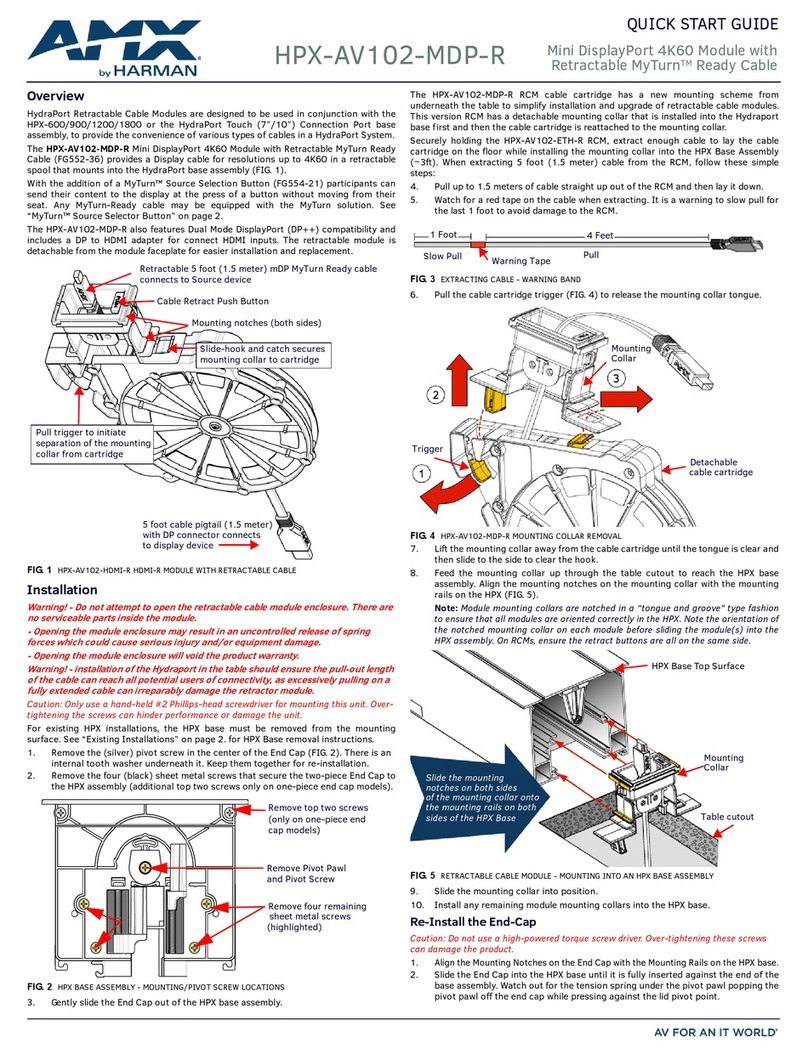
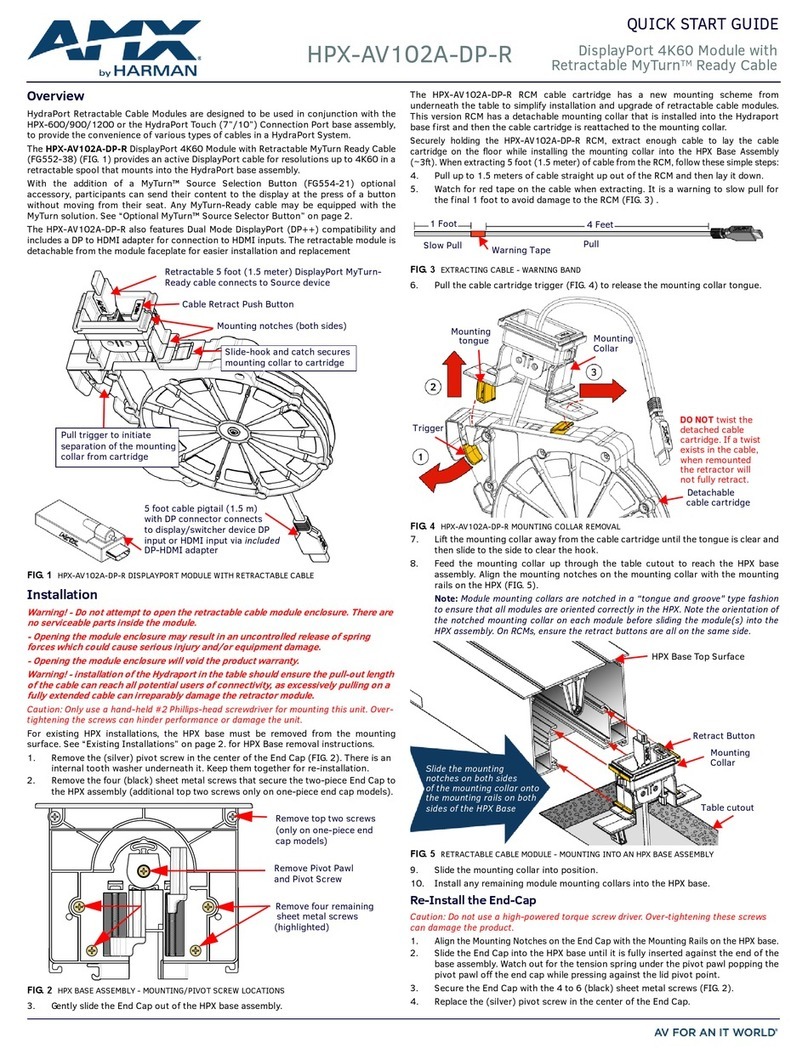
The HPX-AV102-HDMI-R RCM cable cartridge mounts from underneath the table to
simplify installation and upgrade of retractable cable modules. This version RCM has a
detachable mounting collar that is installed into the Hydraport base first and then the
cable cartridge is attached to the mounting collar in the Hydraport base.
Securely holding the HPX-AV102-ETH-R RCM, extract enough cable to lay the cable
cartridge on the floor while installing the mounting collar into the HPX Base Assembly
(~3ft). When extracting 1.5 meter (4.9 ft) cable from the RCM, follow these simple
steps:
4. Pull up to 1.5 meters of cable straight up out of the RCM and then lay it down.
5. Watch for red tape on the cable when extracting. It is a warning to slow pull for
the final 1 foot to avoid damage to the RCM.
6. Pull the cable cartridge trigger (FIG. 4) to release the mounting collar tongue.
7. Lift the mounting collar away from the cable cartridge until the tongue is clear and
then slide to the side to clear the hook.
8. Feed the mounting collar up through the table cutout to reach the HPX base
assembly. Align the mounting notches on the mounting collar with the mounting
rails on the HPX base assembly (FIG. 5).
Note: Mounting collars are notched in a “tongue and groove" fashion to ensure
that all modules are oriented correctly in the HPX. Note the orientation of the
notched mounting collar on each module before sliding into the HPX assembly. On
RCMs, ensure the retract buttons are all on the same side.
9. Slide the mounting collar into position.
10. Install any remaining module mounting collars into the HPX base.
Re-Install the End-Cap
Caution: Do not use a high-powered torque screw driver. Over-tightening these screws
can damage the product.
1. Align the Mounting Notches on the End Cap with the Mounting Rails on the HPX base.
2. Slide the End Cap into the HPX base until it is fully inserted against the end of the
base assembly. Watch out for the tension spring under the pivot pawl popping the
pivot pawl off the end cap while pressing against the lid pivot point.
3. Secure the End Cap with the 4 to 6 (black) sheet metal screws (FIG. 2).
4. Replace the (silver) pivot screw and washer in the center of the End Cap.
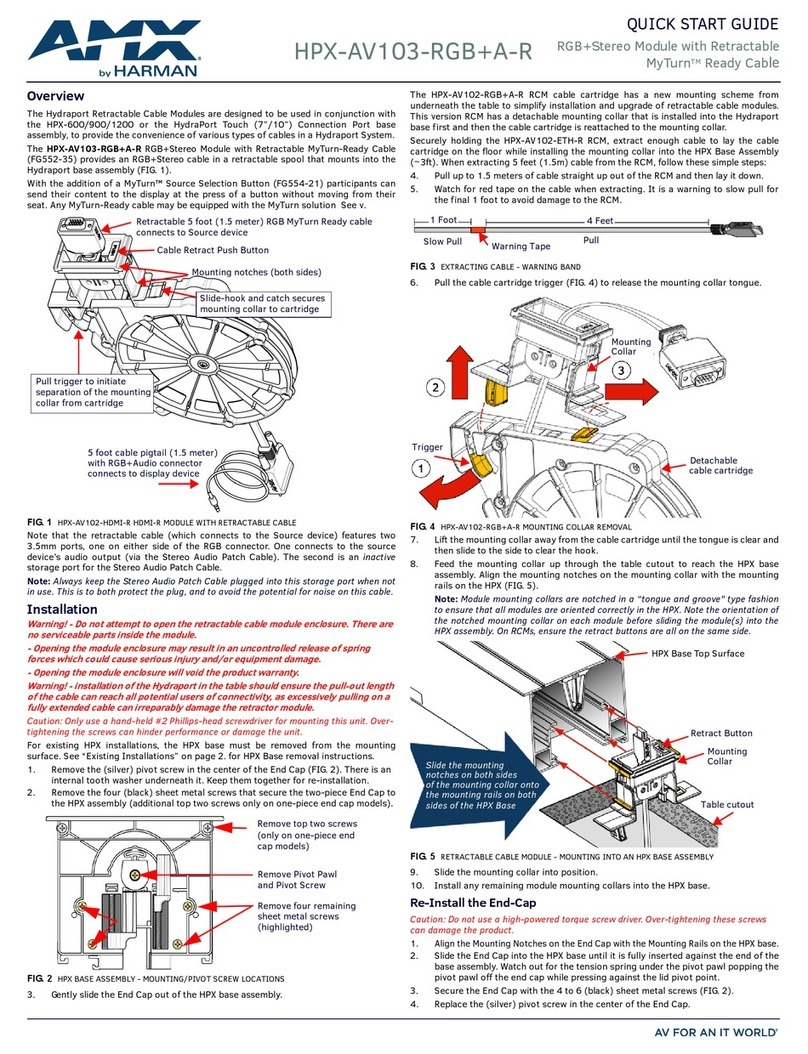
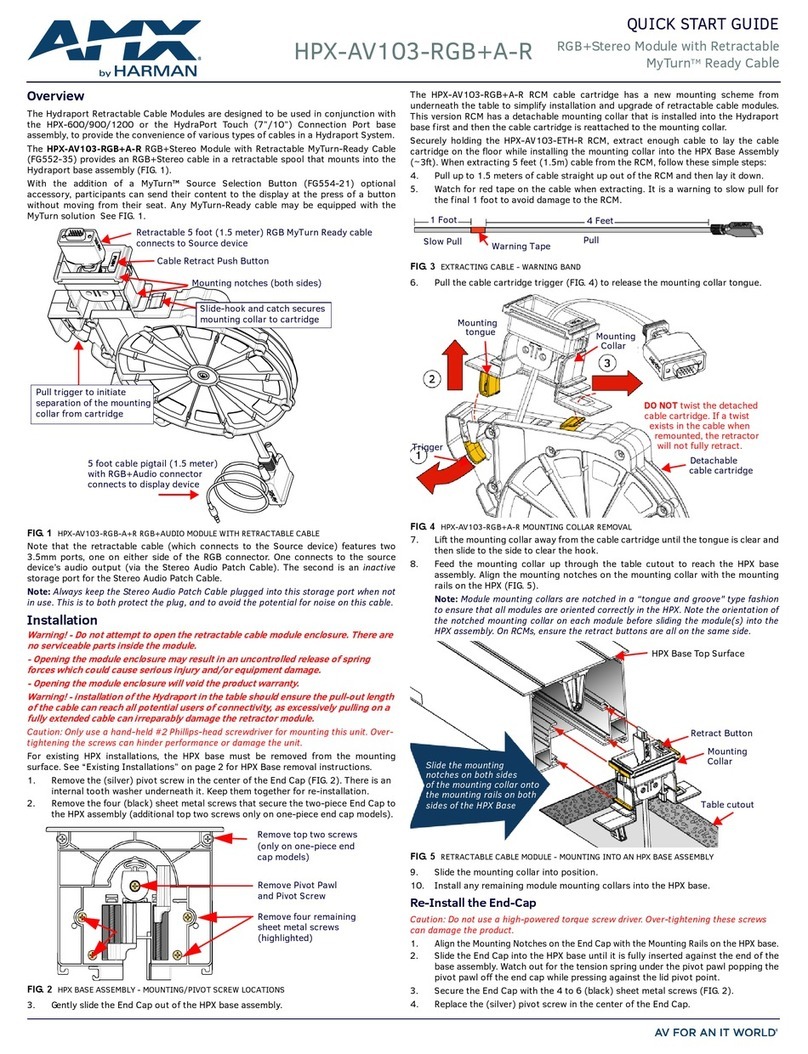
FIG. 1 HPX-AV102-HDMI-R HDMI-R MODULE WITH RETRACTABLE CABLE
FIG. 2 HPX BASE ASSEMBLY - MOUNTING/PIVOT SCREW LOCATIONS
Retractable 5 foot (1.5 meter) HDMI MyTurn Ready
cable connects to Source device
Cable Retract Push Button
Mounting notches (both sides)
5 ft. Cable Pigtail (1.5 meter)
connects to Display
device HDMI input
Pull trigger to initiate
separation of the mounting
collar from cartridge
Slide-hook and catch secures
mounting collar to cartridge
Remove Pivot Pawl
and Pivot Screw
Remove four remaining
sheet metal screws
(highlighted)
Remove top two screws
(only on one-piece end
cap models)
FIG. 3 EXTRACTING CABLE - WARNING TAPE
FIG. 4 HPX-AV102-HDMI-R MOUNTING COLLAR REMOVAL
FIG. 5 RETRACTABLE CABLE MODULE - MOUNTING INTO AN HPX BASE ASSEMBLY
Warning Tape
4 Feet
1 Foot
Slow Pull Pull
Trigger
Detachable
Mounting
cable cartridge
Collar
Slide the mounting
notches on both sides
of the mounting collar onto
the mounting rails on both
sides of the HPX Base
HPX Base Top Surface
Table cutout
Mounting
Collar
© 2016 Harman. All rights reserved. Hydraport, AMX, AV FOR AN IT WORLD, HARMAN, and their respective logos are registered trademarks of
HARMAN. Oracle, Java and any other company or brand name referenced may be trademarks/registered trademarks of their respective
companies.
AMX does not assume responsibility for errors or omissions. AMX also reserves the right to alter specifications without prior notice at any time.
The AMX Warranty and Return Policy and related documents can be viewed/downloaded at www.amx.com.
3000 RESEARCH DRIVE, RICHARDSON, TX 75082 AMX.com | 800.222.0193 | 469.624.8000 | +1.469.624.7400 | fax 469.624.7153
AMX (UK) LTD, AMX by HARMAN - Auster Road, Clifton Moor, York, YO30 4GD United Kingdom • +44 1904-343-100 • www.amx.com/eu/
93-0552-32 REV: A
Last Revised: 5/11/2016
Mount the HPX into the Mounting Surface
Caution: Do not use a high-powered torque screw driver. Over-tightening these screws
can damage the product.
Note: For detailed instructions on installing the HPX base assembly, refer to the HPX-
600/900/1200/1800 and HydraPort Touch (7”/10”) Installation Guides (available
online at www.amx.com).
1. Carefully insert the HPX base into the cutout in the mounting surface.
2. Tighten the four mounting screws (FIG. 6) located inside and at each end of the
HPX base assembly, to rotate the retaining tabs (FIG. 7) into locking position
under the mounting surface.
3. Feed the excess cable up through the mounting collar and insert the cable
cartridge hook into the mounting collar cutout.
4. Push the cable cartridge trigger up onto the mounting collar tongue until it
latches (opposite of FIG. 4).
5. Use the Push button to retract the cable into the cartridge.
6. Attach the display ends of the cables as necessary.
7. Use cable ties to secure cable bundles as necessary.
Note: Use of an extension cable on the display end of this cable can be achieved
using the AMX HDMI Extender (FG558-21) to ensure optimal performance. Refer to
documentation provided on www.amx.com.
Existing Installations
For existing HPX installations, the HPX Base Assembly must be removed from the table
surface before the Retractable Cable Modules can be installed:
1. Cut/remove any cable ties that would restrict the removal of the HPX Base Assembly.
2. Loosen the four mounting screws located inside and at each end of the HPX base
assembly (FIG. 6), in order to rotate the retaining tabs from under the mounting
surface.
Note: When the cover of the HPX base is open, only two of these screws are visible.
To access the other two screws, tip the cover over to the opposite open position.
3. Once the retaining tabs have been rotated out from under the mounting surface,
the HPX assembly can be lifted away from the mounting surface.
FIG. 7 provides a cutaway view of the End Cap, showing the retaining tabs
highlighted in both the loose position and the tightened (secure) position.
4. Return to the installation section at the bottom left column of page 1 to continue
with installing the RCM into the HPX Base assembly.
Mounting Dimensions
FIG. 8 provides dimensions for the retractable cable module, when installed in an HPX
base assembly:
MyTurn™ Source Selector Button
The HPA-MYT-TX MyTurn™ Source Selector Button (FG554-21) clips into the specially
designed groove built into the end of a MyTurn ready cable. Users press to send the
content on their device to the display. When pressed, the button transmits a signal to a
receiver (FG554-23) that plugs directly into an AMX switching device such as a Solecis
SDX, Enova DVX, or NX Series Controller.
MyTurn Source Selector Buttons are illuminated briefly when that specific device is
selected, making it easy to determine whose content is being shown on the display at
any given time. Refer to the HPA-MYT-TX documentation for further details.
Replacing HPX-AV102-HDMI-R
Removal of the HPX Base assembly is not required to replace this RCM:
1. Detach the cable cartridge from the mounting collar.
2. From the top of the mounting collar, press a small flat blade screwdriver into the
notch on the split side of the pop out panel and pop it out of place..
3. Slip the cable out through the slot in the mounting collar panel.
4. Replace with new RCM in reverse order ensuring the cable is not twisted and the
pop out panel split is oriented towards the notch in the collar.
Additional Documentation
Refer to the Products > Architectural Connectivity catalog page on www.amx.com
(Dealer Site) for additional product documentation.
FIG. 6 HPX BASE ASSEMBLY (SHOWN MOUNTED) - MOUNTING SCREWS LOCATIONS
FIG. 7 HPX BASE ASSEMBLY (SHOWN MOUNTED) - MOUNTING SCREWS LOCATIONS
Retaining tab
(to secure the unit)
shown tightened
Retaining tab
(to remove the unit)
shown loosened
FIG. 8 RCM MODULE (INSTALLED IN AN HPX BASE) - DETAILED DIMENSIONS
FIG. 9 MYTURN™ SOURCE SELECTION BUTTON (FG554-21)
FIG. 10 RCM MOUNTING COLLAR POP-OUT PANEL
5 ft Cable Pigtail
HPX Base Assembly Top
Mounting Surface Top
Removable RCM
cable cartridge
mounted to
(285.3 mm)
11.2 inches
(200.6 mm)
7.9 inches
Removable RCM
mounting collar
mounted to HPX
Base
mounting collar
Mounting Collar
Pop-out panel
Slip cable through
slot in panel

Notch in Collar used to
pop out panel