manuals.online logo
Brands
  1. Home
  2. •
  3. Brands
  4. •
  5. Holux
  6. •
  7. Bicycle Accessories
  8. •
  9. Holux GPS EZTOUR - VERSION 1.1 User manual

Holux GPS EZTOUR - VERSION 1.1 User manual

This manual suits for next models

1

Other Holux Bicycle Accessories manuals

Holux GPS EZTOUR - VERSION 1.0 User manual

Holux

Holux GPS EZTOUR - VERSION 1.0 User manual

Holux FUNTREK 130 PRO User manual

Holux

Holux FUNTREK 130 PRO User manual

Holux GPSport 260 User manual

Holux

Holux GPSport 260 User manual

Holux GPSPORT 260 PRO User manual

Holux

Holux GPSPORT 260 PRO User manual

Holux GPSPORT 260 PRO User manual

Holux

Holux GPSPORT 260 PRO User manual

Holux GPSport 260 User manual

Holux

Holux GPSport 260 User manual

Holux GPSPORT 260 PRO User manual

Holux

Holux GPSPORT 260 PRO User manual

Holux GPS EZTOUR - V1.0 User manual

Holux

Holux GPS EZTOUR - V1.0 User manual

Popular Bicycle Accessories manuals by other brands

Galeo Galeo user guide

Galeo

Galeo Galeo user guide

Shimano DURA-ACE FC-R9100 Dealer's manual

Shimano

Shimano DURA-ACE FC-R9100 Dealer's manual

BAFANG BT C01.340.UART Customer's manual

BAFANG

BAFANG BT C01.340.UART Customer's manual

Minshine T154 Series manual

Minshine

Minshine T154 Series manual

Cateye TRIPLE SHOT PRO HL-EL830RC instruction manual

Cateye

Cateye TRIPLE SHOT PRO HL-EL830RC instruction manual

Navad Trail 200 Quick manual guide

Navad

Navad Trail 200 Quick manual guide

Specialized Elite CylcoComputer user manual

Specialized

Specialized Elite CylcoComputer user manual

Sigma BC 16.16 manual

Sigma

Sigma BC 16.16 manual

Playcore Dero Setbacks installation instructions

Playcore

Playcore Dero Setbacks installation instructions

VDO Cyclecomputing x3dw instruction manual

VDO Cyclecomputing

VDO Cyclecomputing x3dw instruction manual

Cateye RAPID X2 manual

Cateye

Cateye RAPID X2 manual

buratti meccanica Clorofilla Trail Use and maintenance manual

buratti meccanica

buratti meccanica Clorofilla Trail Use and maintenance manual

Shimano SG-8R20 Service instructions

Shimano

Shimano SG-8R20 Service instructions

BOB YAK owner's manual

BOB

BOB YAK owner's manual

APLIC 303303/20190717TW012 user manual

APLIC

APLIC 303303/20190717TW012 user manual

Polini HI-SPEED E-BIKE quick start guide

Polini

Polini HI-SPEED E-BIKE quick start guide

SRAM AXS BlipBox user manual

SRAM

SRAM AXS BlipBox user manual

Shimano FD-RX810 Dealer's manual

Shimano

Shimano FD-RX810 Dealer's manual

manuals.online logo
manuals.online logoBrands
  • About & Mission
  • Contact us
  • Privacy Policy
  • Terms and Conditions

Copyright 2025 Manuals.Online. All Rights Reserved.

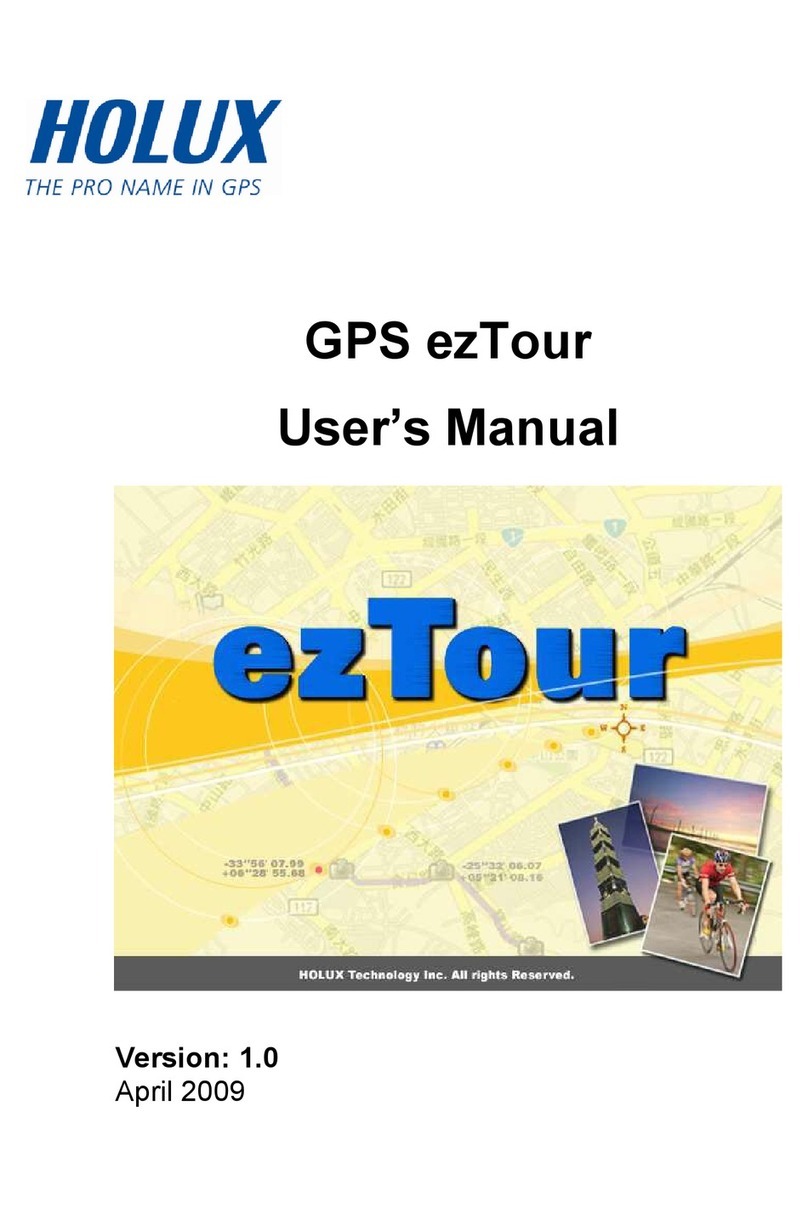
GPS ezTour
User’s Manual
Version: 1.1
1
Contents
Read GPS Log From Device........................................................................................... 2
POI button ....................................................................................................................... 4
Clear Data Logger Memory .............................................................................................
Data Logger Configuration ..............................................................................................
Track List Window........................................................................................................... 7
Add Place Mark............................................................................................................... 8
Add Photos...................................................................................................................... 9
Browse photos .............................................................................................................. 10
GeoTag – Save GPS Information into Photos............................................................... 11
Photo List Window......................................................................................................... 11
Upload Photos to Flickr/Locr ......................................................................................... 12
Shift Photo Time............................................................................................................ 13
Photo Comments .......................................................................................................... 14
Media List View ............................................................................................................. 14
Google Earth Viewing.................................................................................................... 14
Save As KMZ File.......................................................................................................... 14
Export As Html…........................................................................................................... 1
Speed/Altitude View ...................................................................................................... 1
Track Editing ................................................................................................................. 16
Save and Open Project ................................................................................................. 19
Time Zone Setting and Daylight Saving Time ............................................................... 19
Options.......................................................................................................................... 20
System Requirement..................................................................................................... 22

2
Read GPS Log From De ice
Step 1 – Connect Data Logger to PC USB port. Please make sure the Data Logger
power is turn on.
Step 2 – Menu command “File” -> “Read log…” Users have to input product key at
the first time. The product key is on the cover of installation CD.
GPS Photo Tagger will automatically detect the port and baud rate and read in the
GPS tracks.
A track list window will be popped up. Select the tracks to import.
3
Tracks will be shown on the Google Map window.
4
POI button
If your logger has POI button, you can press the POI button to mark the point. When
the POI button is pressed while logging, a POI icon will appear on the track through
the ezTour utility. Press the POI icon on the ezTour to edit the name of the track, and
add notes.
5
Clear Data Logger Memory
Menu command “File” -> “Clear Device log” will clear the data stored in device, so
the device memory are enough for next usage.
Data Logger Configuration
Connect Data Logger to PC. Menu command “File” -> “Config GPS…” If Data Logger is
not connected, the GPS Log Setting area will be disabled. Please make sure the Data
Logger power switch is turn on when connect.
6
Connection Setting:
Auto Scan GPS Module (Recommended)
The program will automatically detect the com port and the baud rate. It is
recommended to set to auto scan.
Manual Setting
Users can also manually set the port and baud rate. Although it can speed up the
initial connect time, but it is not recommended unless users understand the valid
port and baud rate.
GPS Log Setting
There are 4 log modes: General mode, vehicle mode, cycling mode, and hiking
mode. Users can also change the default setting of these 4 modes.
Log every () seconds:
7
Specify the log period. For example, if specify 3 seconds, the GPS device
will log every 3 seconds.
Log every () meters:
Specify the log distance. For example, if specify 10 meters, the GPS
device will log every 10 meters.
Data Log Memory
A bar show how many percentage of memory is used in the Data Logger device.
Users can use “Clear Log” to clear all the memory.
When data logger memory is full
Overwrite: Overwrite the earliest logged data.
Stop Log: Stop data logging.
Track List Window
Tracks are list on the top. Users can change the colors and line widths of tracks.
Press “Play” button, Google map window will animate the whole trip by moving the current
position.
Check “Photo Slide Show” will show photo while animate trips.
8
Add Place Mark
To add a new place mark, please click on the blue balloon icon, and then click on
the position of new place marker. The “Place Mark Property” dialog will be pop
up for editing.
9
Users can manually add photos to the place mark, or delete photos from the
place mark.
Add Photos
Users can add photo from a file folder, or selected files.
Add photo from a folder: Menu command “Photo” -> “Add Photo…” -> “From
Folder”. Select a folder to add photo.
Add photo from selected files: Menu command “Photo” -> “Add Photo…” ->
“From Files”. Use Ctrl-Click, or Shift-Click to select multiple files.