manuals.online logo
Brands
  1. Home
  2. •
  3. Brands
  4. •
  5. IBM
  6. •
  7. Laptop
  8. •
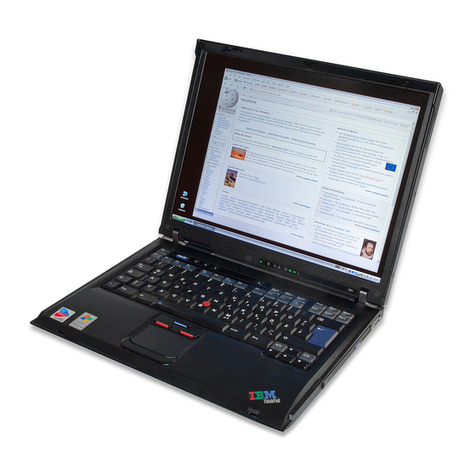
  9. IBM MT 2645 Owner's manual

IBM MT 2645 Owner's manual

This manual suits for next models

2

Other IBM Laptop manuals

IBM ThinkPad G40 Series User manual

IBM

IBM ThinkPad G40 Series User manual

IBM ThinkPad 600X? User manual

IBM

IBM ThinkPad 600X? User manual

IBM ThinkPad 560Z User manual

IBM

IBM ThinkPad 560Z User manual

IBM THINKPAD I 1200 - User manual

IBM

IBM THINKPAD I 1200 - User manual

IBM ThinkPad 770X Dimensions

IBM

IBM ThinkPad 770X Dimensions

IBM ThinkPad 390 User manual

IBM

IBM ThinkPad 390 User manual

IBM ThinkPad R32 2658 User manual

IBM

IBM ThinkPad R32 2658 User manual

IBM ThinkPad 365C 2625 User manual

IBM

IBM ThinkPad 365C 2625 User manual

IBM ThinkPad i Series User manual

IBM

IBM ThinkPad i Series User manual

IBM ThinkPad 380XD User manual

IBM

IBM ThinkPad 380XD User manual

IBM ThinkPad 310 Owner's manual

IBM

IBM ThinkPad 310 Owner's manual

IBM ThinkPad 380Z User manual

IBM

IBM ThinkPad 380Z User manual

IBM ThinkPad 560Z User manual

IBM

IBM ThinkPad 560Z User manual

IBM THINKPAD R50 series User manual

IBM

IBM THINKPAD R50 series User manual

IBM ThinkPad R40e Guide

IBM

IBM ThinkPad R40e Guide

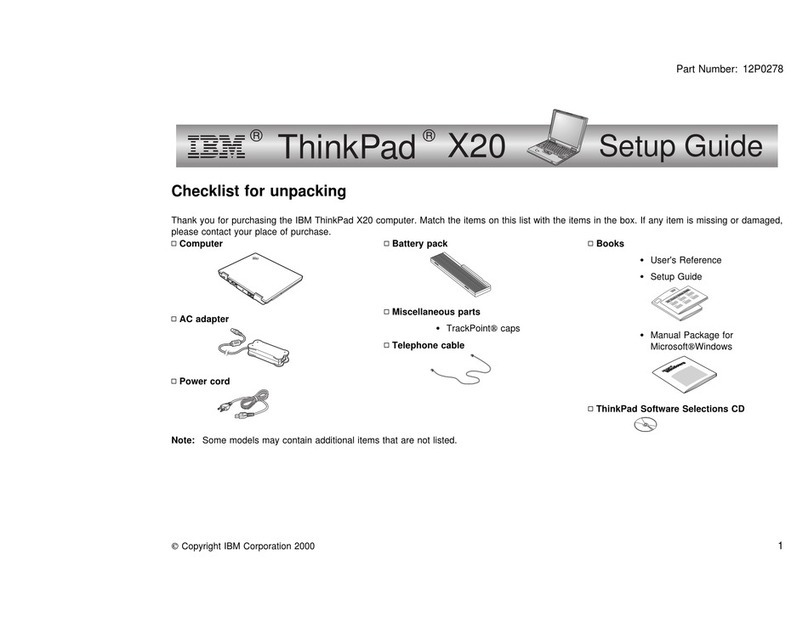
IBM ThinkPad X20 User manual

IBM

IBM ThinkPad X20 User manual

IBM ThinkPad TransNote User manual

IBM

IBM ThinkPad TransNote User manual

IBM ThinkPad 600 Service manual

IBM

IBM ThinkPad 600 Service manual

IBM ThinkPad 760CD User manual

IBM

IBM ThinkPad 760CD User manual

IBM PC CONVERTIBLE Use and care manual

IBM

IBM PC CONVERTIBLE Use and care manual

IBM ThinkPad C79EGMST Service manual

IBM

IBM ThinkPad C79EGMST Service manual

IBM 600E - ThinkPad 2645 - PII 400 MHz User manual

IBM

IBM 600E - ThinkPad 2645 - PII 400 MHz User manual

IBM ThinkPad 760C User manual

IBM

IBM ThinkPad 760C User manual

IBM ThinkPad R40e

IBM

IBM ThinkPad R40e

Popular Laptop manuals by other brands

EUROCOM ARMADILLO 2 W840AU Service manual

EUROCOM

EUROCOM ARMADILLO 2 W840AU Service manual

HP EliteBook 8570p Maintenance and service guide

HP

HP EliteBook 8570p Maintenance and service guide

Toshiba L300-EZ1522 Specifications

Toshiba

Toshiba L300-EZ1522 Specifications

HP Compaq 6520s Maintenance and service guide

HP

HP Compaq 6520s Maintenance and service guide

Lenovo ThinkPad T530 null

Lenovo

Lenovo ThinkPad T530 null

Lenovo ThinkPad X1 Carbon user guide

Lenovo

Lenovo ThinkPad X1 Carbon user guide

Lenovo ThinkPad T400s Ghid de service şi depanare

Lenovo

Lenovo ThinkPad T400s Ghid de service şi depanare

Toshiba TE2000 user manual

Toshiba

Toshiba TE2000 user manual

Acer SP514-51N user manual

Acer

Acer SP514-51N user manual

Fujitsu P1620 - LifeBook - Core 2 Duo 1.2 GHz Getting started

Fujitsu

Fujitsu P1620 - LifeBook - Core 2 Duo 1.2 GHz Getting started

Dell G3 15 Setup and specifications

Dell

Dell G3 15 Setup and specifications

Clevo D400P Service manual

Clevo

Clevo D400P Service manual

HP EliteBook 840r G4 Maintenance and service guide

HP

HP EliteBook 840r G4 Maintenance and service guide

Clevo NL51CU Service manual

Clevo

Clevo NL51CU Service manual

Dell Inspiron 3700 Get started

Dell

Dell Inspiron 3700 Get started

Toshiba R700-S1320 Specifications

Toshiba

Toshiba R700-S1320 Specifications

Lenovo ThinkPad 310D reference guide

Lenovo

Lenovo ThinkPad 310D reference guide

Sony PCG-F801A user guide

Sony

Sony PCG-F801A user guide

manuals.online logo
manuals.online logoBrands
  • About & Mission
  • Contact us
  • Privacy Policy
  • Terms and Conditions

Copyright 2025 Manuals.Online. All Rights Reserved.

Thank you for purchasing this Factory Service
Manual CD/DVD from servicemanuals4u.com.
Please check out our eBay auctions for more great
deals on Factory Service Manuals:
servicemanuals4u
January 2000
This manual supports:
ThinkPad 600X (MT 2645)
ThinkPad 600X (MT 2646)
Note
Before using this information and the product it
supports, be sure to read the general information
under “Notices” on page 78.
First Edition (January 2000)
The following paragraph does not apply to the United
Kingdom or any country where such provisions are
inconsistent with local law:
INTERNATIONAL BUSINESS MACHINES
CORPORATION PROVIDES THIS PUBLICATION “AS IS”
WITHOUT ANY WARRANTY OF ANY KIND, EITHER
EXPRESS OR IMPLIED, INCLUDING, BUT NOT LIMITED
TO, THE LIMITED WARRANTIES OF
MERCHANTABILITY OR FITNESS FOR A PARTICULAR
PURPOSE. Some states do not allow disclaimer or
express or implied warranties in certain transactions;
therefore, this statement may not apply to you.
This publication could include technical inaccuracies or
typographical errors. Changes are periodically made to
the information herein; these changes will be incorporated
in new editions of the publication. IBM may make
improvements or changes to the products or the programs
described in this publication at any time.
It is possible that this publication may contain references
to, or information about, IBM products (machines and
programs), programming, or services that are not
announced in your country. Such references or
information must not be construed to mean that IBM
intends to announce such IBM products, programming, or
services in your country.
Requests for technical information about IBM products
should be made to your IBM authorized dealer or your IBM
marketing representative.
 Copyright International Business Machines
Corporation 2000. All rights reserved. Note to U.S.
Government Users – Documentation related to restricted
rights – Use, duplication, or disclosure is subject to
restrictions set forth in GSA ADP Schedule Contract with
IBM Corp.
Contents
Read this first ................... 1
Related service information ............ 3
Reset switch . . . . . . . . . . . . . . . . . 3
Service Web site ............... 3
Passwords . . . . . . . . . . . . . . . . . . 3
Power management features .......... 5
Checkout guide . . . . . . . . . . . . . . . . . . 7
Testing the computer ............. 7
Detecting system information with PC-Doctor . . 9
Power system checkout ............ 9
Port replicator checkout ............ 12
Product overview . . . . . . . . . . . . . . . . . 13
Features . . . . . . . . . . . . . . . . . . . 13
Status indicators . . . . . . . . . . . . . . . . 15
Fn key combinations .............. 16
Symptom-to-FRU error messages ......... 17
How to use error messages .......... 17
How to diagnose multiple FRUs ........ 17
Symptom-to-FRU index . . . . . . . . . . . . 17
Numeric error codes .............. 18
Beep symptoms . . . . . . . . . . . . . . . . 23
Audio-related symptoms . . . . . . . . . . . . 24
CD-ROM-related symptoms . . . . . . . . . . 24
Function-related symptoms . . . . . . . . . . . 27
Indicator-related symptoms . . . . . . . . . . . 27
Infrared-related symptoms . . . . . . . . . . . 28
Keyboard- or TrackPoint-related symptoms . . . 28
LCD-related symptoms . . . . . . . . . . . . . 29
Modem-related symptoms . . . . . . . . . . . 29
PC Card-related symptoms ........... 30
Peripheral-device-related symptoms . . . . . . . 30
Power-related symptoms . . . . . . . . . . . . 31
Other symptoms . . . . . . . . . . . . . . . . 31
Intermittent problems . . . . . . . . . . . . . . 31
Undetermined problems . . . . . . . . . . . . 31
FRU replacement notices ............. 33
Screw notices . . . . . . . . . . . . . . . . . 33
Retaining serial numbers ............ 34
FRU removals and replacements ......... 36
1010 Backup battery . . . . . . . . . . . . . 38
1020 DIMM . . . . . . . . . . . . . . . . . . 39
1025 Modem card . . . . . . . . . . . . . . . 40
1030 Battery pack . . . . . . . . . . . . . . . 41
1040 Hard disk drive ............. 42
1050 UltraslimBay device . . . . . . . . . . . 43
1060 Keyboard assembly . . . . . . . . . . . 44
1070 Keyboard . . . . . . . . . . . . . . . . 47
1080 Speakers . . . . . . . . . . . . . . . . 48
1085 Speaker cable . . . . . . . . . . . . . . 50
1090 LCD assembly . . . . . . . . . . . . . . 51
 Copyright IBM Corp. 2000 iii
1100 PC Card slot assembly .......... 52
1110 Asset ID RF adapter kit ......... 53
1120 Sub card . . . . . . . . . . . . . . . . 54
1130 Guide rail, microphone cable, or TV Out card 55
1140 CPU card and fan ............ 56
1150 Modem cable assembly ......... 58
1160 System board . . . . . . . . . . . . . . 60
2010 LCD front cover ............. 61
2020 LCD Hinges and cables ......... 62
2030 Inverter card . . . . . . . . . . . . . . 64
Locations . . . . . . . . . . . . . . . . . . . . . 65
Front view . . . . . . . . . . . . . . . . . . . 65
Rear view . . . . . . . . . . . . . . . . . . . 66
Bottom view . . . . . . . . . . . . . . . . . . 67
Password pads . . . . . . . . . . . . . . . . 68
Parts list . . . . . . . . . . . . . . . . . . . . . 69
Keyboard . . . . . . . . . . . . . . . . . . . 72
LCDFRU . . . . . . . . . . . . . . . . . . . 73
Common Parts List .............. 76
Notices . . . . . . . . . . . . . . . . . . . . . . 78
Trademarks . . . . . . . . . . . . . . . . . . 78
iv ThinkPad 600X Hardware Maintenance Manual
Read this first
Read this first
Before you go to the checkout guide, be sure to read this
section.
Important notes
Only certified trained personnel should
service the computer.
Read the entire FRU removal and replacement
page before replacing any FRU.
Use new nylon-coated screws when you
replace FRUs.
Be extremely careful during such write
operations as copying, saving, or formatting.
Drives in the computer that you are servicing
might have been rearranged, or the drive startup
sequence might have been altered. If you select
an incorrect drive, data or programs might be
overwritten.
Replace FRUs only for the correct model.
When you replace a FRU, make sure the model
of the machine and the FRU part number are
correct by referring to the FRU parts list.
A FRU should not be replaced because of a
single, unreproducible failure. Single failures
can occur for a variety of reasons that have
nothing to do with a hardware defect, such as
cosmic radiation, electrostatic discharge, or
software errors. Consider replacing a FRU only
when a problem recurs. If this is suspected,
clear the error log and run the test again. Do not
replace any FRUs if log errors do not reappear.
Be careful not to replace a nondefective FRU.
What to do first: When you do return a FRU, you
must include the following information in the parts
exchange form or parts return form that you attach to it:
1. Name and phone number of servicer
2. Date of service
3. Date on which the machine failed
4. Date of purchase
5. Failure symptoms, error codes appearing on the
display, and beep symptoms
6. Procedure index and page number in which the
failing FRU was detected
7. Failing FRU name and part number
8. Machine type, model number, and serial number
9. Customer's name and address
Before checking problems with the computer, determine
whether the damage is covered under the warranty by
referring to the following:
1
Read this first
Note for warranty: During the warranty period, the
customer may be responsible for repair costs if the
computer damage was caused by misuse,
accident, modification, unsuitable physical or
operating environment, or improper maintenance by
the customer. The following list provides some
common items that are not covered under warranty
and some symptoms that might indicate that the
system was subjected to stress beyond normal
use.
The following is not covered under warranty:
LCD panel cracked from the application of
excessive force or from being dropped.
Scratched (cosmetic) parts.
Cracked or broken plastic parts, broken latches,
broken pins, or broken connectors caused by
excessive force.
Damage caused by liquid spilled into the system.
Damage caused by the improper insertion of a
PC Card or the installation of an incompatible
card.
Damage caused by foreign material in the
diskette drive.
Diskette drive damage caused by pressure on
the diskette drive cover or by the insertion of a
diskette with multiple labels.
Damaged or bent diskette eject button.
Fuses blown by attachment of a nonsupported
device.
Forgotten computer password (making the
computer unusable).
The following symptoms might indicate damage
caused by nonwarranted activities:
Missing parts might be a symptom of
unauthorized service or modification.
HDD spindles can become noisy from being
subjected to excessive force or from being
dropped.
I9990303 errors can be caused by exposure to
strong magnetic fields.
2ThinkPad 600X Hardware Maintenance Manual
Related service information
This section provides information about the following:
“Reset switch”
“Service Web site”
“Passwords”
Power management features
Reset switch
The Reset switch resets the system (regardless of the
microcode status) and forces the power off. Use this
pushbutton to power off when power is not completely off
or the microcode is in a hung state. For its location, see
“Rear view” on page 66.
Service Web site
When the latest maintenance diskette and the system
program service diskette are available, a notice will be
posted on http://pccbbs.raleigh.ibm.com/
Passwords
As many as three passwords may be needed for any
ThinkPad computers: the power-on password (POP), the
hard disk password (HDP), and the supervisor password
(PAP).
When the power-on password (POP), the hard disk
password (HDP), or the supervisor password (PAP) is
used, the following situations may occur:
If the PAP is used, the HDP is enabled automatically, but
no HDP prompt appears. The HDP is set the same as the
PAP.

If the POP is the same as the HDP
, the POP
prompt appears, but the HDP prompt does not
appear.

If the POP is not the same as the HDP
, both
prompts appear.
If a ThinkPad computer has an extra bay, it can support
more than two HDPs. Then the following situations will
occure:
If the
POP
is the same as one of the
HDPs
(HDP-1
or HDP-2), a POP prompt appears. The passwords
are different.
If the
POP
is not the same as either of the
HDPs
(HDP-1 or HDP-2), both prompts appear.
If the
PAP
is used, the
HDP-1
or the
HDP-2
is
automatically enabled, but the HDP prompt does not
appear. The HDP-1 or the HDP-2 are then set to the
same password as the PAP.
3
Related service information
Supervisor and hard disk passwords: The
supervisor password (PAP) and the hard disk password
(HDP) are security features that are used to protect the
system and the hard disk data from unauthorized access.
No overriding capability is provided. If only a hard disk
password is set, you must get the password from its owner
in order to run diagnostic tests and perform service. If
both the supervisor password and the hard disk password
are set, you can enter Easy-Setup by pressing the Enter
key or by entering the power-on password at the
supervisor password prompt. In this case, the Password,
Start up, Network, and Initialize or Asset ID (for some
models) icons cannot be selected.
Note: The supervisor password and the hard disk
password cannot be replaced if they are forgotten.
If the customer forgets the supervisor password,
the system board must be replaced. If the
customer forgets the hard disk password, the hard
disk drive must be replaced.
How to remove the power-on passwords:
If only the power-on password is set, do the following to
remove it:
1. Turn off the computer.
2. Remove the DIMM cover from the bottom of the
computer.
3. Short-circuit the two password pads or put the jumper
on the pins.
For the location of the password pads or the jumper,
see “Password pads” on page 68.
4. Turn on the computer and wait until the POST ends.
After the POST ends, the password prompt does not
appear. The power-on password has been removed.
5. Reinstall the DIMM cover.
If both the power-on password and the supervisor
password are set, do the following to remove them:
1. Power on the computer by pressing and holding F1.
2. Enter the supervisor password. The Easy-Setup
menu appears.
3. Click the Password icon.
4. Click the Power on icon.
5. Enter the supervisor password, and press the Space
bar.
6. Press Enter twice.
7. Click Exit; then click Restart.
The power-on password has been removed.
4ThinkPad 600X Hardware Maintenance Manual
Related service information
Power management features
To reduce power consumption, the computer has three
power management modes: standby, suspend, and
hibernation.
Standby mode: In standby mode, the following
occurs:
The LCD backlight turns off.
The hard disk drive motor stops.
The speaker is muted.
Note: Standby mode in Windows 98 is called
suspend
mode
in Windows 95.
To enter standby mode, press Fn + F3. To end standby
mode and resume normal operation, press any key.
Suspend mode: When the computer enters suspend
mode, the following events occur in addition to what occurs
in standby mode:
The LCD is powered off.
The hard disk drive is powered off.
The CPU stops.
Suspend mode in Windows 95 is called
standby mode
in
Windows 98.
You can cause the computer to enter suspend mode by
doing any of the following:
Press Fn + F4.
Close the LCD cover. (To prevent the computer from
entering suspend mode when the LCD is closed, click
Will not suspend even if LCD is closed in the
Power Management Properties window. Then only
the LCD turns off.)
Select the Suspend button in the Fuel Gauge
program.
In certain circumstances, the computer goes into suspend
mode automatically:
If a “suspend time” has been set on the timer, and the
user does not do any operation with the keyboard, the
TrackPoint, the hard disk, the parallel connector, or
the diskette drive within the time set.
If the ac adapter is plugged in.
If the battery indicator blinks orange, indicating that
the battery power is low. (Alternatively, if Hibernate
when battery becomes low has been selected in the
“Power Management Properties” window, the
computer goes into hibernation mode.)
Note: Even if you don't set the low-battery alarm, the
charge indicator lets you know that the battery is
low, and then the ThinkPad automatically enters
the power-saving mode. This default low-battery
5