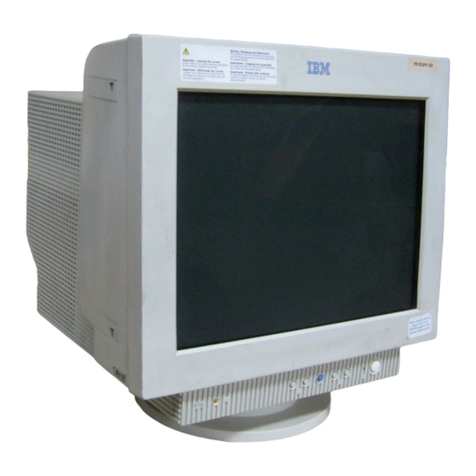
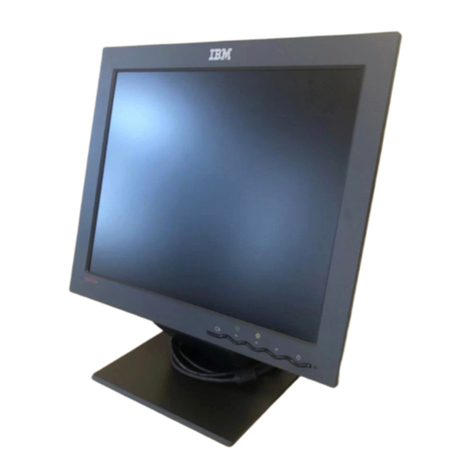
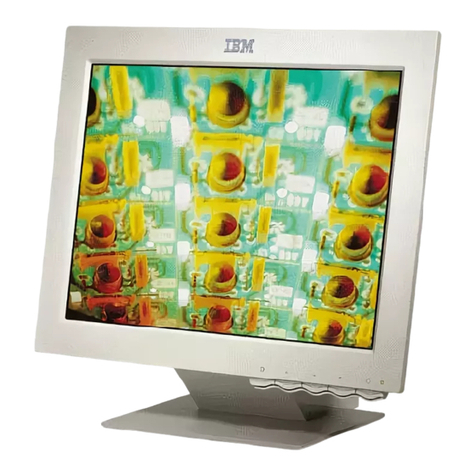
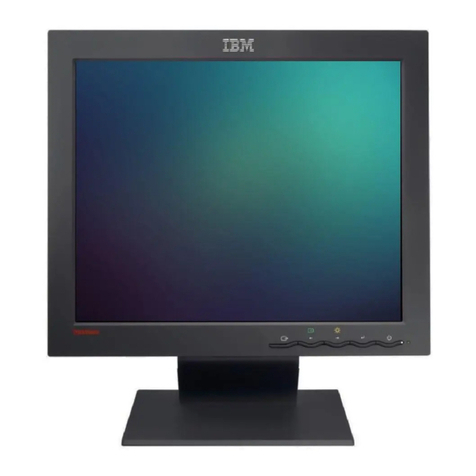
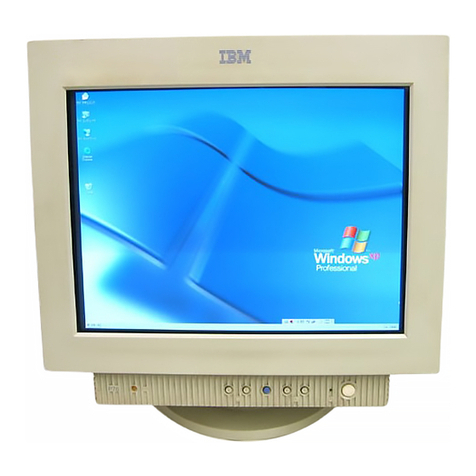
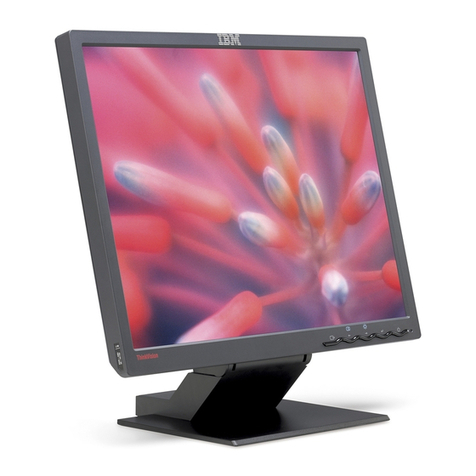
IBM 04N7322 User manual

i
Edition 1
This publication could contain technical inaccuracies or typographical
errors. Changes are made periodically to the information herein, these
changes will be made in later editions. IBM may make improvements
and/or changes in the product(s) and/or programs(s) at any time.
It is possible that this publication may contain reference to, or
information about, IBM products (machines and programs),
programming, or services that are not announced in your country.
Requests for copies of this publication and for technical information
about IBM products should be made to your IBM Authorized Dealer or
IBM Retailer.
No part of this publication may be reproduced or distributed in any
form or by any means without prior permission in writing from the
International Business Machines Corporation.
References in this publication to IBM products, programs, or services
do not imply that IBM intends to make these available in all countries
in which IBM operates. Any reference to an IBM product, program or
service is not intended to state or imply that only IBM’s product,
program, or service may be used. Any functionally equivalent product,
program, or service that does not infringe any of IBM’s intellectual
property rights or other legally protectable rights may be used instead
of the IBM product, program, or service. Evaluation and verification of
operation in conjunction with other products, programs, or services,
except those expressly designated by IBM, are the user’s
responsibility.
IBM may have patents or pending patent applications covering subject
matter in this document. The furnishing of this document does not give
you any license to these patents
Trademarks
The following terms, used in this publication, are trademarks or service
marks of the IBM Corporation in the United States or other countries:
ENERGY STAR is a U.S. registered mark.
© Copyright International Business Machines Corporation 1999
All rights reserved.
3828TUO032A-199.5.311:34PM˘`i

ii

Packing List
The product package should include the following items:
1. Monitor
2. Owner’s Manual
3. Power Cord
4. Swivel Base
5. Diskette
3828TUO032A-199.5.311:34PM˘`ii

iii
Table of Contents
Precautions
Workplace preparation.............................................................................A1
Working Practices....................................................................................A2
Tilt/Swivel Base
Installation................................................................................................A4
Installation
Connections.............................................................................................A5
Location and Function of Controls
Front View................................................................................................A6
Rear View ................................................................................................A6
Image Control Panel................................................................................A7
Power Management System, MPR II and DDC
Power Management System....................................................................A9
Low Radiation Compliance (MPR II)........................................................A9
DDC (Display Data Channel)...................................................................A9
General Operation..................................................................................A10
Video Memory Modes
Factory Preset Timing Signal Chart .......................................................A11
Troubleshooting .....................................................................................A12
Further help .............................................................................................A13
Service ......................................................................................................A14
Specifications..........................................................................................A15
Compliances............................................................................................A17
Warranty....................................................................................
See back of manual
3828TUO032A-199.5.311:34PM˘`iii

A1
Precautions
Danger
To avoid shock hazard:
• Do not remove the covers.
• Do not operate this product unless the stand is attached.
• Do not connect or disconnect this product during an electrical storm.
• The power cord plug must be connected to a properly wired and
grounded power outlet.
• Any equipment to which this product will be attached must also be
connected to properly wired and grounded power outlets.
• To isolate the monitor from the electrical supply, you must remove
the plug from the power outlet. The power outlet should be easily
accessible.
Handling:
• Your color monitor is heavy, so handle it with care.
Workplace preparation
Positioning the Monitor
Choose a suitable place to position the monitor where it is not near
fluorescent desk lighting or any equipment that produces magnetic
fields that could cause interference. Ensure that the furniture or
equipment can support the weight of the monitor. Allow at least 2
inches (50mm) ventilation space around the monitor.
Height
The monitor should be positioned so that the top of the screen is
slightly below your eye level when you sit at your workstation.
Orientation
Choose a position that gives the least reflection from lights and
windows, usually at a right angle to any windows. The monitor should
be positioned directly in front of you so that you do not have to twist
your body. Tilt the monitor to a comfortable viewing angle.
3828TUO032A-199.5.311:34PM˘`A1

A2
Working Practices
Rest
Take regular breaks. Vary your posture, and stand up and stretch
occasionally as prolonged use of computer workstations can be tiring.
Back
You should sit back in the chair and use the back rest.
Hands
Use a light touch on the keyboard, keeping your hands and fingers
relaxed. Allow a space in front of the keyboard to rest your wrists
when not typing. Consider using a wristpad.
Eyesight
Working with monitors, in common with any prolonged close work,
can be visually demanding. Look away from the screen periodically
and have your eyesight checked regularly.
Screen settings
Set the screen brightness and contrast to a comfortable level. You
may have to adjust this as the lighting changes during the day. Many
application programs let you select color combinations which can help
you to view in comfort.
Precautions
3828TUO032A-199.5.311:34PM˘`A2

A3
Precautions
Power Source:
1. Make sure the power cord is the correct type that required in your
area.
2. This monitor has a universal power supply that allows operation in
either 100/120V AC or 220/240V AC voltage area ( No user
adjustment is required. )
3. Connect the power cord into your monitor’s power input socket,
and then plug the other end into a 3-pin AC power outlet. The
power cord may be connected to either a wall power outlet or the
power outlet socket on your PC, depending on the type of
power cord supplied with your monitor.
Power cord:
For safe operation, use the power cord supplied with the unit.
Notes
• Do not install the monitor in a location near heat sources such as
radiators or air ducts , or in a place subject to direct sunlight , or
excessive dust or mechanical vibration or shock.
• Save the original shipping carton and packing materials, as they will
come in handy if you ever have to ship your monitor.
• To keep the monitor looking new, periodically clean it with a soft
cloth. Stubborn stains may be removed with a cloth lightly
dampened with a mild detergent solution. Never use strong solvents
such as thinner, benzene, or abrasive cleaners, since these will
damage the cabinet. As a safety precaution, always unplug the
monitor before cleaning it.
3828TUO032A-199.5.311:34PM˘`A3

A4
Tilt/Swivel Base
Turn Off the equipment and all attached options.
Carefully set the monitor face-down with the underside facing you.
Installation
1. Align the hooks on the tilt/swivel stand with the matching slots in
the base of the monitor.
2. Insert the hooks into slots.
3. Slide the tilt/swivel stand toward the front of the monitor until the
latches click into the locked position.
3828TUO032A-199.5.311:34PM˘`A4

A5
Installation
The supply voltage is marked on the ID label located on the rear
panel of the monitor. If your local voltage is different, do not use the
monitor and contact your supplier before using the display.
Connections
To connect your monitor after the video adapter is properly installed:
1.
Turn OFF the power to your computer and all its attached options.
2. Position the monitor and the computer so that you can easily
get to the back panel of each.
3. Connect the signal cable with D-sub connector to the graphics
board on your PC as described in your PC Owner's Manual.
4. Tighten the screws on the video cable connectors to keep them
from coming loose and to prevent radio and TV interference.
5. Connect the power cord to the AC receptacle on the back of the
monitor. Plug the other end of the power cord into a properly
grounded electrical outlet.
6. The socket-outlet should be installed near the equipment and
should be easily accessible.
3828TUO032A-199.5.311:34PM˘`A5

A6
Location and Function of Controls
Contrast
Power On/Off Button
Power Indicator
Front View
Rear View
AC Power Connector Signal Cable
ID Label
Brightness
Image Control Panel
3828TUO032A-199.5.311:34PM˘`A6

Power On/Off Button
This Button is used to turn the power On or Off.
Power Indicator
The power indicator lights when the power is On, and indicates
the operating status of the display.
Contrast
Adjust the display to the contrast desired. Move the thumbwheel
located beneath this indicator to increase or decrease the display
contrast.
Brightness
Used to adjust the brightness of the screen. Move the
thumbwheel located beneath this indicator to increase or
decrease the display brightness.
Image Control Panel
Image Selection and Adjustment buttons
Use either the or button to select the icons which you wish to
adjust and display.
-/+ buttons
Used to set digital values for each of the select on screen control
item by pressing +button for increment or -button for decrement.
A7
2
1
3
Location and Function of Controls
1
2
3828TUO032A-199.5.311:34PM˘`A7
This manual suits for next models
3
Table of contents
Other IBM Monitor manuals

IBM
IBM 6558-03N User manual

IBM
IBM E74 User manual

IBM
IBM 9512AB1 - T 541 - 15" LCD Monitor User manual

IBM
IBM 9503DG1 - T 221 - 22.2" LCD Monitor User manual

IBM
IBM 9497DG0 - T 86D - 18.1" LCD Monitor User manual

IBM
IBM ThinkVision L150 User manual

IBM
IBM 5251 11 Setup guide

IBM
IBM C170 User manual

IBM
IBM ThinkVision L170 User manual

IBM
IBM ThinkVision 6734-AB9 User manual