manuals.online logo
Brands
  1. Home
  2. •
  3. Brands
  4. •
  5. IBM
  6. •
  7. Switch
  8. •
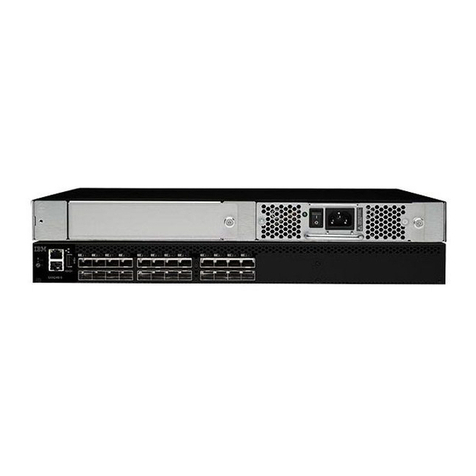
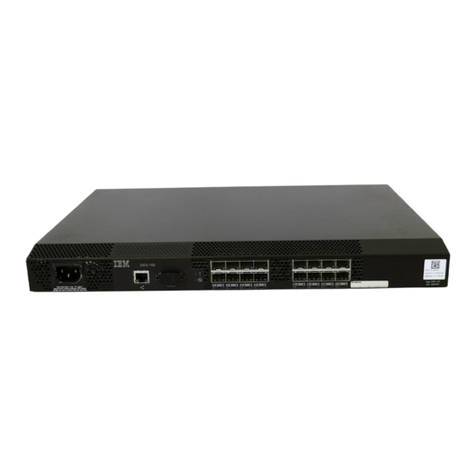
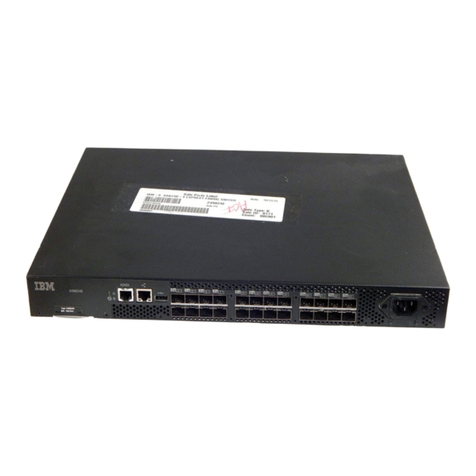
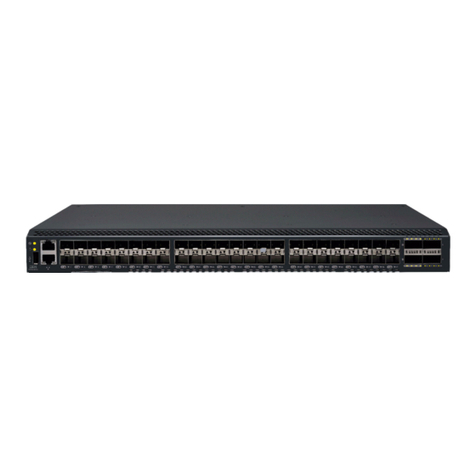
  9. IBM RedBooks SAN24B-5 User manual

IBM RedBooks SAN24B-5 User manual

Other manuals for RedBooks SAN24B-5

2

This manual suits for next models

1

Other IBM Switch manuals

IBM RedBooks SAN24B-5 Manual

IBM

IBM RedBooks SAN24B-5 Manual

IBM pSeries Quick start guide

IBM

IBM pSeries Quick start guide

IBM 2109 Model M12 User manual

IBM

IBM 2109 Model M12 User manual

IBM Global console manager User manual

IBM

IBM Global console manager User manual

IBM 8270 600 User manual

IBM

IBM 8270 600 User manual

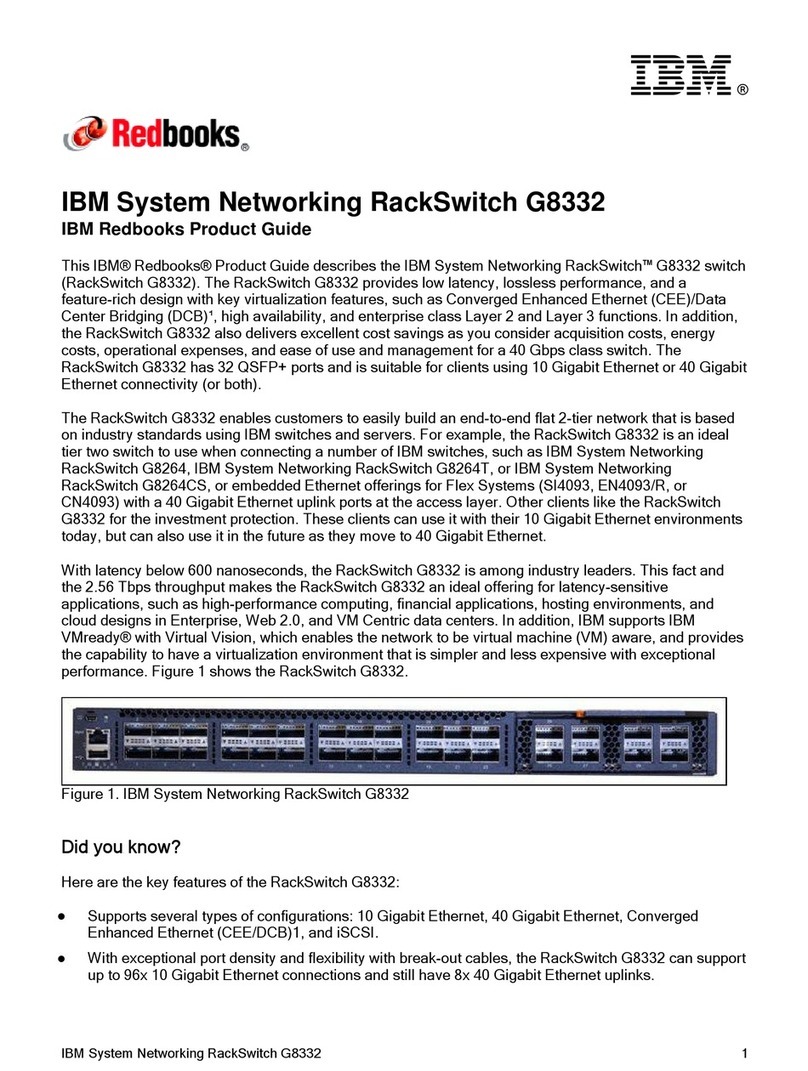
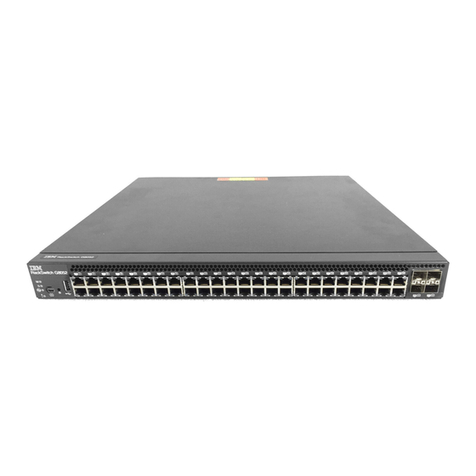
IBM RackSwitch G8332 User manual

IBM

IBM RackSwitch G8332 User manual

IBM SAN48C-6 Manual

IBM

IBM SAN48C-6 Manual

IBM 360 User manual

IBM

IBM 360 User manual

IBM SAN16B-2 - TotalStorage Express Model Switch Troubleshooting guide

IBM

IBM SAN16B-2 - TotalStorage Express Model Switch Troubleshooting guide

IBM J48E User manual

IBM

IBM J48E User manual

IBM 8265 Nways ATM Switch User manual

IBM

IBM 8265 Nways ATM Switch User manual

IBM Flex System FC3171 User manual

IBM

IBM Flex System FC3171 User manual

IBM J08E User manual

IBM

IBM J08E User manual

IBM 2498B24 - System Storage SAN24B-4 Switch Manual

IBM

IBM 2498B24 - System Storage SAN24B-4 Switch Manual

IBM SAN64B-6 User manual

IBM

IBM SAN64B-6 User manual

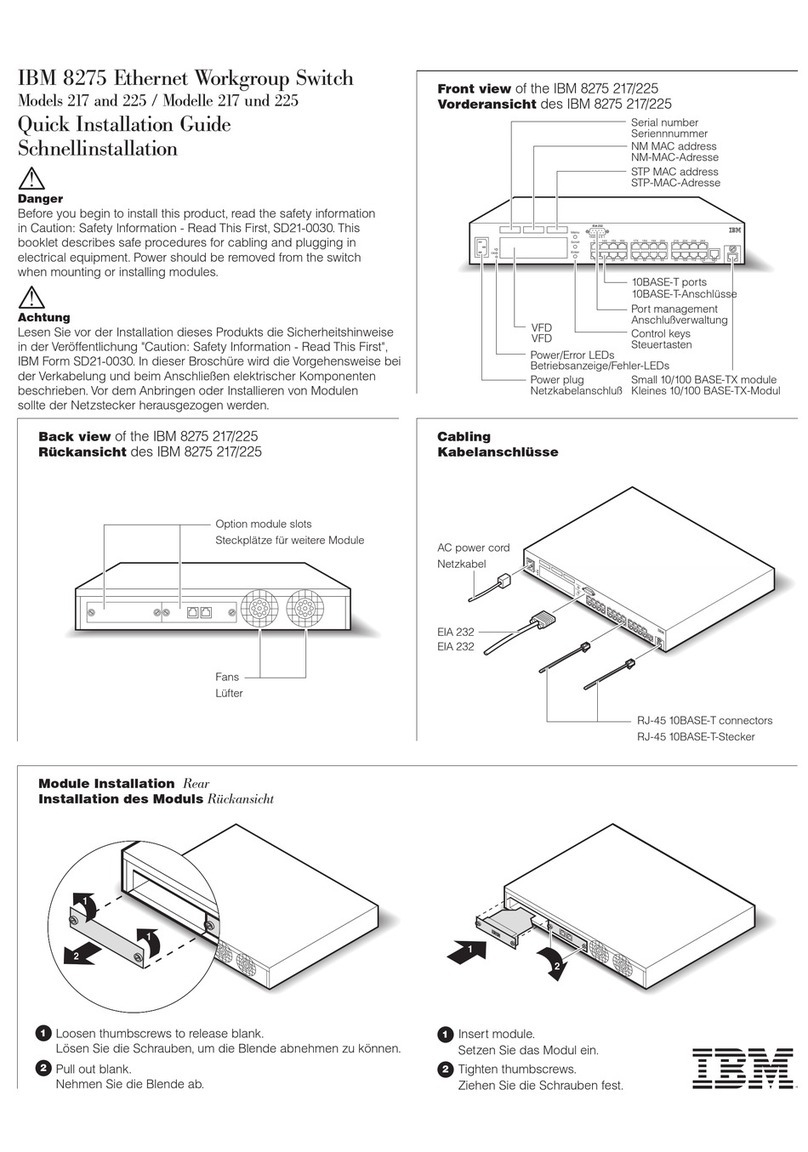
IBM 8275 217 User manual

IBM

IBM 8275 217 User manual

IBM xSeries 300 User manual

IBM

IBM xSeries 300 User manual

IBM G8052 User manual

IBM

IBM G8052 User manual

IBM RackSwitch G8000 User manual

IBM

IBM RackSwitch G8000 User manual

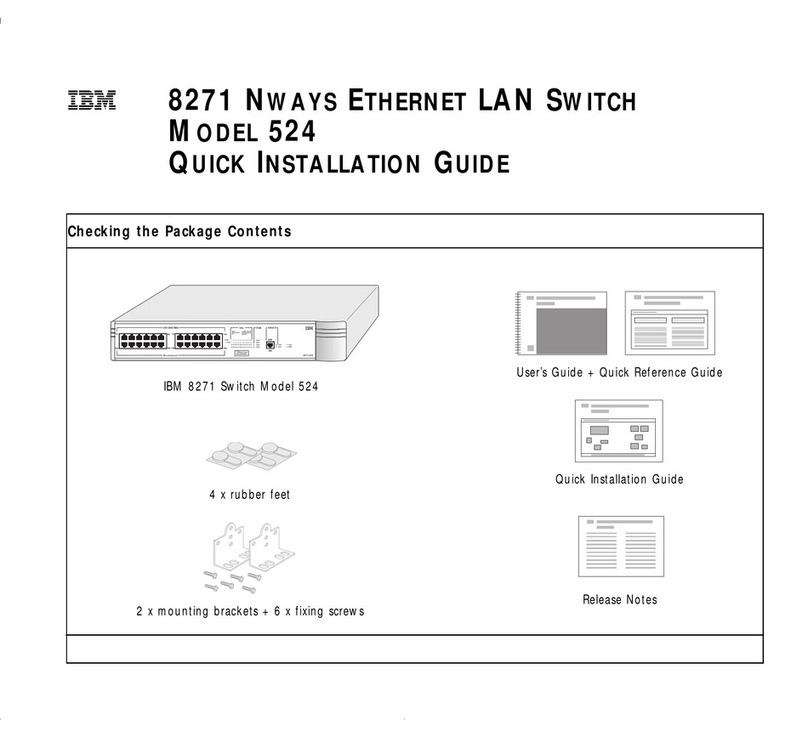
IBM 524 User manual

IBM

IBM 524 User manual

IBM Brocade FCoE User manual

IBM

IBM Brocade FCoE User manual

IBM SAN32M-2 Manual

IBM

IBM SAN32M-2 Manual

IBM F12 User manual

IBM

IBM F12 User manual

IBM RackSwitch G8264 User manual

IBM

IBM RackSwitch G8264 User manual

Popular Switch manuals by other brands

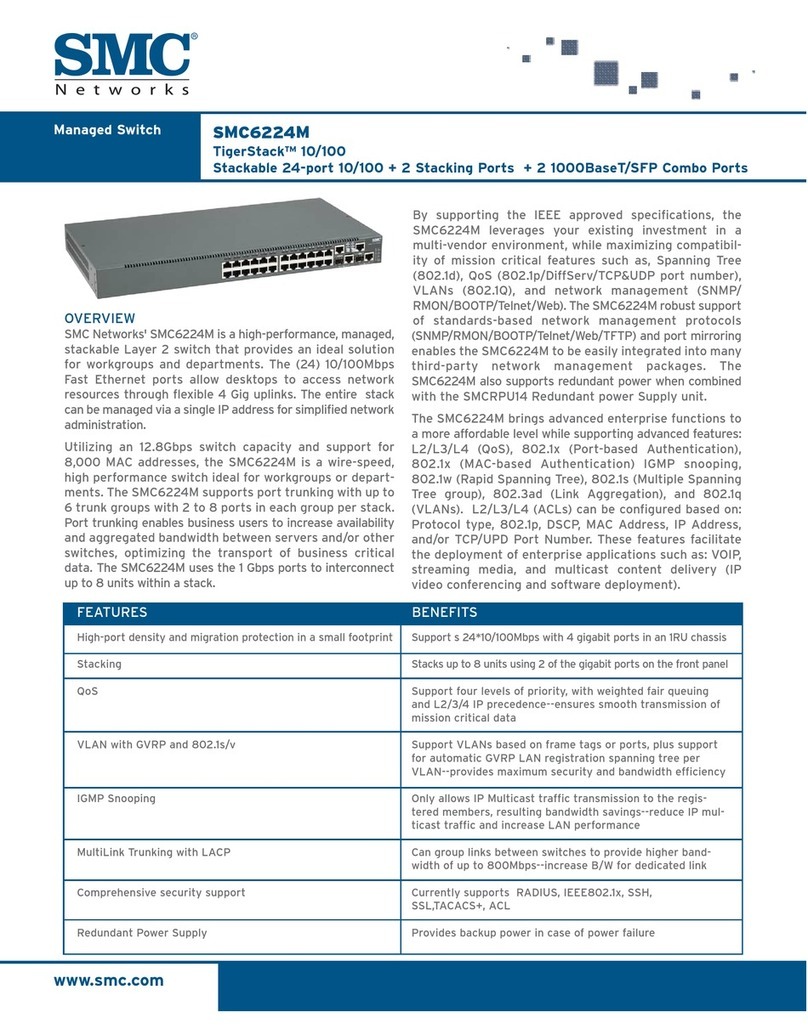
SMC Networks SMC6224M Technical specifications

SMC Networks

SMC Networks SMC6224M Technical specifications

Aeotec ZWA003-S operating manual

Aeotec

Aeotec ZWA003-S operating manual

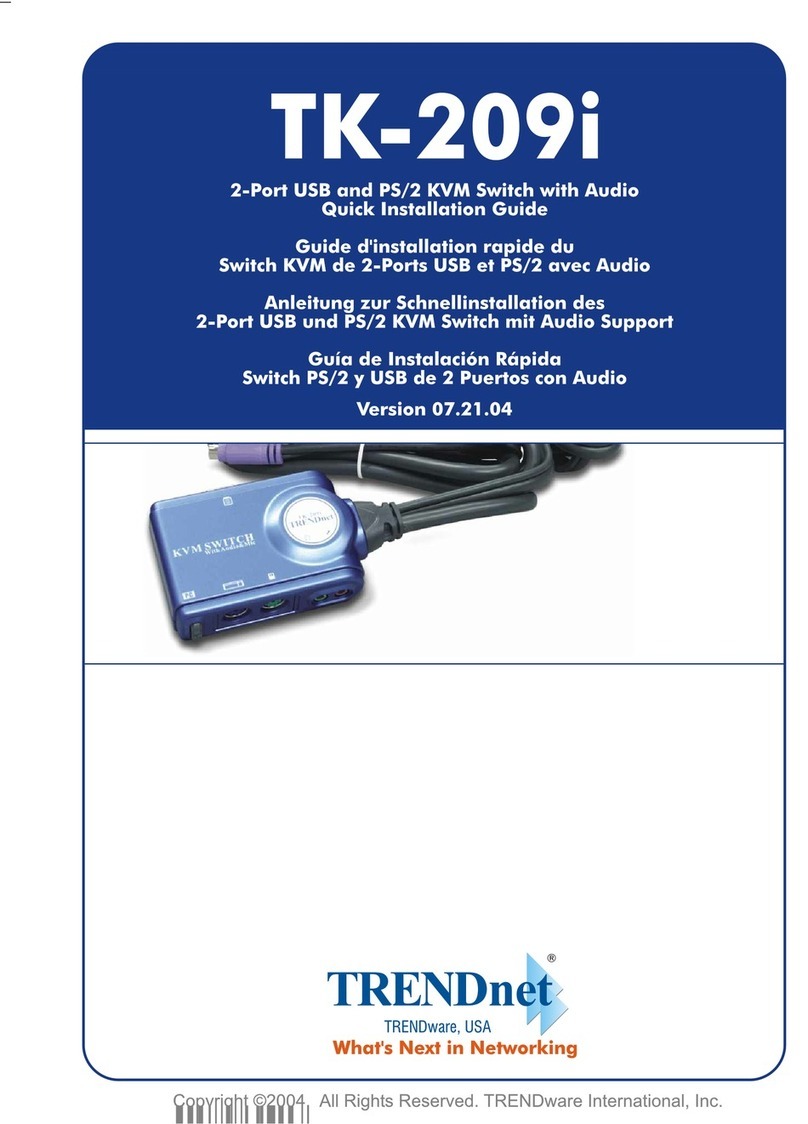
TRENDnet TK-209i Quick installation guide

TRENDnet

TRENDnet TK-209i Quick installation guide

Planet FGSW-2022VHP user manual

Planet

Planet FGSW-2022VHP user manual

Avocent AutoView 2000  AV2000BC AV2000BC Installer/user guide

Avocent

Avocent AutoView 2000 AV2000BC AV2000BC Installer/user guide

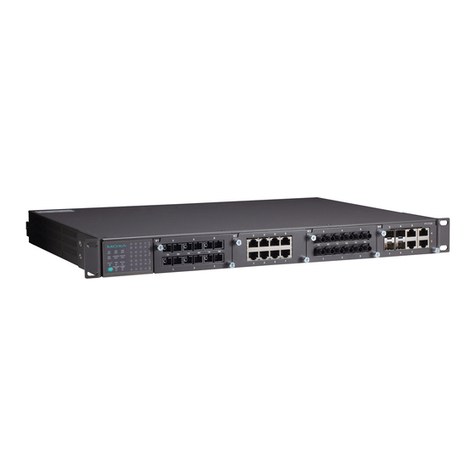
Moxa Technologies PT-7728 Series user manual

Moxa Technologies

Moxa Technologies PT-7728 Series user manual

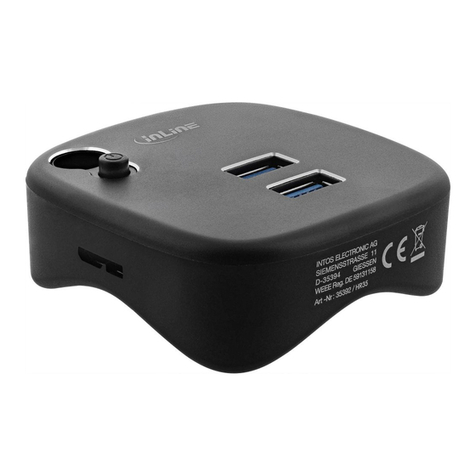
Intos Electronic inLine 35392I operating instructions

Intos Electronic

Intos Electronic inLine 35392I operating instructions

Cisco Catalyst 3560-X-24T Technical specifications

Cisco

Cisco Catalyst 3560-X-24T Technical specifications

Asante IntraCore IC3648 Specifications

Asante

Asante IntraCore IC3648 Specifications

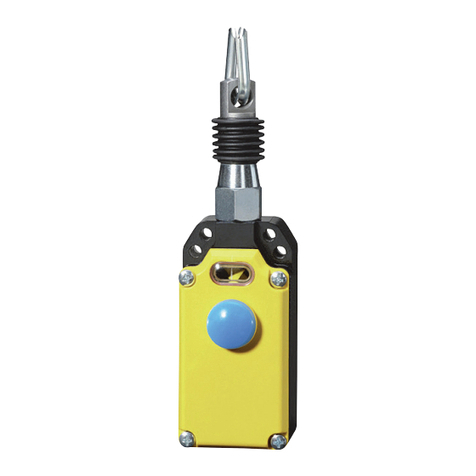
Siemens SIRIUS 3SE7310-1AE Series Original operating instructions

Siemens

Siemens SIRIUS 3SE7310-1AE Series Original operating instructions

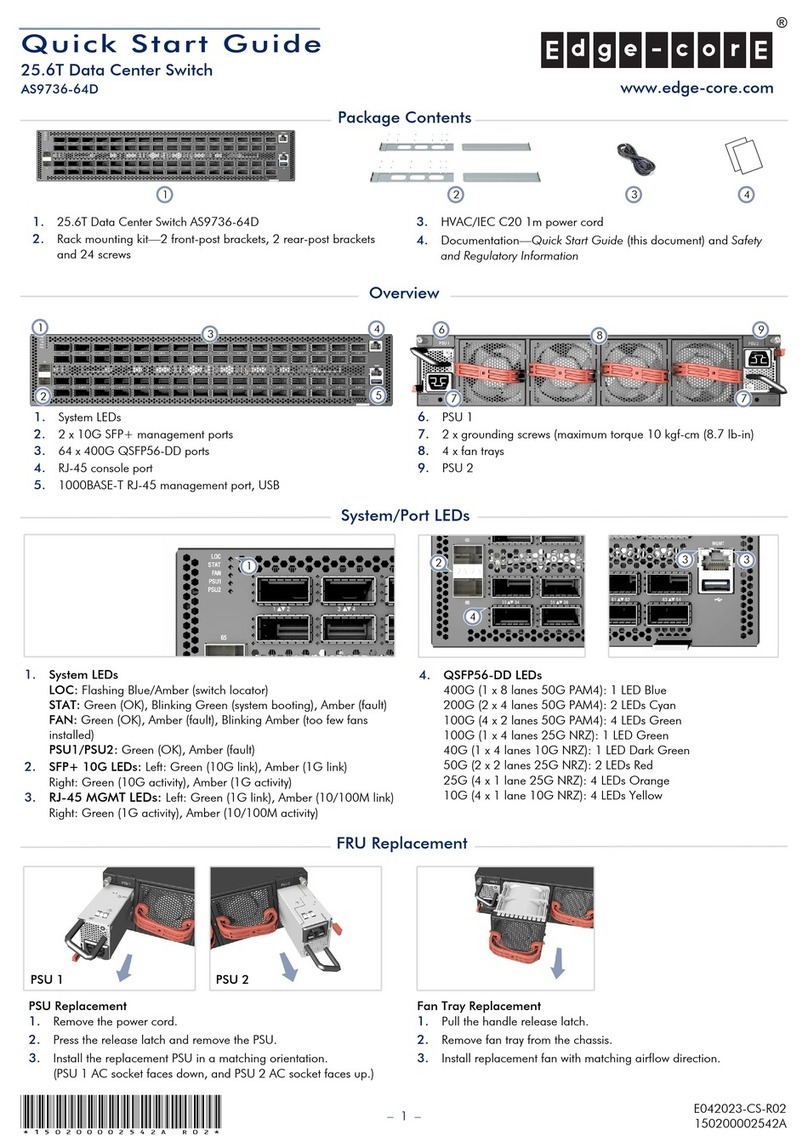
Edge-Core DCS520 quick start guide

Edge-Core

Edge-Core DCS520 quick start guide

RGBLE S00203 user manual

RGBLE

RGBLE S00203 user manual

Thrustmaster FLIGHT SIMULATOR X quick guide

Thrustmaster

Thrustmaster FLIGHT SIMULATOR X quick guide

Southwire SURGE GUARD 41390 RVC troubleshooting guide

Southwire

Southwire SURGE GUARD 41390 RVC troubleshooting guide

Buhler Nivotemp NT 61 Brief instructions

Buhler

Buhler Nivotemp NT 61 Brief instructions

Kramer VS-41HDCP user manual

Kramer

Kramer VS-41HDCP user manual

Techly IDATA AU-270 user manual

Techly

Techly IDATA AU-270 user manual

Belkin F1U109 user manual

Belkin

Belkin F1U109 user manual

manuals.online logo
manuals.online logoBrands
  • About & Mission
  • Contact us
  • Privacy Policy
  • Terms and Conditions

Copyright 2025 Manuals.Online. All Rights Reserved.

11
22
33
Ensure that you have the items listed below. You can either set the IP address of your switch manually or you can use
a DHCP server. If you are going to use a static IP address, write the network values in the spaces provided.
Complete the steps in this guide to install and setup your SAN24B-5 switch in a single-switch configuration using
EZSwitchSetup. See the IBM System Networking SAN24B-5 Installation, Service, and User Guide and the Fabric OS
Administrator’s Guide (located on the IBM Publications CD) if you want to choose a different setup.
Attention:
Refer to the Safety and environmental notices section of the IBM System Networking SAN24B-5 Installation,
Service, and User Guide before starting any installation of this product.
IBM® System Networking SAN24B-5 Quick Start Guide
Getting ready
Values to record:
Fixed IP address (IPv4 or IPv6) for the switch (no DHCP server):_________________________________________
Subnet mask value ____________________________________________________________________________
Default Gateway value__________________________________________________________________________
Switch World Wide Name (WWN): located on the switch ID pullout: ______________________________________
Items required:
- Ethernet connection (hub or switch) - Ethernet and Fibre Channel cables
- Host computer with an installed HBA - Setup computer
- Standard screw driver - Disk array with Fibre Channel ports
- Browser that allows pop-up windows - Optical transceivers (SFPs)
- EZSwitchSetup CD
Installing and starting EZSwitchSetup
1. Insert the EZSwitchSetup CD into the CD-ROM drive of your setup computer. The installer will autostart in about one
minute.
2. Follow the EZSwitchSetup onscreen directions. Installation will take a few minutes after you click OK.
3. Wait for EZSwitchSetup to start, which should happen automatically after it is installed.
For Windows and Linux instructions, refer to the EZSwitchSetup Administrator’s Guide.
4. On the EZSwitchSetup Introduction screen, choose the option that matches your setup configuration:
- Ethernet connection. This option uses the Ethernet LAN connection you will use for running EZSwitchSetup Manager.
- Direct connection to the switch with a serial cable. Most users will find it more convenient to use the Ethernet
connection.
5. Click Next. The Connect Cables screen is displayed.
Powering up and connecting cables to the switch
1. Connect the power cord to the switch and then
to the power source. The power and status LEDs
display amber then green. This can take from one
to three minutes.
2. Connect the switch and the setup computer to the
same LAN, using Ethernet cables ( , ) and an
Ethernet hub or switch ( ). Be sure the Ethernet
hub or switch is connected to a power source ( ).
3. If you want to use a serial connection for setup,
connect your setup computer COM port ( ) to the
serial port on the switch, using the serial cable ( )
shipped with the switch.
The serial connection settings are as follows:
• Bits per second: 9600
• Databits: 8
• Parity: none
• Stop bits: 1
• Flow control: none
1
35
2
6
2
4
4. Click Next.
- If you chose to use the Ethernet connection, the Discover Switch screen is displayed. Enter the switch
WWN, following the instructions on the Discover Switch screen. After completing switch discovery, the Set
Switch IP Address screen is displayed.
- If you chose to use the serial port connection, the Set Switch IP Address screen is immediately displayed.
The Connect Cables screen shows you the connections you need to make.
5
6
2
3
4
1
7
55
66
77
4- 01
!
Setting the switch password
1. Click Next on the EZManager Welcome to Switch Configuration screen.
The Set Parameters screen is displayed.
2. Create a new administrator account password in the Set Parameters screen.
3. Enter a new name for the switch (optional step).
4. Adjust the date and time for your time zone (optional step).
5. Click Next.
Configuring the zones and performing device selection
1. Select Typical Zoning on the Select Zoning screen and click Next.
Typical Zoning is the default zone configuration. See the EZSwitchSetup Administrator’s Guide for more
information on zone configuration.
2. Enter the number and types of devices that you are connecting to the switch on the Device Selection
screen.
EZSwitchSetup uses these values to automatically configure the ports on your switch for the devices that
you are connecting.
Connecting devices
The Connect Devices screen displays a graphical representation of the switch with the device connections
based on the information that you entered when you configured zones and performed device selection. The
screen will show all physical connections as missing until you connect the devices that you specified.
1. Install the SFP+ transceivers in the Fibre Channel ports on the switch to match the ports shown onscreen.
a. The 16 Gbps SFP+ transceivers have a long pull tab
and no latching wire bail. Remove any protector plugs
from the SFP+ transceivers you are going to use, and
position and insert each SFP+ transceiver as required
(right side up in the top row of ports and upside down
in the bottom row of ports). Use the pull tab on the 16
Gbps SFP+ transceivers to help push the transceiver
into the port.
If you are using 8 Gbps SFP+ transceivers, close the
latching wire bail.
b. Repeat for the other ports.
2. Make the physical connections to your host and storage devices. Match the physical connections shown on
the Configure Ports and Connect Devices screen. If you are using 16 Gbps SFP+ transceivers, you may
want to connect the cable to the SFP+ first, and then insert them into the port as a unit.
a. Remove plastic protector caps from the Fibre Channel cable
ends (if any), and position the cable connector so that it is
oriented correctly.
b. Insert the cable connector into the SFP+ until it is firmly seated
and the latching mechanism clicks.
c. The Configure Ports and Connect Devices screen shows
missing, valid, and invalid connections as you cable the switch.
Note that it can take up to 15 seconds for the connection to
display as a valid connection. Verify that the connections are
all green and then click Next.
3. The Finish screen will display this message: “Congratulations—you’ve successfully completed the setup!”
If you used the serial connection for setup, you can remove the serial cable.
Additional configuration options, such as custom zoning, are available from EZManager. See the EZSwitchSetup
Administrator’s Guide for more information on custom zoning, and other switch configuration and management
options.
GA32-2214-00 98Y2648
IBM, the IBM logo, and ibm.com are trademarks or registered trademarks of International Business Machines Corporation in the
United States, other countries, or both. A complete and current list of other IBM trademarks is available on the Web at
www.ibm.com/legal/
© Copyright International Business Machines Corporation 2012. All rights reserved. US Government Users Restricted Rights – Use,
duplication or disclosure restricted by GSA ADP Schedule Contract with IBM Corp.
© 2012 Brocade Communications Systems, Inc. All Rights Reserved. Printed in USA
4Setting the switch IP address
If you are using a DHCP server to set the IP address: the switch must have DHCP enabled. The DHCP server
must also be on the same subnet as the switch. To set a static IP address, complete the following steps:
1. Enter the required information in the SetSwitch IP Address screen.
2. If prompted to install Active X or a version of the Java runtime environment, do so. Reboot the setup
computer, if required.
3. Click Next.
The Confirm IP Address screen is displayed.
4. Click Next to confirm the addresses.
The Continue Configuration screen is displayed.
5. Click Continue with EZManager.
!