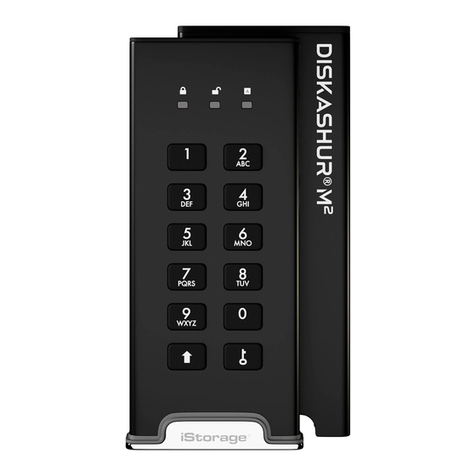
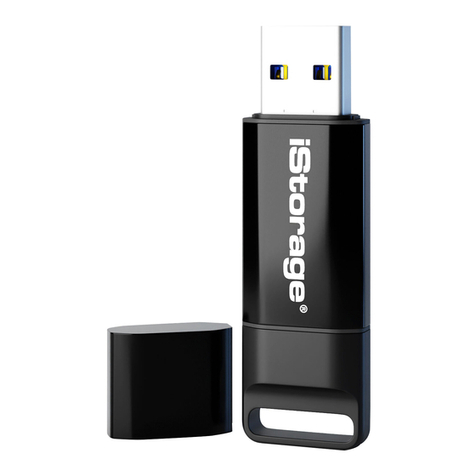
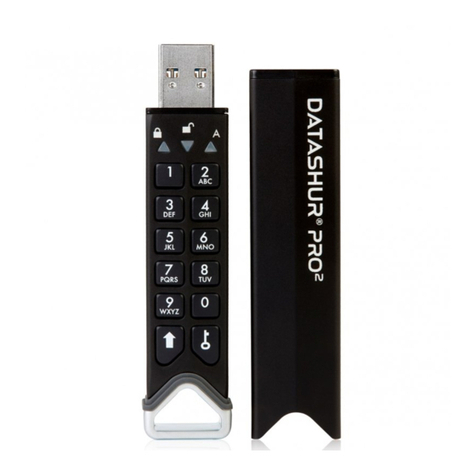
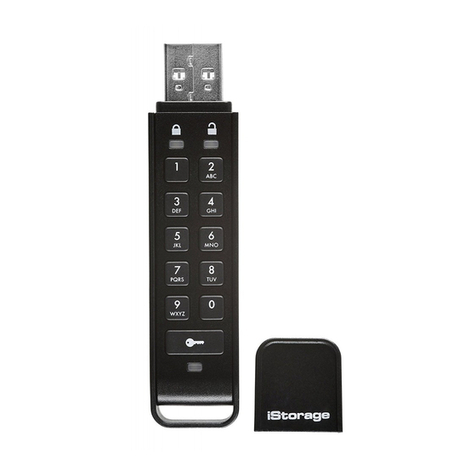
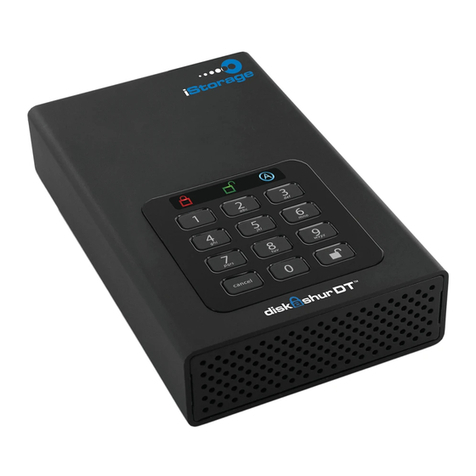
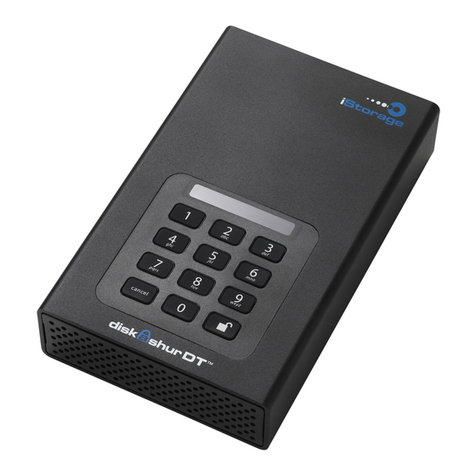
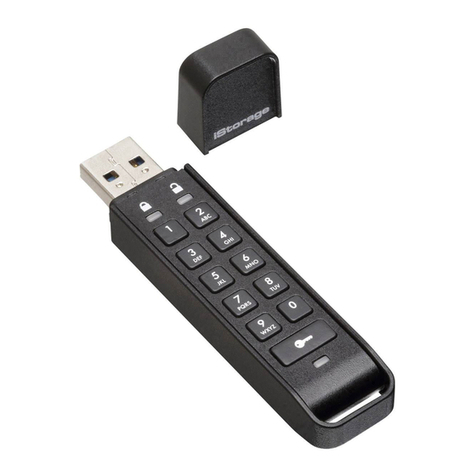
enclosure.
Quick Start Guide
12
33
1
2
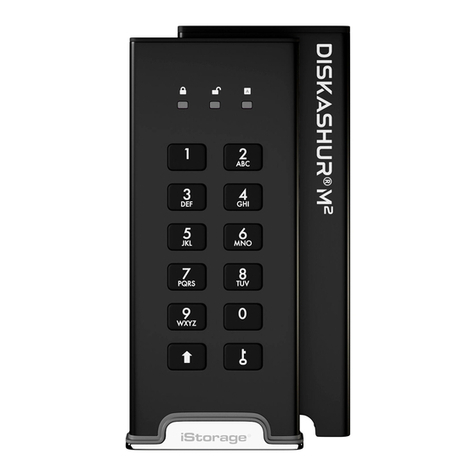
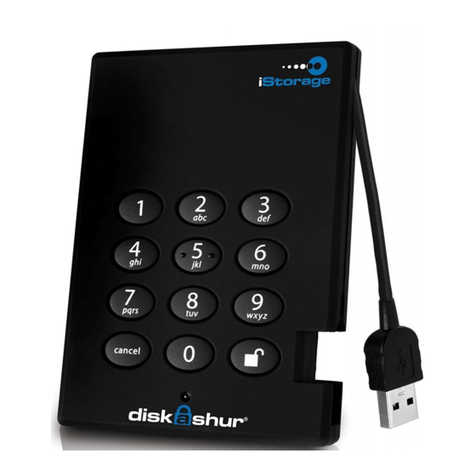
Cancel button
butt on
LED Indicator light
Remember to save yourpassword in a safe place. If
lost or forgotten,there is no way to access the drive.
If you are having diculty please referto the com-
plete user’smanual which is loaded on your iStorage
DiskGenie drive and is also available at iStorage’s
website at: www.iStorage.com.uk
YouriStorage DiskGenie is preformatted in NTFS for Windows®and is ready for use. For the Mac
OS please refer tothe direc tions on the reverseto reformat your drive to a compatible format.
Toaccess the iStorage DiskGenie plug your drive into a powered USB port, enter the default PIN
number of 123456 and press .
T h e i n d i c a t o r l i g h t w i l l c h a n g e f r o m R E D t o G R E E N i n d i c a t i n g t h e d r i v e i s u n l o c k e d a n d c a n b e a c c e s s e d .
Changing the ADMIN PIN number to yourown unique PIN number
Youare the “administrator”of this drive. The rst thing you will want to do is change the
AdministratorPIN number from the default 123456 to a unique, secure PIN number that you
will remember.
Tochange the Admin PIN number follow the instructions below:
Toenter Admin Mode, rst plug the drive into the USB port and wait until the LED light1.
turns RED.
Next, press and hold 0 + for5 seconds until the LED light ashes RED.2.
Enter the Admin PIN number (default is 123456) and press . The LED light will turn3.
BLUEindicating you are in Admin Mode.
While in Admin Mode, pressand hold 9 + until the LED light ashes BLUE.4.
Enter the new PIN number (minimum 6 digits) and press . The LED light will ash5.
GREEN 3 times if successful.
Re-enter the new PIN number and press . The LED light will stay solid GREEN for 26.
seconds indicating you havesuccessfully changed the Admin PIN.
Toexit admin mode and begin using your iStorage DiskGenie drive, press the CANCEL7.
button until the LED turns RED. Now enter your new PIN number and press .
0
cancel
2
abc
5
jkl6
mno
9
wxyz
8
tuv
7
pqrs
4
ghi
3
def
1