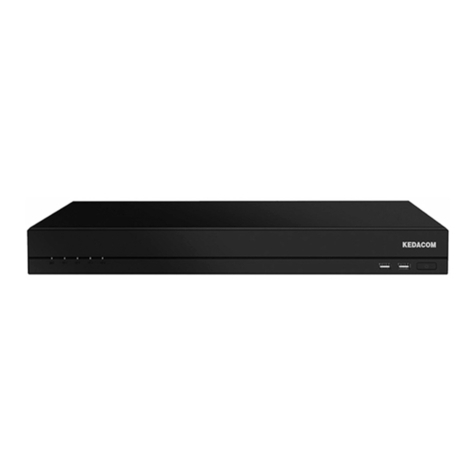
4. Fasten the hangers on the left and right sides of the device to the rack with screws provided
by the rack manufacturer through the four holes in the hangers.
5Rack tray
【Note】
You can connect the device to other devices (for example, a speaker). However, this
document does not provide the corresponding details. If you are experiencing trouble
connecting the device to other devices, contact us.
5. Connect the ground wire to the ground bolt of the device.
6. Connect a network port to a network.
Depending on onsite conditions, connect the other network ports to the network. If all
network ports are in use, ensure that each of them is located on a unique network segment.
You are advised to use RJ-45 network cables.
7. Connect the device to a display that provides an HDMI and/or VGA port.
8. Connect the power cable to a power outlet.
After the installation is completed, please note the following:
By default, the device is switched on as soon as it is connected to a power outlet.
To switch off the device, press and hold the power button on its front panel for 4s.
To switch on the device, press the power button on its front panel.
For details on how to use the device, see the user guide included in the Document and Utility
CD.
After the device is powered and switched on, check whether the indicators on the front panel
are normal. If not, contact us.
8