manuals.online logo
Brands
  1. Home
  2. •
  3. Brands
  4. •
  5. Kitvision
  6. •
  7. Action Camera
  8. •
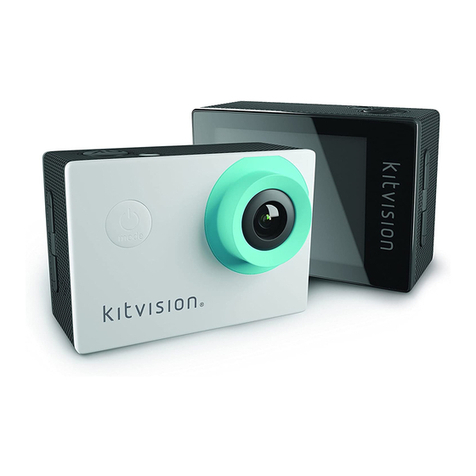
  9. Kitvision Edge HD10 User manual

Kitvision Edge HD10 User manual

Other Kitvision Action Camera manuals

Kitvision escape User manual

Kitvision

Kitvision escape User manual

Kitvision ESCAPE 4KW User manual

Kitvision

Kitvision ESCAPE 4KW User manual

Kitvision edge HD30W User manual

Kitvision

Kitvision edge HD30W User manual

Kitvision rush User manual

Kitvision

Kitvision rush User manual

Kitvision Splash User manual

Kitvision

Kitvision Splash User manual

Kitvision blast User manual

Kitvision

Kitvision blast User manual

Kitvision ESCAPE 4KW User manual

Kitvision

Kitvision ESCAPE 4KW User manual

Kitvision Venture User manual

Kitvision

Kitvision Venture User manual

Kitvision rush hd100W User manual

Kitvision

Kitvision rush hd100W User manual

Kitvision Escape HD5W User manual

Kitvision

Kitvision Escape HD5W User manual

Kitvision explore 1080p User manual

Kitvision

Kitvision explore 1080p User manual

Kitvision KVACTCAM2 User manual

Kitvision

Kitvision KVACTCAM2 User manual

Popular Action Camera manuals by other brands

Denver ACT-1013 quick start guide

Denver

Denver ACT-1013 quick start guide

DeepSea Power & Light SEACAM Operator's manual

DeepSea Power & Light

DeepSea Power & Light SEACAM Operator's manual

Epic STC-EPC1T user manual

Epic

Epic STC-EPC1T user manual

Brinno MAC200 DN user manual

Brinno

Brinno MAC200 DN user manual

GoPro HERO5 Important product information

GoPro

GoPro HERO5 Important product information

ION Air Pro 2 quick start guide

ION

ION Air Pro 2 quick start guide

Firefly 6s instruction manual

Firefly

Firefly 6s instruction manual

Pyle eXpo PSCHD90 user manual

Pyle

Pyle eXpo PSCHD90 user manual

MOFILY YOCAM quick guide

MOFILY

MOFILY YOCAM quick guide

Coleman C5WP Xtreme instruction manual

Coleman

Coleman C5WP Xtreme instruction manual

MCM Electronics 82-19749 user manual

MCM Electronics

MCM Electronics 82-19749 user manual

Aim SmartyCam 3 Sport user manual

Aim

Aim SmartyCam 3 Sport user manual

Omni HERO4 user manual

Omni

Omni HERO4 user manual

nedis ACAM41BK user manual

nedis

nedis ACAM41BK user manual

Naxa NDC-409 user manual

Naxa

Naxa NDC-409 user manual

Panasonic HX-A1M operating instructions

Panasonic

Panasonic HX-A1M operating instructions

Kodak Pixpro SP1 user manual

Kodak

Kodak Pixpro SP1 user manual

Akaso V50X user manual

Akaso

Akaso V50X user manual

manuals.online logo
manuals.online logoBrands
  • About & Mission
  • Contact us
  • Privacy Policy
  • Terms and Conditions

Copyright 2025 Manuals.Online. All Rights Reserved.

1 1
kitvision.co.uk
JB. 2957 © Kitvision™2013. Christchurch, Dorset. BH23 4FL
User manual
ACTION CAMERA
HD10
2 3
With a wide range of cameras and accessories, Kitvision is here to help you record your memories.
We’re committed to developing the very latest technologies so you can capture, re-live and share
your experiences in the best way possible. By remembering the past and embracing the future,
our vision is for every single precious moment to be treasured forever.
4 5
Contents
Main features 6
Box contents 7
Functions 8
Instructions for use 10
Troubleshooting 30
Specifications 30
6 7
Box contents
1. Kitvision Edge HD10 action camera
2. TFT screen
3. Waterproof case
4. Battery
5. Flat mount
6. Curved mount
7. Mount connector
8. Mount screw
9. USB cable
10 User manual
Optional Accessories:
11. Remote control
12. Chest mount
13. Car mount
14. Bicycle mount
15. Adhesive mount set
Main features
• Full HD video recording with multiple interchangeable recording modes (1080P/960P/720P)
• 8 Megapixel photo mode
• Various photo modes: Single shot/Triple shot/Time-lapse mode/Self-timer mode
• 170° ultra wide angle lens; Aperture f/2.8
• Waterproof up to 100 m with grade IP68 waterproof housing
• Detachable 1.5"TFT display screen for shooting and replaying videos
• Supports micro SD/micro SDHC cards above Class 6 – up to 32 GB (not included)
• 4x digital zoom – applicable for 720P/30 and WVGA mode of NTSC standards
• Automatic white balance and automatic exposure
• Built-in high quality microphone
• High capacity rechargeable battery: up to 2.5 hours continuous recording
• Wireless remote control function (remote controller not included, sold separately)
1 2 3
13 14 1511 12
8910
1
User manual
ACTION CAMERA
HD10
7
45 6
8 9
Functions
1. TFT display screen
2. MENU key
3. Up key
4. Left key
5. Down key
6. Recall key
7. OK key
8. Push button
9. Lanyard hole
10. Microphone/Speaker
11. SD card slot
12. Right key
13. AV output interface
14. Record button
15. Indicator light (video/voice recording)
16. Power switch
17. Microphone
18. Red indicator light (on/charging)
19. LCD segment screen
20. Shutter
21. Stop key
22. Camera Lens
23. Green indicator light
(video recording/shooting)
24. HDMI output interface
25. USB output interface
26. Threaded mount hole
1
2
412
513
311
24
25
6
14 15 16 17
23
18 19 20 21
8 9 10 267
22
10 11
Before use
1. LCD segment screen
Turn the power switch to the “ON” position to check the battery power. If the battery level is low, charge it using the
supplied USB cable with a power adaptor or USB port of a PC. The red indicator light will stay on and the icons on the
LCD segment screen will be shown. The camera is now in normal preview state.
The icons shown on the LCD segment screen will indicate the following:
• Record mode: The icon indicates video recording mode and the icon indicates voice recording mode
• Photo shooting prompt: The icon will flash once when shooting one photo
• Power icon: The icon will be seen when the camera is on. The disappearance of the icon indicates that the
camera has either shut down or entered into standby mode
• Video recording duration: When the “Record” key is pressed once, the duration of the current video recording
file will be displayed in the middle of the screen, for example: . It will stop when the “Stop” key is pressed
Note: The video recording duration will be displayed on both the LCD segment screen and the TFT display screen
• Battery power: The icon indicates how much battery power is left. More black lines indicate more power and
less black lines indicate less power
Note: The battery power indication icon will not be displayed when the camera is in standby mode or switched off
• USB connection: The USB mode icon indicates whether the camera is connected to the computer. The green
indicator light on the left will flash slowly
Note: The icon will only be displayed when the camera is connected to the computer
• TF card capacity indication: The icon indicates the capacity of the TF card. More black lines indicate more space and
less black lines indicate less space. The green indicator light on the left will remain on when the card is out of memory
Instructions for use
Startup
1. The camera can be used in two ways:
Either handheld or attached to various mount accessories. It can also be used underwater, with the waterproof case.
Note: to remove the TFT display screen, press the push button and ease off carefully
2. Installing the remote control (optional)
An optional remote control can be purchased for use with the camera. Please use the accessories shown below
for correct installation
• Installation and removal of the
TFT display screen and main body
TFT display
Velcro Clip Binding tape (optional)
Main body Main body
Install TFT display screen
onto the main body
Waterproof case Install main body into the waterproof case
• Installation of the waterproof case and main body
[continued...]
12 13
[...continued] Before use
The following indicators can be seen on the TFT display screen:
• Work mode:
The icon shown in the top left corner of TFT display screen indicates that the camera is in video recording
standby state
• Battery power:
The icon shown in the bottom left corner of the TFT display screen indicates how much battery power is left
• Resolution of video recording:
In the bottom left corner of the TFT display screen, 1080P/960P/720P/WVGA will show to indicate the video
recording resolution in standby mode
• Spare storage capacity:
In the bottom right corner of the TFT display screen, will indicate whether an external card is available and will
indicate spare storage capacity
• In preview state, the camera will not respond to operations of “<” and “>”
• The camera can be charged with the included cable. The red indicator on the top of the unit will flash slowly during
charging and will remain red once fully charged
Note: Before use, please check that there is enough battery power. If not, please charge the camera using the included
USB cable. The red indicator will flash slowly during charging and will remain red with the battery icon displayed
on the TFT display screen after charging
2. Formatting the micro SD card
Please use a high-speed micro SD card only and format it on the camera before recording or taking a picture.
If the micro SD card has been used on other devices, please format it on the camera before any operation.
Note: Please confirm whether the files on the micro SD card are needed before operating. Locked files on the camera
can be formatted to remove. Formatting will wipe all data on the micro SD card
3. Setting the date and time
A yellow number indicates the current cursor position. By pressing the “<” or “>” key, you can move the cursor to the
setup interface and select the date or time. Press the “OK” key to confirm, which will turn this number red and the
value of the date or time can be changed. Then press the “0K” key again to finish. Finally, move the cursor to using
the “<” or “>” key and press the “OK” key to confirm.
14 15
Parameter settings
In preview mode, press the “M” key to enter the menu interface, then press the “<” or “>” key to move the cursor left or
right and press the “+” or “-” key to move the cursor up and down. After selecting the menu, press the “OK” key to set
the selected menu and press the “M” key again to exit.
a. Parameter setting for video recording
1. Video resolution
The optional resolutions for video recording are:
1080P @ 30 FPS 1920 x 1080 16:9
960P @ 30 FPS 1280 x 960 4:3
720P @ 60 FPS 1280 x 720 16:9
720P @ 30 FPS 1280 x 720 16:9
WVGA @ 60 FPS 848 x 480 16:9
2. Bit rate
Options in recording modes: 1080P (12M/6M), 960P (8M/4M), 720P (8M/4M), WVGA (8M/4M). If a high bit rate is
selected, you will get a clearer picture with increased file size.
3. Capture mode
Select either video recording or voice recording
Note: In voice recording mode, press the “Record” key once. The system will start recording, the voice recording
duration will be displayed on the bottom of the TFT display screen and the green indicator will flash slowly.
When the “Stop” key is pressed, the system will stop and save the current audio file recorded, the green indicator
will turn off and the red indicator will remain on (the corresponding operating prompt will be shown on the LCD
segment screen) and the camera will return to preview mode
Note: The voice recording process only responds to operations of “Stop” and “Shutdown”
16 17
b. Parameter setting for photo shooting
1. Image resolution
8.0 MP 3200 x 2400p 4:3
5.0 MP 2592 x 1944p 4:3
3.0 MP 2048 x 1536p 4:3
2. Capture mode
• Single shot: The shooting mode is automatically set to single shot each time the camera is turned on.
Pressing the “Shutter” once will take one photo
• Triple shot: Pressing the “Shutter” once will take three consecutive photos
• Time-lapse mode: Takes one photo every 2s/3s/5s/10s/20s/30s until they key is pressed to stop, the card
is full or the power has run out
• Self-timer mode: Select the self-timer delay time (0s, 5s or 10s), then press the “M” key to return to the
“Preview” state. Press the “Shutter” key once to start the timer. The self-timer indicator will
flash at the end of the delay time and take one photo. The system will then automatically
recover the shooting mode to single shooting. If the “Self-timer Delay Time” has been set,
but the unit is restarted without pressing the “Shutter” key, the machine will auto set the
“Self-timer Delay Time” to 0 seconds
Note: Single shot, Triple Shot, Time-lapse mode and Self-timer modes cannot be activated at the same time
c. System parameter setting
1. Beep: Turning the key tones on or off
Note: The camera will still beep when you start and stop a video recording. This cannot be turned off
2. Green indicator light: Please turn it on or off before self timing; the default setting is “ON”
3. Time display: Please set before using. The camera will auto record the shooting date and time of an image and
display it in the bottom right corner of the file
4. Loop coverage: When “ON”, the video/audio file will be automatically saved in a segment once every 15 minutes.
If it is not set, the video/audio file will be automatically saved in a segment once every 30 minutes.
Note: The video length is actually determined by the file size, not the length of time. For example: When Loop
coverage is on for 15 minutes, if filming in a dark environment the video may record for a little longer than 15
minutes
5. Auto standby: Select the auto standby time to OFF, 2 minutes, 5 minutes or 10 minutes. Once selected, if there is
no operation, the timer will start and the camera will turn off input and output to enter standby mode at the end
of the time set. If there is any operation during countdown, the system will re-time. If the video recording or
shutter is operated in the standby process, the camera will wake up. The default standby time is set to OFF
6. TV output format: NTSC or PAL. The video format outputted to TV can be selected. If the selected format is
changed, the camera will restart to update the parameters
7. Format: Once you’ve confirmed that recorded files do not need to be saved, all files can be removed by formatting
Note: lf there is no card inserted, the memory of the camera will be formatted. When a card is inserted, the card
will be formatted rather than the camera’s memory
[continued...]

18 19
3. Video recording
Manual recording:
Press the “Record” key once in preview mode to start recording. The video recording duration will be displayed at
the bottom right of the TFT display screen, the “Green Indicator of Video/Voice Recording” and the front “Green
Video Recording/Shooting Indicator” will flash slowly, and the recording duration on the LCD segment screen
will be displayed normally. The video recording process will only respond to the zoom function (“–” key). When the
“stop” key is pressed, the system will stop and save the current video recording file, the front green indicator light
will turn off, the camera will return to the preview state, and the recording duration on the LCD segment screen
will disappear.
Note: If you turn the power off during video recording, the system will save the current file recorded before
it shuts down
Note: If the battery power is low during video recording, the system will save the current file recorded and show
the message “Low Battery” on the TFT display screen until the camera is turned off or it automatically enters
standby mode
Note: If the memory space becomes full during video recording, the system will save the current file recorded,
show the message “Card Full” on the TFT display screen and return to the preview mode. The video recording
duration on the LCD segment screen will also disappear
Note: When the “+” or “–” keys are pressed in voice recording mode, the voice increasing/reducing operation
will not be executed, however when the “+” or “–” keys are pressed when recalling audio files, the voice
increasing/reducing operation will be executed
[...continued] System parameter setting
8. Factory default: This operation restores the parameter settings to the factory default. If restoring the factory
default, the system will set the time to 01.01.2012
9. Language: Press the “<” or “>” key to choose your desired language
10. Frequency: Select the frequency to 50 Hz or 60 Hz, depending on local grid frequency, in order to avoid the
screen flickering in preview mode or in video recording
11. Date/Time: The time can be adjusted and changed. It will be displayed on the bottom right corner of the video
file or photo file when recording or shooting
Note: Press the “M” key in the submenu to exit
Using the camera
1. Insert a micro SD card.
2. Turn the power switch to the “ON” position to turn on the camera. The red indicator will light up and the camera
will enter the preview mode.
Note: If the battery power is low, the battery icon and the message “Low Power” will be shown on the TFT screen
Note: If no micro SD card is inserted, you will see the micro SD card icon on the TFT screen
[continued...]