manuals.online logo
Brands
  1. Home
  2. •
  3. Brands
  4. •
  5. Korg
  6. •
  7. Computer Hardware
  8. •
  9. Korg EasyStart PX24D Owner's manual

Korg EasyStart PX24D Owner's manual

This manual suits for next models

3

Other Korg Computer Hardware manuals

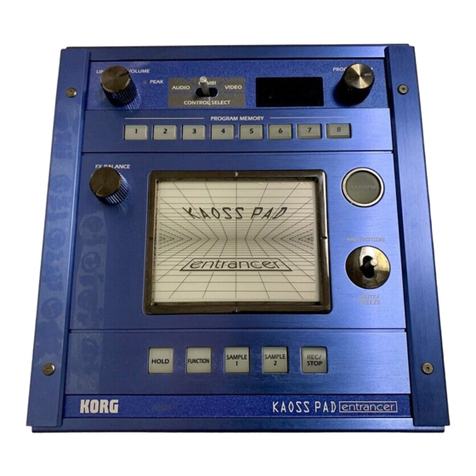
Korg EasyStart KAOSS PAD Entrancer User manual

Korg

Korg EasyStart KAOSS PAD Entrancer User manual

Korg EXB-PCM05 User manual

Korg

Korg EXB-PCM05 User manual

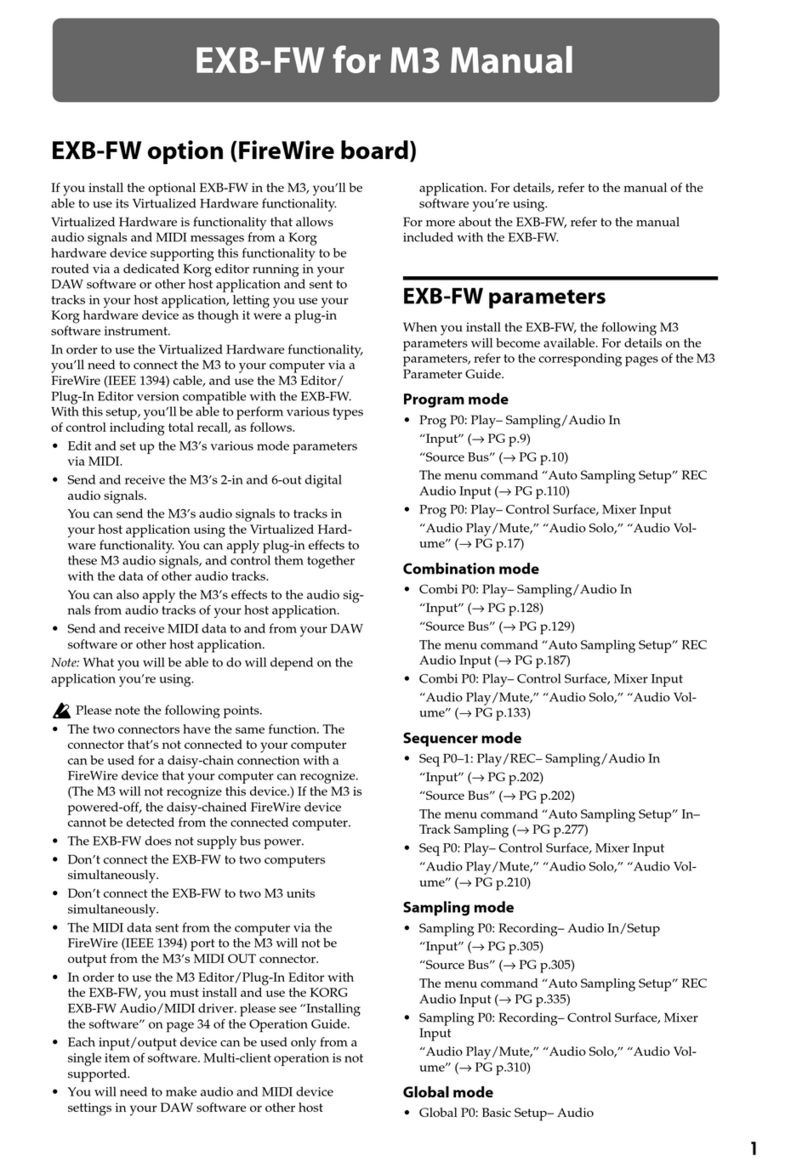
Korg EXB-FW User manual

Korg

Korg EXB-FW User manual

Korg EXBP-MP3 User manual

Korg

Korg EXBP-MP3 User manual

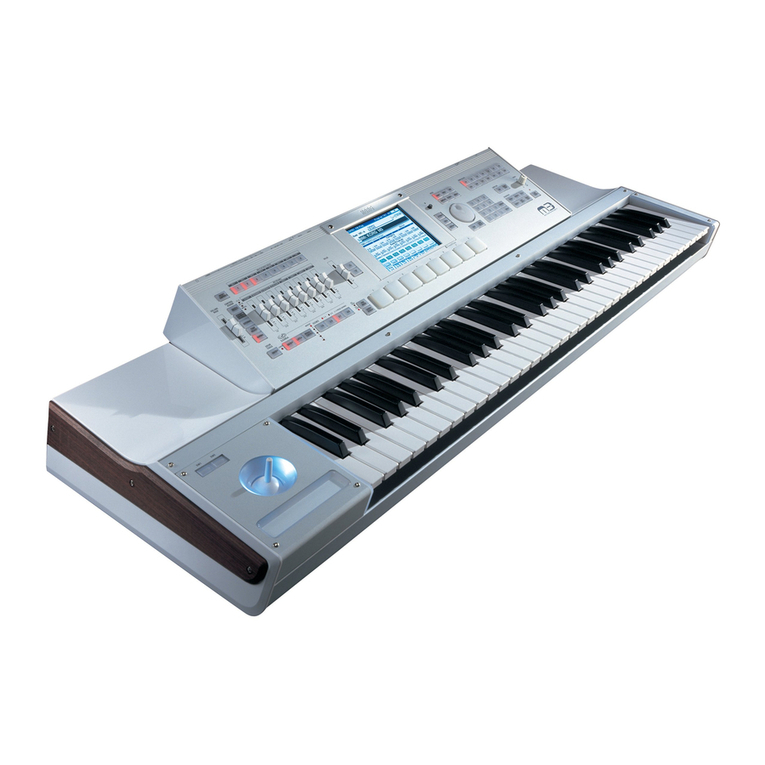
Korg M3 User manual

Korg

Korg M3 User manual

Korg EXB-PCM04 User manual

Korg

Korg EXB-PCM04 User manual

Korg EXB-PCM-03 User manual

Korg

Korg EXB-PCM-03 User manual

Korg A5 Guitar User manual

Korg

Korg A5 Guitar User manual

Korg Toneworks AX3G User manual

Korg

Korg Toneworks AX3G User manual

Korg AIB-8 User manual

Korg

Korg AIB-8 User manual

Korg EXB-PCM09 User manual

Korg

Korg EXB-PCM09 User manual

Korg PA1X User manual

Korg

Korg PA1X User manual

Popular Computer Hardware manuals by other brands

EMC2 VNX Series Hardware Information Guide

EMC2

EMC2 VNX Series Hardware Information Guide

Panasonic DV0PM20105 Operation manual

Panasonic

Panasonic DV0PM20105 Operation manual

Mitsubishi Electric Q81BD-J61BT11 user manual

Mitsubishi Electric

Mitsubishi Electric Q81BD-J61BT11 user manual

Gigabyte B660M DS3H AX DDR4 user manual

Gigabyte

Gigabyte B660M DS3H AX DDR4 user manual

Raidon iT2300 Quick installation guide

Raidon

Raidon iT2300 Quick installation guide

National Instruments PXI-8186 user manual

National Instruments

National Instruments PXI-8186 user manual

Hauppauge WinTV-HVR-2250 Quick installation guide

Hauppauge

Hauppauge WinTV-HVR-2250 Quick installation guide

Kontron CP6002 user guide

Kontron

Kontron CP6002 user guide

Manhattan 702843 user manual

Manhattan

Manhattan 702843 user manual

Aphex 230 instruction manual

Aphex

Aphex 230 instruction manual

Intel NUC 12 Pro user guide

Intel

Intel NUC 12 Pro user guide

Galaxy GHDX2-2430S-24F4D Installation and hardware reference manual

Galaxy

Galaxy GHDX2-2430S-24F4D Installation and hardware reference manual

Intel AXXRMFBU4 Quick installation user's guide

Intel

Intel AXXRMFBU4 Quick installation user's guide

Kontron DIMM-PC/MD product manual

Kontron

Kontron DIMM-PC/MD product manual

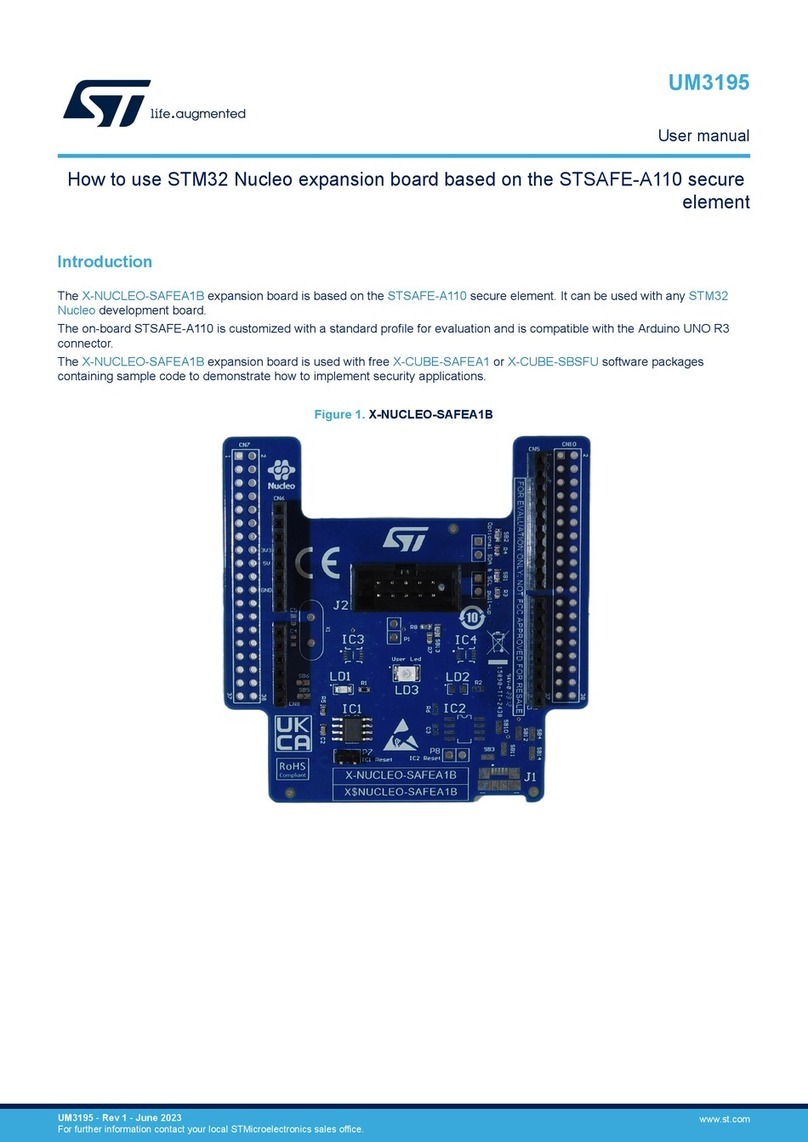
ST X-NUCLEO-SAFEA1B How to use

ST

ST X-NUCLEO-SAFEA1B How to use

STEINWAY LYNGDORF SP-1 installation manual

STEINWAY LYNGDORF

STEINWAY LYNGDORF SP-1 installation manual

Advantech ASMB-935 Series user manual

Advantech

Advantech ASMB-935 Series user manual

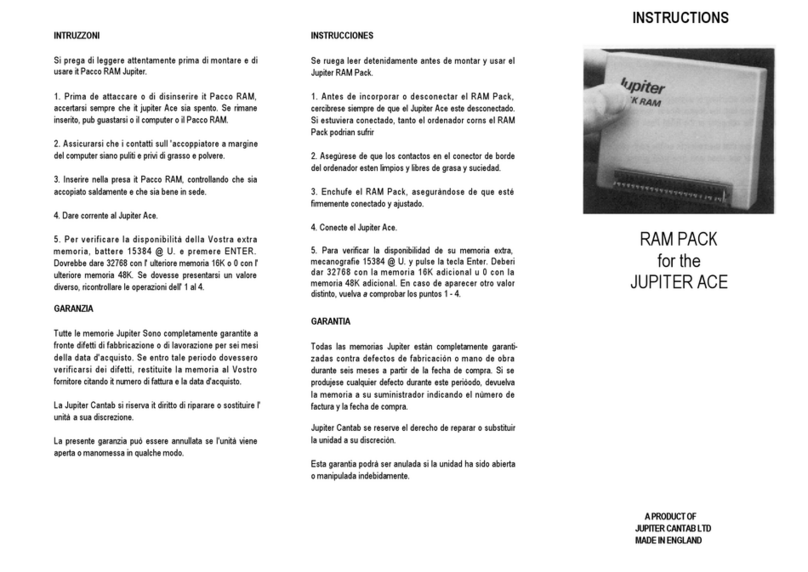
Jupiter RAM PACK instructions

Jupiter

Jupiter RAM PACK instructions

manuals.online logo
manuals.online logoBrands
  • About & Mission
  • Contact us
  • Privacy Policy
  • Terms and Conditions

Copyright 2025 Manuals.Online. All Rights Reserved.

E
Ea
as
sy
yS
St
ta
ar
rt
t
C
CO
ON
NT
TE
EN
NT
TS
S
Getting Started 2
A
A
G
Gu
ui
id
de
ed
d
T
To
ou
ur
r
o
of
f
P
PX
X4
4D
D/
/P
PX
X4
4A
A
m
mo
od
de
es
s:
:
Connections; Tuning; Rhythm mode 2-3
Phrase Trainer mode 3
AUX Pitch mode; Editing and Saving a Custom Program 4
EasyStart
M
Ma
ai
in
n
F
Fe
ea
a
t
t
u
ur
re
e
s
s
•The PX4D and PX4A are personal effect
processors utilizing Korg’s award-winning
REMS Modeling Technology, providing the
most accurate and varied collection of vintage
amp, cabinet, and effect models available!
PX4D Features:
•15 of the world’s most-coveted guitar amp models,
and 10 most -desired bass amp models
•158 effect variations – 7 at a time (Dynamics, Amp,
Cabinet, Modulation, Delay, Reverb and Noise
Reduction)
•Guitar pickup modeling with four types available
•16 Guitar Synth effects
•Feedbacker effect with four modes
•Fretless Bass Simulator
PX4A Features:
•13 microphone and body models including
Resonator, Steel and Nylon models
•82 effect variations – eight at a time including Notch
Filter (feedback eliminator)
PX4D and PX4A Shared Features:
•Four real-time knobs for quick and easy editing!
•Intelligent Pitch Shifter, Rotary Speaker, Filter, Talk Simulation and more!
•Rhythm and Bass patterns (100 patterns) and progressions with Selectable Bass Key; 16 different
rhythm and bass patterns may be chained together for songs
•Phrase Trainer, with up to 32 seconds of loop-able and pitch-adjustable recording time makes learning
riffs easy!
•Rhythms can be recorded with guitar for even more practicing possibilities
•Integrated Korg Chromatic tuner
PX4D/A EasyStart
2
G
Ge
et
tt
ti
in
ng
g
S
St
ta
ar
rt
te
ed
d
B
Ba
at
tt
te
er
ry
y
i
in
ns
st
ta
al
ll
la
at
ti
io
on
n:
:
1. Remove the rear panel battery compartment cover by sliding it in the direction of the ◄.
2. Install the four AAA batteries (included) in the correct positions, and replace the cover.
A
Au
ud
di
io
o
c
co
on
nn
ne
ec
ct
ti
io
on
ns
s:
:
1. Connect a guitar to the INPUT jack located on the bottom panel of the unit, with a ¼” shielded instrument
cable.
2. Connect a pair of headphones to the OUTPUT jack. (Or connect a Stereo Y-cable to the OUTPUT jack to
use this unit with an external monitoring system or multitrack recorder).
P
Po
ow
we
er
r-
-u
up
p,
,
a
an
nd
d
c
ch
he
ec
ck
k
o
ou
ut
t
s
so
om
me
e
P
Pr
ro
og
gr
ra
am
ms
s:
:
1. Move the right panel POWER switch to ON , or one additional “click” for power with the backlight option.
2. Raise the volume on your guitar, and on the PX4D/PX4A, use the DIAL to increase the MASTER volume.
After adjusting the volume, you can scroll through/select the Programs by using the ▲and ▼arrow buttons
(press and hold to move through the Programs rapidly).
!When you use batteries instead of the optional 4.5 volt AC adaptor, switching the backlight off will increase
battery life.
A
A
G
Gu
ui
id
de
ed
d
T
To
ou
ur
r
o
of
f
P
PX
X4
4D
D
a
an
nd
d
P
PX
X4
4A
A
m
mo
od
de
es
s
F
Fi
ir
rs
st
t,
,
t
tu
un
ne
e-
-u
up
p!
!
1. Press the TUNE/BYPASS button.
2. Play a single open string and the display will indicate the name of the note, a meter to fine tune, and
calibration (Default is set to 440Hz). The note is in tune when the display “icon” is in the center of the meter.
Press the EXIT button when finished tuning.
!When tuning, all effects will be bypassed.
!To tune silently (mute output jack), press and hold the TUNE/BYPASS button for two seconds.
!In any mode, pressing the EXIT button will return you to the first page of that mode.
!Use the DIAL to set tuning calibration between 438 and 445Hz.
R
Rh
hy
yt
th
hm
m
m
mo
od
de
e:
:
In Rhythm mode, you can jam along with preset drum and bass patterns. You can select from
different styles as well as different keys.
1. Press the RHYTHM button to enter Rhythm mode. The display will indicate a “drum set icon”, and the name
of the rhythm pattern will be displayed. A “flashing tempo icon” representing the current tempo will also be
indicated.
PX4D/A EasyStart
3
2. Use the DIAL to select the desired rhythm pattern.
3. Set the tempo: There are two methods of setting tempo:
a. Use the TAP button located on the front panel of the unit by tapping the button twice to
the desired tempo.
b. Access the tempo menu by pressing the ►arrow button once, and then use the DIAL to
adjust the tempo from 40 to 208 bpm.
4. The PX4D/PX4A can generate a bass part that is appropriate for the rhythm pattern selected: To access the
BASS KEY function, press the ►arrow button, and then press the ENTER/REC button to change “BASSOFF”
to “BASS ON” , and you’ll hear a bass pattern play.
5. Use the DIAL to change the bass pattern playback key.
!The BASS KEY menu cannot be accessed when “METRONM” is selected.
6. Once the rhythm pattern, tempo and bass key have been set, use the ►arrow button to access the REVERB
menu. Here you will be able to adjust the amount of reverb on the rhythm pattern by using the DIAL. This
will add an element of realism to the rhythm pattern.
7. Use the ►arrow button once again to access the LEVEL menu. Then use the DIAL to adjust the overall level
of the rhythm pattern being played.
8. Press the EXIT button to return to Program mode.
P
Ph
hr
ra
as
se
e
T
Tr
ra
ai
in
ne
er
r
m
mo
od
de
e:
:
This mode will assist you in learning complex parts, by sampling music through the AUX input.
You can sample in four different ways:
•AUX input (CD, MiniDisk, DAT, etc.)
•GUITAR (GTR/BAS – PX4D): You can sample your own playing through the GUITAR input
•AUX and GUITAR (AUX + G/B – PX4D): Sample CD audio and your guitar together
•JAM: Sample your guitar with a selected pattern from the RHYTHM mode
To use the Phrase Trainer…
1. Press the PHRASE TRAINER button repeatedly, to select one of the above modes. Then you can select the
desired amount of recording time by using the DIAL. The choices are 8, 16, or 32 seconds.
2. To start recording, press the ENTER/REC button. Once the specified length of time has passed the unit will
switch to play mode and automatically loop the recorded segment.
3. To pause the playback press the ►arrow button and then once again to resume playback.
4. To rewind a segment of the recording, press the ◄arrow button. Note that the unit will only rewind as long
as you hold down the button. Playback will start when you release the button.
5. Press the PHRASE TRAINER button to hold a certain passage of the recorded phrase.
6. Press the EXIT button to return to Program mode.
PX4D/A EasyStart
4
A
AU
UX
X
P
Pi
it
tc
ch
h
m
mo
od
de
e:
:
AUX Pitch mode is used to transpose and/or tune an external source (CD, MiniDisk™, DAT,
etc.) to your guitar or bass. The range is an octave in both directions (up and down) in
semitones as well as +4/-4 cents on each semitone.
To work with AUX Pitch mode:
1. Make sure your external source is connected to the AUX jack, and is playing.
2. Press the AUX PITCH button (RHYTHM/AUX PITCH button 2x on PX4A).
3. Use the DIAL to select the desired key, and to fine-tune the pitch.
4. Press the EXIT button to return to Program mode.
E
Ed
di
it
ti
in
ng
g
a
an
nd
d
S
Sa
av
vi
in
ng
g
a
a
C
Cu
us
st
to
om
m
P
Pr
ro
og
gr
ra
am
m:
:
1. PX4D - select an amp model with the AMP SELECTOR.
PX4A - select mic/body model with the MIC/BODY SELECTOR.
!On the PX4D, you can adjust the MIDDLE with the DIAL, when the AMP block is in edit mode (AMP block will
flash).
2. Use the ►arrow button to move through the different menu pages:
PX4D: Dynamics, Amp, Cabinet, Modulation, Delay, Reverb, Noise Reduction, Name and Write.
PX4A: Dynamics, Tone, Body, Modulation, Delay, Reverb, Noise Reduction, Notch, Name and
Write.
3. When one of the menu blocks flashes, use the ▲or ▼arrow buttons to choose an effect.
4. Once an effect is selected, use the DIAL to select the desired amount of each effect.
!On the PX4A, you can select the NOTCH button to choose Self-Editing or Auto Notch functions, which eliminate
feedback.
5. To name and save an edited effect: Press the ►arrow button repeatedly, until you see the Program
name.
6. When the cursor is flashing under the first letter location, use the DIAL to select a different letter, and then
press the ▲arrow button to move the cursor position.
7. After the last letter has been selected, press the ►arrow button, and you will see the word “WRITE” in the
display. Use the DIAL to select one of 100 user locations for the PX4D, or 50 user locations for the
PX4A to save your new Program to, and then press ENTER/REC to save it to your location of choice. You will
see the word “COMPLT” to confirm that you have saved your Program to the selected location.
8. Press the EXIT button to return to Program mode.
F
Fo
or
r
m
mo
or
re
e
i
in
nf
fo
or
rm
ma
at
ti
io
on
n,
,
s
se
ee
e
t
th
he
e
P
PX
X4
4D
D
o
or
r
P
PX
X4
4A
A
O
Ow
wn
ne
er
r’
’s
s
M
Ma
an
nu
ua
al
ls
s,
,
a
an
nd
d
b
be
e
s
su
ur
re
e
t
to
o
v
vi
is
si
it
t
w
ww
ww
w.
.k
ko
or
rg
g.
.c
co
om
m/
/P
PX
X4
4D
D
o
or
r
w
ww
ww
w.
.k
ko
or
rg
g.
.c
co
om
m/
/P
PX
X4
4A
A
o
of
ft
te
en
n
f
fo
or
r
m
mo
or
re
e
s
su
up
pp
po
or
rt
t,
,
t
ti
ip
ps
s
a
an
nd
d
t
tr
ri
ic
ck
ks
s!
!