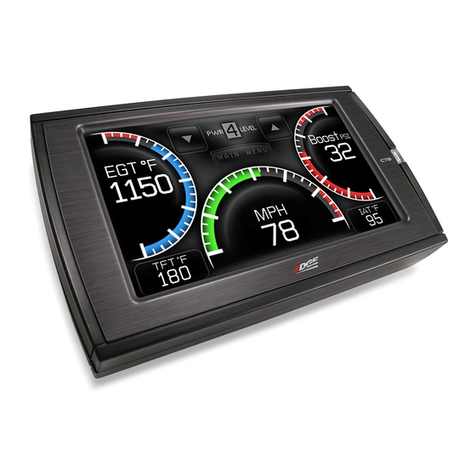
Leviton OmniTouch 7 User manual

OmniTouch 7TM Touchscreen
7" Color Touchscreen
Installation Guide

TABLE OF CONTENTS
SPECIFICATIONS....................................................................................2
DESCRIPTION.........................................................................................3
PLANNING...............................................................................................3
Wiring Requirements....................................................................3
INSTALLATION........................................................................................4
REMOVING THE TOUCHSCREEN...........................................................7
CONFIGURING THE TOUCHSCREEN.....................................................8
Controller Settings........................................................................8
Page 1

SPECIFICATIONS
Size:
Mounting Bracket Cutout: 6.125" W x 4.625" H
Overall Dimensions: 7.375" W x 5.25" H x 0.55" D
LCD View Area: 7" diagonal
Display:
Resolution: 800x480
Voltage:
Operating Voltage (PoE): 42 - 57 VDC
Nominal Voltage (PoE): 48 VDC
Nominal Voltage (Aux): 12 VDC
Power:
Power Consumption: 5.4 Watts, maximum
Page 2

DESCRIPTION
The Model 99A00 OmniTouch 7 Touchscreen with Video is a colorful
network touchscreen interface for Leviton Security & Automation
controllers. The OmniTouch 7 features graphics for control of lights and
small appliances, to monitor and adjust security and temperatures, pool
and spa settings, ventilation, audio distribution, home theater equipment,
surveillance video, and other essential elements controlled by a Leviton
home automation system.
PLANNING
The OmniTouch 7 is an IEEE 802.3af compliant Power over Ethernet
(PoE) Powered Device (PD). The OmniTouch 7 receives its power over
the same cable that connects the OmniTouch 7 to the network, using a
Power Sourcing Equipment (PSE) device, such as a PoE network switch,
hub, or power injector.
It is very important to plan where the OmniTouch 7 Touchscreen will be
installed. Each OmniTouch 7 Touchscreen must be installed within 100
meters (328 feet) of a Power Sourcing Equipment (PSE) device.
In selecting a place to mount the touchscreen, be sure to avoid an area
where studs, plumbing, or electrical wiring may be located behind the
wallboard. Use a stud finder or probe to locate a suitable mounting
position. The mounting area should be at least 2” deep. It should be
mounted so that the display is at or slightly below eye level.
Wiring Requirements
When connecting an OmniTouch 7 to the network, a Cat-5 (4-pair) cable
is required for operation. Run the Cat-5 cable between the location of
the PoE network switch, hub, or power injector and the location of the
OmniTouch 7.
The maximum distance between the Power Sourcing Equipment (PSE)
device and the OmniTouch 7 and is 100 meters (328 feet). Terminate
both ends of the Cat-5 cable with 8-position modular connectors to make
a standard straight through network patch cable.
Page 3

INSTALLATION
1) Make the cutout for the touchscreen
Tape the template (Installation Template for OmniTouch 7
Touchscreen) onto the wall, ensuring that it is level and plumb.
Use a sharp utility knife to cut along the 4 straight dotted lines on
the template. This will score the wall surface below and transfer the
template outline to the wall.
Remove the template and CAREFULLY cut through the wall material
along the inside of the scored line. Remember – it is always easier
to make the hole larger than it is to put back material that has been
removed!
Figure 1
Page 4
6.125”
4.625”

Page 5
2) Install the mounting bracket into the cutout
a. Insert the mounting bracket into the wall cutout with the flanges
(marked "A" in Figure 2) at the bottom and retention clips (marked
"B" in Figure 2) rotated to the interior of the bracket as shown.
Figure 2
b. Rotate each of the retention clips clockwise (as shown in Figure
3) so that the clip grasps the back of the wallboard and the clip
stop comes to rest.
Figure 3
c. Tighten the retention clip screws by turning clockwise.

B
B
B
B
A
B
B
B
B
A
Page 6
3) Installing the touchscreen
a. Insert the 8-position modular cable (marked "A" in Figure 4) into
the RJ-45 connector (LAN/POE) on the touchscreen (marked "A"
in Figure 5).
b. Align the tabs on the mounting bracket (marked "B" in Figure
4) with the slots on the touchscreen (marked "B" in Figure 5).
Attach the touchscreen to the mounting bracket by inserting the
tabs on the bracket into the mating slots on the touchscreen and
then gently pushing downward to lock into place.
Figure 4
Figure 5

Page 7
REMOVING THE TOUCHSCREEN
After installation, if it is necessary to remove the touchscreen from the
wall:
a) Remove the screws that secure the touchscreen to the mounting
bracket.
b) Push the touchscreen upward and then lift it away from the wall.
Figure 6
c. Secure the touchscreen to the mounting bracket flanges using
the provided screws.

Page 8
CONFIGURING THE TOUCHSCREEN
When power is first connected to the OmniTouch 7 touchscreen, if the
touchscreen hasn’t previously been configured to communicate with
the Leviton controller, the touchscreen Controller Settings screen is
displayed.
The IP address of the OmniTouch7 is displayed next to "Touchscreen IP".
Use the keyboard to enter the data in each of the edit boxes:
• Afterallcontrollerconnectionsettingshavebeenenteredand
confirmed, press the
"Save & Exit" button to save the settings and connect to the
controller.
• Usethe"Exit"buttontoexittheControllerSettingsscreen
without saving any changes that were made.
• Usethe“Clear”buttontoclearallofthecontentinthecurrently
selected edit box.
Controller Settings
To connect the OmniTouch 7 to a Leviton controller, enter the Leviton
controller network connection information:
1. Touch the edit box to the right of "Controller Address:" and enter
the IP address or hostname of the Leviton controller by pressing
the respective keys on the keyboard.
The controller’s local network IP address or hostname is used
to identify the Leviton controller on the network. The format of
the IP address is a numeric address entered as four numbers
separated by periods.

2. Touch the edit box to the right of "Controller Port:" and enter the
port number of the Leviton controller by pressing the respective
keys on the keyboard.
The controller’s local network port number identifies the logical
channel to the Leviton controller. In most installations, the default
port number of "4369" can remain the same. Port numbers range
from 0 to 65535.
3. Touch the first edit box to the right of "Encryption Keys:" and
enter Encryption Key 1 for the Leviton controller by pressing the
respective keys on the keyboard.
The Encryption Keys are used to encrypt and decrypt the data
between the Leviton controller and the OmniTouch 7. This key
consists of 16 bytes (16 2-digit values from 0-9 and/or the letters
A-F). It is entered in two parts consisting of 8 bytes (8 2-digit
values) in each edit box, with each byte separated by a hyphen.
Page 9
Table of contents
Popular Touchscreen manuals by other brands

Elecro Engineering
Elecro Engineering Poolsmart Plus Installation & operating manual
Johnson Controls
Johnson Controls IQ4 HUB installation manual
Elo TouchSystems
Elo TouchSystems ET2270L user manual
Elo TouchSystems
Elo TouchSystems ET1002L user manual

Elo TouchSystems
Elo TouchSystems 3201L user manual

Duratec
Duratec S15 user manual