2-1
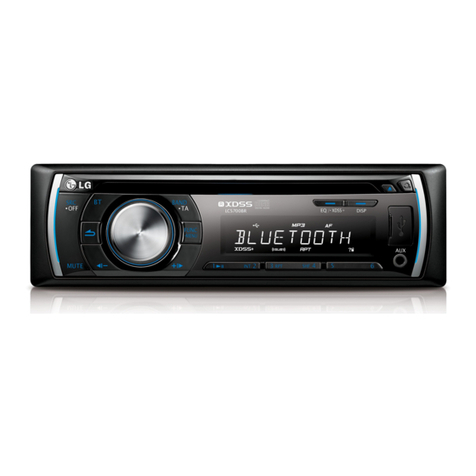
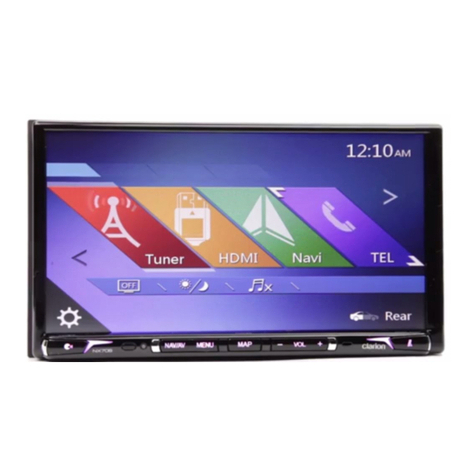
FRONT
1
10
11
12
13
14
3
5
89
1. CD IN indicator light (CD IN)
When a disc is inserted, the indicator is
illuminated.
2. RADIO
Selects the FM/AM band.
3. MEDIA
Selects a source: CD, USB, iPod, AUX
4. /
• Press this button.
- Automatic tuning:
- Track up/down:
• Press and hold this button.
- Search (FF/REW):
5. Display on/off ( )
Press to switch between the display on and off.
6. Left rotary ( / )
- Press: Power on/off
- Turn: Volume control
7. Eject ( )
Press to eject a disc from the unit.
8. Disc slot
9. Time ( )
Press to display the digital/ analog clock in
power on/ off status.
10. MAP
Press to display the current location map
screen.
11. NAV
Press to enter a destination menu.
Various methods for entering a destination are
available.
12. SETUP ( )
• Press to access system settings.
• Press and hold to check the device ID, the
software version, the navigation version, and
the map version.
13. Info ( )
Press to view the destination, route, and traffic
information when the route guidance is active.
• Destination: Shows the information of current
vehicle position and destination.
• Route: Shows the route information from the
current vehicle position to the destina-
tion.
• Traffic: Shows the traffic information.
- Traffic Info On Route: The list of traffic infor-
mation found on the recommended route
from the current vehicle position to the desti-
nation is displayed.
- Traffic Info Nearby: The list of traffic infor-
mation around the current vehicle position is
displayed.
14. PHONE ( )
Use to enable Bluetooth Hands-Free Phone.
15. Right rotary ( )
Rotate it clockwise/counterclockwise.
• Searches the previous or next radio
frequency.
- Manual tuning
• Skips a track/file up/down in all list screen.
• ZOOM IN/ ZOOM OUT
- Rotate to change the map scale on the map
screen.
Repeat voice guidance ( )
Press to repeat the voice guidance.
RADIO
iPod
CD
USB
CDUSB
iPod
4
6
7
2
15