MicroNet SP5584A User manual

00P3NX052ZXSEA3
Micronet SP5584A
HD1080p Mini Dome
IP Camera
User Manual
Ver1.0

1
Table of Contents
1. Introduction............................................................................................................................. 3
1.1 Features ........................................................................................................................3
1.2 Package Contents ......................................................................................................... 4
2. Introduction of the Mini Dome IP Camera ............................................................................ 5
2.1 Camera Dimensions...................................................................................................... 5
2.2 Camera’s Connectors.................................................................................................... 6
3. Installation............................................................................................................................... 7
3.1 Power and Ethernet Cable Connection ......................................................................... 7
3.2 Ethernet Cable Installation ............................................................................................ 8
4. System Requirements ............................................................................................................ 9
5. Deleting the Existing DC Viewer.......................................................................................... 10
6. Accessing Camera................................................................................................................13
7. Configuration & Operation................................................................................................... 19
7.1 Browser-based Viewer Introduction ............................................................................ 19
7.2 Home Page ................................................................................................................. 21
7.3 System Related Settings ............................................................................................. 23
7.3.1 Host Name and System Time Setting.......................................................... 24
7.3.2 Security........................................................................................................ 26
7.3.2.1 User ............................................................................................. 27
7.3.2.2 HTTPS ......................................................................................... 30
7.3.2.3 IP Filter......................................................................................... 35
7.3.2.4 IEEE 802.1X ................................................................................ 36
7.3.3 Network........................................................................................................ 38
7.3.3.1 Basic ............................................................................................ 39
7.3.3.2 QoS (Quality of Service) .............................................................. 42
7.3.3.3 SNMP (Simple Network Management Protocol).......................... 44
7.3.3.4 UPnP............................................................................................ 46
7.3.4 DDNS........................................................................................................... 49
7.3.5 Mail .............................................................................................................. 50
7.3.6 FTP.............................................................................................................. 51
7.3.7 HTTP ........................................................................................................... 52
7.3.8 Application ................................................................................................... 53
7.3.9 Motion Detection.......................................................................................... 58
7.3.10 Tampering.................................................................................................... 63
7.3.11 Storage Management .................................................................................. 66
7.3.12 Recording .................................................................................................... 69
7.3.13 File Location ................................................................................................ 70
7.3.14 Iris Adjustment............................................................................................. 71

2
7.3.15 View Log File ............................................................................................... 72
7.3.16 View User Information ................................................................................. 73
7.3.17 View Parameters ......................................................................................... 75
7.3.18 Factory Default ............................................................................................ 76
7.3.19 Software Version ......................................................................................... 77
7.3.20 Software Upgrade........................................................................................ 78
7.3.21 Maintenance ................................................................................................ 81
7.4 Video and Audio Streaming Settings........................................................................... 83
7.4.1 Video Resolution and Rotate Type.............................................................. 83
7.4.2 Video Compression ..................................................................................... 89
7.4.3 Video OCX Protocol..................................................................................... 91
7.4.4 Video Frame Skip ........................................................................................ 92
7.4.5 Video Mask.................................................................................................. 93
7.4.6 Audio Mode and Bit Rate Settings............................................................... 94
7.5 Camera Settings.......................................................................................................... 96
7.5.1 Exposure Setting ......................................................................................... 96
7.5.2 White Balance Setting ................................................................................. 97
7.5.3 Picture Adjustment....................................................................................... 98
7.5.4 Backlight ...................................................................................................... 98
7.5.5 Digital Zoom................................................................................................. 99
7.5.6 IR Function .................................................................................................. 99
7.5.7 WDR Function ........................................................................................... 100
7.5.8 Noise Reduction ........................................................................................ 100
7.5.9 TV System Setting..................................................................................... 100
7.6 Logout ....................................................................................................................... 101
Appendix A: Technical Specifications...................................................................................... 102
Appendix B: Internet Security Settings .................................................................................... 104
Appendix C: DC Viewer Download Procedure......................................................................... 108
Appendix D: Install UPnP Components.................................................................................... 110

3
1. Introduction
Micronet SP5584A HD1080p Mini Dome IP Camera is capable of serving
real-time streaming and makes image quality more smoothly. In addition to
MJPEG real time streaming, this camera develops H.264 codec to apply for
high resolution digital broadcast.
With compact and sophisticated mechanical design, the HD1080p Mini Dome IP
Camera is easy installed and aesthetic.
1.1 Features
Progressive Scan CMOS Sensor
Dual Streams, HD1080p + 720p real-time
H.264 and MJPEG compression
Motion Detection
Privacy Masks
WDR
Smart Picture Quality/3DNR
Tampering Alarm
Micro SD Support
Security Torx
ONVIF Support

4
1.2 Package Contents
Please check the package contains the following items listed below.
Mini Dome IP Camera
Self-tapping
screws (×3)
Plastic Anchors
(×3)
Security Screw
(×1)
Security Torx
Quick Guide
CD
NOTE: The type of the supplied self-tapping screws is mainly for softer
substrate/material installation such as wood. For other installation
environment such as cement wall, it is required to pre-drill and use
plastic anchors before fastening the supplied self-tapping screw on the
wall.

5
2. Introduction of the Mini Dome IP Camera
This chapter will provide the camera dimensions for reference before installation.
Definition of each connector on the camera’s PCB board will also be specified.
2.1 Camera Dimensions
The Mini dome IP Camera’s dimensions are shown below.

6
2.2 Camera’s Connectors
Designation Description
1 Reset Button Restore to default setting; press the
button with a proper tool
2 Lens Rotate the lens right/left to adjust focus
3 Focus Fixed Screw Loosen the screw to adjust the lens
4 Tilt Fixed Screw Loosen the screw to adjust tilt angle
5 Micro SD Card Slot Micro SD Card recording

7
3. Installation
Please read the instructions provided in this chapter thoroughly before installing
the Mini Dome IP Camera.
3.1 Power and Ethernet Cable Connection
Power Connection
Make sure the camera’s power cable is correctly and firmly connected; refer to
the pin definition table in section 2.2 Camera’s Connectors. If using Power over
Ethernet (PoE), make sure Power Sourcing Equipment (PSE) is in use in the
network.
Ethernet Cable Connection
Use of Category 5 Ethernet cable is recommended for network connection; to
have best transmission quality, cable length shall not exceed 100 meters.
Connect one end of the Ethernet cable to the RJ-45 connector of the IP Camera,
and the other end of the cable to the network switch or PC.
NOTE: In some cases, you may need use an Ethernet crossover cable
when connecting the IP Camera directly to the PC.
Check the status of the link indicator and activity indicator LEDs; if the LEDs are
unlit, please check LAN connection.
Green Link Light indicates good network connection.
Orange Activity Light flashes for network activity indication.

8
3.2 Ethernet Cable Installation
The Ethernet connector, which is located in the rear of the camera, is shown
below:
PoE Connection
Before connecting the Ethernet Cable, please open the dome cover first.
Connect one end of the Ethernet cable to the network port on the camera, and
the other end to Power Sourcing Equipment (PSE) like hubs or routers.
NOTE: Please use the RJ-45 connector without the boot cover for the
Indoor IP Camera.
After connecting the Ethernet Cable, please reinstall the dome cover.

9
4. System Requirements
To perform the IP Camera via web browser, please ensure your PC is in good
network connection, and meet system requirements as described below.
Items System Requirement
Personal Computer
1. Intel®Pentium®M, 2.16 GHz or Intel®CoreTM2 Duo,
2.0 GHz
2. 2 GB RAM or more
Operating System Windows VISTA/ Windows XP / Windows 7
Web Browser Microsoft Internet Explorer 6.0 or later
Firefox
Chrome
Safari
Network Card 10Base-T (10 Mbps) or 100Base-TX (100 Mbps) operation
Viewer ActiveX control plug-in for Microsoft IE
Table of contents
Other MicroNet IP Camera manuals
MicroNet
MicroNet SP5563HTM User manual
MicroNet
MicroNet SP5523W User manual
MicroNet
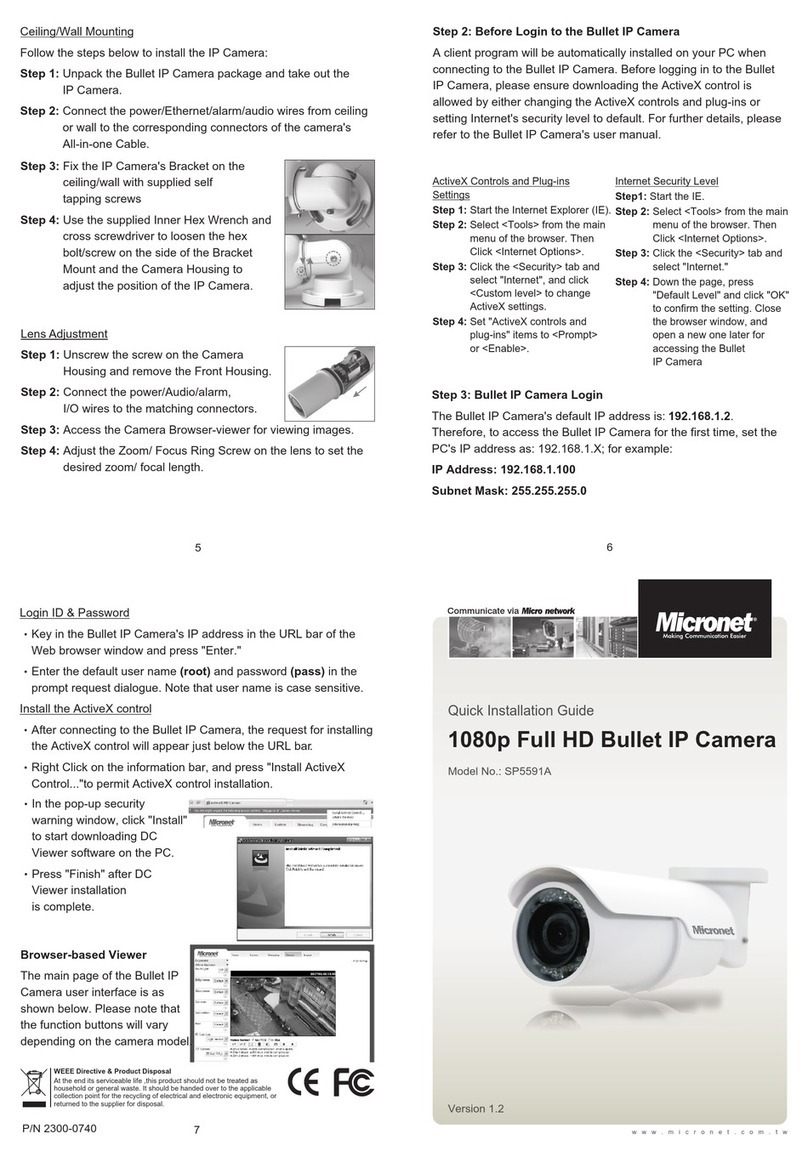
MicroNet SP5591A User manual
MicroNet
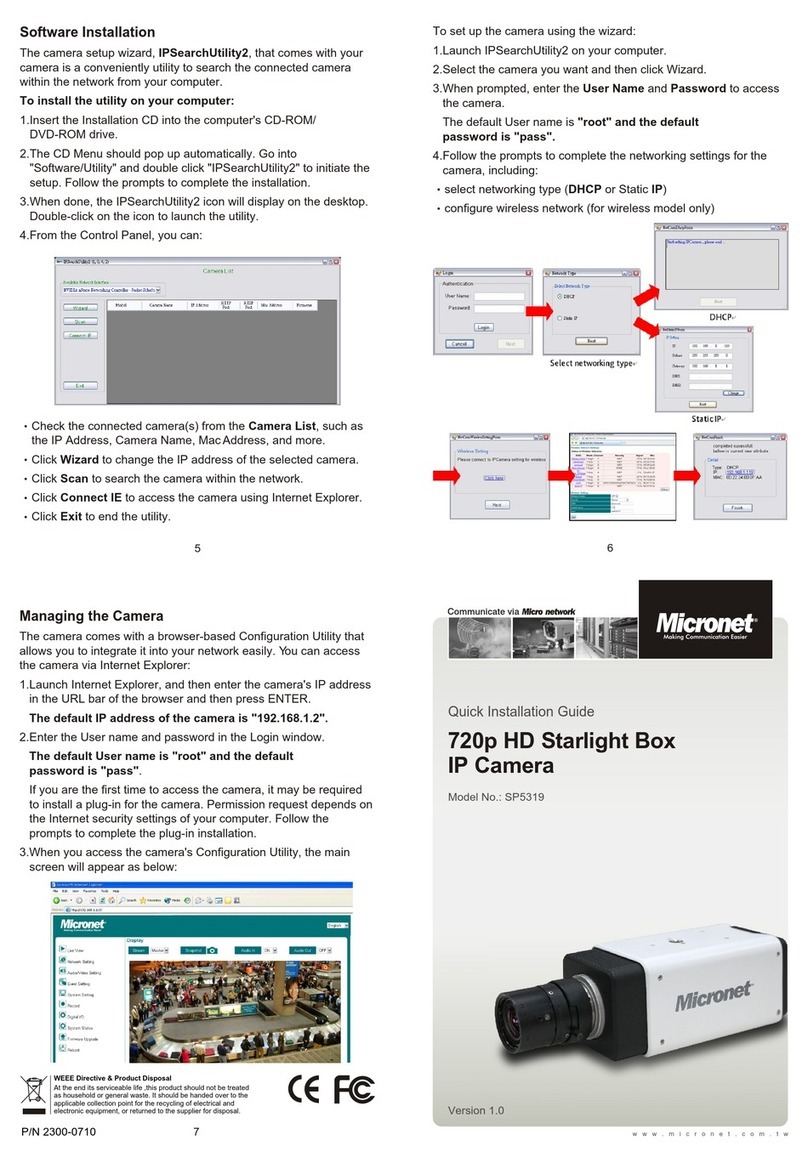
MicroNet SP5319 User manual

MicroNet
MicroNet SP5562HSM User manual

MicroNet
MicroNet SP5923 User manual

MicroNet
MicroNet SP5583HVM User manual
MicroNet
MicroNet SP5319 User manual
MicroNet
MicroNet SP5563R User manual
MicroNet
MicroNet SP5573HDC User manual