manuals.online logo
Brands
  1. Home
  2. •
  3. Brands
  4. •
  5. Microtek
  6. •
  7. Scanner
  8. •
  9. Microtek ScanMaker 9800XL User manual

Microtek ScanMaker 9800XL User manual

Other Microtek Scanner manuals

Microtek Bio-5050 Instruction Manual

Microtek

Microtek Bio-5050 Instruction Manual

Microtek ArtixScan 3200XL User manual

Microtek

Microtek ArtixScan 3200XL User manual

Microtek ArtixScanDI 2015c User manual

Microtek

Microtek ArtixScanDI 2015c User manual

Microtek ScanMaker s430 Instruction Manual

Microtek

Microtek ScanMaker s430 Instruction Manual

Microtek ArtixScan M2 Instruction Manual

Microtek

Microtek ArtixScan M2 Instruction Manual

Microtek ArtixScanDI 5240 User manual

Microtek

Microtek ArtixScanDI 5240 User manual

Microtek ScanMaker 1000XL User manual

Microtek

Microtek ScanMaker 1000XL User manual

Microtek ScanMaker i800 Plus Instruction Manual

Microtek

Microtek ScanMaker i800 Plus Instruction Manual

Microtek ScanMaker 5950 User manual

Microtek

Microtek ScanMaker 5950 User manual

Microtek ScanMaker i280 Owner's manual

Microtek

Microtek ScanMaker i280 Owner's manual

Microtek ScanMaker i460 Instruction Manual

Microtek

Microtek ScanMaker i460 Instruction Manual

Microtek ScanMaker 8700 Pro User manual

Microtek

Microtek ScanMaker 8700 Pro User manual

Microtek ScanMaker 9800XL Plus Instruction Manual

Microtek

Microtek ScanMaker 9800XL Plus Instruction Manual

Microtek SCAN-IN-DEX 1000 User manual

Microtek

Microtek SCAN-IN-DEX 1000 User manual

Microtek ScanMaker s430 Owner's manual

Microtek

Microtek ScanMaker s430 Owner's manual

Microtek ArtixScan 4500t User manual

Microtek

Microtek ArtixScan 4500t User manual

Microtek ScanMaker i450 Owner's manual

Microtek

Microtek ScanMaker i450 Owner's manual

Microtek ArtixScanDI 6240S User manual

Microtek

Microtek ArtixScanDI 6240S User manual

Microtek ArtixScan 2500 User manual

Microtek

Microtek ArtixScan 2500 User manual

Microtek ScanMaker 3800 User manual

Microtek

Microtek ScanMaker 3800 User manual

Microtek ScanMaker s460 Instruction Manual

Microtek

Microtek ScanMaker s460 Instruction Manual

Microtek ScanMaker 1000XL User manual

Microtek

Microtek ScanMaker 1000XL User manual

Microtek ScanMaker 4 User manual

Microtek

Microtek ScanMaker 4 User manual

Microtek ArtixScanDI 3130c User manual

Microtek

Microtek ArtixScanDI 3130c User manual

Popular Scanner manuals by other brands

Radio Shack PRO-433 quick start guide

Radio Shack

Radio Shack PRO-433 quick start guide

Atid AT911N series user guide

Atid

Atid AT911N series user guide

Siemens RUGGEDCOM WiN5100 Faq

Siemens

Siemens RUGGEDCOM WiN5100 Faq

Canon CanoScan LiDE 20 Specifications

Canon

Canon CanoScan LiDE 20 Specifications

Epson 4180 - Perfection Photo Product support bulletin

Epson

Epson 4180 - Perfection Photo Product support bulletin

Radio Shack PRO-72 owner's manual

Radio Shack

Radio Shack PRO-72 owner's manual

Lanier 5622 Operator's guide

Lanier

Lanier 5622 Operator's guide

Faro Freestyle 2 user manual

Faro

Faro Freestyle 2 user manual

Kramer VS-16N user manual

Kramer

Kramer VS-16N user manual

Z/I Imaging PhotoScan 2001 instructions

Z/I Imaging

Z/I Imaging PhotoScan 2001 instructions

Renkforce DS100-5M operating instructions

Renkforce

Renkforce DS100-5M operating instructions

Canon imageFORMULA CR-120N user manual

Canon

Canon imageFORMULA CR-120N user manual

Fujitsu FI-4860C2 Specifications

Fujitsu

Fujitsu FI-4860C2 Specifications

HPc9861a 4400c Setup and support guide

HPc9861a

HPc9861a 4400c Setup and support guide

Kodak i5800 Scanner Brochure & specs

Kodak

Kodak i5800 Scanner Brochure & specs

Kodak i7300 user guide

Kodak

Kodak i7300 user guide

Revopoint POP user manual

Revopoint

Revopoint POP user manual

Fujitsu fi-4860C installation guide

Fujitsu

Fujitsu fi-4860C installation guide

manuals.online logo
manuals.online logoBrands
  • About & Mission
  • Contact us
  • Privacy Policy
  • Terms and Conditions

Copyright 2025 Manuals.Online. All Rights Reserved.

Copyright © 2001 Microtek International, Inc. http://www.microtek.com
I49-00 275 A, December 2001
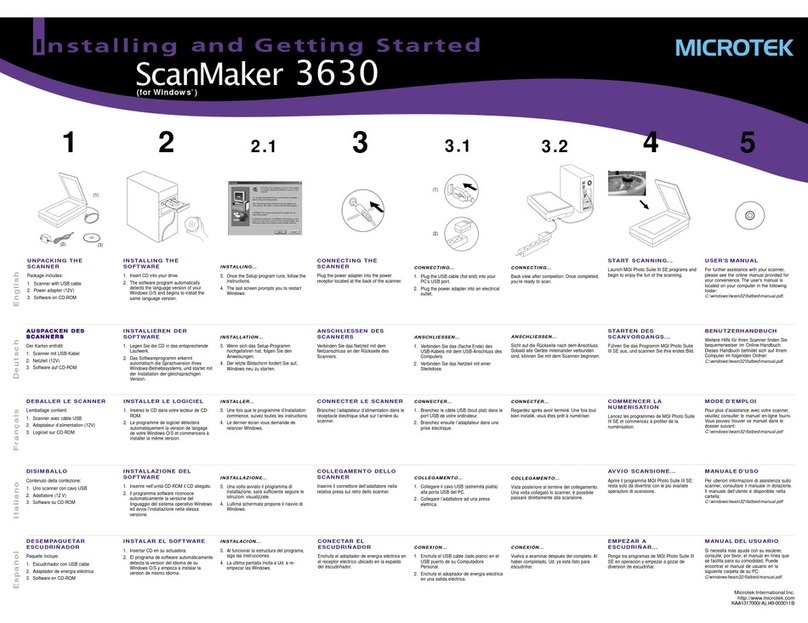
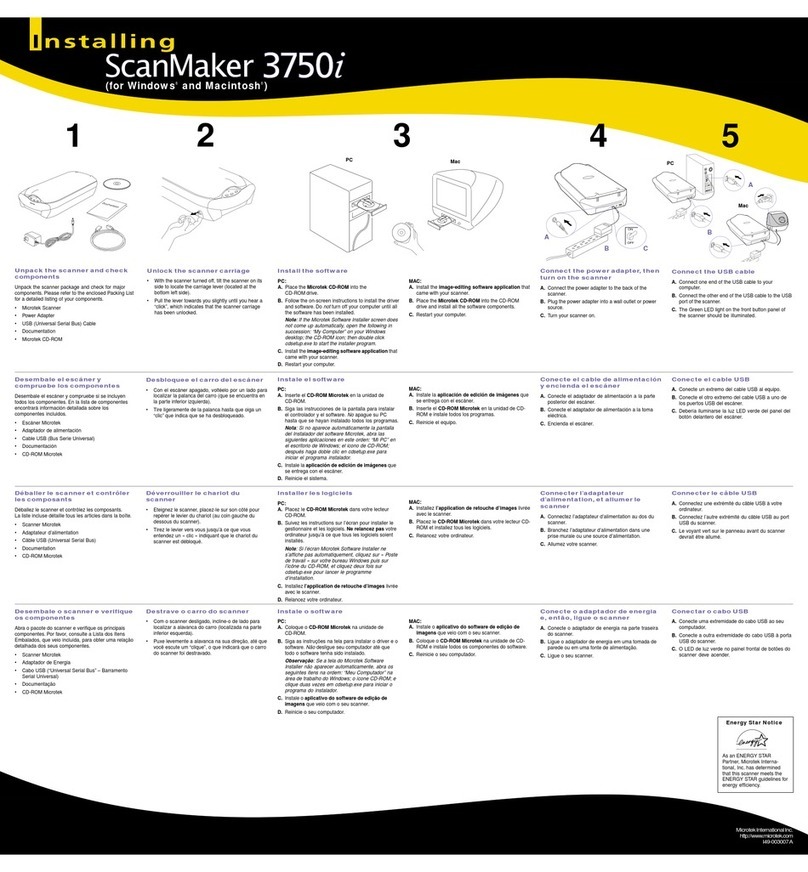
ScanMaker 9800XL
Installing and Getting Started
Contents
Introduction ............................................................................................................... 2
System Requirements............................................................................................... 2
Unpacking the Scanner.............................................................................................
Taking a Closer Look .................................................................................................
Unlocking the Scanner .............................................................................................. 4
Shipping scanner ............................................................................................... 4
Installing the Scanner Software ............................................................................... 5
Connecting the Scanner to Your Computer ............................................................. 6
Using the FireWire cable ................................................................................... 6
Using the SCSI cable ......................................................................................... 8
Using the USB cable .........................................................................................11
Positioning Reflective Originals ............................................................................. 1
Your First Scan ........................................................................................................ 14
Performing Color Calibration ................................................................................. 16
The color calibration target ............................................................................. 16
Before you calibrate......................................................................................... 16
Calibrating your target .................................................................................... 17
Loading a profile .............................................................................................. 18
Specifications .......................................................................................................... 20
Additional Documentation in the CD-ROM ........................................................... 20
Trademarks
Microtek®, ScanMaker®, and
ScanWizardTM Pro are
trademarks or registered
trademarks of Microtek
International, Inc.
Macintosh® and Apple® are
registered trademarks of
Apple Computer, Inc.
Windows® is a registered
trademark of Microsoft
Corporation. All other
products or name brands
are trademarks of their
respective holders.
Important
Documents you scan may
be protected under
copyright law. The
unauthorized use of such
documents could be a
violation of the rights of the
copyright holder. Microtek
bears no responsibility for
the unauthorized use of
copyrighted materials.

2 ScanMaker 9800XL Installing and Getting Started
This document provides information on ho to install the
ScanMaker 9800XL flatbed color scanner and perform basic
image scanning procedures.
Introduction
The ScanMaker 9800XL is a 48-bit color flatbed scanner that supports tabloid-sized
(A3 or B-size) scanning for corporate users or designers. This scanner scans images
up to 12"x 17"at an optical resolution of 1600 x 3200 dpi (12800 x 12800 dpi
interpolated).
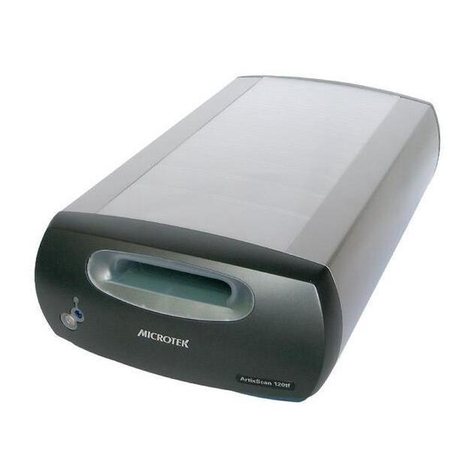
The ScanMaker 9800XL
provides three built-in interfaces
(FireWire, USB, and SCSI), and
allows you to choose any of the
three interfaces to digitize image
originals.
System Requirements
• 128MB RAM or more recommended
• CD-ROM drive (for installing software)
• Color display with 24-bit color output capability
FireWire
• PC - Pentium II or later with built-in FireWire port
- Windows 98 SE, 2000, Me, or XP
• Mac - iMac DV or new G3/G4 with built-in FireWire support
- Mac OS 9.x
USB
• PC - Pentium PC or later with USB port
- Windows 98, 2000, Me, or XP
• Mac - iMac or G3/G4 with built-in USB port
- Mac OS 8.6 through 9.x
SCSI
• PC - Pentium PC or later
- Windows 95, 98, 2000, Me, XP, or NT 4.0
• Mac - Power PC class or later with ASPI compliant SCSI port
- Mac OS 8.5 through 9.x
ScanMaker 9800XL Installing and Getting Started
Accessory port
Terminator switch FireWire ports (2)
SCSI ID switch
Power port
USB port (1)
Power switch
SCSI port (1)
Taking a Closer Look
Unpacking the Scanner
Open your scanner package and check the components as stated in your packing list.
If any component is missing, call Microtek Customer Service.
• ScanMaker 9800XL unit
• FireWire card
• FireWire cable
• USB cable
• Kodak Q-60R1 color target (Reflective)
• Documentation- includes ScanMaker 9800XL Installing and Getting Started,
ScanWizard Pro User's Guide, ScanWizard Pro Quick Reference, Unlock card,
and other inserts.
Scanner lid
2
1
0
456
65421
READY indicator (Green)
POWER indicator (Orange)
Horizontal ruler
Vertical ruler
4 ScanMaker 9800XL Installing and Getting Started
Unlocking the Scanner
Your scanner has a locking screw to protect the scanner carriage mechanism during
shipping. Before you operate the scanner, you need to disengage the locking screw.
1. Turn the scanner on its side and locate the
locking screw at the bottom of the scanner.
2. Using a flathead screwdriver, turn the locking
screw counterclockwise until the screw pushes
out and is flush with the bottom of the scanner
base.
Shipping scanner
If you have to transport the scanner, the scanner must be locked. To lock the scanner,
follow the steps below:
1. Turn off the scanner if your scanner is on.
2. Set the SCSI ID number to “9”.
3. Turn on your scanner. The scanner's carriage
will move to standby position in 5 minutes.
4. When the indicators on the front of your scanner
stop blinking, turn the locking screw clockwise
one-fourth turn while pushing it in
simultaneously. The screw should stay in and not
pop back out.
5. Turn off your scanner. The scanner is now ready for transport.
Note:
To use the scanner again at a future time, be sure to reset the SCSI ID to its
original number prior to step #2. Otherwise, the scanner ID will be left at SCSI ID 9
and will not work.
Lock
Unlock
ScanMaker 9800XL Installing and Getting Started 5
*Caution:
For Macintosh users,
1. Make sure the additional software you have is already installed in your
computer before installing the scanner software.
2. Make sure that all virus protection software is turned off before installing the
scanner software. Once the scanner software installation is finished, remember
to re-enable the virus protection software.
3. For iMac users, please visit Apple's website at http://www.apple.com/imac/
to download and install any iMac updates you may require.
Installing the Scanner Soft are
Before connecting the scanner to your computer, follow the steps below to install the
scanner software:
1. Turn on your computer.
2. Insert the Microtek CD-ROM into your CD-ROM drive.
For Macintosh users:*
When the Microtek CD-ROM icon appears on your Macintosh desktop, double-
click on this icon to open it. The software installer screen should appear, and click
each software program on the screen to install all the software components.
Double-click the “Install” icon on each folder to install the respective programs
one at a time.
For PC users:
The Microtek Scanner Software installer screen should automatically come up.
When the software installer screen appears, click each software program in the
order that it appears on the screen to install all the software components.
When you install ScanWizard Pro, the installer program will install the Color
Matching driver program and ask you to perform Color Matching for your
monitor and printer. The Color Matching feature ensures color consistency from
the initial input phase when an image is captured by the scanner, to the final
output process when the image is output to your monitor or printer.
Note:
If the software installer screen does not come up automatically, double-
click the following in succession: “My Computer” on your Windows desktop; the
CD-ROM icon; and then cdsetup.exe to start the installer program.
3. Restart your computer when the software installation is complete.
6 ScanMaker 9800XL Installing and Getting Started
Connecting the Scanner to Your Computer
The ScanMaker 9800XL comes with three built-in interfaces: FireWire, USB, and
SCSI. You may choose any of the three interfaces to make the connection between
the scanner and computer. (You should use only one interface at a time.)
Using the FireWire cable
Before connecting the scanner, check to see if your computer system is FireWire-
ready. FireWire-ready means you can connect the scanner to your computer using a
provided FireWire cable.
System is FireWire-ready
• For Macintosh users, your computer should have been equipped with a built-in
FireWire port. This port should be designated with the FireWire symbol shown to
the left.
• For PC users, the FireWire card should be installed and work properly in your
computer.
System is Not FireWire-ready
If your system is not FireWire-ready, you will need to install a FireWire card. For
more details on how to install the FireWire card, please refer to the “FireWire
Installation Guide” on a separate documentation included with your scanner
package. Alternatively, you can use the USB or SCSI interface to connect your
scanner.
For FireWire-ready systems:
Follow the steps below to make the FireWire connection.
1. Connect the power cord to your scanner.
Plug the power cord into the back of the scanner, and plug the other end into a
power source (power surge protector highly recommended). Make sure no other
cable is connected to the scanner except the power cord at this point.
ScanMaker 9800XL Installing and Getting Started 7
2. Connect the scanner to your computer, using the provided FireWire cable.
Connect one end of the FireWire cable to your computer’s FireWire port, and
connect the other end of the cable to the scanner’s FireWire port.
3. Turn the scanner's power switch to “On”, and wait for the green light on the
scanner's front panel to stop blinking and stay on steady.
The latest Macintosh
computers (i.e., G ,
G4, etc.) are
equipped with a
built-in FireWire port,
usually labeled with
the “ ” logo.
For Macintosh users
For PC users
4. Your system will detect the scanner automatically.
8 ScanMaker 9800XL Installing and Getting Started
Using the SCSI cable
Before connecting the scanner, check to see if your computer system has a built-in
SCSI interface or an installed SCSI card. If you need help on installing the SCSI
card, please refer to the “SCSI Installation Guide” on a separate documentation
included with your scanner package, or refer to the documentation that came with the
SCSI card.
Follow the steps below to make a SCSI connection.
1. Shut down your computer.
2. Set the SCSI ID number to 6. If the SCSI ID number 6 is used by another SCSI
device, check which SCSI ID is free, and set the number to a free SCSI ID.
Push the minus button (-)
above the SCSI ID number
to decrease the number;
push the plus button (+) to
increase the number.
3. Connect the scanner to your computer, using the SCSI cable.
Connect one end of the SCSI cable to your computer’s SCSI port, and connect the
other end of the cable to the scanner’s SCSI port.
For Macintosh users
ScanMaker 9800XL Installing and Getting Started 9
4. Set the scanner’s terminator switch to the “ON” position.
For PC users
Note:
If you have multiple devices on your SCSI chain, make sure the scanner
is the last device on the chain and that the scanner is terminated (i.e., scanner's
terminator switch is set to ON).
10 ScanMaker 9800XL Installing and Getting Started
5. Connect the power cord to your scanner.
Plug the power cord into the back of the scanner, and plug the other end into a
power source (power surge protector highly recommended).
6. Turn the scanner's power switch to “On”, and wait for the green light on the
scanner's front panel to stop blinking and stay on steady.
7. Turn on your computer; the system will detect the scanner automatically.