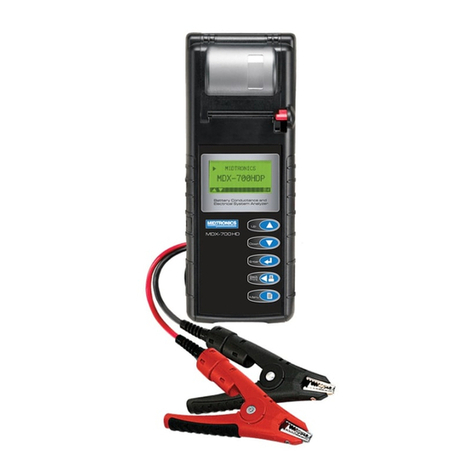
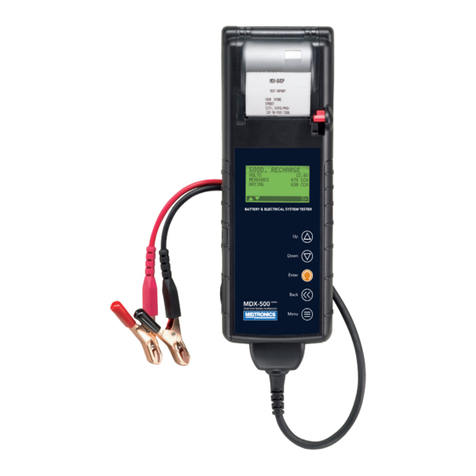
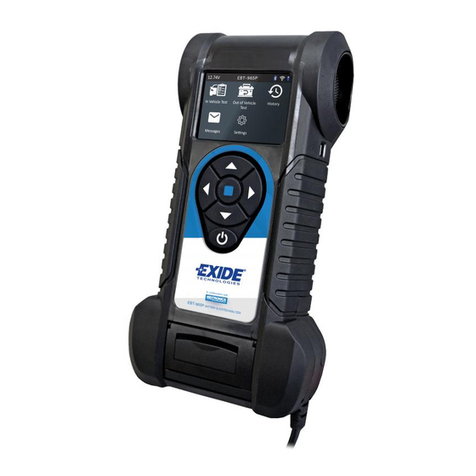
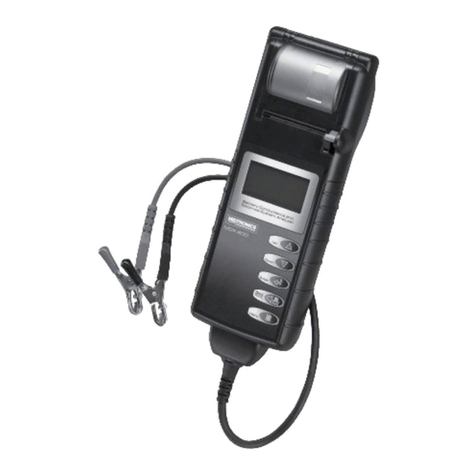
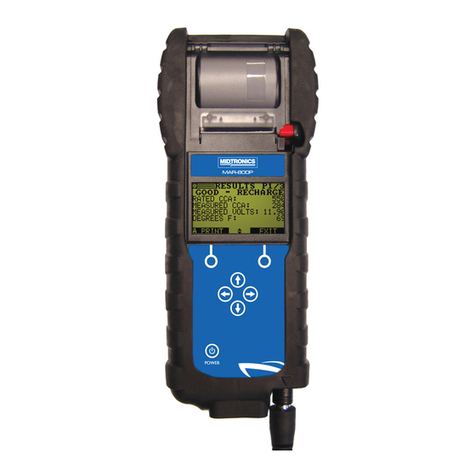
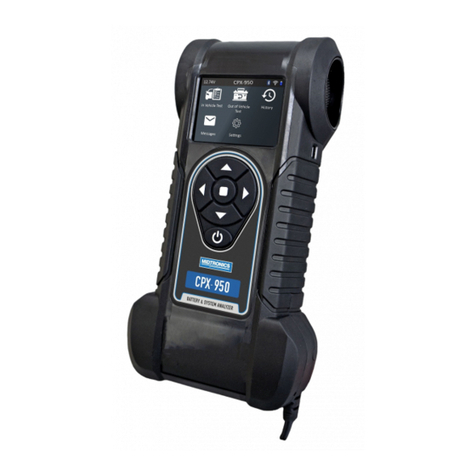
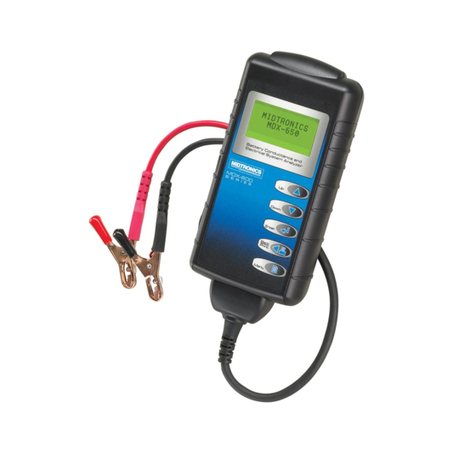
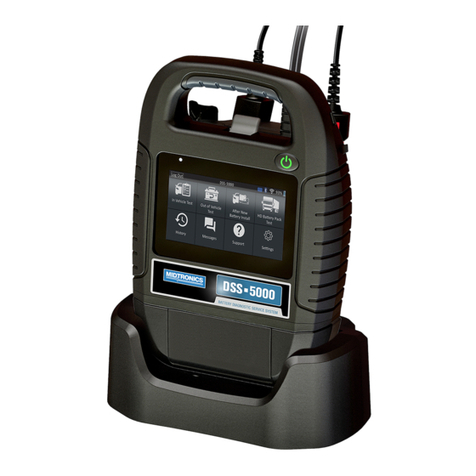
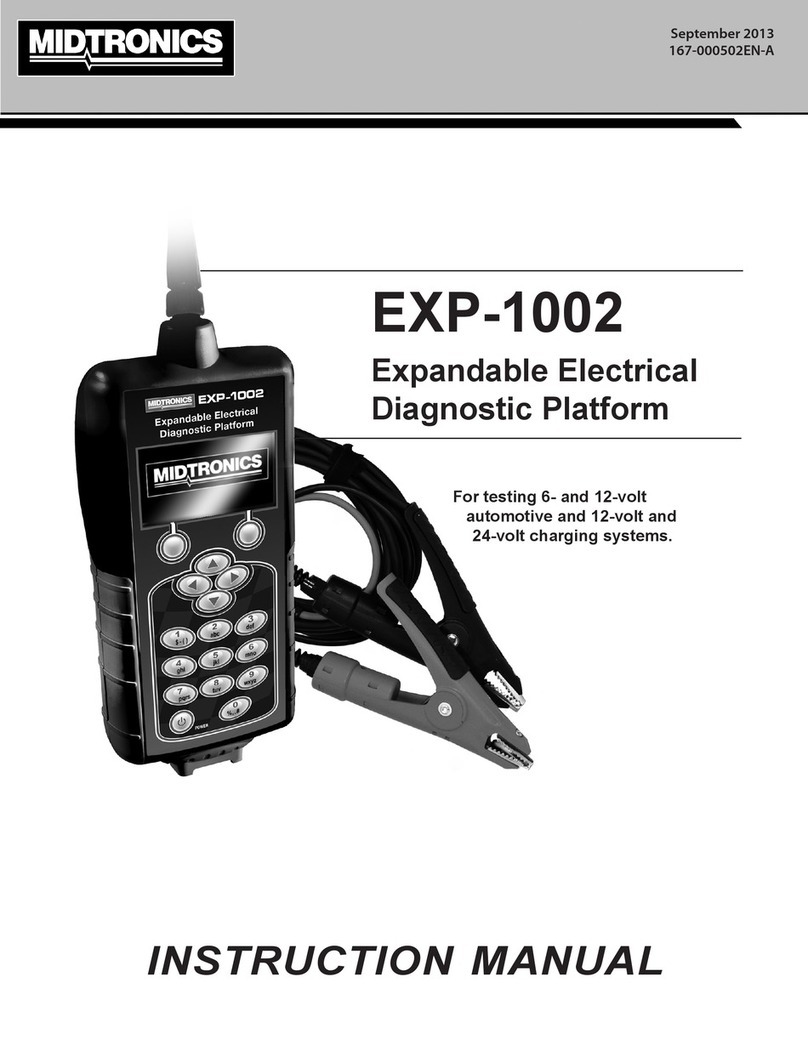
Display and Keypad
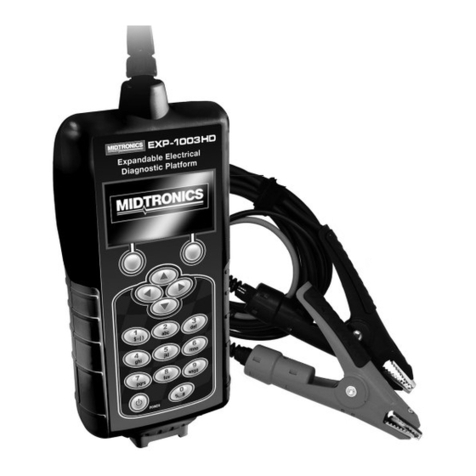
The analyzer keypad and display work together to help you quickly nd and use the right tools at the right
time. The display also keeps you on track with on-screen navigation aids, directions, and messages. The
illustration below shows how the elements on the screen relate to the keypad.
Status Indicator: EXP Internal Batteries
This indicator appears in the screen’s top left
corner. It lets you know the status and charge
level of the analyzer’s six 1.5 volt batteries.
The X in the indicator shows that the EXP is
powered by the battery you are testing, a fea-
ture which conserves the internal batteries.
Voltmeter
When you rst connect the analyzer to a bat-
tery it functions as a voltmeter. The voltage
reading appears above the left soft key until
you move to other menus or functions.
Soft Keys
Press the two Soft Keys linked to the bot-
tom of the screen to perform the functions
displayed above them. The functions change
depending on the menu or test process. So it
may be helpful to think of the words appear-
ing above them as part of the keys. Some
of the more common soft-key functions are
SELECT, BACK, and EXIT.
POWER Button
Press the POWER button to turn the analyzer
on and off. The analyzer also turns on auto-
matically when you connect its test leads to a
battery.
Title Bar
The Title Bar shows you the name of the cur-
rent menu, test tool, utility, or function.
Selection Area
The Selection Area below the Title Bar con-
tains items you select or into which you enter
information. The area also displays instruc-
tions and warnings.
Directional Arrows
When displayed in menu screens, the Direc-
tional Arrows show you which ARROW key
on the keypad to press to display other icons
or screens. The Up and Down Directional Ar-
rows, for example, let you know when to press
the UP and DOWN ARROW keys to display
the screens above and below the current
screen.
The Left and Right Directional Arrows tell you
when to use the LEFT or RIGHT ARROW
keys to select an icon.
Chapter 2: Overview