Mini Gadgets WIFIWALLCLOCK User manual
Other Mini Gadgets Clock manuals
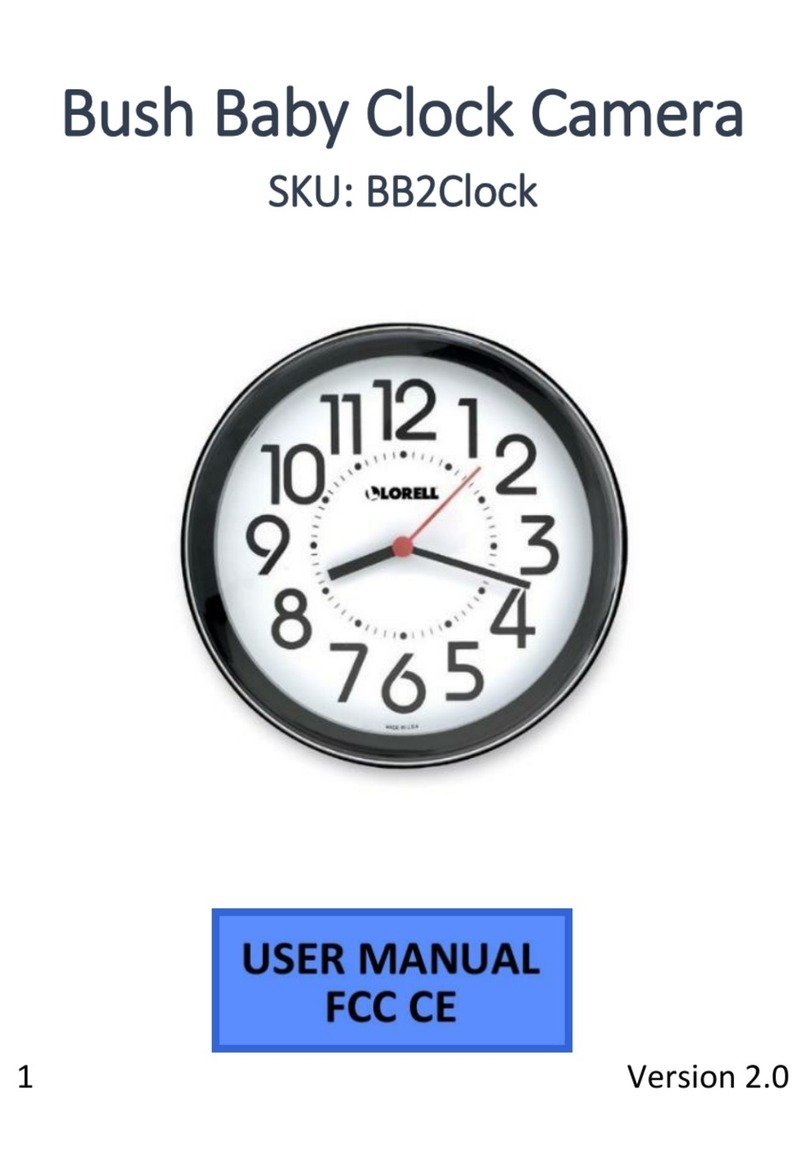
Mini Gadgets
Mini Gadgets BB2Clock User manual

Mini Gadgets
Mini Gadgets MCC1080NV User manual

Mini Gadgets
Mini Gadgets HCClockToon User manual
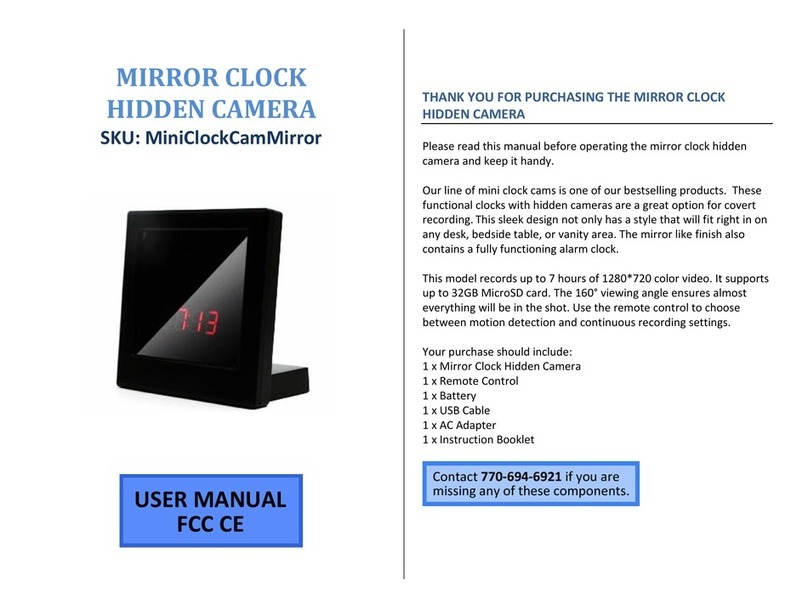
Mini Gadgets
Mini Gadgets MiniClockCamMirror User manual
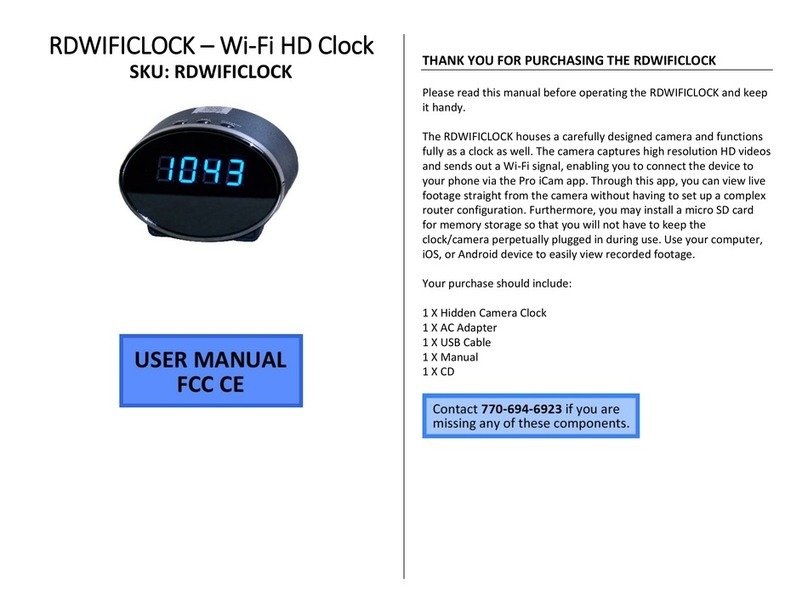
Mini Gadgets
Mini Gadgets RDWIFICLOCK User manual

Mini Gadgets
Mini Gadgets MiniClockCamHD User manual

Mini Gadgets
Mini Gadgets BBSBLUETOOTHCLOCK User manual
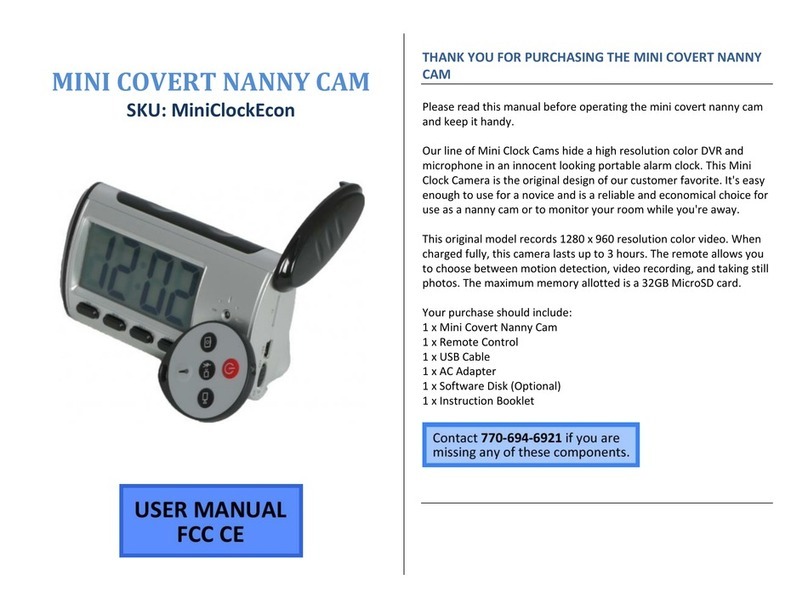
Mini Gadgets
Mini Gadgets MiniClockEcon User manual
Mini Gadgets
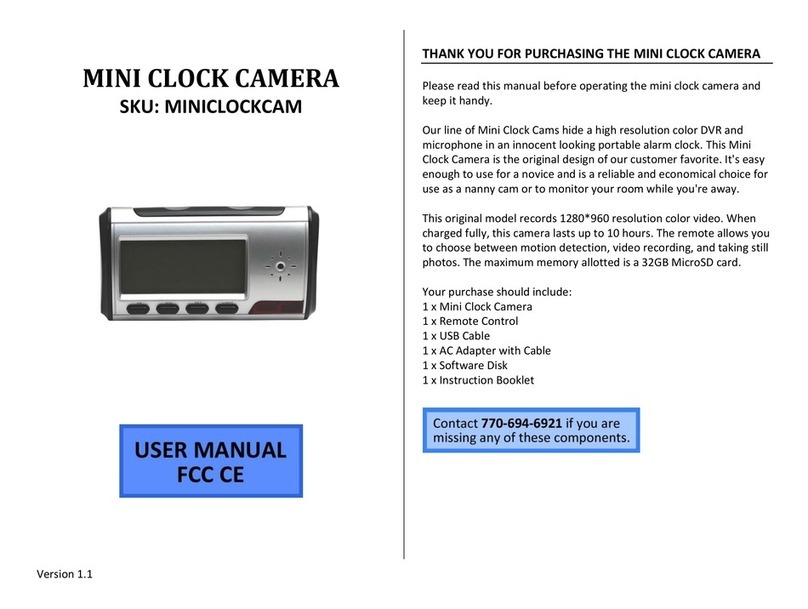
Mini Gadgets MINICLOCKCAM User manual
Mini Gadgets
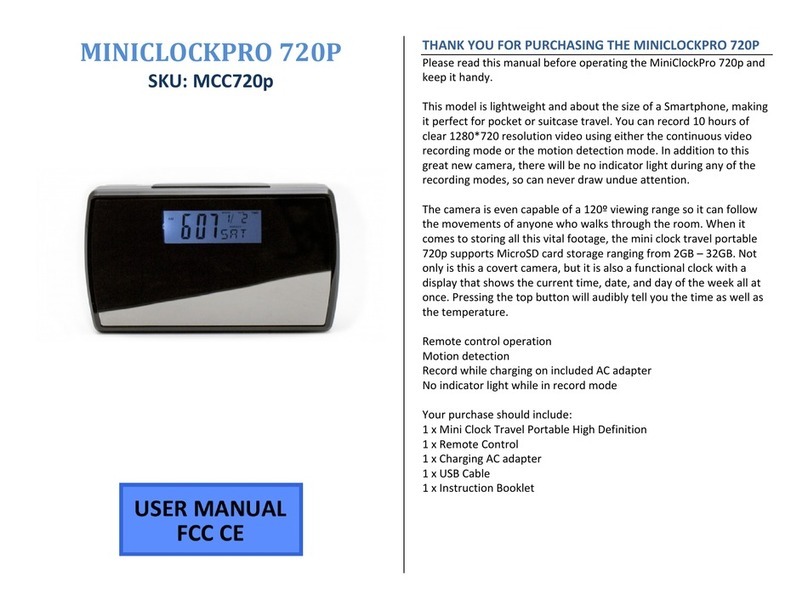
Mini Gadgets MiniClockPro 720p User manual



Popular Clock manuals by other brands

Silicon Laboratories
Silicon Laboratories SI5324 manual
Heathkit
Heathkit GC-1005 Assembly manual
Oregon Scientific
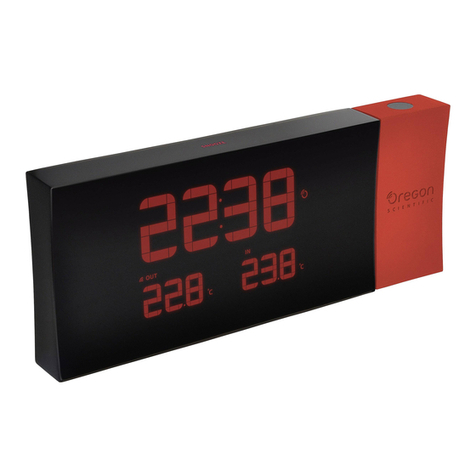
Oregon Scientific PRYSMA RMR221P manual
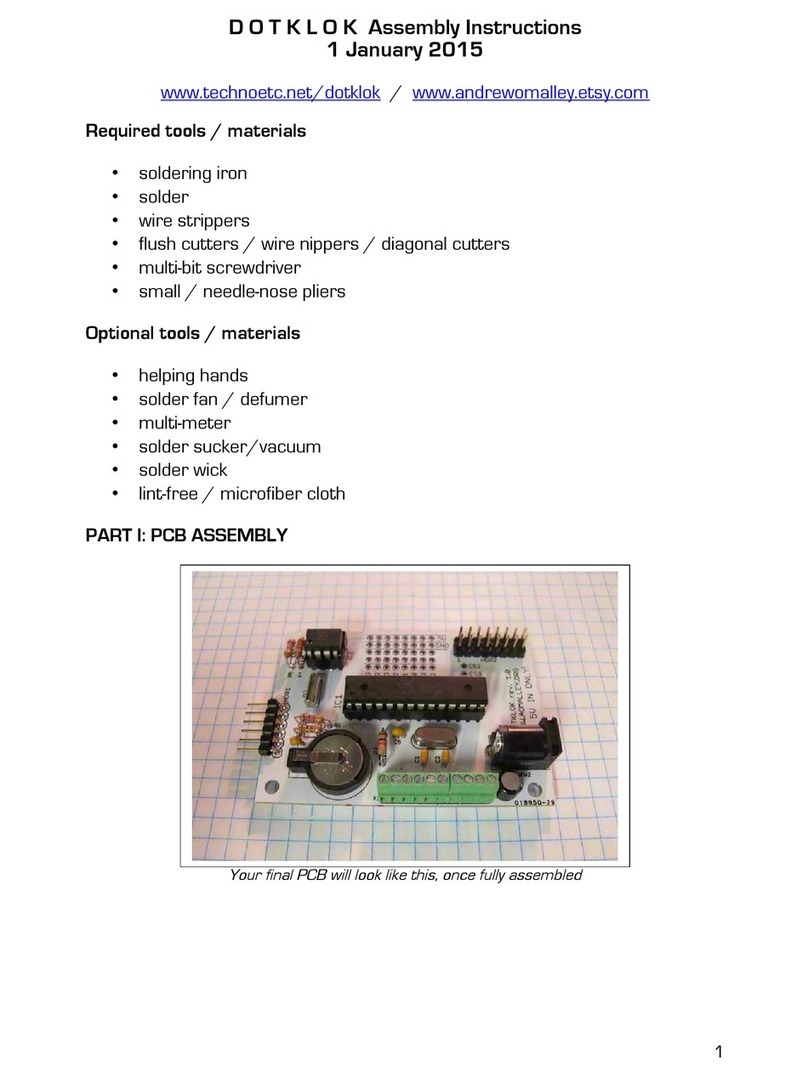
Andrew O'Malley
Andrew O'Malley DOTKLOK Assembly instructions
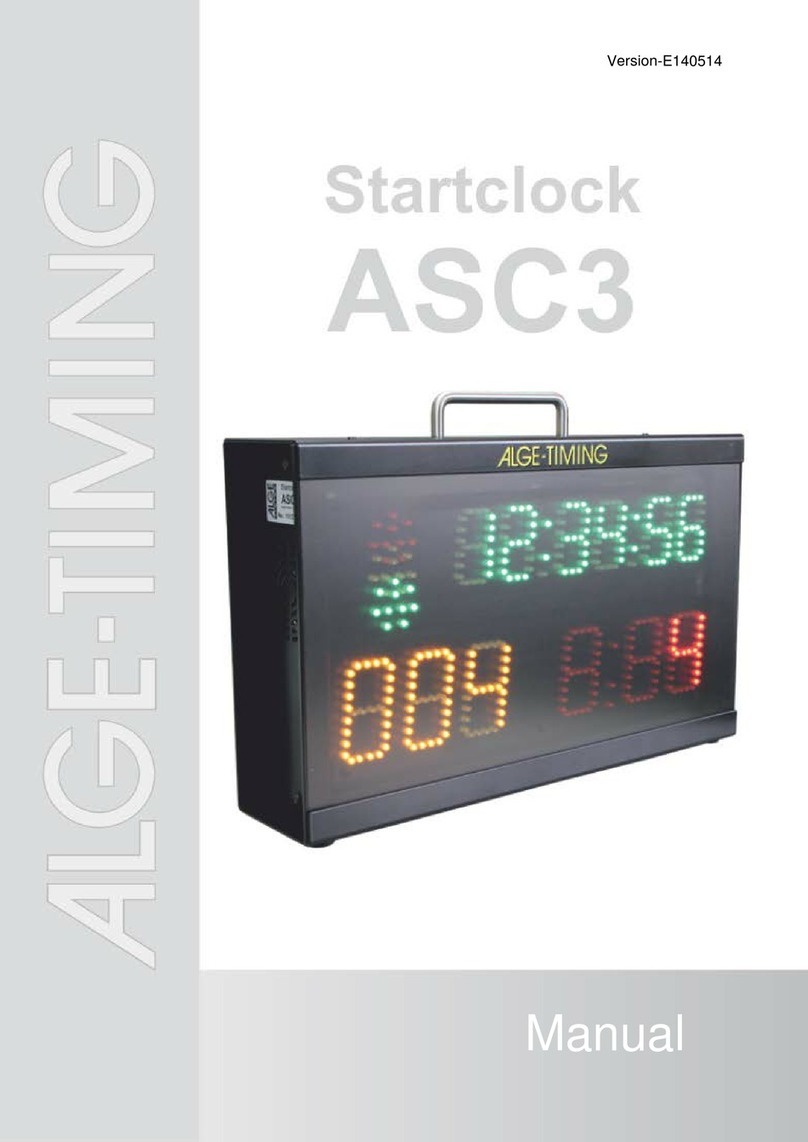
ALGE-Timing
ALGE-Timing ASC3 manual

Bodet
Bodet Profil 960 Installation and operating instructions