manuals.online logo
Brands
  1. Home
  2. •
  3. Brands
  4. •
  5. Mixx
  6. •
  7. Watch
  8. •
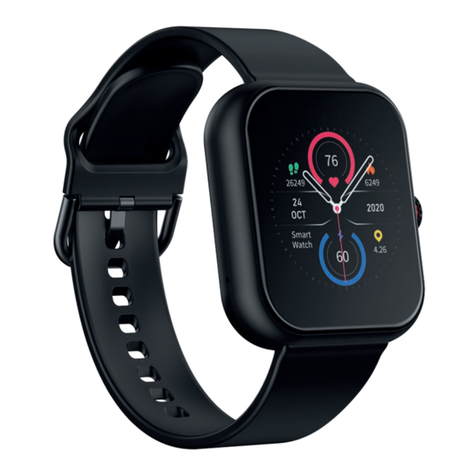
  9. Mixx WatchCore Administrator Guide

Mixx WatchCore Administrator Guide

Other Mixx Watch manuals

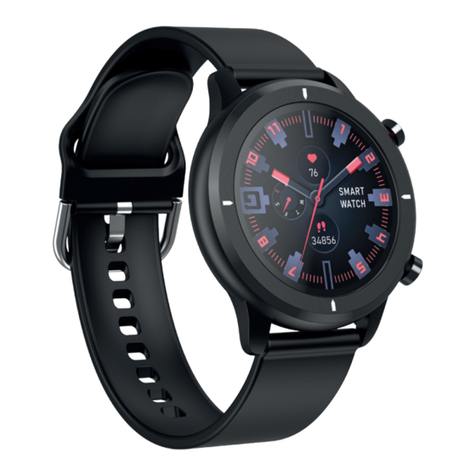
Mixx F3 Administrator Guide

Mixx

Mixx F3 Administrator Guide

Mixx I Series Administrator Guide

Mixx

Mixx I Series Administrator Guide

Mixx S1 User manual

Mixx

Mixx S1 User manual

Mixx F2 Administrator Guide

Mixx

Mixx F2 Administrator Guide

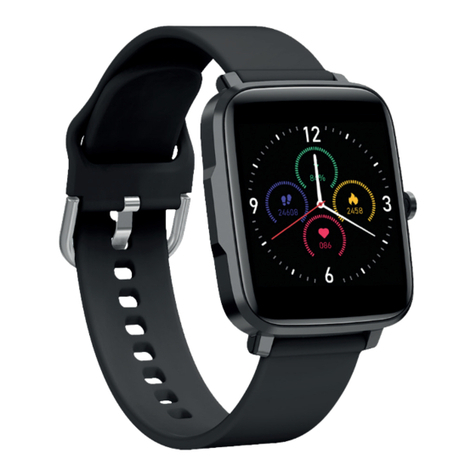
Mixx WatchS Administrator Guide

Mixx

Mixx WatchS Administrator Guide

Mixx Watch2 Administrator Guide

Mixx

Mixx Watch2 Administrator Guide

Popular Watch manuals by other brands

Casio QW 5513 Operation guide

Casio

Casio QW 5513 Operation guide

Piaget 560P Instructions for use

Piaget

Piaget 560P Instructions for use

Armitron pro sport MD0346 instruction manual

Armitron

Armitron pro sport MD0346 instruction manual

West Marine BlackTip 13411293 Instruction Booklet and Care Guide

West Marine

West Marine BlackTip 13411293 Instruction Booklet and Care Guide

Jaeger-leCoultre HYBRIS MECHANICA CALIBRE 184 manual

Jaeger-leCoultre

Jaeger-leCoultre HYBRIS MECHANICA CALIBRE 184 manual

FOREVER iGO PRO JW-200 user manual

FOREVER

FOREVER iGO PRO JW-200 user manual

Relic OS10 quick start guide

Relic

Relic OS10 quick start guide

MyKronoz ZeClock manual

MyKronoz

MyKronoz ZeClock manual

Casio QW-782 General guide

Casio

Casio QW-782 General guide

Strikes and Spares SASM80 E-manual

Strikes and Spares

Strikes and Spares SASM80 E-manual

Christopher Ward C1000 Owner's handbook

Christopher Ward

Christopher Ward C1000 Owner's handbook

Lotus ILMFS01 instruction manual

Lotus

Lotus ILMFS01 instruction manual

Chronos Manufactures Chrono Diamond Thyrso 10400 instruction manual

Chronos Manufactures

Chronos Manufactures Chrono Diamond Thyrso 10400 instruction manual

Pandora WATCH2 quick guide

Pandora

Pandora WATCH2 quick guide

Suunto X6 user guide

Suunto

Suunto X6 user guide

Seiko N830 instruction manual

Seiko

Seiko N830 instruction manual

MotionX 365 user guide

MotionX

MotionX 365 user guide

Aplus GV18 user guide

Aplus

Aplus GV18 user guide

manuals.online logo
manuals.online logoBrands
  • About & Mission
  • Contact us
  • Privacy Policy
  • Terms and Conditions

Copyright 2025 Manuals.Online. All Rights Reserved.

WatchCore
Full Touch Colour Screen
HOW TO GUIDE
SMARTWATCH
R
THANKS!
Thank you for choosing to buy our MIXX Watch Core.
All products brought to you by MIXX Limited come
with a 2 year warranty for peace of mind.
Feedback is welcome, email us on [email protected]
for any comments or queries.
IMPORTANT!
Make sure Bluetooth is switched on, on your phone, but
please DO NOT pair the Watch Core using the Bluetooth
settings on your phone. You need to pair the watch with
your phone using the FREE Wofit App.
Please scan the QR Code or enter URL
bit.ly/WoFit_download to install the
FREE WoFit App
on your phone.
WoFit supports iOS 9.0 or later, and Android 4.4 or later.
We hope you enjoy using your Watch Core.
SMARTWATCH
R
LET’S START 1
LET’S STAY CHARGED 3
LET’S POWER 3
LET’S INSTALL THE APP 4
LET’S PAIR THE APP TO YOUR WATCH 5
LET’S LINK TO 6
LET’S LINK TO 6
LET’S CHANGE THE WATCH STRAP 7
LET’S ADJUST THE SCREEN 7
LET’S PLAY 8
LET’S VIEW TECHNICAL SPECS 16
LET’S RECYCLE 16
CONTACT MIXX 16
LET’S BE SAFE 17
NEED EXTRA HELP? 18
EXEMPTION NOTES 19
WARRANTY NOTES 19
CONTENTS
THANKS!
Thank you for choosing to buy our MIXX Watch Core.
All products brought to you by MIXX Limited come
with a 2 year warranty for peace of mind.
Feedback is welcome, email us on [email protected]
for any comments or queries.
IMPORTANT!
Make sure Bluetooth is switched on, on your phone, but
please DO NOT pair the Watch Core using the Bluetooth
settings on your phone. You need to pair the watch with
your phone using the FREE Wofit App.
Please scan the QR Code or enter URL
bit.ly/WoFit_download to install the
FREE WoFit App
on your phone.
WoFit supports iOS 9.0 or later, and Android 4.4 or later.
We hope you enjoy using your Watch Core.
LET’S START
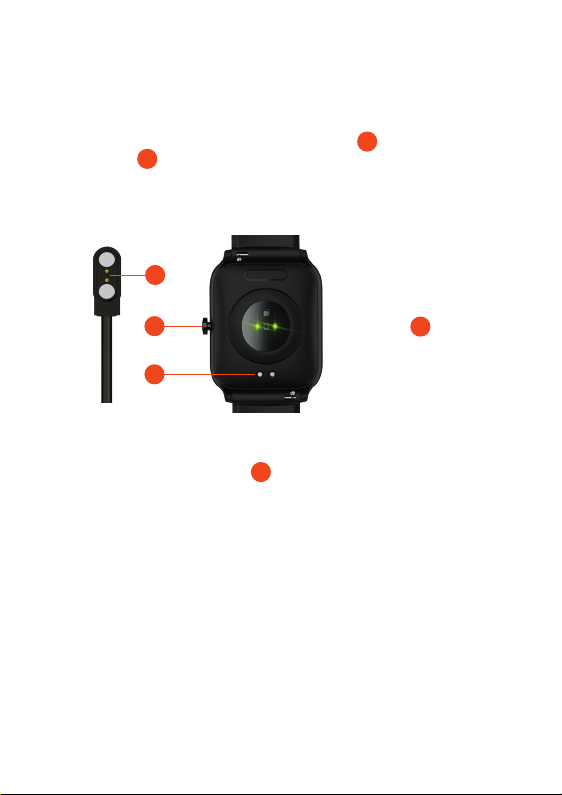
What’s in the box?
A MIXX Watch Core
1 2
Multi-touch Screen
Home Screen (one press) / Power Button (press & hold)
Watch Strap
SmartWatch Sensors
x 2 Strap pins
Charging connectors
Magnetic USB Charger
1
2
3
4
5
6
7
1
2
3
1 2
Multi-touch Screen
Home Screen (one press) / Power Button (press & hold)
Watch Strap
SmartWatch Sensors
x 2 Strap pins
Charging connectors
Magnetic USB Charger
7
6
5
5
4
TANT: Make sure Bluetooth is switched on, on your phone, but please
T pair the Watch Core using the Bluetooth settings on your phone. You
o pair the Watch Core with your phone using the FREE Wofit App:
Scan the QR Code (right) with your smartphone
download the free WoFit App. (*)
Tap the WoFit icon to install the App
tap to open.
Follow the on-screen instructions to register
and to set-up an account.
Login to the App and follow the on-screen instructions.
, find the QR code on your watch:
After turning your watch on for the first time (Let’s Power: Page 3)
and selecting your chosen language, you are then given the option
‘Scan code pairing’. On selecting this option on your watch, you are
shown a QR code which can be scanned using your smartphone to
download the WoFit App. Then follow steps 2-4 above.
e: The WoFit APP supports iOS 9.0 or later, Android 4.4 or
er and Bluetooth 5.0.
ou require Android 4.4 or Apple iOS 9.0 and later to pair with this App.
y one smartphone can be paired to the Watch Core. To pair other
e phones, please unbind the current phone before pairing.
3 4
’S INSTALL THE APP
The Watch Core will need to be charged before using it for the first time.
Connect the charge pins on the Magnetic USB Charger [7] to the charging
connectors [6] on the back of the watch. You will see the charging icon on the
watch screen display for 5 seconds.
It will take up to 2 hours to fully charge this watch and then a
battery icon will show.
7
IMPORTANT!
Please ensure the
Watch Core is dry before
charging.
Regularly clean charge
connectors [6] with
a dry cloth to ensure
there are no problems
charging.
6
LET’S STAY CHARGED
7
6
26
LET’S POWER
Press and hold the Power Button [2] for 5 seconds to turn the watch on.
When the Watch Core turns on for the first time, it will give you a choice of
languages to choose from. Use your finger on the touch screen to swipe up/
down and select your chosen language by tapping the tick icon.
You can then scan a QR code to download the WoFit App (see page 4), or skip
this option by selecting ‘Jump over’ to go into ‘Stand-alone’ mode. ‘Stand-
alone mode’ allows the watch to be used without the App and therefore will
need functions like time and date to be set up manually.
We recommend using the watch paired with the App so that you can record
your data and get a clear break-down of all your activities. Once your watch is
turned on and your chosen language is selected, we recommend you follow
the next step to install the FREE WoFit App (Let’s Install The App: Page 4).
2

IMPORTANT: Make sure Bluetooth is switched on, on your phone, but please
DO NOT pair the Watch Core using the Bluetooth settings on your phone. You
need to pair the Watch Core with your phone using the FREE Wofit App:
1. Scan the QR Code (right) with your smartphone
to download the free WoFit App. (*)
2. Tap the WoFit icon to install the App
and then tap to open.
3. Follow the on-screen instructions to register
and to set-up an account.
4. Login to the App and follow the on-screen instructions.
* Or, find the QR code on your watch:
1. After turning your watch on for the first time (Let’s Power: Page 3)
and selecting your chosen language, you are then given the option
‘Scan code pairing’. On selecting this option on your watch, you are
shown a QR code which can be scanned using your smartphone to
download the WoFit App. Then follow steps 2-4 above.
Note: The WoFit APP supports iOS 9.0 or later, Android 4.4 or
later and Bluetooth 5.0.
You require Android 4.4 or Apple iOS 9.0 and later to pair with this App.
Only one smartphone can be paired to the Watch Core. To pair other
mobile phones, please unbind the current phone before pairing.
3 4
LET’S INSTALL THE APP
The Watch Core will need to be charged before using it for the first time.
Connect the charge pins on the Magnetic USB Charger [7] to the charging
connectors [6] on the back of the watch. You will see the charging icon on the
watch screen display for 5 seconds.
It will take up to 2 hours to fully charge this watch and then a
battery icon will show.
IMPORTANT!
Please ensure the
Watch Core is dry before
charging.
Regularly clean charge
connectors [6] with
a dry cloth to ensure
there are no problems
charging.
LET’S POWER
5 6
LET’S PAIR THE APP TO YOUR WATCH
IMPORTANT!
Please install and open the App on your phone, then follow the
instructions below as numbered:
1. In the App, tap the device icon to open the device screen.
2. Tap ‘Add new device’ to find the Watch Core in device list.
3. Accept the App instructions for location permission.
4. Select ‘MIXX WatchCore’on your phone.
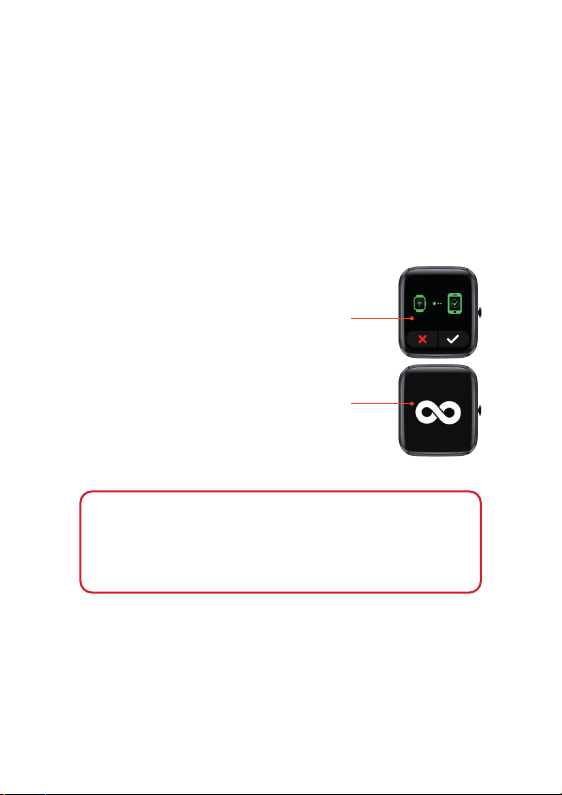
On your watch screen, you should now see a
graphic to confirm the device pairing.
Tap the tick to confirm.
5. Once paired you will see an infinity symbol on
your Watch Core screen. You should now be
successfully paired with your Watch Core.
NOTE: Please DO NOT try to pair your MIXX Watch Core using
the Bluetooth settings on your phone directly.Unpair with your
phone’s Bluetooth settings and start from the ‘IMPORTANT!’
message above to pair with the FREE WoFit App.
To UNBIND, tap the device icon, select your device and choose
Cancel pairing from the bottom of the list of options.
ET’S LINK TO...
Open the WoFit app
Tap the ‘Mine’ icon to reveal your settings.
Select ‘Connect via 3rd Party Platform platform’.
Select connect to ’Apple Health’.
Open your Apple Health app and tap your profile picture.
In your Apple Health profile select: Apps in your privacy settings.
Select ‘WoFit’ from the list.
Finally, activate the categories that you want WoFit to track.
ET’S LINK TO...
Open the WoFit app
Tap the ‘Mine’ icon to reveal your settings.
Select ‘Connect via 3rd Party Platform platform’.
Select connect to ’Google Fit’.
Choose a Google account to connect your WoFit app.
Allow WoFit to access your Google account
WoFit is now connected to your Google Fit app.
5 6
LET’S PAIR THE APP TO YOUR WATCH
IMPORTANT!
Please install and open the App on your phone, then follow the
instructions below as numbered:
1. In the App, tap the device icon to open the device screen.
2. Tap ‘Add new device’ to find the Watch Core in device list.
3. Accept the App instructions for location permission.
4. Select ‘MIXX WatchCore’on your phone.
On your watch screen, you should now see a
graphic to confirm the device pairing.
Tap the tick to confirm.
5. Once paired you will see an infinity symbol on
your Watch Core screen. You should now be
successfully paired with your Watch Core.
To UNBIND, tap the device icon, select your device and choose
Cancel pairing from the bottom of the list of options.
LET’S LINK TO...
1. Open the WoFit app
2. Tap the ‘Mine’ icon to reveal your settings.
3. Select ‘Connect via 3rd Party Platform platform’.
4. Select connect to ’Apple Health’.
5. Open your Apple Health app and tap your profile picture.
6. In your Apple Health profile select: Apps in your privacy settings.
7. Select ‘WoFit’ from the list.
8. Finally, activate the categories that you want WoFit to track.
LET’S LINK TO...
1. Open the WoFit app
2. Tap the ‘Mine’ icon to reveal your settings.
3. Select ‘Connect via 3rd Party Platform platform’.
4. Select connect to ’Google Fit’.
5. Choose a Google account to connect your WoFit app.
6. Allow WoFit to access your Google account
7. WoFit is now connected to your Google Fit app.
LET’S ADJUST THE SCREEN
ADJUST SCREEN BRIGHTNESS
From the home screen of your Watch Core,
swipe up to the Quick Settings Menu and
tap/swipe the brightness bar to adjust the
brightness of your screen up/down.
7 8
LET’S CHANGE THE
WATCH STRAP
You can replace the watch strap
with most regular 20mm straps
and attach it to the watch body.
Just slide the pins to remove the
straps and replace with the new
ones.
ACTIVATE SCREEN USING WRIST ROTATION
From the home screen of your Watch Core, swipe up to the
Quick Settings Menu. Tap to turn the wrist activated screen
on/off. The icon will turn green when switched on. Once on, you
can move your wrist or arm to activate (wake up) the screen.
1. Run | 2. Walk | 3. Cycling | 4. Breathe | 5. HIIT | 6. Plank | 7. Rope skipping
8. Yoga | 9. Climb | 10. Hiking | 11. Spinning Bike | 12. Rowing | 13. Stepper
14. Elliptical | 15. Basketball | 16. Tennis | 17. Badminton
18. Football | 19. Baseball | 20. Rugby
Pins
Pins