7
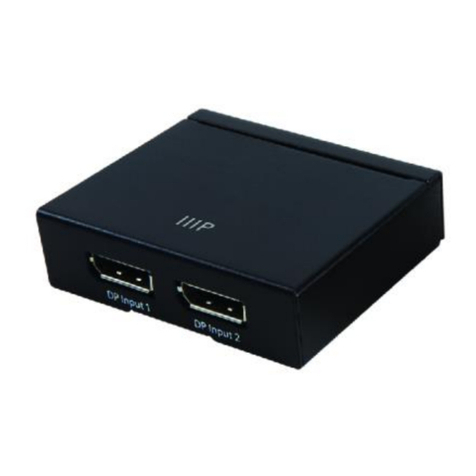
8. Using a DisplayPort® cable (not included), plug one end into the PC1 DisplayPort
port on the switch, then plug the other end into the DisplayPort video output on
your first computer.
Note: In order for the switching function to work, the first connection must be to a
computer. The other connections can be to computers, consoles, Blu-ray Disc™ players,
or other devices with DisplayPort® video output.
9. Using a USB Type-A to Type-B cable (not included), plug the Type-B end into the
PC1 USB port on the rear panel, then plug the Type-A end into a USB port on
your first computer.
10. Using a 3.5mm TRS audio cable (not included), plug one end into the PC1
Headphone jack on the switch, then plug the other end into the
headphone/speaker output on your first computer.
11. Using a 3.5mm TS or TRS audio cable (not included), plug one end into the PC1
Microphone jack on the switch, then plug the other end into the microphone
input on your first computer.
12. Repeat steps 8-11 above for the other three computers and inputs on the switch.
13. Plug one end of the included AC Power Adapter into the DC 5V jack on the
switch, then plug the other end into a nearby AC power outlet.
14. Plug in and power on your first computer.
15. Wait for it to fully boot to the desktop, then verify that you can view the video
and control it using the keyboard and mouse. If you connected a microphone,
speakers/headset, and/or USB device(s), verify that they work, as well.
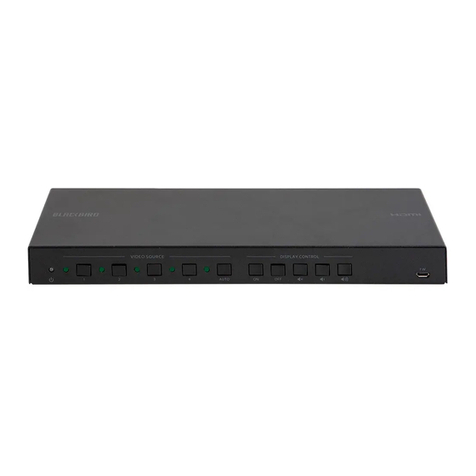
16. Press the Select button on the front panel, then plug in and power on your
second computer or other connected device.
17. Wait for it to fully boot to the desktop, then verify that you can view the video
and control it using the keyboard and mouse. If you connected a microphone,
speakers/headset, and/or USB device(s), verify that they work, as well.
18. Repeat steps 16-17 above for the other two connected devices.