manuals.online logo
Brands
  1. Home
  2. •
  3. Brands
  4. •
  5. MuxLab
  6. •
  7. Extender
  8. •
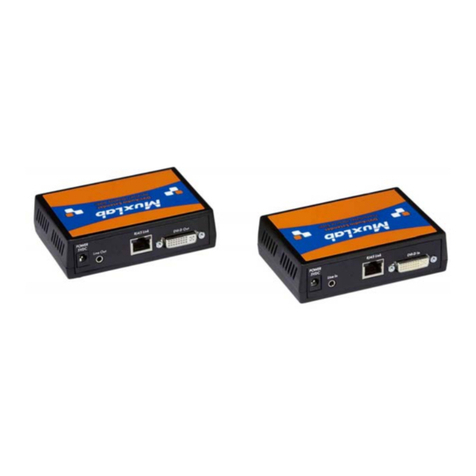
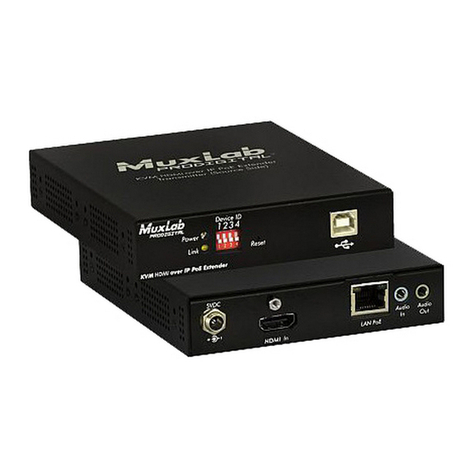
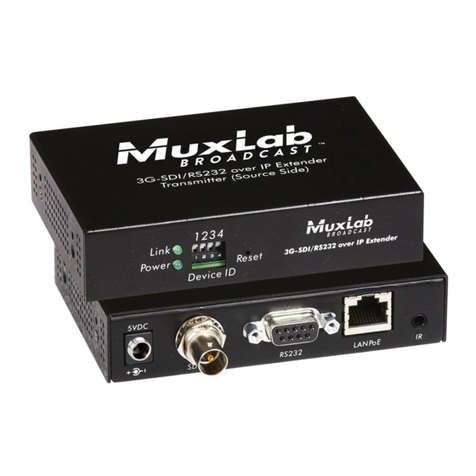
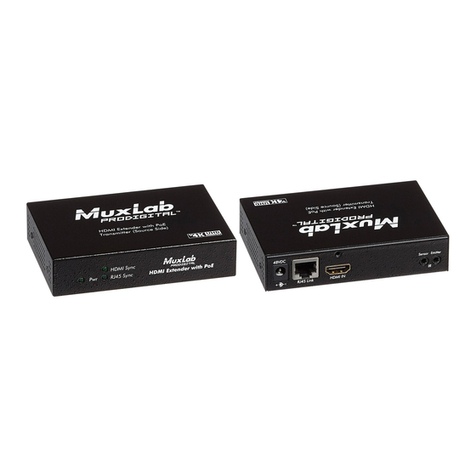
  9. MuxLab 500451-TX User manual

MuxLab 500451-TX User manual

This manual suits for next models

2

Other MuxLab Extender manuals

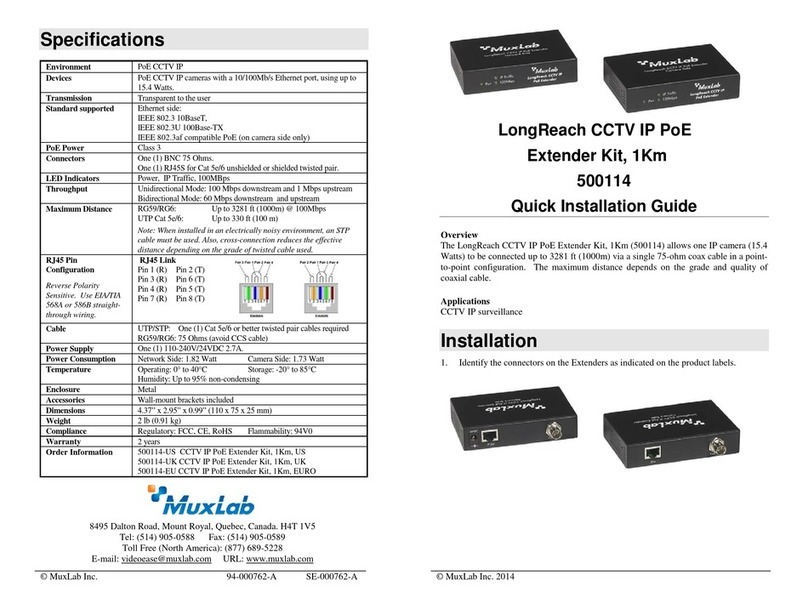
MuxLab 500770 User manual

MuxLab

MuxLab 500770 User manual

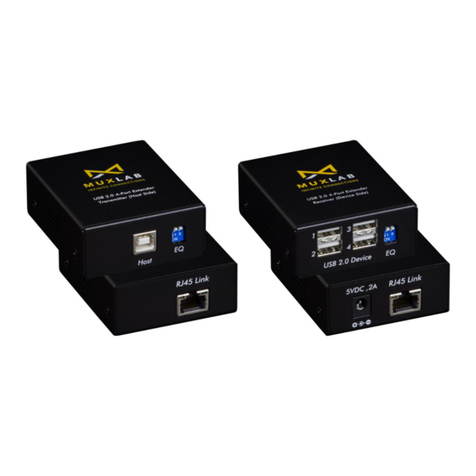
MuxLab 500752 User manual

MuxLab

MuxLab 500752 User manual

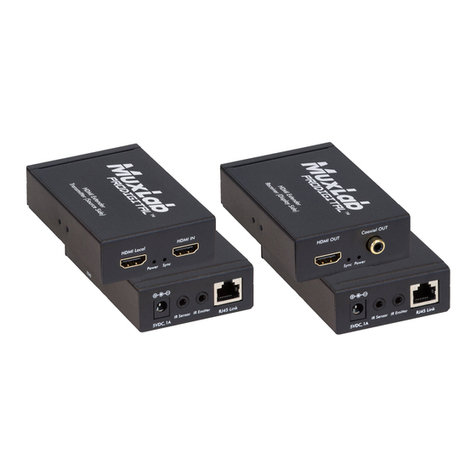
MuxLab 500072 User manual

MuxLab

MuxLab 500072 User manual

MuxLab 500733 User manual

MuxLab

MuxLab 500733 User manual

MuxLab 100509 User manual

MuxLab

MuxLab 100509 User manual

MuxLab VGA Balun II User manual

MuxLab

MuxLab VGA Balun II User manual

MuxLab 500449 User manual

MuxLab

MuxLab 500449 User manual

MuxLab 500451-PoE User manual

MuxLab

MuxLab 500451-PoE User manual

MuxLab 500450-LR User manual

MuxLab

MuxLab 500450-LR User manual

MuxLab 500771 User manual

MuxLab

MuxLab 500771 User manual

MuxLab 500450 User manual

MuxLab

MuxLab 500450 User manual

MuxLab 500758 User manual

MuxLab

MuxLab 500758 User manual

MuxLab 500454 User manual

MuxLab

MuxLab 500454 User manual

MuxLab 500454-POE User manual

MuxLab

MuxLab 500454-POE User manual

MuxLab 500451 User manual

MuxLab

MuxLab 500451 User manual

MuxLab 500453 User manual

MuxLab

MuxLab 500453 User manual

MuxLab 500759 User manual

MuxLab

MuxLab 500759 User manual

MuxLab 500040 User manual

MuxLab

MuxLab 500040 User manual

MuxLab 500753 User manual

MuxLab

MuxLab 500753 User manual

MuxLab 500757 User manual

MuxLab

MuxLab 500757 User manual

MuxLab 500752 User manual

MuxLab

MuxLab 500752 User manual

MuxLab 500758 User manual

MuxLab

MuxLab 500758 User manual

MuxLab 500771 User manual

MuxLab

MuxLab 500771 User manual

MuxLab 500401-WP-US User manual

MuxLab

MuxLab 500401-WP-US User manual

Popular Extender manuals by other brands

SY HDBT-60T installation guide

SY

SY HDBT-60T installation guide

Appsys ProAudio ADX-16 user manual

Appsys ProAudio

Appsys ProAudio ADX-16 user manual

Atlona RS232 user manual

Atlona

Atlona RS232 user manual

IDK OPF-TH1000-A user guide

IDK

IDK OPF-TH1000-A user guide

Enable-IT 824WP quick start guide

Enable-IT

Enable-IT 824WP quick start guide

Worx Landroid RadioLink WA0864 Get started

Worx

Worx Landroid RadioLink WA0864 Get started

TP-Link TL-WA730RE user guide

TP-Link

TP-Link TL-WA730RE user guide

Camplex CMX-HDMI-SFPL user manual

Camplex

Camplex CMX-HDMI-SFPL user manual

SC&T HE03-4K user manual

SC&T

SC&T HE03-4K user manual

Samsung SCS-26UC4 user guide

Samsung

Samsung SCS-26UC4 user guide

Foxun SX-GES24 operating instructions

Foxun

Foxun SX-GES24 operating instructions

foxunhd SX-AEX01 operating instructions

foxunhd

foxunhd SX-AEX01 operating instructions

TERK Technologies LFIRX2 owner's manual

TERK Technologies

TERK Technologies LFIRX2 owner's manual

Devolo Audio Extender supplementary guide

Devolo

Devolo Audio Extender supplementary guide

Edimax EW-7438RPn V2 instructions

Edimax

Edimax EW-7438RPn V2 instructions

Shinybow USA SB-6335T5 instruction manual

Shinybow USA

Shinybow USA SB-6335T5 instruction manual

SECO-LARM ENFORCER EVT-PB1-V1TGQ installation manual

SECO-LARM

SECO-LARM ENFORCER EVT-PB1-V1TGQ installation manual

ASUSTOR AS5004U Quick installation guide

ASUSTOR

ASUSTOR AS5004U Quick installation guide

manuals.online logo
manuals.online logoBrands
  • About & Mission
  • Contact us
  • Privacy Policy
  • Terms and Conditions

Copyright 2025 Manuals.Online. All Rights Reserved.

© MuxLab Inc. 94-000728-C SE-000728-C
2321 Rue Cohen, Montreal, Quebec, Canada. H4R 2N7
Tel: (514) 905-0588 Fax: (514) 905-0589
Toll Free (North America): (877) 689-5228
E-mail: info@muxlab.com URL: www.muxlab.com
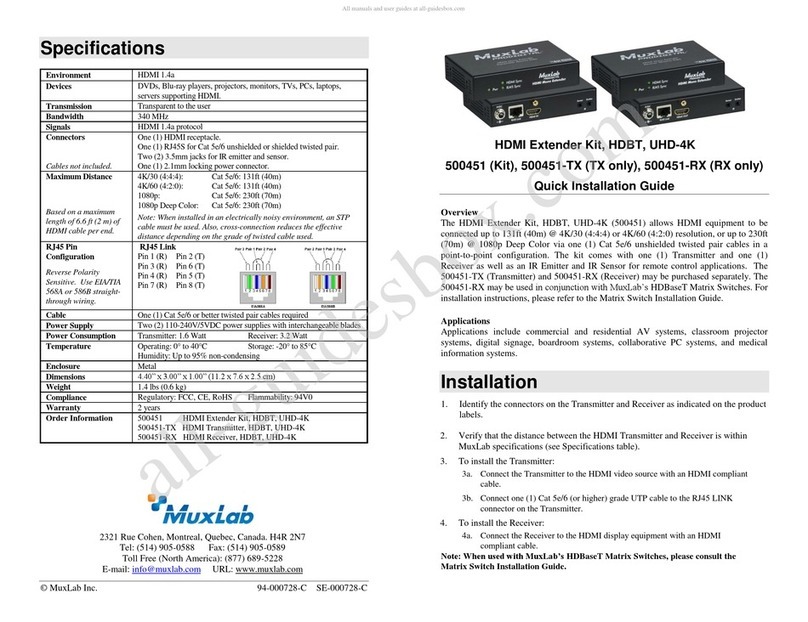
Specifications
Environment
HDMI 1.4a
Devices
DVDs, Blu-rayplayers, projectors, monitors, TVs, PCs, laptops,
servers supporting HDMI.
Transmission
Transparent to the user
Bandwidth
340 MHz
Signals
HDMI 1.4a protocol
Connectors
Cables not included.
One (1) HDMI receptacle.
One (1) RJ45S for Cat 5e/6 unshielded or shielded twisted pair.
Two (2) 3.5mm jacks for IR emitter and sensor.
One (1) 2.1mm locking power connector.
Maximum Distance
Based on a maximum
length of 6.6 ft (2 m) of
HDMI cable per end.
4K/30 (4:4:4): Cat 5e/6: 131ft (40m)
4K/60 (4:2:0): Cat 5e/6: 131ft (40m)
1080p: Cat 5e/6: 230ft (70m)
1080p Deep Color: Cat 5e/6: 230ft (70m)
Note: When installed in an electrically noisy environment, an STP
cable must be used. Also, cross-connection reduces the effective
distance depending on the grade of twisted cable used.
RJ45 Pin
Configuration
Reverse Polarity
Sensitive. Use EIA/TIA
568A or 586B straight-
through wiring.
RJ45 Link
Pin 1 (R) Pin 2 (T)
Pin 3 (R) Pin 6 (T)
Pin 4 (R) Pin 5 (T)
Pin 7 (R) Pin 8 (T)
Cable
One (1) Cat 5e/6 or better twisted pair cables required
Power Supply
Two (2) 110-240V/5VDC power supplies with interchangeable blades
Power Consumption
Transmitter: 1.6 Watt Receiver: 3.2 Watt
Temperature
Operating: 0° to 40°C Storage: -20° to 85°C
Humidity: Up to 95% non-condensing
Enclosure
Metal
Dimensions
4.40” x 3.00” x 1.00” (11.2 x 7.6 x 2.5 cm)
Weight
1.4 lbs (0.6 kg)
Compliance
Regulatory: FCC, CE, RoHS Flammability: 94V0
Warranty
2 years
Order Information
500451 HDMI Extender Kit, HDBT, UHD-4K
500451-TX HDMI Transmitter, HDBT, UHD-4K
500451-RX HDMI Receiver, HDBT, UHD-4K
HDMI Extender Kit, HDBT, UHD-4K
500451 (Kit), 500451-TX (TX only), 500451-RX (RX only)
Quick Installation Guide
Overview
The HDMI Extender Kit, HDBT, UHD-4K (500451) allows HDMI equipment to be
connected up to 131ft (40m) @ 4K/30 (4:4:4) or 4K/60 (4:2:0) resolution, or up to 230ft
(70m) @ 1080p Deep Color via one (1) Cat 5e/6 unshielded twisted pair cables in a
point-to-point configuration. The kit comes with one (1) Transmitter and one (1)
Receiver as well as an IR Emitter and IR Sensor for remote control applications. The
500451-TX (Transmitter) and 500451-RX (Receiver) may be purchased separately. The
500451-RX may be used in conjunction with MuxLab’s HDBaseT Matrix Switches. For
installation instructions, please refer to the Matrix Switch Installation Guide.
Applications
Applications include commercial and residential AV systems, classroom projector
systems, digital signage, boardroom systems, collaborative PC systems, and medical
information systems.
Installation
1. Identify the connectors on the Transmitter and Receiver as indicated on the product
labels.
2. Verify that the distance between the HDMI Transmitter and Receiver is within
MuxLab specifications (see Specifications table).
3. To install the Transmitter:
3a. Connect the Transmitter to the HDMI video source with an HDMI compliant
cable.
3b. Connect one (1) Cat 5e/6 (or higher) grade UTP cable to the RJ45 LINK
connector on the Transmitter.
4. To install the Receiver:
4a. Connect the Receiver to the HDMI display equipment with an HDMI
compliant cable.
Note: When used with MuxLab’s HDBaseT Matrix Switches, please consult the
Matrix Switch Installation Guide.

© MuxLab Inc. 2017
4b. Connect one (1) Cat 5e/6 (or higher) grade UTP cable to the RJ45 LINK connector
on the Receiver.
5. Connect the 5VDC power supply to the Receiver first, and then plug the power
supply into an AC power outlet. Connect the 5VDC power supply to the
Transmitter first, and then plug the power supply into an AC power outlet. If power
is present, the green power LED of the Transmitter and the Receiver will be ON.
Note: Power the HDMI Transmitter and Receiver only after all connections are
made.
6. Power the HDMI equipment and verify the image quality.
7. This product supports bidirectional IR control. If infrared remote control is needed
to control the Source equipment from the Display, connect the IR Sensor to the
3.5mm Stereo Jack of the receiver and the IR Emitter to the 3.5mm Mono Jack of
the Transmitter.
Note: You can differentiate the IR Sensor and the IR Emitter by looking at the
3.5 mm plug. The IR Sensor is using a Stereo Plug (3 Contacts) and the IR
Emitter a mono plug (2 Contacts).
8. Position the IR Sensor so that it is directed to the hand-held remote control. For a
clear IR signal reception, aim the hand-held remote control toward the top of the IR
Sensor enclosure.

9. Position the IR Emitter as close as possible to the source’s IR Sensor (i.e. DVD

player). For a clear IR signal reception, the IR Emitter must be secured so that it is
facing the source’s IR Sensor. The IR Emitter includes double sided tape to secure
it in place.
10. If the infrared remote control is needed to control the Display equipment from the
Source location, connect the IR Emitter to the 3.5mm Stereo Jack of the receiver
and the IR Sensor to the 3.5mm Mono Jack of the Transmitter.
11. The following diagram shows an example configuration.
Troubleshooting
The following table describes some of the symptoms, probable causes and possible solutions
in regard to the installation of the HDMI Extender Kit, HDBT, UHD-4K:
Symptom
Tx LEDs
Rx LEDs
Probable
Cause
Possible
Solutions
Power
HDMI
RJ45
Power
HDMI
RJ45
No Image
OFF
OFF
OFF
OFF
OFF
OFF
No power
•Check power
connections.
No Image
ON
OFF
OFF
ON
OFF
OFF
UTP Cable
•Check the UTP
cables.
No Image
ON
OFF
ON
ON
OFF
ON
HDMI Cable
•Check the HDMI
Cable.
No Image
ON
ON
ON
ON
ON
ON
Synchronization
•Check cable length.
Flickering
Image
ON
ON
ON
ON
ON
ON
Synchronization
•Check cable length.
•Check the HDMI
Cable Quality.
Choppy sound
ON
ON
ON
ON
ON
ON
Synchronization
•Check cable length.
•Check the HDMI
Cable Quality.
Green or pink
hue
ON
ON
ON
ON
ON
ON
DDC
communication
•Cycle power the
HDMI Extender.
•Check UTP cables
and replace.
Image flickers
when powering
up nearby
equipment
ON
ON
ON
ON
ON
ON
Interference
•Use STP cables.
IR not
functioning
ON
ON
ON
ON
ON
ON
Remote control
not directed to
the IR Sensor or
IR Emitter not
directed to the
equipment.
•Make sure the IR
Sensor is directed
towards the remote
and the IR Emitter
to the equipment.
IR not
functioning
ON
ON
ON
ON
ON
ON
Interference
from sunlight,
Fluorescent,
Neon or
Halogen lights.
•Place the IR
equipment away
from the interfering
light.
IR not
functioning
ON
OFF
ON
ON
OFF
ON
Interference
from RF
radiation from
the TV.
•Place the IR
equipment away
from the RF
radiation.
If you still cannot diagnose the problem, please call MuxLab Customer Technical Support at
877-689-5228 (toll-free in North America) or (+1) 514-905-0588 (International).