manuals.online logo
Brands
  1. Home
  2. •
  3. Brands
  4. •
  5. NETGEAR
  6. •
  7. Switch
  8. •
  9. NETGEAR GS418TPP User manual

NETGEAR GS418TPP User manual

Other manuals for GS418TPP

3

Other NETGEAR Switch manuals

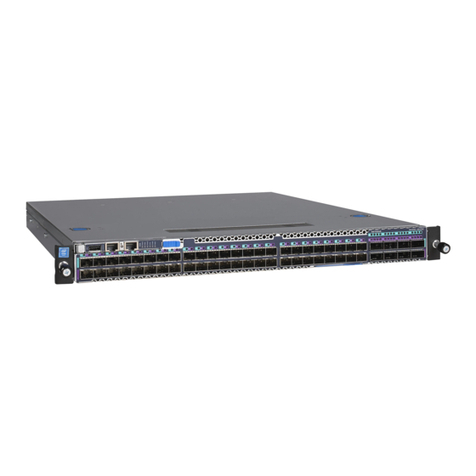
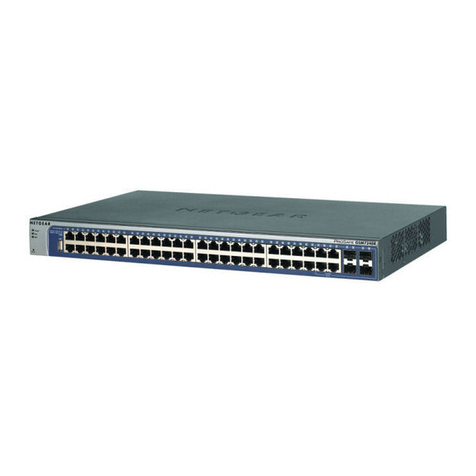
NETGEAR GSM7248R - ProSafe Switch User manual

NETGEAR

NETGEAR GSM7248R - ProSafe Switch User manual

NETGEAR FSM726S User manual

NETGEAR

NETGEAR FSM726S User manual

NETGEAR GS305Pv2 User manual

NETGEAR

NETGEAR GS305Pv2 User manual

NETGEAR FSM726v2 - 10/100 Mbps Managed Switch User guide

NETGEAR

NETGEAR FSM726v2 - 10/100 Mbps Managed Switch User guide

NETGEAR ProSafe Plus GS116E User manual

NETGEAR

NETGEAR ProSafe Plus GS116E User manual

NETGEAR ProSafe GSM7328 Instruction Manual

NETGEAR

NETGEAR ProSafe GSM7328 Instruction Manual

NETGEAR GS508T - Switch User manual

NETGEAR

NETGEAR GS508T - Switch User manual

NETGEAR GS748T  GS748T GS748T Manual

NETGEAR

NETGEAR GS748T GS748T GS748T Manual

NETGEAR GS748Tv4 User manual

NETGEAR

NETGEAR GS748Tv4 User manual

NETGEAR ProSafe FS750T2 User manual

NETGEAR

NETGEAR ProSafe FS750T2 User manual

NETGEAR GS108Tv2 - ProSafe Gigabit Smart Switch Coming... User manual

NETGEAR

NETGEAR GS108Tv2 - ProSafe Gigabit Smart Switch Coming... User manual

NETGEAR ProSafe Plus JFS524E User manual

NETGEAR

NETGEAR ProSafe Plus JFS524E User manual

NETGEAR GS108LP Installation guide

NETGEAR

NETGEAR GS108LP Installation guide

NETGEAR PROSAFE XS716E User manual

NETGEAR

NETGEAR PROSAFE XS716E User manual

NETGEAR GS728TPv3 Manual

NETGEAR

NETGEAR GS728TPv3 Manual

NETGEAR FS728TPv1 - ProSafe 24 Port 10/100 Smart... User manual

NETGEAR

NETGEAR FS728TPv1 - ProSafe 24 Port 10/100 Smart... User manual

NETGEAR GS105E User manual

NETGEAR

NETGEAR GS105E User manual

NETGEAR FS726T - ProSafe Smart Switch User manual

NETGEAR

NETGEAR FS726T - ProSafe Smart Switch User manual

NETGEAR GS516UP User manual

NETGEAR

NETGEAR GS516UP User manual

NETGEAR FSM7328PS - ProSafe 24 Port 10/100 L3 Managed Stackable... User manual

NETGEAR

NETGEAR FSM7328PS - ProSafe 24 Port 10/100 L3 Managed Stackable... User manual

NETGEAR ProSAFE S3300 User manual

NETGEAR

NETGEAR ProSAFE S3300 User manual

NETGEAR FS728TP - ProSafe 24 Port 10/100 Smart... User manual

NETGEAR

NETGEAR FS728TP - ProSafe 24 Port 10/100 Smart... User manual

NETGEAR XSM7224S - ProSafe 10 Gigabit Stackable User manual

NETGEAR

NETGEAR XSM7224S - ProSafe 10 Gigabit Stackable User manual

NETGEAR S350 Series User manual

NETGEAR

NETGEAR S350 Series User manual

Popular Switch manuals by other brands

TRENDnet TK-401R null

TRENDnet

TRENDnet TK-401R null

TRENDnet TK-200K null

TRENDnet

TRENDnet TK-200K null

TRENDnet TE100-S8 null

TRENDnet

TRENDnet TE100-S8 null

URC Total Control MFS-8 installation manual

URC

URC Total Control MFS-8 installation manual

Azbil HPQ-D11 user manual

Azbil

Azbil HPQ-D11 user manual

Sony DFS-900M operating instructions

Sony

Sony DFS-900M operating instructions

SICK i17S operating instructions

SICK

SICK i17S operating instructions

F&F SZR-277 quick start guide

F&F

F&F SZR-277 quick start guide

Shure UAMS/BK user guide

Shure

Shure UAMS/BK user guide

Dräger X-zone Switch Off Instructions for use

Dräger

Dräger X-zone Switch Off Instructions for use

Asco Joucomatic 349 Series manual

Asco

Asco Joucomatic 349 Series manual

BT Mini Hub user guide

BT

BT Mini Hub user guide

D-Link DES-1226G manual

D-Link

D-Link DES-1226G manual

Johnson Controls FS80-C installation instructions

Johnson Controls

Johnson Controls FS80-C installation instructions

MicroNet SP1200A user manual

MicroNet

MicroNet SP1200A user manual

Ruijie RG-PF2920 Series Hardware  installation and reference guide

Ruijie

Ruijie RG-PF2920 Series Hardware installation and reference guide

Altinex DA1914SX user guide

Altinex

Altinex DA1914SX user guide

RJM MASTERMIND PBC/6X user manual

RJM

RJM MASTERMIND PBC/6X user manual

manuals.online logo
manuals.online logoBrands
  • About & Mission
  • Contact us
  • Privacy Policy
  • Terms and Conditions

Copyright 2025 Manuals.Online. All Rights Reserved.

Installation
ProSAFE 16-Port Gigabit Smart Managed Switch
with PoE+ and 2 SFP Ports
GS418TPP
Configure the Switch With a Static IP Address
Note: If your network uses a DHCP server, this section does not apply.

Go directly to Connect the Switch to a Network.
If you are using static IP addresses in your network, configure the switch IP
address before you connect the switch to a network.
1. Configure a computer with a static IP address in the 192.168.0.x subnet.
2. Plug the switch into a power outlet and connect your computer to the
switch using an Ethernet cable.
3. Open a web browser and enter 192.168.0.239 in the address bar.
The default IP address of the switch is 192.168.0.239.
A login page displays.
4. Enter password for the password.
The System Information page displays.
5. Select System > Management > IP Configuration.
The IP Configuration page displays.
6. Select the Static IP Address radio button.
7. Enter the static IP address, subnet mask, and default gateway IP address
that you want to assign to the switch.
8. Click the Apply button.
Your settings are saved.
Connect the Switch to a Network
1. Connect PoE (or non-PoE) devices to the RJ-45 PoE network ports on the
switch front panel.
Use Category 5e (Cat 5e) Ethernet cables terminated with RJ-45
connectors to make 1-Gigabit connections.
2. Connect an RJ-45 port or SFP port on the switch to a network that
includes a DHCP server.
If you use an SFP port, you must insert an SFP transceiver module that you
can purchase from NETGEAR.
3. Power on the switch and wait two minutes.
Package Contents
• NETGEAR ProSAFE®Smart Managed Switch GS418TPP
• Rubber footpads for tabletop installation
• Wall mount
• Rubber belts for mounting
• Power cord locker
• AC power cord (localized to country of sale)
• 19-inch rack-mount kit for rack installation
• Resource CD
Check the PoE Status
The switch can supply up to 30W PoE+ (IEEE 802.3at) to each port, with a
maximum PoE power budget of 240W across all active PoE+ ports.
The PoE Max LED indicates the status of the PoE budget on the switch:
• O. Sucient (more than 7W of) PoE power is available.
• Solid amber. Less than 7W of PoE power is available.
• Blinking amber. At least once during the previous two minutes, less than
7W of PoE power was available.
Configure the Switch
You can configure the switch either by using a computer’s web browser or by
installing the Smart Control Center Utility (see Smart Control Center Utility) on
your Windows-based computer.
Web Browser Access
1. For initial configuration, open a web browser on a computer that is on the
same network and subnet as the switch and enter the switch’s IP address.
If you are unsure how to determine the IP address of the switch, you can
use the Smart Control Center Utility.
A login page displays.
2. Enter password for the password.
PoE access points
PoE VoIP phone
Switch
Network Internet
Sample connections
NETGEAR INT LTD
Building 3 University Technology Centre
Curraheen Road Cork Ireland
NETGEAR, Inc.
350 East Plumeria Drive
San Jose, CA 95134, USA
© NETGEAR, Inc., NETGEAR and the NETGEAR Logo
are trademarks of NETGEAR, Inc. Any non‑NETGEAR
trademarks are used for reference purposes only. February 2017

The System Information page displays.
3. Configure the switch for your network.
For information about switch configuration, see the user manual for your
switch, which you can download from downloadcenter.netgear.com.
Smart Control Center Utility
The Smart Control Center Utility runs on Windows-based computers. The
utility is on the resource CD that came with the switch. You can also visit
netgear.com/support/product/SCC to download the utility.

Install the Smart Control Center Utility From the CD
Note: The Smart Control Center Utility requires Adobe Air. If Adobe Air

is not detected during Smart Control Center Utility installation, you are
prompted to allow Adobe Air to be installed.
1. Insert the resource CD into a computer that is on the same network and
the same subnet as the switch.
2. Click the Smart Control Center Utility link and follow the prompts to
install the program.
The utility is installed in the program directory of your computer and a
Smart Control Center icon is placed on your desktop.
Note: If the Resource CD Center does not automatically launch, open
Windows Explorer, locate the CD content, right-click the Autostart file,
and then select Run as Administrator.
3. If prompted, allow Adobe Air to be installed.
Note: For optimal discovery performance, we recommend that you restart
your computer aer installing the Smart Control Center Utility.
Configure the Switch With the Smart Control Center
Utility
1. Connect the computer to the network.
The computer that is running the Smart Control Center Utility must be
on the same network (with same broadcast domain) as the switch.
2. Double-click the Smart Control Center icon.
The Smart Control Center displays.
3. Click the Discover button.
The Smart Control Center Utility finds Smart Managed Switches on the
network and displays each switch’s MAC address, IP address, and model
number.
If the utility does not discover your switch, verify that the cable
connections are secure and that the computer’s IP address is in the same
subnet as the switch, and click the Discover button.
You might need to temporarily turn o the antivirus program, firewall, or
both on the computer so that the utility can discover the switch.
4. Select the switch that you want to configure.
5. Click the Web Browser Access button.
6. When prompted, enter the password.
The default password is password.
7. Click the Login button.
The System Information page displays.
8. Configure the switch for your network.
For information about switch configuration, see the user manual for your
switch, which you can download from downloadcenter.netgear.com.
9. When you are finished with the configuration, return the computer’s
antivirus program and firewall to their usual settings.
Troubleshooting Tips
Here are some tips for correcting simple problems that might occur:
• Be sure to power on your computer and switch in the following sequence:
1. Turn on the switch and wait two minutes.
2. Turn on the computer and connect it to the switch.
• Make sure that the network settings for the computer or device are
correct. You might need to temporarily turn o the antivirus program,
firewall, or both on the computer so that the utility can discover the switch.
• To use the Smart Control Center Utility, you must configure your
computer’s security soware to allow broadcast UDP packets to go through
to the destination IP address of 255.255.255.255. The Smart Control
Center Utility uses UDP source and destination ports 63323 and 63324.
• Make sure that the Ethernet cables are plugged in correctly. For each PoE
device connected to the switch, the corresponding right port LED on the
switch lights solid green. If the right port LED lights solid amber, a PoE fault
occurred.
• Make sure that the PoE Max LED is o. If the PoE Max LED is solid amber,
disconnect one or more PoE devices to prevent PoE oversubscription.
Support
Thank you for selecting NETGEAR products. You can visit
www.netgear.com/support to register your product, get help, access the latest
downloads and user manuals, and join our community. We recommend that you
use only ocial NETGEAR support resources.
For the current EU Declaration of Conformity, visit
http://support.netgear.com/app/answers/detail/a_id/11621/.
For regulatory compliance information, visit
http://www.netgear.com/about/regulatory/.
See the regulatory compliance document before connecting the power supply.