Nokia RD-17 User manual

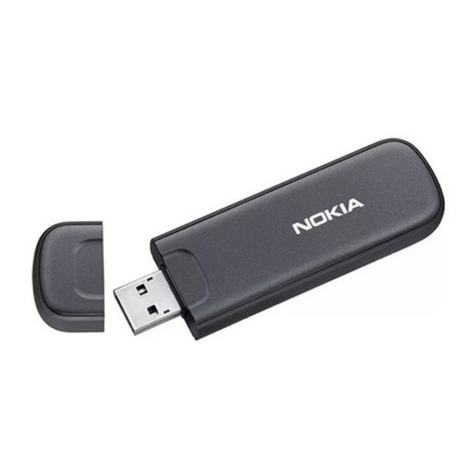
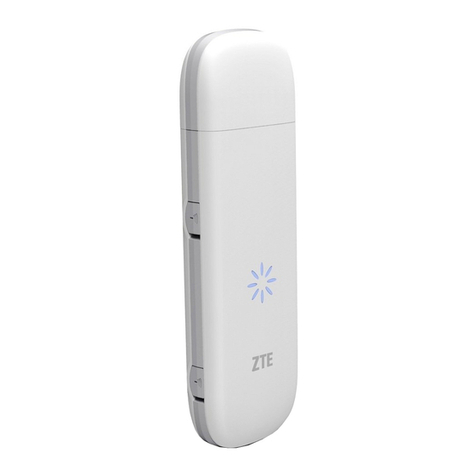
Nokia USB Modem
5555555/1
Cyan
Cyan
Magenta
Magenta
Yellow
Yellow
Black
Black

Cyan
Cyan
Magenta
Magenta
Yellow
Yellow
Black
Black

About your USB modem
The Nokia USB modem is a
wireless modem, used to connect
to the internet in cellular or
wireless networks.
To connect to the internet, you
need to install the connection
manager application on your
computer.
Before using your USB modem,
familiarise yourself with the user
guide for the connection manager
application, your computer,
operating system, and any
software that you use with the
internet connection set up
through the device. To read the
user guide for the connection
manager application, in the main
view , select . The user guide is
displayed in the language you
selected during the installation of
the application.
For additional information, go to
www.nokia.com/support.
The operating temperature of this
device is -15°C to 35°C (41°F to
95°F), and the storage
temperature is -15°C to 85°C
(-40°F to 185°F).
The USB feature supports the data
transfer rates defined in the USB
specification version 2.0.
Warning: This product may
contain small parts. Keep them out
of the reach of small children.
The surface of this product is nickel-
free.
ENGLISH
Cyan
Cyan
Magenta
Magenta
Yellow
Yellow
Black
Black

Get started
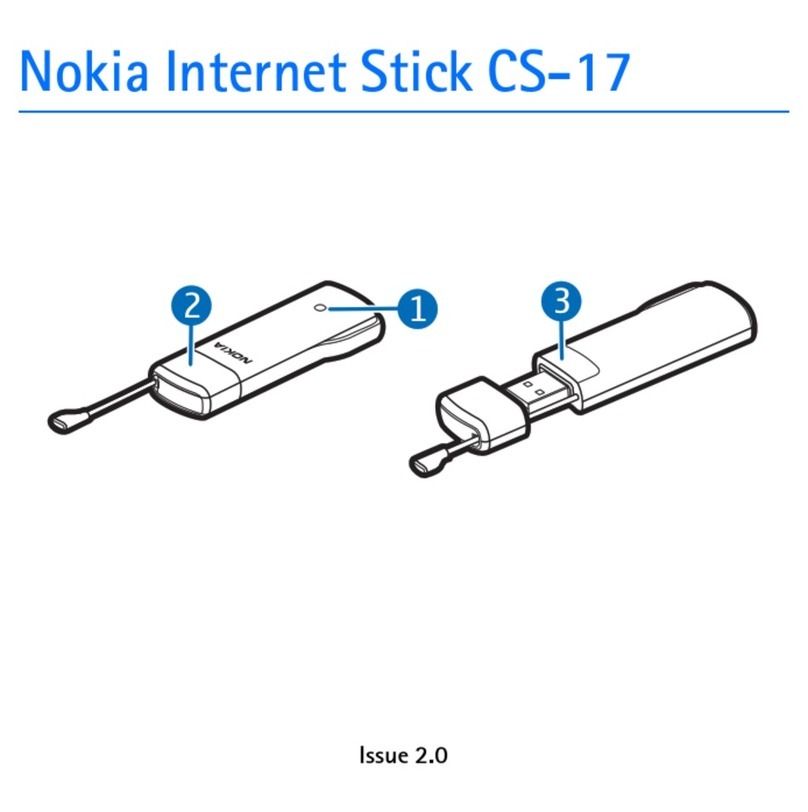
Parts
1Cap
2USB connector
3SIM and memory card cover.
4Indicator light
5Antenna
Avoid touching the antenna area
while the antenna is in use. Contact
with antennas affects the
communication quality and may
reduce battery life due to higher
power level during operation.
Do not attach any straps, key
rings, or neck straps to the ring at
the end of the USB modem.
Insert the SIM card
1. Remove the cap.
2. Slide the cover, and lift it up (6).
3. Make sure the contact surface
on the card is facing down, and
the missing corner is at the
bottom right, and insert the
SIM card (7).
4. Lower the cover, and slide it
into place (9).
Insert a memory card
The device includes a microSD
memory card reader that you can
use to save files to your
compatible memory card. The
memory card is shown as a
removable disk in your operating
system.
Keep all memory cards out of the
reach of small children.
Use only compatible memory cards
approved by Nokia for use with this
device. Incompatible cards may
ENGLISH
Cyan
Cyan
Magenta
Magenta
Yellow
Yellow
Black
Black

damage the card and the device and
corrupt data stored on the card.
1. Remove the cap.
2. Slide the cover, and
lift it up (6).
3. Make sure the contact
area of the memory card is
facing up, and insert the card
into the slot which is
underneath the SIM card slot.
Push the card in, until it locks
into place (8).
4. Lower the cover and slide it
into place (9).
Remove the memory card —
Remove the cover, press the card
in gently, until it is released, and
pull the card out.
Important: Do not remove the
memory card when an application is
using it. Doing so may damage the
memory card and the device and
corrupt data stored on the card.
Install the connection
manager
You may need administrator
rights for the operating system,
and you may also need to set your
operating system firewall to allow
the device to access the internet.
1. Remove the cap.
2. Make sure the SIM card is
inserted in the device.
3. Switch your computer on, and
connect the device to the USB
port in the computer.
4. If the installation doesn't start
automatically, use your
computer’s file browser to
locate the USB modem drive,
and select the setup file on your
device.
The installation may take
several minutes.
ENGLISH
Cyan
Cyan
Magenta
Magenta
Yellow
Yellow
Black
Black

5. If prompted, enter the PIN code
of your SIM card. The PIN code
helps to protect your SIM card
against unauthorised use and
is usually supplied with the
card.
Disconnect the device —
Disconnect the device from the
USB port. You may need to stop
the device before disconnecting
it, if this is required by your
operating system.
Uninstall from your
computer
•In Windows, select the
uninstall application from the
Start menu.
•In Mac OS, select the uninstall
icon in the application folder.
•In Linux, use the package
manager.
Internet connection
Connect to the internet
For the availability of data
services, pricing, and tariffs,
contact your service provider.
1. Connect the device to the
computer.
2. If the connection manager
application does not open
automatically:
•In Windows, select the
application from the
desktop or Start menu.
•In Mac OS, select the
application from the Finder.
ENGLISH
Cyan
Cyan
Magenta
Magenta
Yellow
Yellow
Black
Black

•In Linux, select
Applications > Internet and
the application.
3. If prompted, enter the PIN code
of your SIM card.
4. Check the network indicator
light to see if a network
connection is available.
5. To connect to the internet
through a cellular network,
select .
If your product has the Wi-Fi
feature, to use a Wi-Fi network,
select Network list and the
desired network. The indicator
beside the network name
displays the signal strength of
the network. If a padlock is
displayed beside the name, the
network is protected and you
need to enter a password.
6. Use the internet as normal.
7. To close the connection, in the
Internet connection window,
select . The connection also
closes if you close the
connection manager
application.
Note: Using Wi-Fi may be
restricted in some countries. For
example, in France, you are only
allowed to use Wi-Fi indoors. For
more information, contact your local
authorities.
Tip: While browsing the
web, you can check the
duration and amount of
data sent and received in
the Internet connection
window.
If the computer enters standby or
hibernation mode, data transfer
may stop. Transferring data
increases the demand on
ENGLISH
Cyan
Cyan
Magenta
Magenta
Yellow
Yellow
Black
Black

computer battery power and
reduces the battery life.
Indicator lights
Light Status
Red light The device can't
connect because
the SIM card is not
valid or properly
inserted, or a
supported
network is not
available.
Flashing red
light
The device can't
connect because
you have not
entered the PIN
code or flight
Light Status
mode is
activated.
Green light You are
connected to a
GSM network and
transferring data.
Flashing
green light
You are
connected, but
not transferring
data.
Blue light You are
connected to a 3G
network and
transferring data.
Flashing blue
light
You are
connected, but
not transferring
data.
ENGLISH
Cyan
Cyan
Magenta
Magenta
Yellow
Yellow
Black
Black

Product and safety information
Network services and costs
To use the device, you need a
subscription with a service provider.
Using network services requires a
network connection and may result
in data traffic costs. Some product
features require support from the
network, and you may need to
subscribe to them.
Take care of your device
Handle your device with care. The
following suggestions help you
protect your warranty coverage.
•Keep the device dry.
Precipitation, humidity, and all
types of liquids or moisture can
contain minerals that corrode
electronic circuits.
•Do not store the device in cold
temperatures.
•Do not attempt to open the
device.
•Unauthorised modifications may
damage the device and violate
regulations governing radio
devices.
•Do not drop, knock, or shake the
device.
•Only use a soft, clean, dry cloth to
clean the surface of the device.
During extended operation, the
device may feel warm. In most cases,
this is normal. If you suspect the
device is not working properly, take
it to the nearest authorised service
facility.
Recycle
Always return your used electronic
products, batteries, and packaging
materials to dedicated collection
points. This way you help prevent
ENGLISH
Cyan
Cyan
Magenta
Magenta
Yellow
Yellow
Black
Black

uncontrolled waste disposal and
promote the recycling of materials.
Check how to recycle your Nokia
products at www.nokia.com/
werecycle.
Additional safety
information
This product may contain small
parts. Keep them out of the reach of
small children.
Medical devices
Operation of radio transmitting
equipment, including wireless
phones, may interfere with the
function of inadequately protected
medical devices. Consult a physician
or the manufacturer of the medical
device to determine whether they
are adequately shielded from
external radio frequency energy.
Implanted medical devices
Manufacturers of medical devices
recommend a minimum separation
of 15.3 centimetres (6 inches)
between a wireless device and an
implanted medical device, such as a
pacemaker or implanted
cardioverter defibrillator, to avoid
potential interference with the
medical device. Persons who have
such devices should:
•Always keep the wireless device
more than 15.3 centimetres (6
inches) from the medical device.
•Turn the wireless device off if
there is any reason to suspect that
interference is taking place.
•Follow the manufacturer
directions for the implanted
medical device.
If you have any questions about
using your wireless device with an
implanted medical device, consult
your health care provider.
Hearing
Some wireless devices may interfere
with some hearing aids.
ENGLISH
Cyan
Cyan
Magenta
Magenta
Yellow
Yellow
Black
Black
This manual suits for next models
3
Table of contents
Other Nokia Modem manuals

Nokia
Nokia FastMile User manual

Nokia
Nokia 31 User manual
Nokia
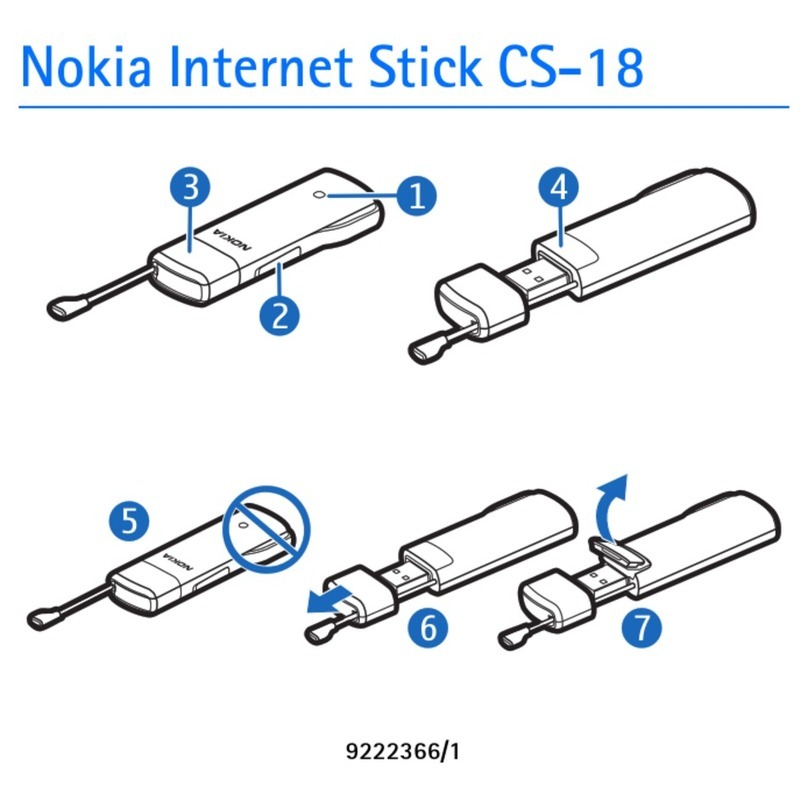
Nokia Internet Stick CS-18 User manual
Nokia
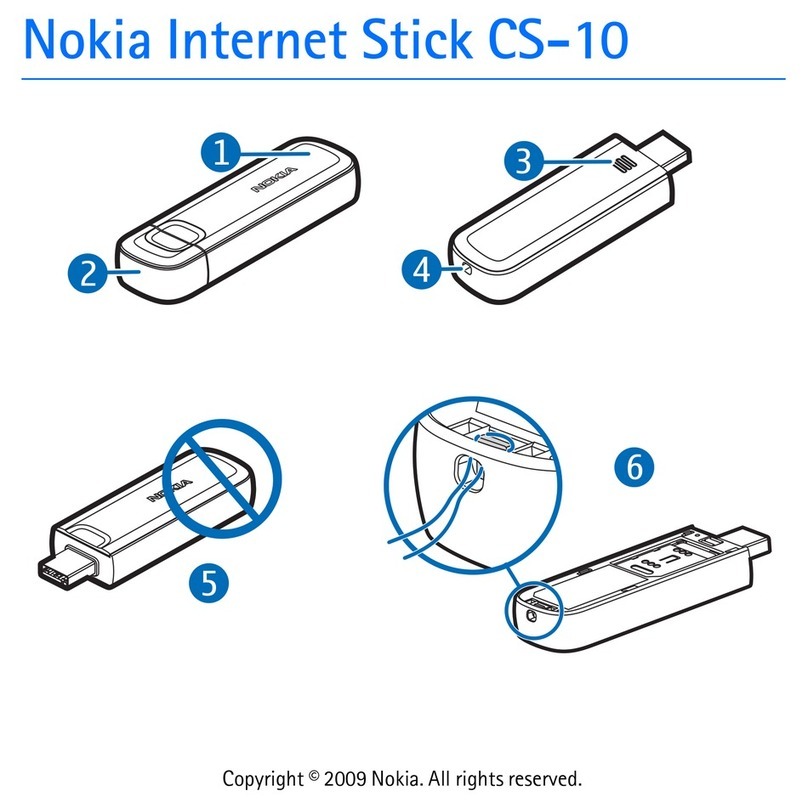
Nokia CS-10 User manual
Nokia
Nokia CS-11 User manual

Nokia
Nokia RD-15 User manual
Nokia
Nokia CS-15 Service manual
Nokia
Nokia CS-12 User manual

Nokia
Nokia Internet Stick CS-19 User manual

Nokia
Nokia 9216562 User manual