5
OR Technologies | Photo-eBox Plus Manual
Benefits and Features
• Natural lighting for proper product display
• Easy to setup and continuously capture product images
• Clean white background (or add your own background)
• Shadow-free wrap-around lighting eliminates the need for digital cleanup
• Show the true color, clarity and cut of your diamonds by showing the
brilliance, scintillation and refraction of your diamonds using white high
power LED light.
• Warm LED lighting for clear and natural gem stone colors
• Increase sales with sharp quality product images
• Tremendous savings and fast turn-around time by producing images
in-house rather than outsourcing to a graphic design company or
professional photographer
Product Applications
The Photo@Box Plus simplifies many product imaging applications, by
allowing you to create high-quality professional photographs in minutes.
Here are just a few examples of how you can use your photos:
• Product Sales (Print) – Advertising, brochures, catalogs, flyers, postcards
• Product Sales (Internet) – Auctions, banner advertising, e-commerce,
email attachments, online product catalogs, online Stores, etc.
• Website Design – Company Image, Product Line
• Inventory Management – Appraisals, insurance protection, inventory
tracking, etc.
Lighting System Setup
1. Connect the Photo@Box Plus - Connect the power cable to the Photo@
Box Plus and then to a 110V electricity outlet. Note: Read the warning message on
page 3 for details
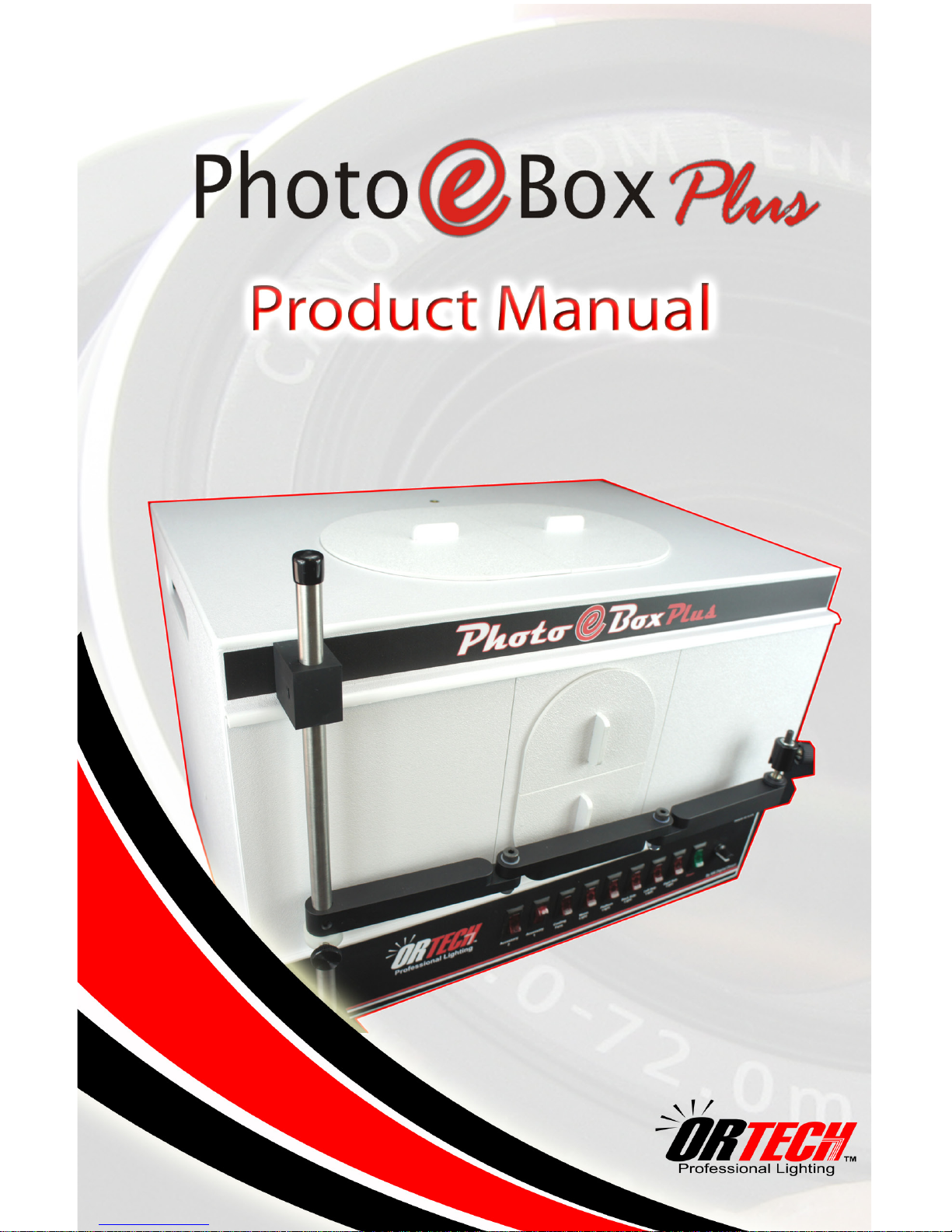
2. Turn on the Photo@Box Plus - Flip the power switch at the front of box
3. Turn on the various lights and Features
• Fluorescent lighting: Select the light you want (Left, Right, Back or Platform).
• Warm LED lights: Warm Light switch at the front .
• White high power LED lighting: Accesory 1 and then use the dimmer at the
front (clockwise for more light or counterclockwise to reduce it).
• Goosenecks at the Top (Optional): Accesory 2 switch and then use the
dimmers at the top next to each gooseneck to increase or decrease light.
• Cooling Fan (On/Off): Cooling Fan switch at the front next to Accesory 1.
5