manuals.online logo
Brands
  1. Home
  2. •
  3. Brands
  4. •
  5. OYEN DIGITAL
  6. •
  7. Storage
  8. •
  9. OYEN DIGITAL Dash Pro User manual

OYEN DIGITAL Dash Pro User manual

This manual suits for next models

1

Other OYEN DIGITAL Storage manuals

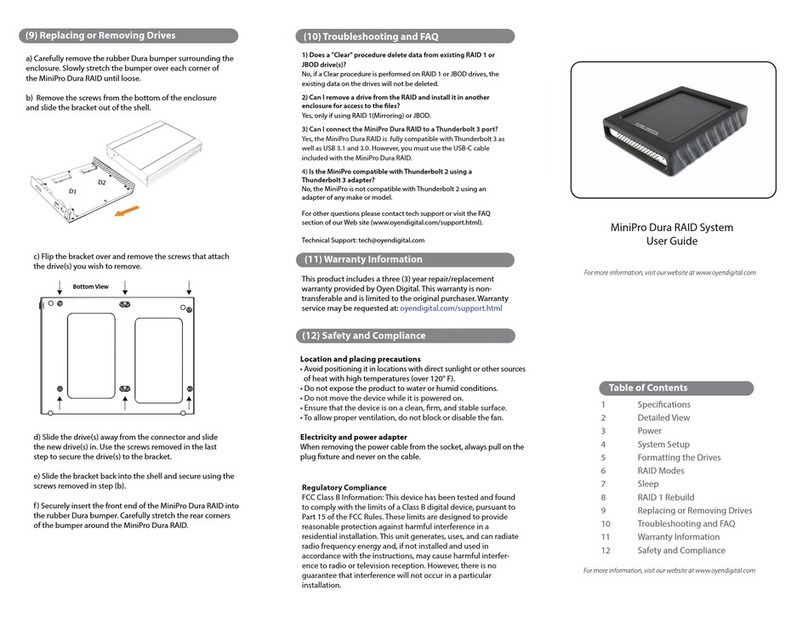
OYEN DIGITAL MiniPro Dura RAID User manual

OYEN DIGITAL

OYEN DIGITAL MiniPro Dura RAID User manual

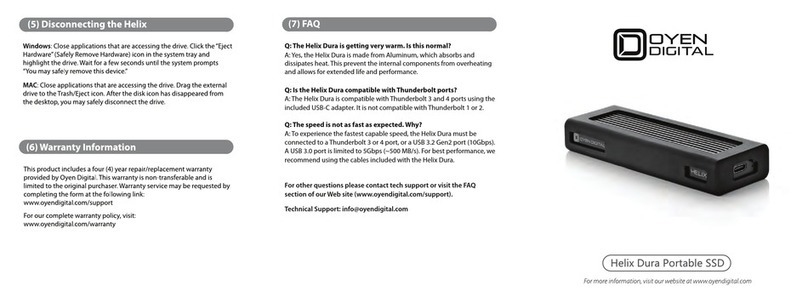
OYEN DIGITAL Helix Dura User manual

OYEN DIGITAL

OYEN DIGITAL Helix Dura User manual

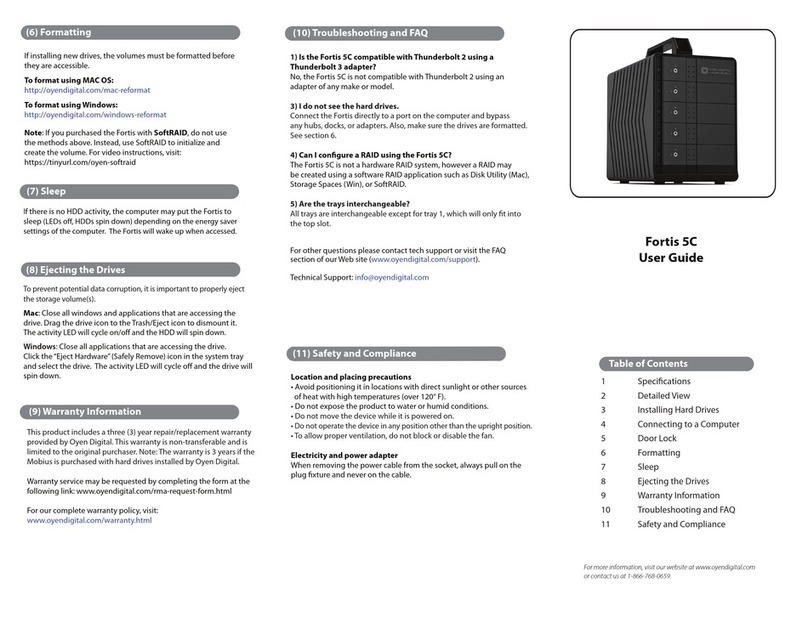
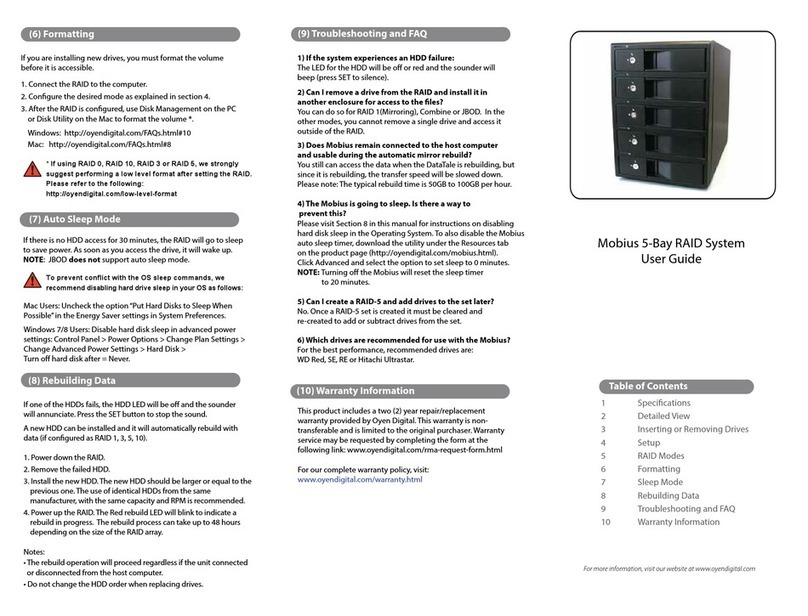
OYEN DIGITAL Fortis 5C User manual

OYEN DIGITAL

OYEN DIGITAL Fortis 5C User manual

OYEN DIGITAL Mobius Pro 2C User manual

OYEN DIGITAL

OYEN DIGITAL Mobius Pro 2C User manual

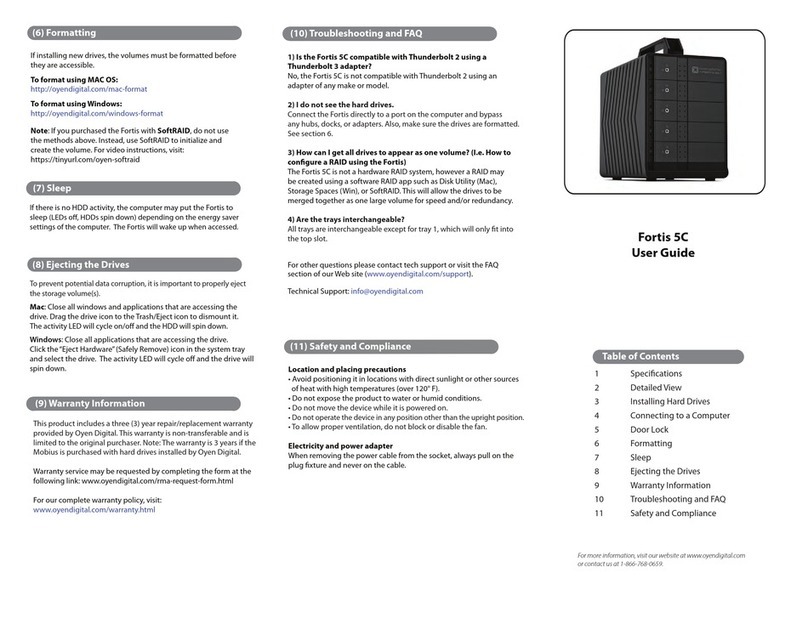
OYEN DIGITAL Fortis 5C User manual

OYEN DIGITAL

OYEN DIGITAL Fortis 5C User manual

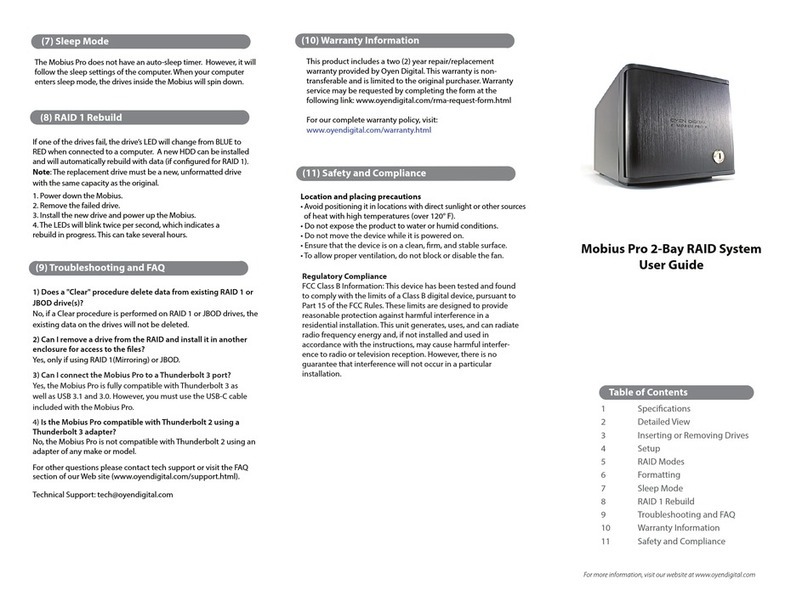
OYEN DIGITAL Mobius Pro User manual

OYEN DIGITAL

OYEN DIGITAL Mobius Pro User manual

OYEN DIGITAL Mobius User manual

OYEN DIGITAL

OYEN DIGITAL Mobius User manual

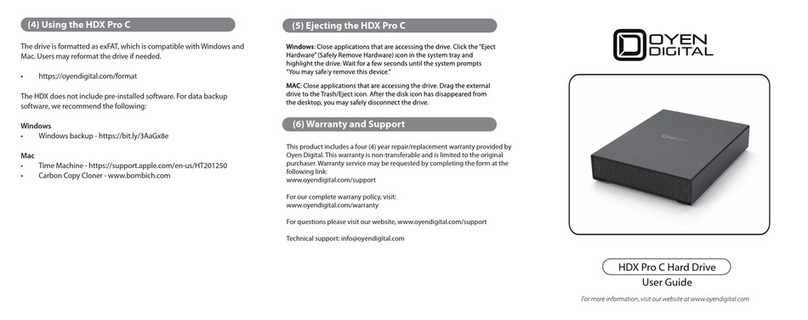
OYEN DIGITAL HDX Pro C User manual

OYEN DIGITAL

OYEN DIGITAL HDX Pro C User manual

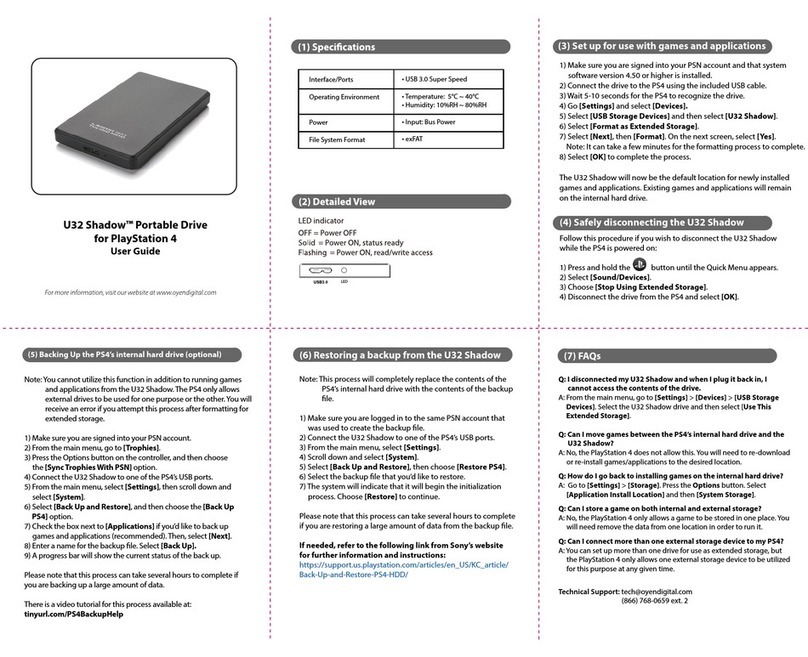
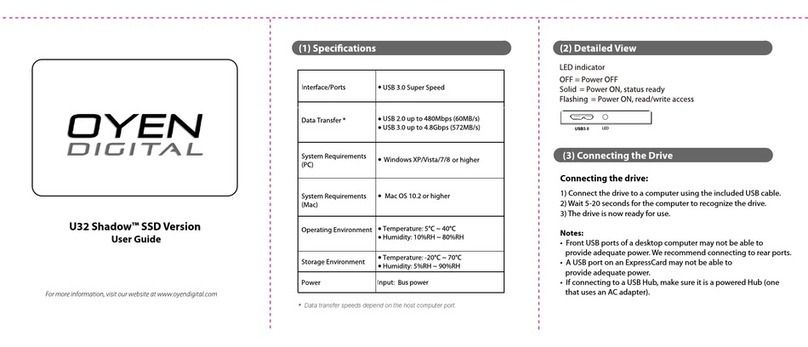
OYEN DIGITAL U32 Shadow User manual

OYEN DIGITAL

OYEN DIGITAL U32 Shadow User manual

OYEN DIGITAL U32 Shadow User manual

OYEN DIGITAL

OYEN DIGITAL U32 Shadow User manual

Popular Storage manuals by other brands

IBM 40/80 GB HH DLTVS user guide

IBM

IBM 40/80 GB HH DLTVS user guide

Synology DiskStation DS716+II Quick installation guide

Synology

Synology DiskStation DS716+II Quick installation guide

Vantec NexStar-HX4 user manual

Vantec

Vantec NexStar-HX4 user manual

LaCie Christofle Galet datasheet

LaCie

LaCie Christofle Galet datasheet

LaCie Rugged Thunderbolt user manual

LaCie

LaCie Rugged Thunderbolt user manual

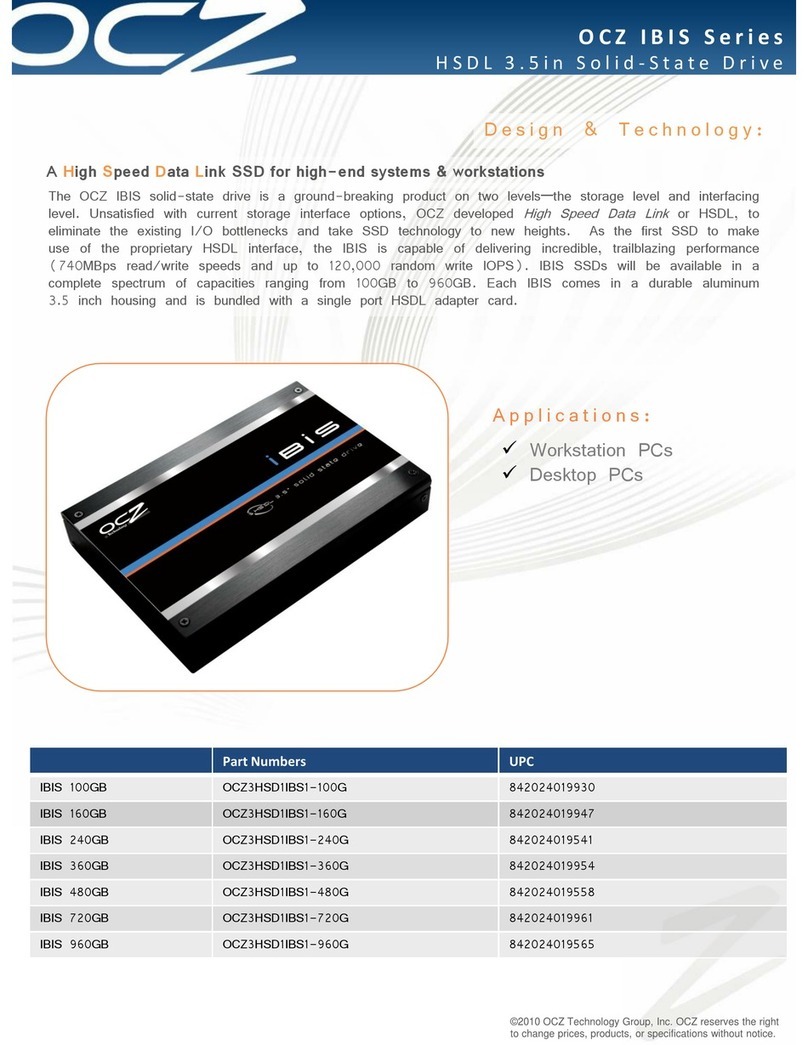
OCZ IBIS datasheet

OCZ

OCZ IBIS datasheet

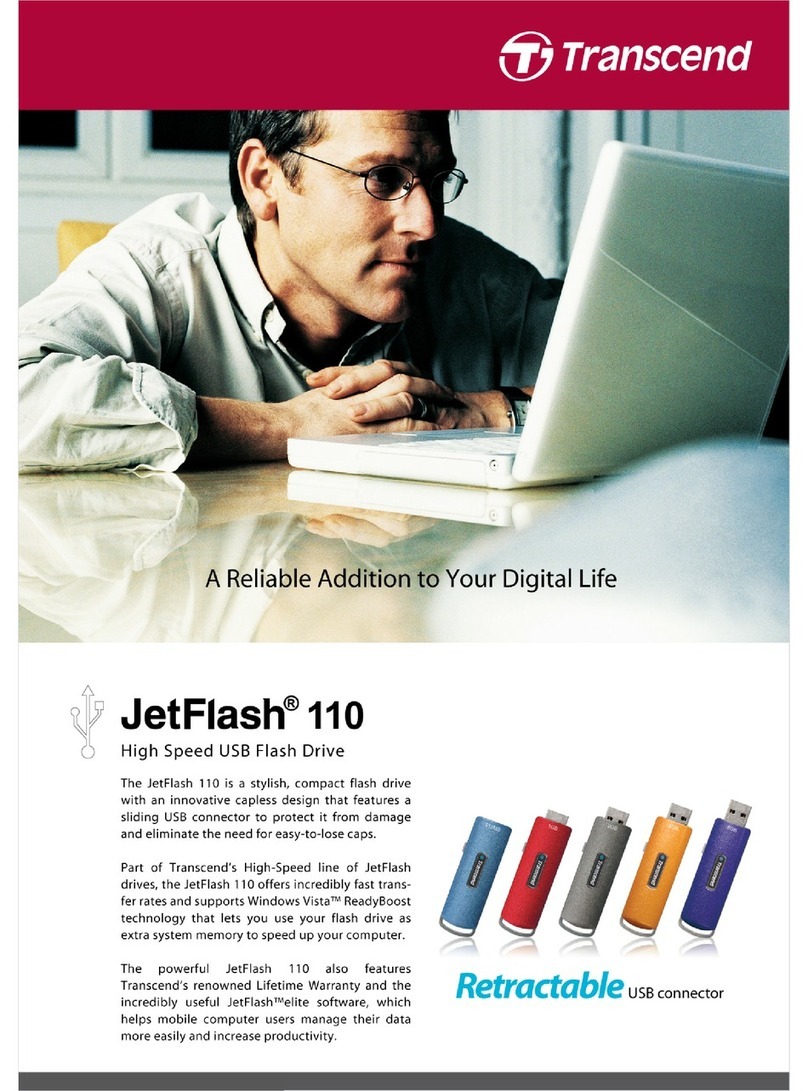
Transcend JetFlash 110 Brochure & specs

Transcend

Transcend JetFlash 110 Brochure & specs

QNAP TS 32PXU Series user guide

QNAP

QNAP TS 32PXU Series user guide

LaCie RUGGED RAID user manual

LaCie

LaCie RUGGED RAID user manual

Freecom CLS DOCK Quick install guide

Freecom

Freecom CLS DOCK Quick install guide

PNY Attache P-FD64MBATT3 install guide

PNY

PNY Attache P-FD64MBATT3 install guide

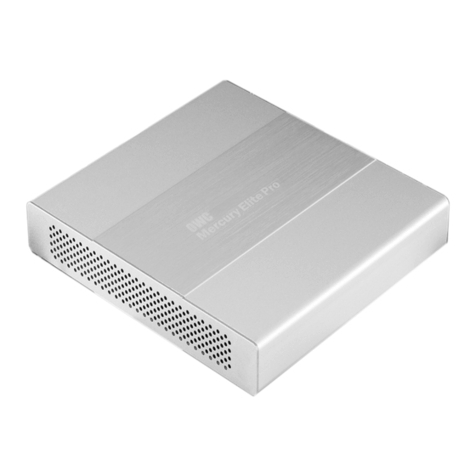
OWC Mercury Elite Pro Dual mini Assembly manual

OWC

OWC Mercury Elite Pro Dual mini Assembly manual

OLT 6x6 Maximizer Assembly manual

OLT

OLT 6x6 Maximizer Assembly manual

Transcend JetFlash 160 Specifications

Transcend

Transcend JetFlash 160 Specifications

Thunderbolt 600 user manual

Thunderbolt

Thunderbolt 600 user manual

Intel RAID High Availability user guide

Intel

Intel RAID High Availability user guide

LaCie 12big Thunderbolt 3 Quick install guide

LaCie

LaCie 12big Thunderbolt 3 Quick install guide

Spectra Logic T-Series Spectra T50e quick start guide

Spectra Logic

Spectra Logic T-Series Spectra T50e quick start guide

manuals.online logo
manuals.online logoBrands
  • About & Mission
  • Contact us
  • Privacy Policy
  • Terms and Conditions

Copyright 2025 Manuals.Online. All Rights Reserved.

Dash Pro Flash Drive 3.1 x 0.99 x 0.34 inches
Dash Pro Flash Drive, USB-C adapter,
USB-A extender, Lanyard
USB-A
USB 3.2 Gen 2 (up to 10Gbps)
SSD Controller
Material
Housing size
Box Includes
Phison E13
Aluminum Alloy
Windows, Mac, Linux
TLC NAND Flash
Temperature: 0°C ~ 60°C
Memory
Aluminum Heatsink
Keychain Loop
Type-A
(USB 3.2 Gen2)
LED
Blinking = Activity
Using USB C Adapter
• If the host computer has a USB-C port, simply connect the included adapter
to the connector on the ash drive.
Using USB-A Extender
• If more space is needed to allow for neighboring USB devices at the computer,
simply connect the USB-A extender to the connector on the ash drive.
(3) Connecting the Dash Pro
The drive is pre-formatted as exFAT, which is compatible with Windows
and Mac OS. Simply connect the Dash Pro to the computer and it will
appear and be ready for use.
The Dash Pro does not include backup software. For data backup, we
recommend the apps within Windows and Mac.
Win 10 https://support.microsoft.com/en-us/help/17143/windows-10-back-up-your-files
Mac Time Machine - https://support.apple.com/en-us/HT201250
Carbon Cloner- www.bombich.com
For users who wish to reformat the drive, please visit the
link for instructions. http://oyendigital.com/format
(4) Using the Dash Pro
(5) Disconnecting the Dash Pro
(6) Warranty Information
Windows: Close applications that are accessing the drive. Click the “Eject
Hardware” (Safely Remove Hardware) icon in the system tray and
highlight the drive. Wait for a few seconds until the system prompts
“You may safely remove this device.”
MAC: Close applications that are accessing the drive. Drag the external
drive to the Trash/Eject icon. After the disk icon has disappeared from
the desktop, you may safely disconnect the drive.
This product includes a three (3) year repair/replacement warranty
provided by Oyen Digital. This warranty is non-transferable and is
limited to the original purchaser. Warranty service may be requested by
completing the form at the following link:
www.oyendigital.com/support
For our complete warranty policy, visit:
www.oyendigital.com/warranty
(7) FAQ
Q: The Dash Pro is getting very warm. Is this normal?
A: Yes, the Dash Pro is made from Aluminum, unlike competitor models
made from plastic. The Aluminum absorbs and dissipates heat, which
prevent the internal components from overheating and allows for
extended life and performance.
Q: Is the Dash Pro compatible with Thunderbolt ports?
A: The Dash Pro is compatible with Thunderbolt 3 and 4 ports using the
included USB-C adapter. It is not compatible with Thunderbolt 1 or 2.
Q: The speed is not as fast as expected. Why?
A: To experience the fastest capable speed, the Dash Pro must be
connected to a Thunderbolt 3 or 4 port, or a USB 3.2 Gen2 port (10Gbps).
A USB 3.0 port is limited to 5Gbps (~500 MB/s). A USB 2.0 port is limited
to 480Mbps (~40 MB/s).
For other questions please contact tech support or visit the FAQ
section of our Web site (www.oyendigital.com/support).

Technical Support: [email protected]