Record Owner Name, then press Enter and record a voice for this remote keychain.
Note: Each time you press Add, follow steps above. You can add one remote and a maximum of 8 Keychain Remotes.
Edit Select Edit, press Enter to find the name of the remote, then press Enter again, you can edit the remote keychain name
or record a voice for the remote keychain.
Delete Select Delete and press Enter, you can find all your remotes’ names to delete one or all remote keychains, if you want
to remove them from your console panel.
Delayed Arm If you select Delayed Arm and press Enter, then set Yes, you will have 60 seconds to leave the house. Default
sets Delay as Yes. It gives you 60 seconds to leave the house when you arm system by remote keychains. (You can
change this time using System Settings menu,under Arm Delay time.)
Program and Mount Bracket Door/Window Sensors
If you received a pre-programed system kit, please ignore this step and do not program it again.
All new Door / Window sensors you need should be programed to your console.
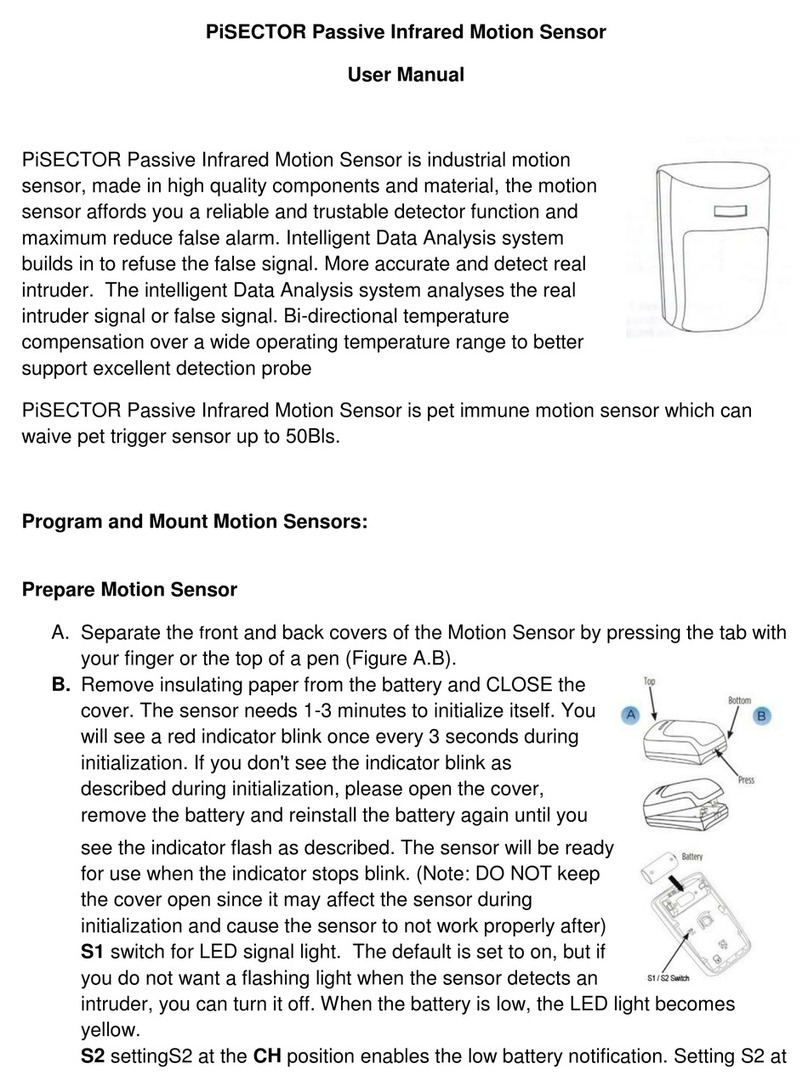
Open the cover and remove the insulated paper, then close the cover.
Place small magnet next to sensor.
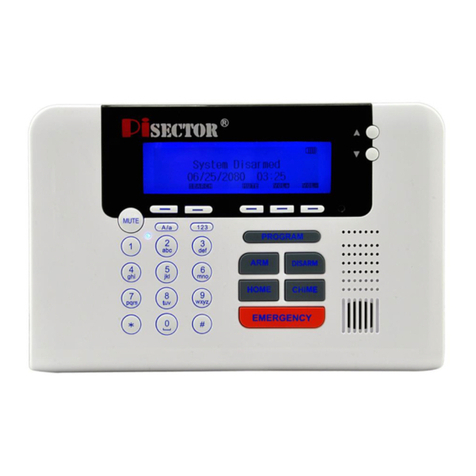
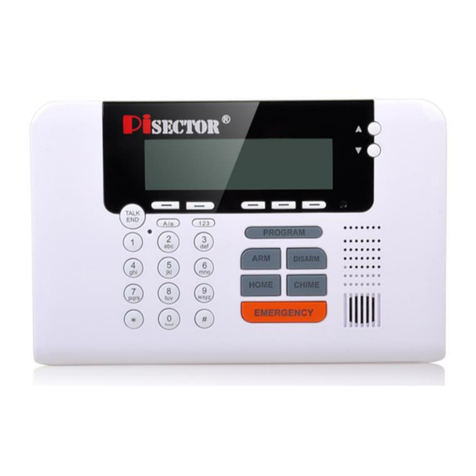
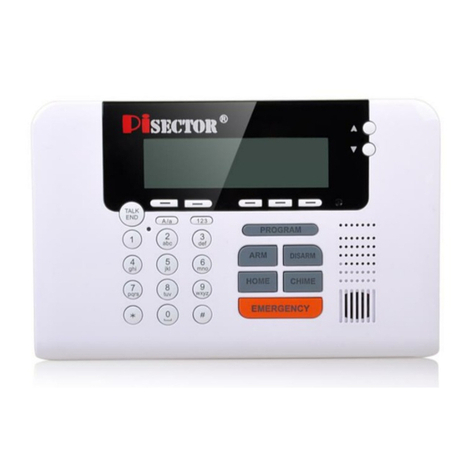
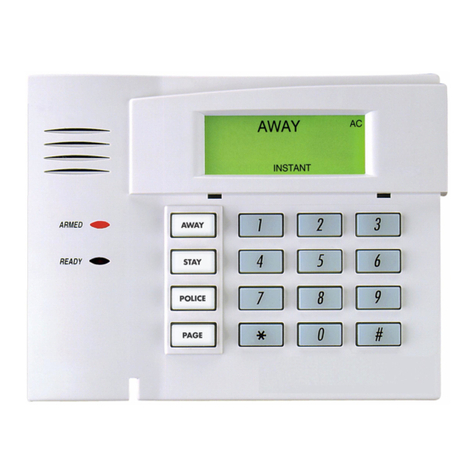
Press PROGRAM button on console, enter the default password 888888. Use Scroll key to choose Sensor then press Enter on
console.
Add Press Enter again, then you will see Trigger Sensor / Code. Trigger your sensor by moving the small magnet away from
the large transmitter. Then console will request you to add a Zone Name for this sensor. Input a name for the sensor, then
press SAVE. You will see Record Sensor Name, press Enter, record your own voice for this sensor. This is what
you will hear when you receive an alarm call. Note: Each time you press Add, follow above steps. You can add from
1 to 50 sensors.
Edit Select it then press Enter, you can use Auto search or Manual search to find your target sensor and highlight it, then
press Enter to Edit Sensor Functions as listed below:
Note: if you don’t know sensor name then choose Auto Search, when you trigger an individual sensor, its name will be
displayed on the console panel. Select the sensor name and press Enter, then you will see the menu display as below:
(MAKE SURE ONLY ONE SENSOR IS TRIGGERED EACH TIME TO AVOID ANY ACCIDENTAL TRIGGERING OF A
DIFFERENT SENSOR. PLEASE KEEP ALL YOUR MOTION SENSORS IN DIFFERENT ROOMS AND MAKE SURE
ALL WINDOW/DOOR SENSORS ARE ATTACHED TO THEIR MAGNET PARTS IN CLOSED STATUS.)
Edit Zone Name:Highlight Edit Zone name, press Enter and you will be able to rename the sensor
Record Zone Name: Highlight it, press Enter, select “Record”, you are able to record 5 seconds of your own voice. If
recording a sensor’s name in your own voice, this is what you will hear to identify that sensor when you receive an
alarm call.
Emergency Zone Highlight it, press Enter, Default is NO, (If you set YES, the zone will be on 24 hours, regardless of your
system’s Arm or Disarm status. This is recommended to be used for smoke detector, panic button, water leak sensor and temperature
sensors only. DO NOT set any door sensor or motion sensor as Emergency Zone.)
Home Zone Highlight it, press Enter, Default is YES, ( if you select NO, the zone will disable during home alarm status,
recommended setting for motion sensor NO, all Window/door sensors YES)
Chime Zone Highlight it, press Enter, Default is NO,( if you set as YES, the zone will alert you with a bell sound during disarm
and home alarm status, use for doors only)
Delayed Zone Highlight it, press Enter, Default is NO, (if set YES, allows you to come back home and open the door without