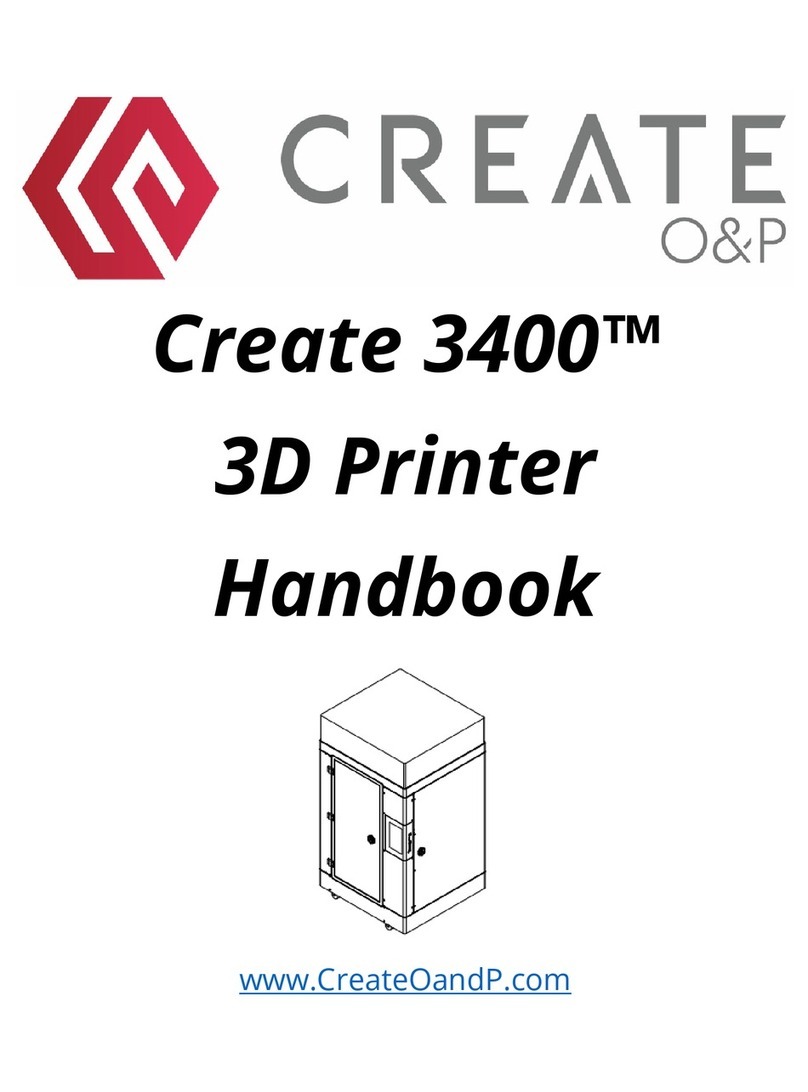
Polaroid PlaySmart User manual

1
User Guide

2
FAQs andTroubleshooting 24
Certications and Compliance 23
Manufacturer’s Guarantee 22
Cleaning and Maintenance 21
Technical Specications 21
Desktop Functions 14
Polaroid SmartPrep Software 13
Installing the Polaroid SmartPrep Software onto your PC 13
Other LCD functionality 11
How to Print 9
Loading and Unloading Filament 8
CONTENTS
Introduction 3
Safety Instructions 4
Box Contents 5
Printer Set Up 6

3
INTRODUCTION
The following User Guide provides you with all of the information you need to
get started printing with your Polaroid PlaySmart 3D Printer.
It will guide you through the simple installation of your printer, starting with
getting it out of the box, right through to each of the fantastic features of the
Polaroid SmartPrep printing software and the easy-to-use touchscreen LCD on
the printer itself.
The Polaroid 3D team hope that you have many happy hours printing with
your new PlaySmart 3D printer, but if you have any questions at all, please
don’t hesitate in contacting the team via polaroid3d.com/contact

4
SAFETY INSTRUCTIONS
Polaroid 3D printers include moving parts, which may
cause injury if interfered with whilst in use. Never reach
into your Polaroid 3D printer whilst it is in use.
Please ensure that the printer is located in an area that is:
• close to the intended power supply and that the socket
is easily accessible
• well ventilated
• clean and dry
• a consistent and stable temperature and humidity
• positioned away from any ammable items
• positioned away from any liquids
• a at and stable surface
Any damage caused by improper use of the printer
or its component and consumable parts, which is in
contradiction with this User Guide becomes the full
responsibility of the user and will void your guarantee.
This printer is not suitable for children. Anyone under
the age of 16 must be supervised by an adult.
Never turn off your Polaroid PlaySmart 3D printer during
printing; please wait until the job has completed and
the print bed and extruder have returned to the Home
Position before turning off the power.
This product is not to be serviced by anyone other than
a Polaroid 3D approved engineer. Any unapproved
servicing may also void your guarantee.
Whilst in operation, the extruder on your Polaroid
PlaySmart 3D printer becomes very hot. Always allow
time for the extruder to cool down before you reach
into the printer for any reason.
WARNING
(Heated surface)
WARNING
(Electrical component)
CAUTION

5
BOX CONTENTS
Polaroid PlaySmart 3D Printer 1x 1kg Polaroid Universal
Premium PLA Filament Power Cable
Heated Print Bed
Quick Start Guide
PTFETube
3 x replacement nozzles
Polaroid Precise Filament
Holder & Scale
SD Card
A B C
D E F
G H I

6
Open the box and remove the top layer of protective foam. Underneath you will
nd the following items:
• Polaroid Precise Filament Holder & Scale
• 1 x 1kg Polaroid Universal Premium PLA Filament
• Power Cable
• PTFETube
• 3 x replacement nozzles
• SD Card
• Polaroid PlaySmart Quick Start Guide
• Polaroid Precise Filament Holder insert
• Polaroid 3D Filaments insert
• 12 Month Guarantee insert
Please lift the items, including the protective foam tray carefully from the box.
Then please remove each of the items from the tray.
TIP: In order to remove the Polaroid Precise Filament Holder & Scale from the
protective foam, please rst remove the Polaroid Universal Filament cartridge
from the Precise Filament Holder & Scale by carefully lifting it directly upwards.
Then gently push the Precise Filament Holder & Scale from underneath where you
will nd a hole in the foam to allow you to do this.
Once you have removed all of the items from the tray, please carefully remove the
PlaySmart 3D Printer from the box.
Please make a note of your serial number (which can be found on the base of your
printer) before placing on a at and stable surface.
Carefully remove the blue tape that is holding the Heated Print Bed in place.
Place the Polaroid Precise Filament Holder & Scale on the at and stable surface to
the right-hand side of your Polaroid PlaySmart 3D Printer and make sure that the
lament cartridge is sat securely on the Polaroid Precise Filament Holder & Scale.
PRINTER SET UP
Please follow the steps below to get your Polaroid PlaySmart 3D printer ready for printing.
Once removed from the box please ensure that your printer is positioned on a at and
stable surface, this helps to minimise vibration and produce more accurate prints.
1
2
3
4
5
6Follow the set-up process for the Polaroid Precise Filament Holder & Scale as
outlined in the User Manual found here:
www.polaroid3d.com/sv/support-polaroid-precise/

7
9
7
8
Set-up your printer by rst attaching the PTFE tube. Place one end into the
printer head and the other end into the extruder.
Connect the power cable to the back of the printer and then to the wall, and
turn on the printer using the power switch (also on the back of the printer).
Be careful not to damage the cables.
Follow the instructions on the LCD screen
to complete set-up:
1. Select your language.
2. Press ‘Start’.
3. Ensure WLAN is turned on (showing
green) and then select a Wi-Fi network
to connect your Polaroid PlaySmart 3D
Printer to (or alternatively skip this step
– you can set-up at any point later).
4. Once connected, click ‘Next’.
5. Download the Polaroid PlaySmart
App to your mobile phone from the
App Store or Google Play Store (or
alternatively skip this step – you can
set-up at any point later).
6. Select ‘Next’ once installed.
7. Check for rmware updates and
ensure that you have the latest version
installed.
8. Click ‘Finish’ to complete the set-up
process.
Insert
Insert
PTFE Tube PTFE Tube
Printer
Extruder
Deutsch
German
French
English
English
Nederlands
Duth
Esp
Spanish
Italiano
Italian

8
Firstly, ensure that the Polaroid Precise
Filament Holder & Scale is positioned next
to the printer on the right hand side, and
with the lament cartridge securely in place.
Find the end of the lament on the reel and
cut the tip at an angle .
While keeping the lament straight, slightly
squeeze the levers on the side of the extruder
together and slide the lament up from the
bottom until approximately 2cm is visible in
the PTFE tube.
Press ‘Filament’ and then ‘Load’ on the LCD screen. Once the target temperatures
are reached the lament will automatically be pulled through the PTFE tube into
the extruder. (You can cancel this process whilst the target temperatures are being
reached by pressing the ‘X’ on the LCD screen). You should see the lament appear
from the extruder, if you do not, please press the ‘10mm more’ button. Continue
until lament is extruded from the nozzle. If changing a cartridge (as opposed to
installing for the rst time) please ensure that the previous colour or lament is
completely extruded and the new lament is owing freely before completing the
process. Complete the process by pressing ‘Conrm’ on the LCD.
NOTE: If lament is not owing freely from the nozzle at this point, please press
‘Conrm’ and then ‘Unload’ to uninstall the lament. Please completely remove
the lament from the printer, cut off the end of the lament again at an angle and
then re-insert. Follow the installation process again and this time you should see the
lament extruding correctly. If this is not the case please contact our support team
at polaroid3d.com/contact for further advice.
To unload lament, please select ‘Filament’ from the home screen on the LCD
followed by ‘Unload’. Once the target temperatures have been reached the lament
will automatically unload. Once completed, please click ‘Finish’ and remove the
lament from the printer by squeezing the levers on the side of the extruder and
gently pulling the lament from the bottom.
NOTE: Part-used cartridges should be stored in a cool and dry environment whilst
not in use.
LOADING AND UNLOADING FILAMENT
Before you can print you must install a lament cartridge.
In order to do this you must either use the menu on the touchscreen LCD (on the front of
the printer), or the Polaroid PlaySmart mobile App (which can be downloaded from the App
Store or Google Play).
When using the LCD screen on the printer, please follow the process below:
1
3
4
5
2

9
There are two different ways in which you can print via your Polaroid PlaySmart 3D Printer;
either via the LCD screen or via the Polaroid PlaySmart Mobile App.
NOTE: You must rst have the le of your model that has been sliced and is ready for
printing. For instructions on how to do this, please see below:
‘Polaroid SmartPrep Software’.
1. Ensure your model is saved to either SD card or USB and then insert into the corresponding
slot on the front of the printer.
2. Select ‘New Print’ from the top left corner of the LCD screen.
3. Next, select SD card or USB depending on where your le is saved.
4. Select the model that you wish to print.
5. Select ‘Conrm’ to verify you have selected the correct model and wish to start printing.
6. The printer will then begin automatically. The print bed will rise towards the top of the
printer and the print head will position itself in its home position (towards the front left
corner of the printer). The nozzle and bed temperature will then start to increase and
printing will begin once the target temperatures have been reached. NOTE: This may
take a few minutes so please be patient; you can watch the progress of the temperatures
via the LCD screen.
NOTE: You can monitor the progress of your print via the green progress bar at the top of
the screen which shows the percentage (%) of printing that has passed and the remaining
time in minutes and seconds.
NOTE: Before printing via the Mobile App you must rst pair your
printer with your phone. To do this, press the menu button in the
top left corner of the screen in the App and choose ‘Select a printer’. Any
previously paired printers will appear here. To add a new printer, click
the ‘+ Add printer’ button at the bottom. You will be asked for your serial
number or to scan the QR Code which can be found via the LCD screen on
the printer, under ‘Settings’ and ‘Pair the Printer’. When completed please
click ‘Conrm’ to complete the process.
Your Wi-Fi must be turned on and connected for the pairing to complete.
Please do so by selecting ‘WLAN’ from ‘Settings’ on the home screen of
your printer LCD and then selecting your network.
After following the process above, please follow the steps below to print
via the Mobile App:
1. Whilst in the ‘Workspace’ screen on your mobile, select ‘New Print’
from the top left-hand corner.
2. You can then choose a model from the SD Card, USB or Mobile Library.
Selecting SD Card or USB will show the models available on those
devices if installed. Selecting Model Library will open up our online
catalogue of models to choose from.
HOW TO PRINT
1
2
Printing via the LCD screen
Printing via the Polaroid PlaySmart Mobile App

10
OTHER LCD FUNCTIONALITY
From the Home Screen of the LCD you have several options.
Whilst on the ‘Filament’ screen you have the option of
Loading and Unloading your lament which have been
detailed above along with the New Print functionality and
the print progress bar.
Next to ‘Filament’ you have the ‘Axis’ button (bottom left
of the screen). Selecting this will bring up the ability for
you to manually move the printhead across the X or Y axis
and also the Heated Print Bed across the Z axis. Depending
which Axis is selected on the illustration in the middle
circle will depend which of these arrows will move, and
in which direction. To switch between the different axes,
simply tap the circle. You will see image in the middle of
the circle change as well as the arrows to the left-hand
side. By selecting one of the arrows you will see the Print
Head or Heated Print Bed move in the selected direction.
The default distance for each movement is 5mm; you can
change this to 10mm by clicking the small circle on the
right-hand side that says ‘5mm’.
The button in the bottom right-hand corner of the screen
returns the Print Head and Heated Print Bed to their ‘Home’
positions, which are the Print Head in the front, left-hand
corner and the Heated Print Bed to the bottom of the printer.
The top half of the LCD screen shows the current nozzle and
bed temperatures. These values will change depending on
the current operation. NOTE: These remain on screen on
both the ‘Axis’ and ‘Filament’ screens.
Other elements of the Home Screen include:
Camera: You can take a photograph or video of your prints.
From here you can also access the history of your prints,
as well as an album of any previous videos that have been
created.
Lights On/Off: This button allows you to switch on or off the
LCD lights around the inside of the printer.
Settings: Within the ‘Settings’ screen you have the following
sub-categories:
• WLAN: This identies the available Wi-Fi networks and
allows you to connect to your chosen one. The ‘Refresh’ button
in the bottom right-hand corner allows you to refresh the list
of available networks if yours isn’t visible.
Axis Filament
10mm
Switch Axis
X
Axis Filament
10mm
Switch Axis
X
Axis Filament
10mm
Switch Axis
X
200℃ 60℃
Printing
Spool_Holder_5mm
Camera Settings
50%
03:34:56
Lights ON
Axis Filament
CancelPause
10mm
Target
Tap √
to
confirm
210℃
New Print
Other manuals for PlaySmart
1
Table of contents
Other Polaroid 3D Printer manuals
Popular 3D Printer manuals by other brands


3DGence
3DGence INDUSTRY F340 user manual
HP
HP Jet Fusion 4200 Product Documentation Site Preparation Guide
Rokit
Rokit AEP Series user manual

Ackuretta
Ackuretta FreeShape 120 user manual
DIYElectronics
DIYElectronics PRUSA I3 ELECTRONICS AND SOFTWARE GUIDE
Ultimaker
Ultimaker S5 Material Station installation guide